 Search Tips
AI & Analytics - Getting Started with Task Agents
NOTE: The first set of AI Task Agents are being released in Nexus 01.
Overview
CMiC's AI Task Agent is a smart, conversational tool designed to help you interact with the system more efficiently, just by using plain language. It's like having a built-in assistant that can automate complex tasks and guide you through actions such as creating new records, simply by asking for what you need.
Currently, AI Task Agents are available across the software, where they can answer questions, complete tasks, and suggest next steps.
Whether you are new to CMiC or a seasoned user, the AI Task Agent is designed to support you. New users can get started quickly by creating records with ease. Experienced users can boost productivity by streamlining routine tasks.
Before you can get started using this powerful feature, ensure you have completed the security requirements. To learn more, refer to AI & Analytics - Security.
Accessing AI Agents
Accessing AI Agents
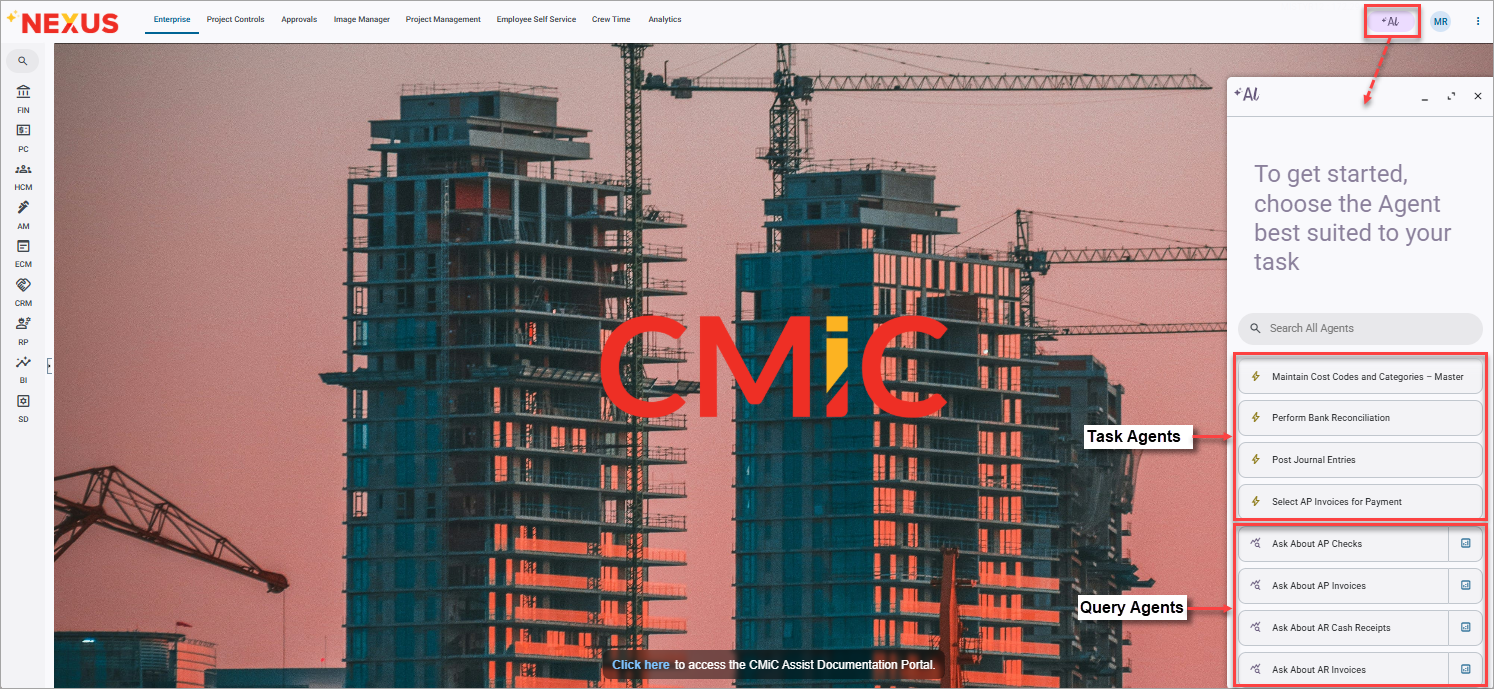
Press the [Al] button on the Nexus console to open the AI sidesheet, as shown above. The agents displayed in the sidesheet depend on the screen from which it is launched. By default, it shows only the AI agents relevant to the screen you are currently using. You can search for and access all available agents at any time without navigating away from your current screen.
Currently, there are two types of agents:
-
Task Agents (
 ): These agents perform actions or complete tasks for you, automating steps that would otherwise be done manually. They are identified by a lightning bolt icon.
 -
Query Agents (
 ): These agents answer questions and provide information. They are identified by a small lightning bolt combined with a magnifying glass.
Task Agents
Below is a list of available AI Task Agents, each accompanied by a quick-start guide to help you get up and running.
Query Agents
Query Agents
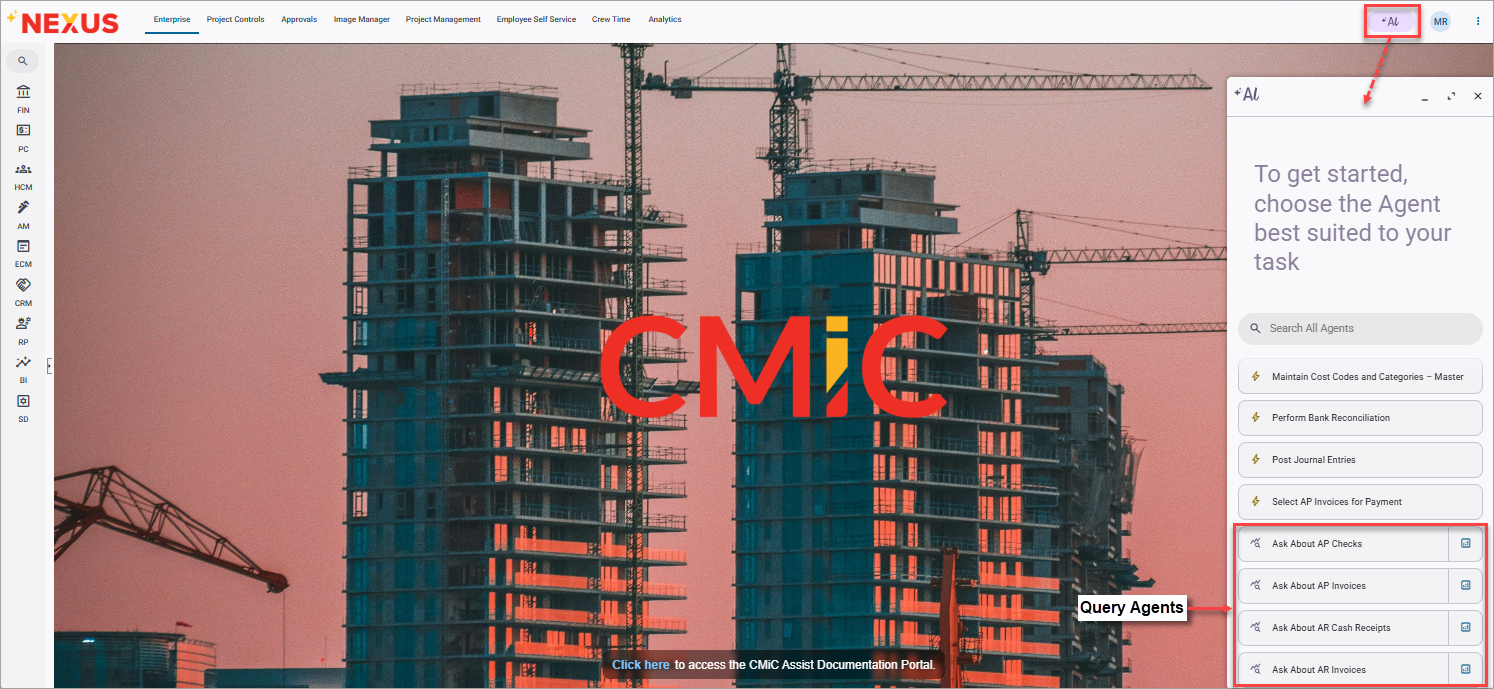
Query Agents give users a simple, structured way to ask questions about their data without building their own reports. Easily identified by the “Ask About” prefix, each query agent is tied to a specific dataset, keeping questions focused and results relevant. This approach allows users to get fast, accurate insights while maintaining flexibility over which data Al references.
Using a Query Agent
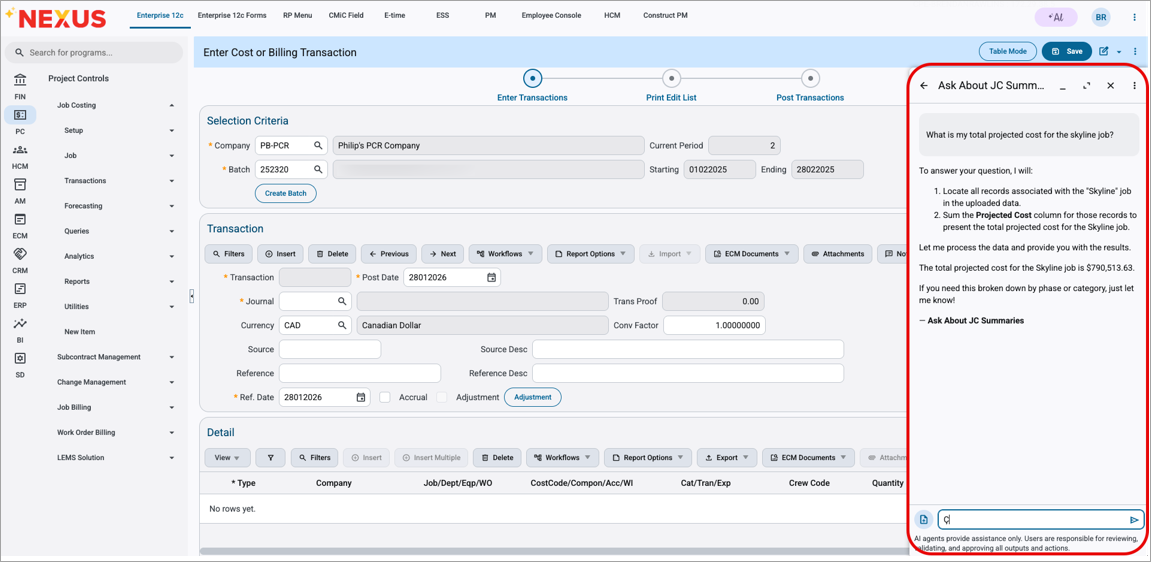
When you open a Query Agent, you can ask any question related to that specific dataset, and Al will return an answer based on the underlying data.
Each agent also includes an Analytics button ( ) , allowing users to open the complete, detailed dataset for deeper exploration. All standard datasets are available in a default canvas called CMiC Standard Datasets, which users can modify as needed.
Customizing AI Agents
CMiC AI Agents can be tailored to both your organization and individual users, making them highly flexible and relevant to everyday use. By allowing agents to follow company-specific guidelines and personal preferences, responses and actions become more accurate, consistent, and aligned with how your business operates. This level of customization ensures agents adapt to you, not the other way around.
Each agent includes business instructions and user instructions that can be configured under Settings.
Settings
Customizing AI Agents
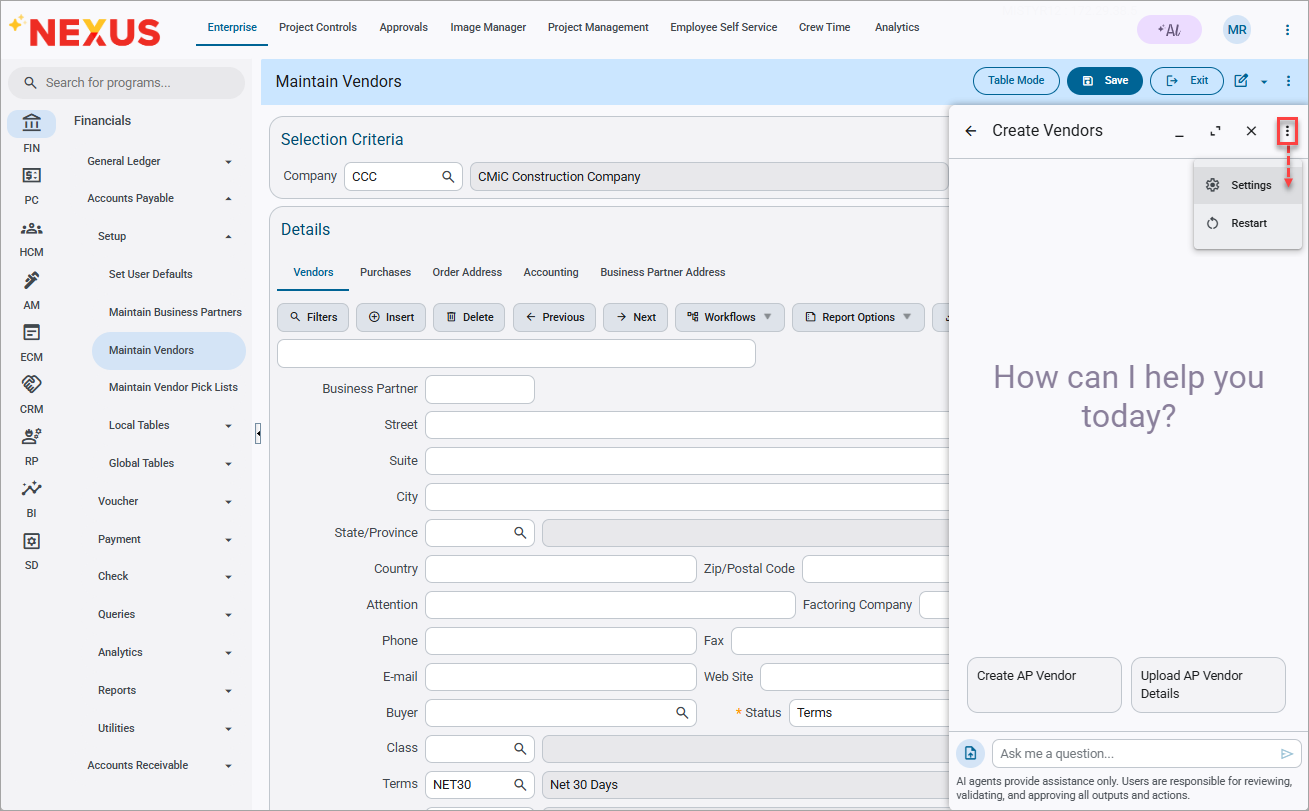
Once an agent is open in the sidesheet (e.g., Create Vendors), click the AI Agent Menu icon ( ) and select the "Settings" option in the drop-down menu.
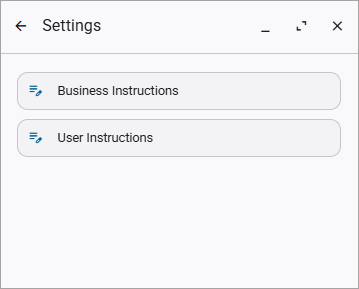
Customizing AI Agents at the company and user level
Business instructions define company-wide behavior and can be updated to reflect unique processes or standards. User instructions allow individuals to further tailor an agent’s behavior to their own needs, making each agent both powerful and personal.
Business Instructions
Business instructions define the specific rules an AI Agent should follow when handling user requests. These instructions help tailor the agent’s behavior to meet different business needs. CMiC-created agents come with default, generic business instructions that work across all customers. However, customers can customize these instructions or create entirely new ones to better align with their own business needs.
To update the business instructions, users must have the following system privilege: "AIUPDBSINS – CMiC AI: Allows the user to modify Business Instructions". The [Business Instructions] button is only visible to users that have the system privilege assigned. For more details, refer to AI & Analytics - Security for more information.
NOTE: Changes to business instructions affect all users. To maintain consistency and control, access to this privilege should be restricted to experienced administrators only.
To modify the business instructions of a specific AI Agent click on the [Business Instructions] button.
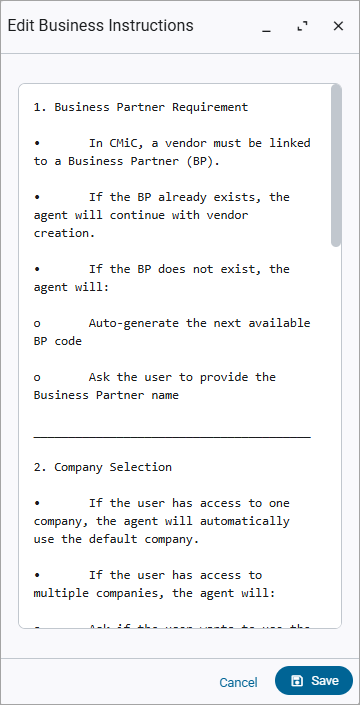
Editing business instructions
Modify the existing business instructions or create your own and click [Save].
Example: Default vs. Custom Instructions
Default Instructions:
If the user has access to one company, the agent will automatically use the default company.
If the user has access to multiple companies, the agent will:
Ask if the user wants to use the default company.
If not, prompt the user to select a company.
Customized Instructions:
A customer may prefer the agent to always use a specific company.
For example:
“Always use the company code ‘KN’ unless the user specifies another.”
This flexibility allows organizations to fine-tune how AI Agents behave, ensuring they align with internal processes and preferences.
Restoring CMiC Default Business Instructions
To revert to the default business instructions provided by CMiC, delete all text from the Business Instructions field. The field should be completely empty.
Click [Save]. This action will automatically restore the original CMiC-provided business instructions.
To verify, reopen the Business Instructions window. You should now see the default instructions populated in the text field.
User Instructions
All users can customize how an AI Agent behaves by providing their own user instructions.
These instructions are unique to each user, meaning they only apply to the person who sets them. No special system privileges are needed, as this feature is available to everyone.
It’s a simple way to tailor the AI Agent to better match your preferences and working style.