 Search Tips
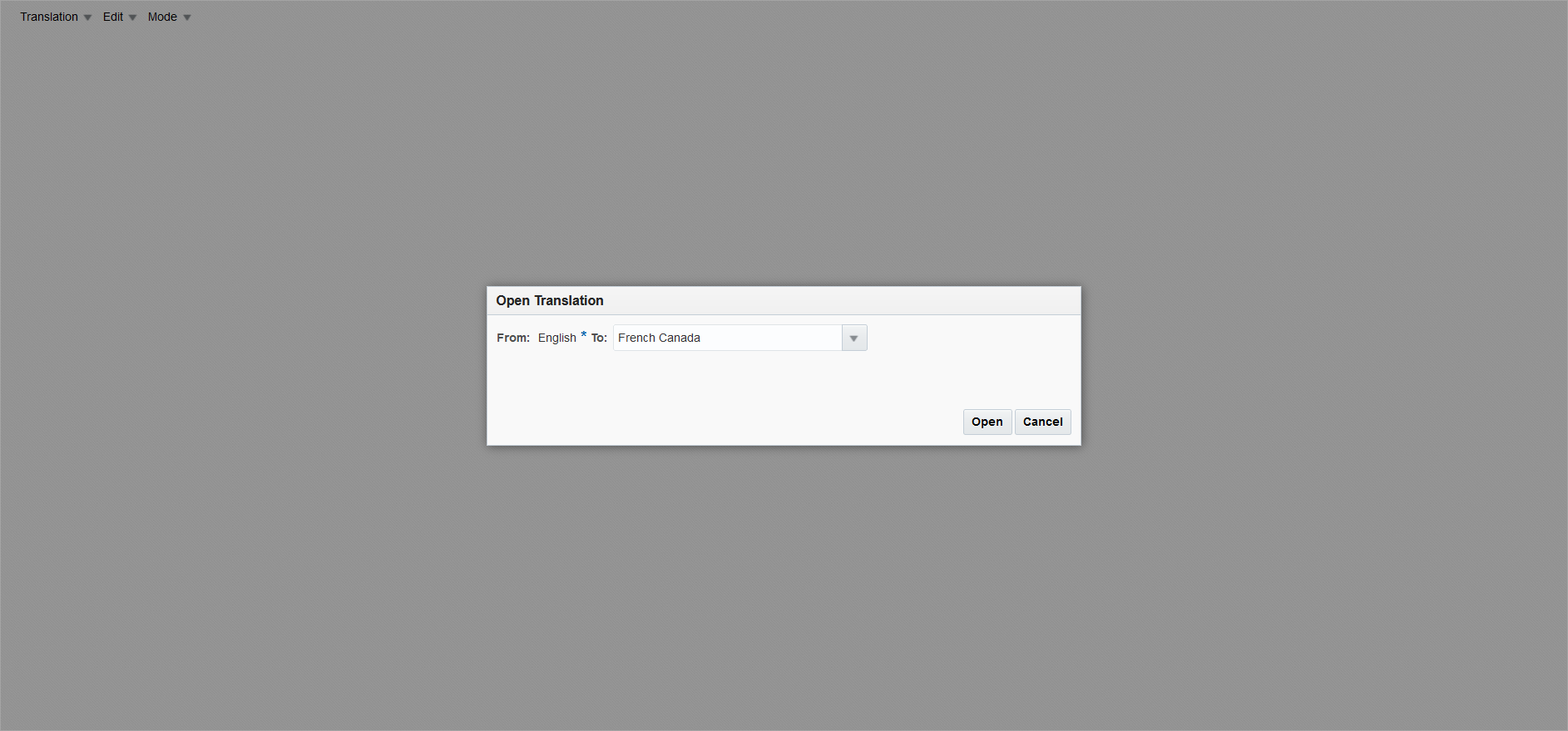
The Message Mode is used to translate system messages from English to another language. It can be accessed by selecting the Mode drop-down menu and selecting the "Message Mode" option. Next, click on the Translation drop-down menu and select the "Open" option. The Open Translation pop-up window, shown in the above screenshot, will display to allow the user to select a language to translate to. Click the [Open] button to bring up a list of messages that can be translated, as shown in the screenshot below.
Similar to JSP Mode, Message Mode doesn't use the dictionaries. Messages and JSP texts are mostly unique and rarely repeated as opposed to program elements which often have the same prompt. Therefore, once a message has been translated, they are immediately ready to be installed.
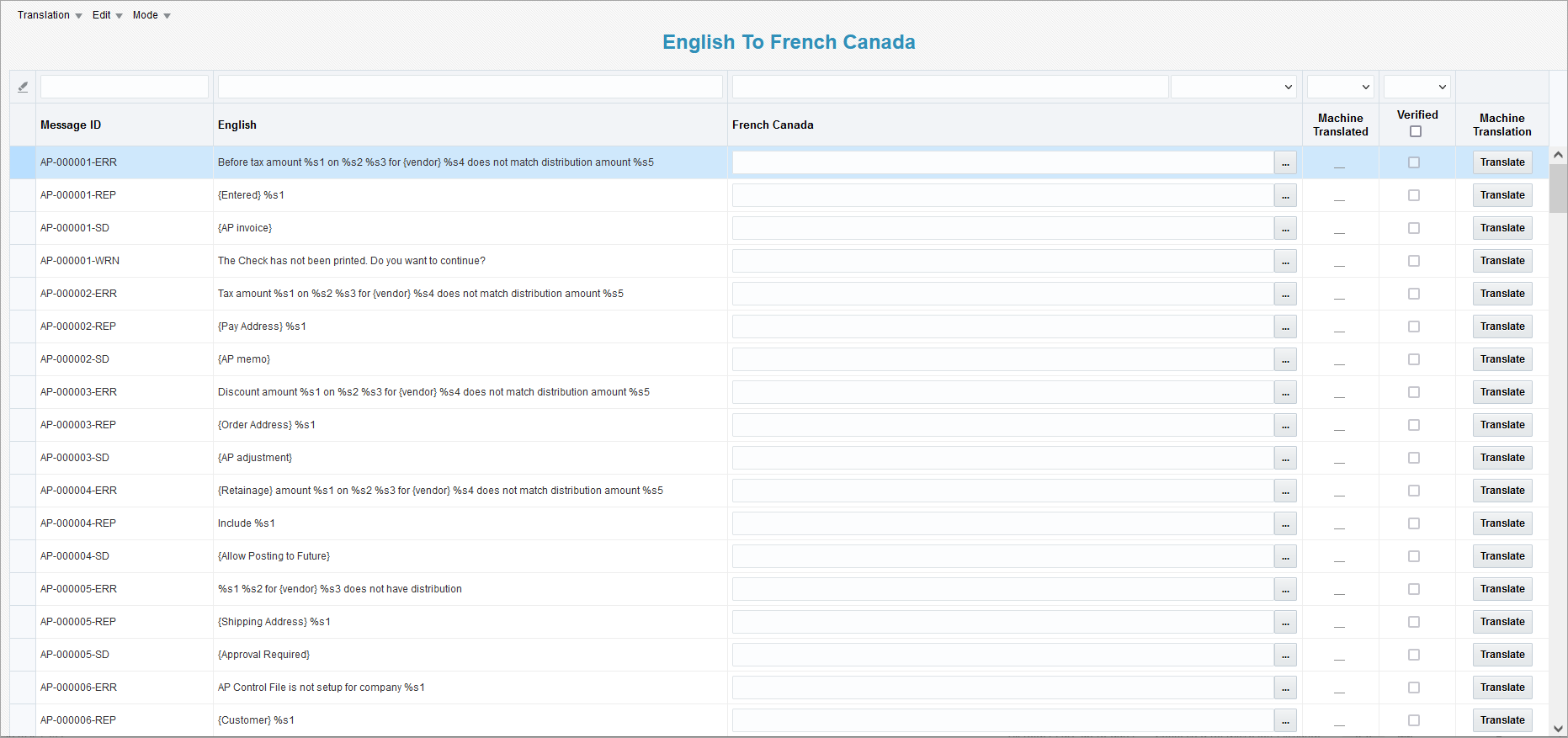
The following describes the available fields on this screen.
Filter Row
The filter row allows users to filter through the list based on the contents of the Message ID, the English message, or the translated message, whether to show only the untranslated or translated messages, whether or not the message was machine translated, and whether or not the translation has been verified.
The "%" and "_" wildcard characters can be used to represent any string of characters and any single character respectively, when searching for a pattern amongst the corresponding fields. For more details, please see the Wildcard - Pattern Matching section of Getting Started - Searches, Table Filters & Sorts in the Getting Started guide.
The  icon clears all filters.
Message ID, English
The Message ID and English columns are display only and show the message's ID and English text.
Name of Translated Language
This column will display the name of the selected language that the English text will be translated to, such as "French". Users can manually enter the translation for the associated English term within the text box or use the [Translate] button to automatically translate the term.
Machine Translated
This field will display a checkmark to indicate that the text is machine translated. No checkmark means that the text was manually translated.
Verified – Checkbox
Users must manually review the accuracy of a translation and check the 'Verified' box to indicate that the translation has been confirmed to be correct. To mark all terms on the current page as verified, click the 'Verified' checkbox located in the column header.
Alternatively, users can click on the Edit drop-down menu and select the "Verification" option to open the Verification pop-up window. See the Verification section of Translation Manager - Edit Menu and Translation Manager - Verified - Checkbox for further details.
Machine Translation
NOTE: This column is only visible if Google Translate has been enabled.
Use the [Translate] button to automatically translate the English text for the associated message to the chosen language using Google Translate.
Alternatively, users can click on the Edit drop-down menu and select the "Translate Dictionary" option to open the Translate Dictionary pop-up window and automatically translate all terms. See the Translate... section of Translation Manager - Edit Menu for further details.
[...] – Button
If the original text is a multiline text, users can click on this button to open the Edit Translation pop-up window and enter/modify the multiline text.