 Search Tips
Part 1: Plotting Fields
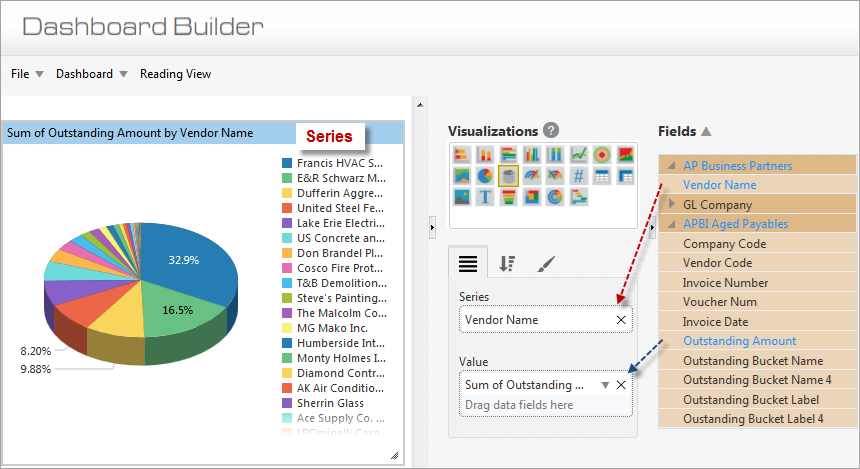
Example of Pie Chart (3D) Visualization
Series
For the aggregate value displayed by the Value plotting field (e.g., Sum of Outstanding Amount in above screenshot), its component values (i.e., Series) are grouped by the field dragged into this plotting field, and they are graphically displayed by pie slices.
Value
Result of inputting dragged in field into aggregate function defaulted or selected via this plotting field’s down-arrow ( ).
).
Part 2: Sort & Filter
For details about sorting the Series items, please refer to Sort and Filter – Tab.
Part 3: Format
Title
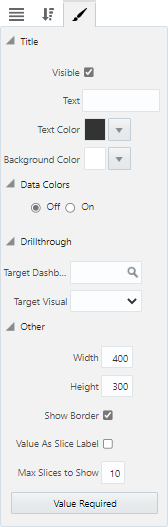
Visible – Checkbox: Used to show/hide the title.
Text: Used to set the title for the visualization, which is displayed along its header.
Text Color : Used to set the text color of the visualization's title.
Background Color: Used to set the background color of the title.
Data Colors
Off/On: Used to turn the Data Colors property on and off. Selecting the 'On' radio button launches a pop-up window where colors can be specified for each data series in the visual. Users can choose between a Basic and Advanced color editor. Refer to BI Dashboard Builder - Color Controls for Visualizations for more information on how this property is used.
Drillthrough
Target Dashboard: Specifies a drillthrough target to a dashboard.
Target Visual: Specifies a drillthrough target to specific visual on a dashboard (when a target dashboard has been selected in the Target Dashboard field above).
Other
Width: Shows the width of the visualization (editable to allow the user to adjust width).
Height: Shows the height of the visualization (editable to allow the user to adjust height).
Show Border – Checkbox: Check to apply border to visualization.
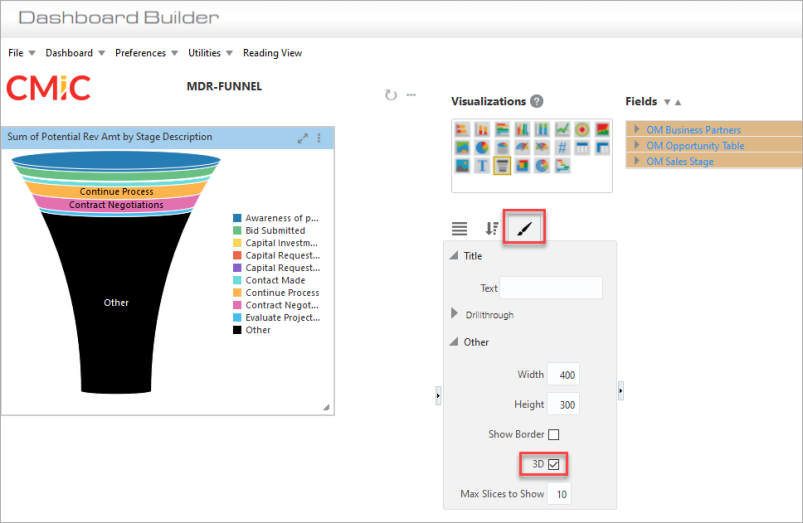
3D – Checkbox: Check to apply a 3D effect. This property only applies to funnel charts.
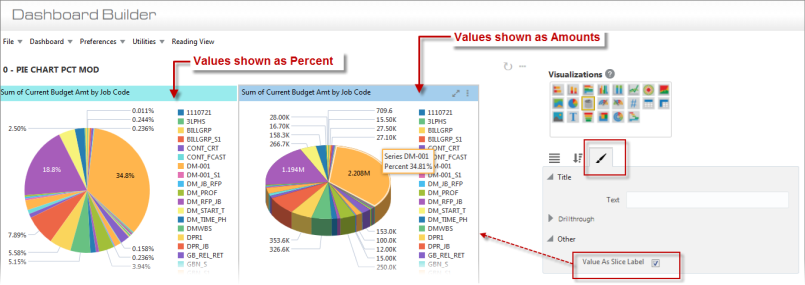
Value As Slice Label – Checkbox: Specifies whether labels on Pie Chart slices show values as a percent or as an amount. If unchecked, values will be shown as a percent, and amounts will appear in a pop-up label when the user hovers over a slice of the pie chart. If checked, values will be shown as amounts, and percent will appear in a pop-up label when the user hovers over a slice of the pie chart.
Max Slices to Show: Sets the maximum number of slices to show in the visualization.
[Value Required] - Button
This button is used to launch the Value Required pop-up window, where available dashboard filters/substitution variables are listed. Refer to Value Required for more information.