 Search Tips
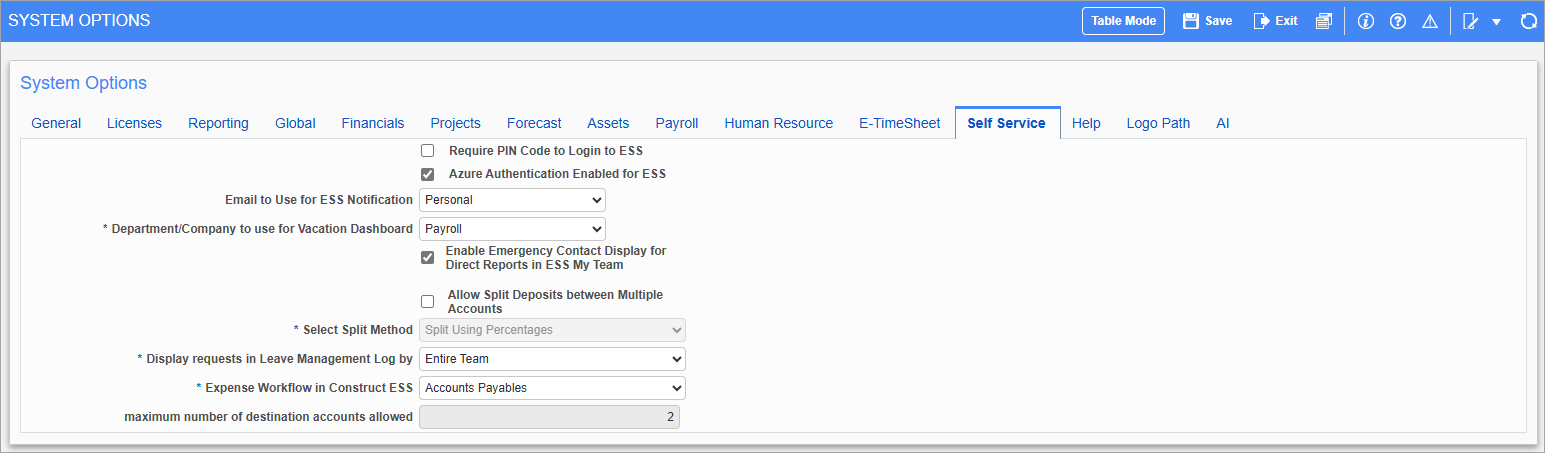
Pgm: SYSOPT – System Options; standard Treeview path: System > Setup > System Options – Self Service tab
This tab is used to control various features in the Employee Self Service module.
Require PIN Code to Login to ESS - Checkbox
Users with this box checked, users will be required to enter a pin code before logging into ESS. Checking this box will send an email to the employee containing the PIN code.
Azure Authentication Enabled for ESS - Checkbox
Check this box to enable Azure Authentication for the Employee Self Service module.
Email to Use for ESS Notification
This field is a default email setting for ESS system notifications. Options available are “Personal” or “Work Email”. Depending on the setting, ESS system notifications will be sent to that specific email address, which is defined on
Department/Company to use for Vacation Dashboard
The selection made here is used to determine how the Company and Department fields will filter in the ESS Leave Dashboard. Selections available are "Home" and "Payroll". Depending on the selection made here at the system level, the fields in the ESS Leave Dashboard will filter by Payroll Company/Department or Home Company/Department.
Cloud Launch Page ESS Selection
Select whether to access the classic CMiC ESS app, the Construct ESS app, or both applications directly from the Cloud Launch page. For more information, please refer to System Administration - CMiC Cloud Application Selector.
NOTE: This field is hidden by default and is only available for Cloud users.
Enable Emergency Contact Display for Direct Reports in ESS My Team – Checkbox
Check this box to allow direct reports to view emergency contact details in the Construct ESS My Team screen. Only active emergency contacts will be displayed (i.e., contacts with an active status in the Relatives screen in Enterprise). For more information, please refer to Construct ESS - My Team.
Allow Split Deposits between Multiple Accounts – Checkbox
Check this box to allow split employee deposits between multiple accounts so that employees can allocate their pay to different accounts according to their preferences (dollar values or percentages). By default, this box is unchecked.
Select Split Method
Select whether to split deposits using percentages (default method), using dollar values, or by both methods. This field is enabled when the 'Allow Split Deposits between Multiple Accounts' box is checked.
Display requests in Leave Management Log by
Select whether to display the following reports in the Construct ESS Leave Management log:
-
Direct Reports Only: The log will display requests from the direct reports only.
-
Direct Reports + 1 Level Down: The log will display requests from direct reports and one level down, indirect reports.
-
Entire Team: The log will display requests from all team members up to the last hierarchical level.
Expense Workflow in Construct ESS
Select whether to set the default expense workflow fields in the Expense app to "Accounts Payable" (for users who route expenses via the AP module) or "Payroll" (for users who route expenses via the Payroll module).
Maximum Number of Destination Accounts Allowed
Enter the maximum number of destination accounts allowed when splitting employee deposits. This field is enabled when the 'Allow Split Deposits between Multiple Accounts' box is checked.