 Search Tips
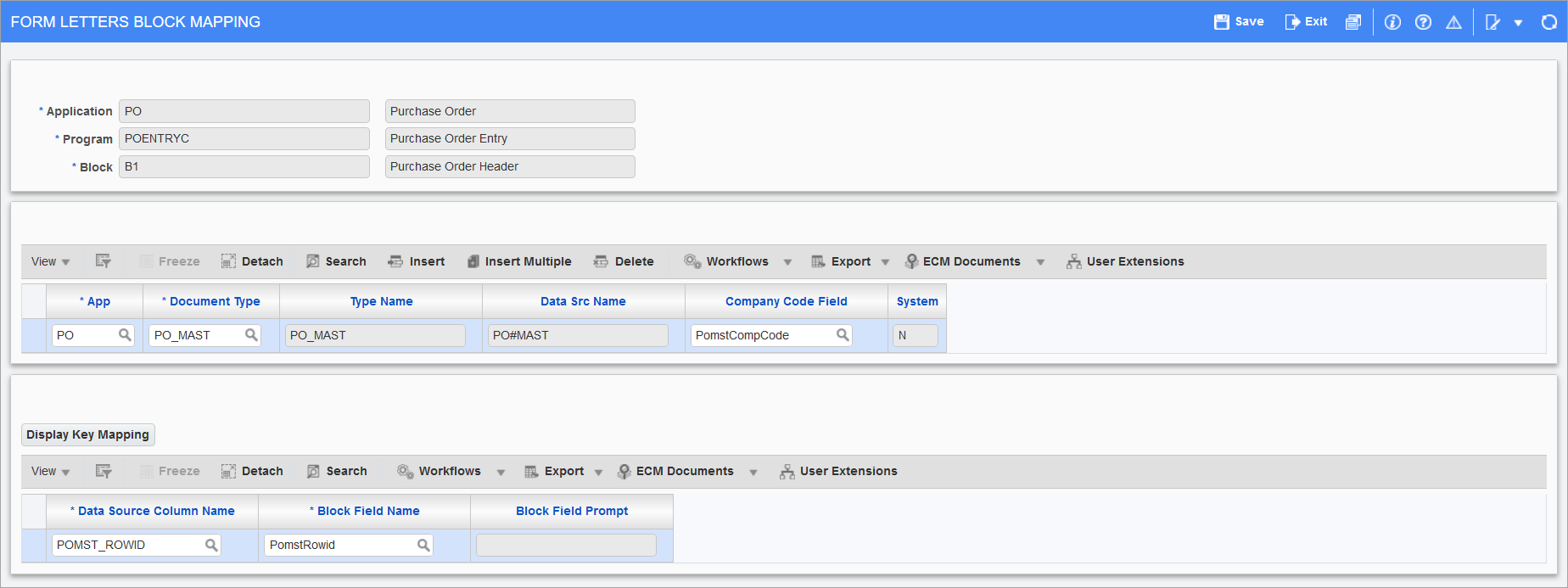
Pgm: SYSDFBLK - Form Letters Block Mapping; Launched from the Report Options button on certain screen's Block Toolbar and selecting "Assign Form Letters"
The Form Letters Block Mapping screen is used to assign form letters in screens that have the [Report Options] button available in the Block Toolbar (e.g. User Maintenance screen, Enter Vouchers screen, etc.), as shown in the example below.

By default, clicking the [Report Options] button will open the "Print Form Letters" option where users can select a form letter report to print. See System Data - Form Letters Print Report Selection for further details.
To access the Form Letters Block Mapping screen, click the Triangle icon ( ) to the right of the [Report Options] button and select the "Assign Form Letters" option.
The first section of the screen lists the Application, Program, and Block that the [Report Options] button was accessed. The second section of the screen is where users specify the form letter type, as well as the Company Code Field. The third section lists the key fields for the selected document type that will be used for mapping with the UIRuntime Program.
The following details the editable fields on this screen.
App
Enter/select the application code for the document type.
Document Type
Enter/select a document type code from the Document Type LOV.
Company Code Field
Enter/select the name of the field that holds the company code. The company logo on the report depends on the value of the field selected here.
[Display Key Mapping] – Button
Click this button to display the key fields for the selected document type. If no keys are displayed, it indicates that the document type has not been identified with the key fields needed for mapping with the UIRuntime program.
For further details on how to map form letter definitions to UIRuntime programs and print reports, see System Data - Mapping Form Letter Definitions to UIRuntime Programs.