 Search Tips
The following describes the fields on the Opportunity Management section of the Opportunity Management screen.
Company
Company to which the user who created this opportunity belongs. When a user creates an opportunity, the company associated to the user’s user ID is automatically filled in, for this field.
Controlling BP
Controlling parent company of company providing this opportunity.
Org/BP Name
Name of organization (business partner) providing this opportunity.
Org/BP Addr
Address of organization (business partner) providing this opportunity.
Opportunity Name
Name to identify this opportunity record.
Opportunity Code
Code to identify this opportunity record. If the ‘Automatic Opportunity Numbering’ checkbox is set, with a specified prefix, this code is automatically generated. If not, enter a code. The checkbox is located on the OM Control File screen.
Include In Forecast – Checkbox
Indicates whether or not to include this opportunity in the sales forecast reports of the OM module. It is also used as a parameter for various OM reports.
[Import] – Block Toolbar Button
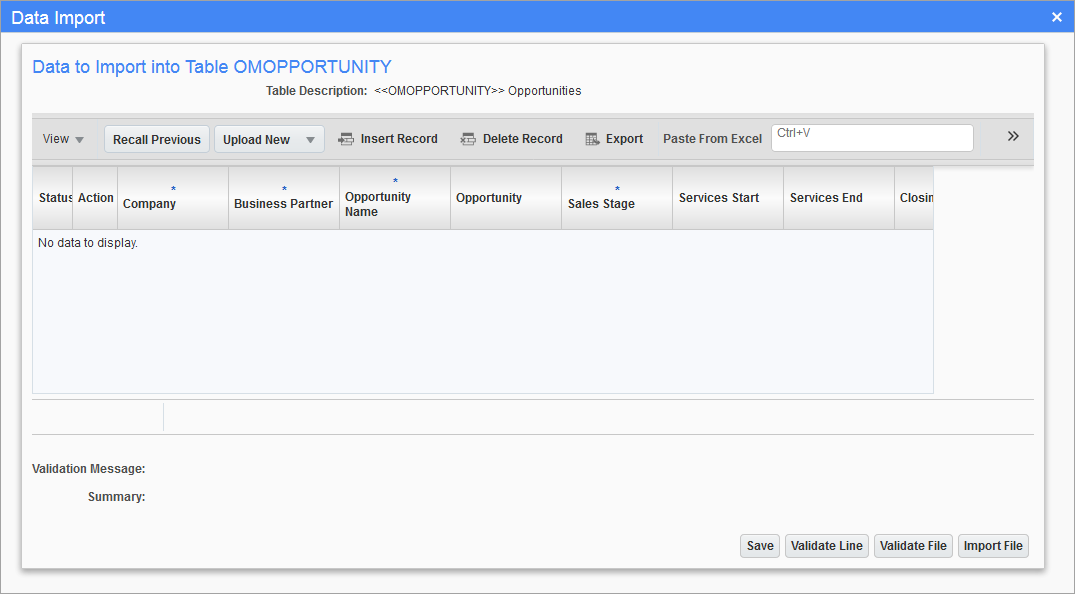
Import pop-up window
The  button on this section’s Block Toolbar is used to import opportunities from a spreadsheet.
Create Template
To create a template, click the [Upload New] button’s down-arrow ( ), and select Download CSV Template.
Import Opportunities
There are two ways to import opportunities:
-
Copy desired opportunities to import from an open spreadsheet (standard copy functionality, i.e. Ctrl + C keyboard keys), without copying the column headers, and paste the data into the Paste From Excel field of the Import pop-up window.
-
Click the [Upload New] button (not the down-arrow), and in the pop-up window, click [Browse…] to search for and select the CSV file with the opportunities to import.
[History] – Button
Each time an opportunity record is changed and saved, the previous version of the record gets saved. This button brings up the Opportunity History screen, which lists the records for this opportunity, as they were before being changed.
[Data Sheet] – Button
An opportunity’s data sheet is used to keep additional, user defined information about an opportunity, which can include information about an opportunity’s associated bid job, job, and project. The data sheet is composed of user defined groups (sections), and these groups contain user defined fields.
For instance, there could be a section to track project attributes. This section can be broken down by industry type, and each type could contain industry specific attributes. More specifically, sections can be used for educational, commercial, and medical industry types, which contain project attributes specific to the industry types.
Furthermore, the groups and fields on an opportunity’s data sheet can be made available or unavailable, depending on the opportunity’s data fields and on user defined conditions. For instance, the Opportunity data sheet can be configured so that an opportunity that has its Market Sector field set to “Commercial” will only have industry-specific sections on its data sheet that are relevant to the commercial type.
For instructions on setting up the data sheet for opportunity objects (records), please refer to Data Sheet Setup.
[Proposal] – Button
This button launches the Proposal Workspace screen. For details, please refer to Proposal Workspace.
[Copy From] – Button
This button is only displayed when creating a new Opportunity record. For details, please refer to Option 1: Create New Opportunity through Opportunity Screen.