 Search Tips
The Submittal Maintenance screen can be accessed through the Settings icon ( ) or directly via URL (../construct-pm/submittalsv2/maintenance).
NOTE: The privilege 'Submittals
NOTE: The Submittals Maintenance screen was released in Patch V12-21.
Overview
The Submittal Maintenance screen can be accessed through the Settings icon () or directly via URL (../construct-pm/submittalsv2/maintenance).
NOTE: The privilege 'Submittals – Admin' is required to access and update this screen. For more information, please refer to Construct PM - Security.
General Settings
General Settings launched from Submittals log screen
The General Settings screen allows users to set controls for the LOV options for the specification fields in Submittal records and set schedule options for due dates and projection dates. These settings are maintained at the system level.
Specifications
Spec Section, Spec Sub Section
Select one of the following options for the Spec Station/Spec Sub Section fields on the Submittals Details tab:
-
CSI Codes Only: Users will only be able to select from an LOV of existing CSI codes.
-
Project Codes Only: Users will only be able to select from an LOV of existing project codes.
-
Both – Default to Project Codes: Users can select from either the CSI Codes LOV or the Project Codes LOV. The Select Spec Station/Spec Sub Section pop-up will open to the Project Codes LOV by default.
-
Both – Default to CSI Codes: Users can select from either the CSI Codes LOV or the Project Codes LOV. The Select Spec Station/Spec Sub Section pop-up will open to the CSI Codes LOV by default.
Users can also add a new project-level code via the [Add New Code] button at the bottom of the Project Codes LOV.
CSI codes are maintained in the CSI Code Maintenance screen (standard Treeview path: CMiC Field > File Maintenance > Local Tables > CSI Code Maintenance).
Schedule
Calculate due dates and projection dates based on – Radio Buttons
Select whether to calculate due dates and projection dates based on working days or calendar days. This determines the default for new submittals.
Select Default Lead Times for
Select the default lead times (in days) for the coordination, fabrication, delivery, and reviewers.
Submittal Type
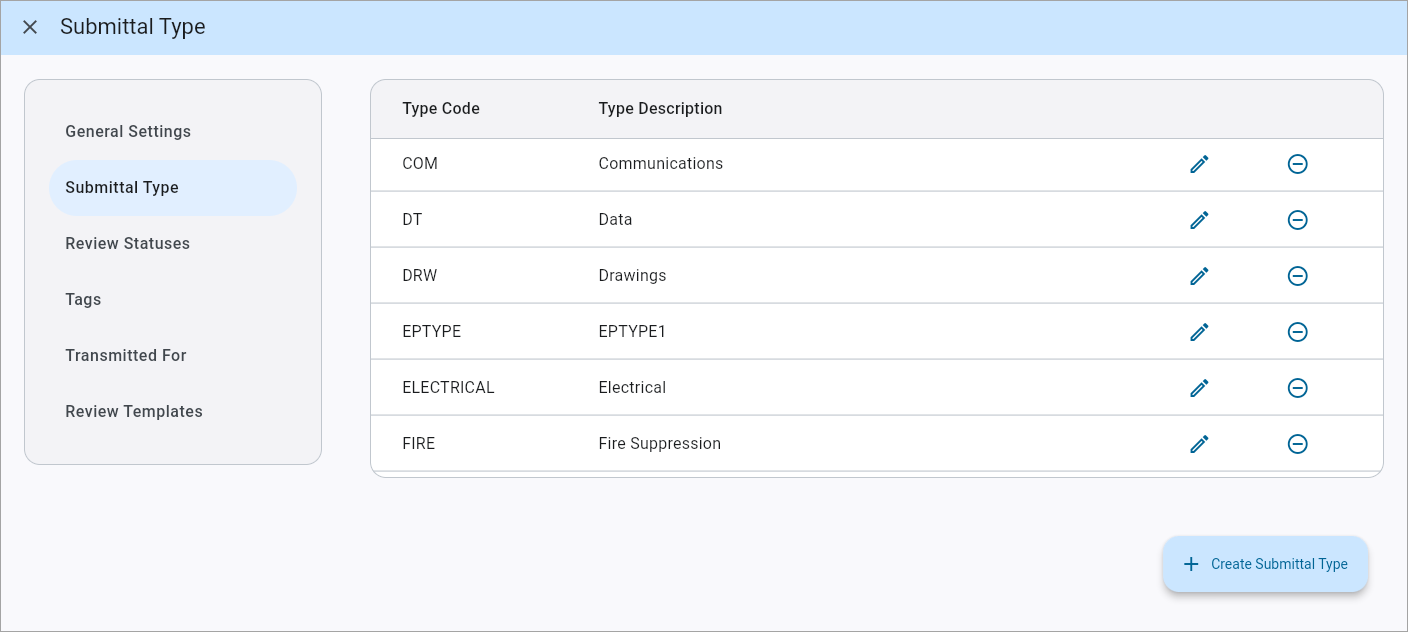
Submittal Type screen
This screen is used to add, edit, or delete submittal types. These types are maintained at the system level.Submittal types are shared with the classic Submittal screen and are maintained in the Submittal Type Maintenance screen in CMiC Field (standard Treeview path: CMiC Field > File Maintenance > Local Tables > Submittal Type).
NOTE: Submittal types are shared between Submittals (Classic) and Submittals. Types added, edited, or removed here will apply to records in both CMiC Field and Construct PM. If your project is actively using both, please review the existing types before making changes.
Once a submittal type has been created, the code cannot be modified but the description can be changed. Press the Edit icon ( ) to modify an existing item. Press the Delete icon (
 ) to delete an existing item.
[Create Submittal Type] – Button
Press this button to launch the Create Submittal Type pop-up. Enter a code and description for the submittal type and press [Okay].
Review Statuses
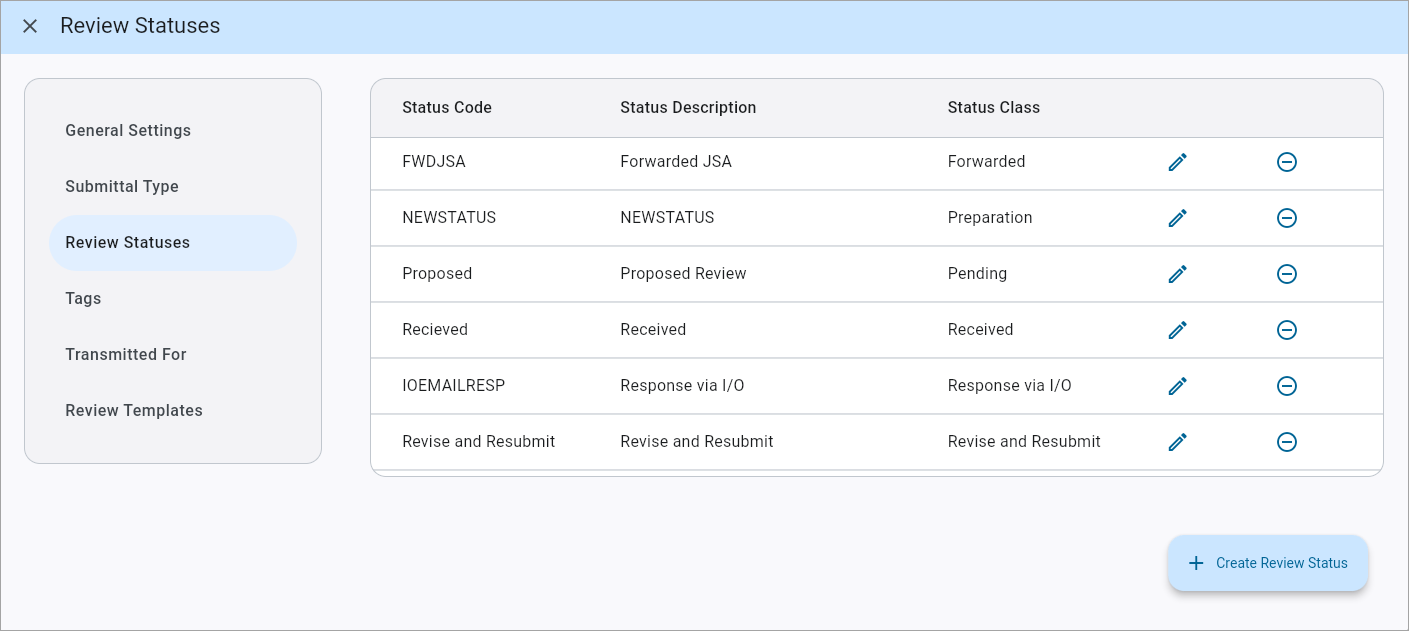
Review Statuses screen
This screen is used to add, edit, or delete existing review response statuses. These statuses are maintained at the system level.
Once a review response status has been created, the code cannot be modified but the description, class, and project roles can be changed. Press the Edit icon () to modify an existing item. Press the Delete icon () to delete an existing item.
Press the Edit icon () to modify an existing item. Press the Delete icon () to delete an existing item.
[Create Review Status] – Button
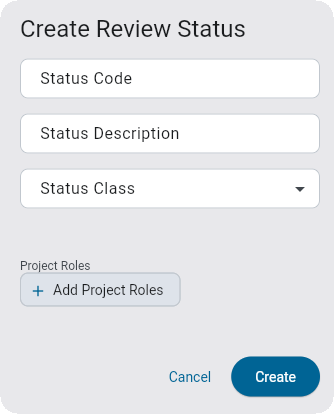
Create Review Status pop-up
Press this button to launch the Create Review Status pop-up.
Status Code
Enter a unique status code.
Status Description
Enter a description for the review status code. This value is displayed in (Undefined variable: ProductNameSet.Prod_Name_PM) and reports.
Status Class
Select a review status class. This determines the functional effects when a review response status is provided by a reviewer. The following status classes are available in the LOV:
-
Preparation: A non-committal response that indicates that materials or information are being gathered. This class does not progress the review process.
-
Approved as noted: A positive response with qualifications. This class moves the review to the next step while noting limiting criteria or constraints.
-
Closed: A response that closes the submittal record as a whole.
-
Received: A response that indicates acknowledgment of receipt.
-
Forwarded: A response that indicates contents have been verified and passed on to the next reviewer.
-
Revise and Resubmit: A response that triggers the creation of a new review cycle and sends the BIC back to the primary submitter on the record.
-
Accepted/Approved: A positive response. This class moves the review to the next step.
-
Pending: A non-committal response that indicates the reviewer has examined the submittal but has yet to provide their official response. This class does not progress the review process. This class is applied automatically for reviewers when inserting additional “Guest Reviewers”.
-
Sent: A response that indicates information and/or materials have been provided. This class is typically applied by the submitter at the start of the review process.
[Add Project Roles] – Button
Press this button to add project roles to the review status. This determines which users can apply a review status. If no roles are assigned, the review status will be unrestricted and all users will be able to apply it as a review response. If one or more project roles are added, the review status will be restricted to users that have one of the assigned project roles.
Tags
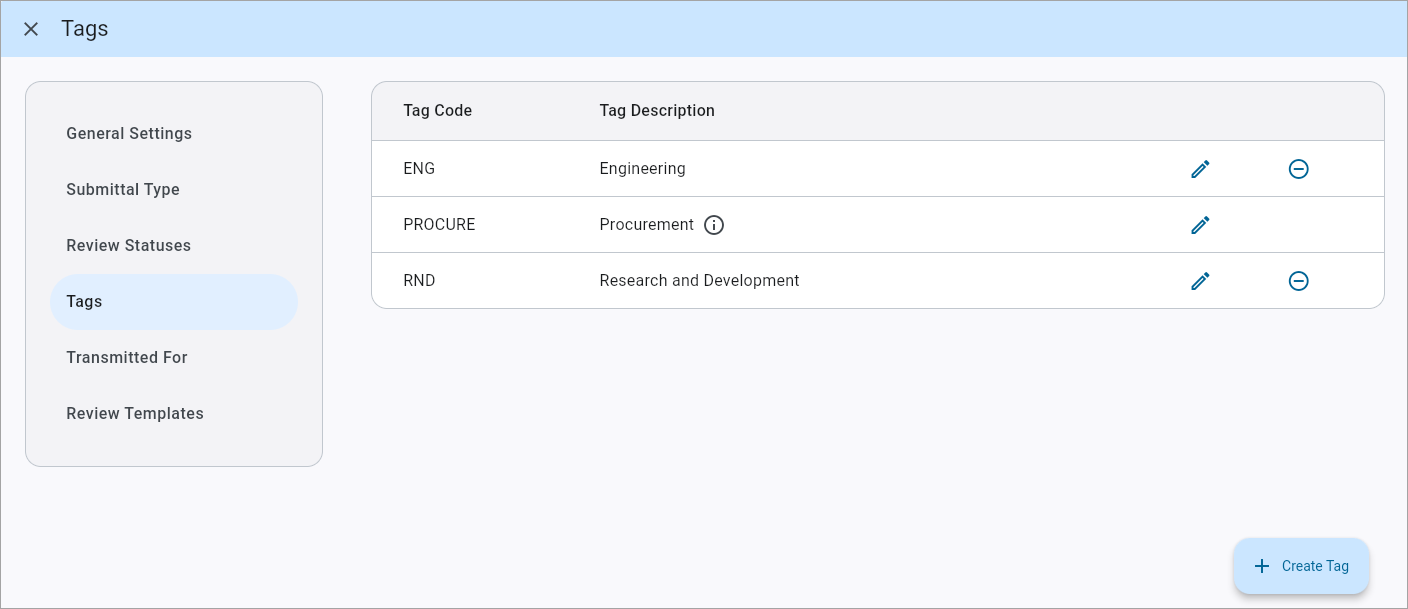
Tags screen
This screen is used to add, edit, or delete submittal tags available for selection in the Submittals Details tab. These tags are maintained at the project level.
NOTE: Users require the project role privilege 'Maintain Tags – Submittals
Tags are a flexible and customizable way of classifying Submittal records. They can be used to support “Packaging”, categorizing by discipline, tracking procurement items, and other types of grouping not already captured by the standard fields in Submittal records.
The hard-coded “Procurement” tag determines whether the schedule for a Submittal record will include the Fabrication and Delivery stages.
Once a tag has been created, the code cannot be modified but the description can be changed. Press the Edit icon () to modify an existing item. Press the Delete icon () to delete an existing item.
[Create Tag] – Button
Press this button to launch the Create Tag pop-up. Enter a tag code and description and press [Okay].
Transmitted For
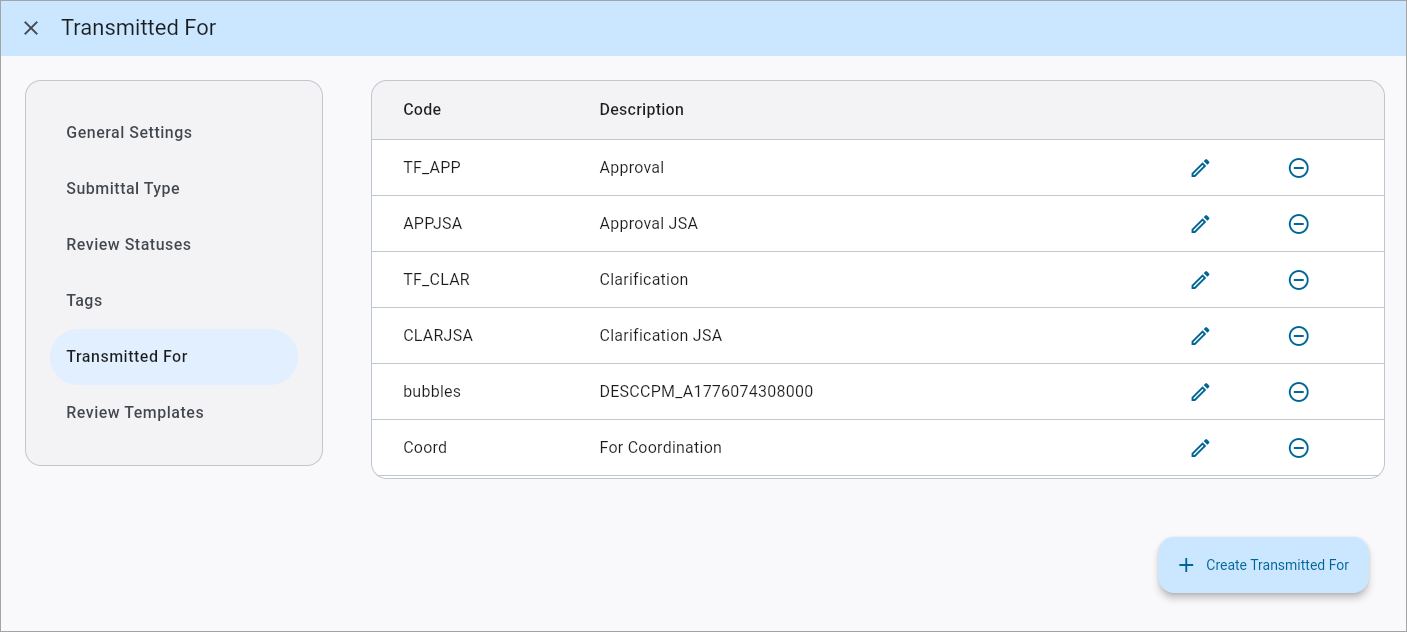
Transmitted For screen
This screen is used to add, edit, or delete options in the LOV of the Transmitted For field of the Submittals Details tab. These settings are maintained at the system level.
Once a transmitted for option has been created, the code cannot be modified but the description can be changed. Press the Edit icon () to modify an existing item. Press the Delete icon () to delete an existing item.
[Create Transmitted For] – Button
Press this button to launch the Create Transmitted For pop-up. Enter a code and description and press [Okay].
Review Templates
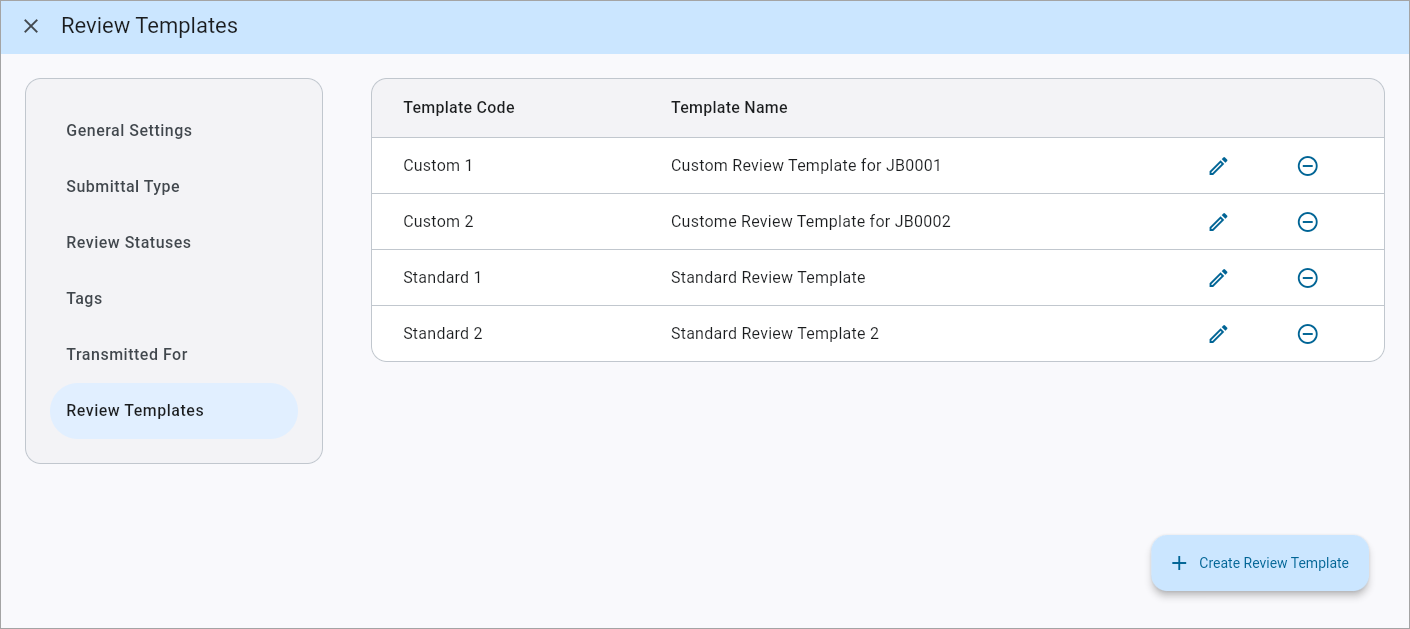
Review Templates screen
This screen is used to add, edit, or delete standard review workflow templates available in the Submittals Review tab. These templates are maintained at the project level.
NOTE: Users require the project role privilege 'Maintain Review Workflows- Submittals
Once a review template has been created, the code cannot be modified but the description can be changed. Press the Edit icon () to modify an existing item. Press the Delete icon () to delete an existing item.
[Create Review Template] – Button
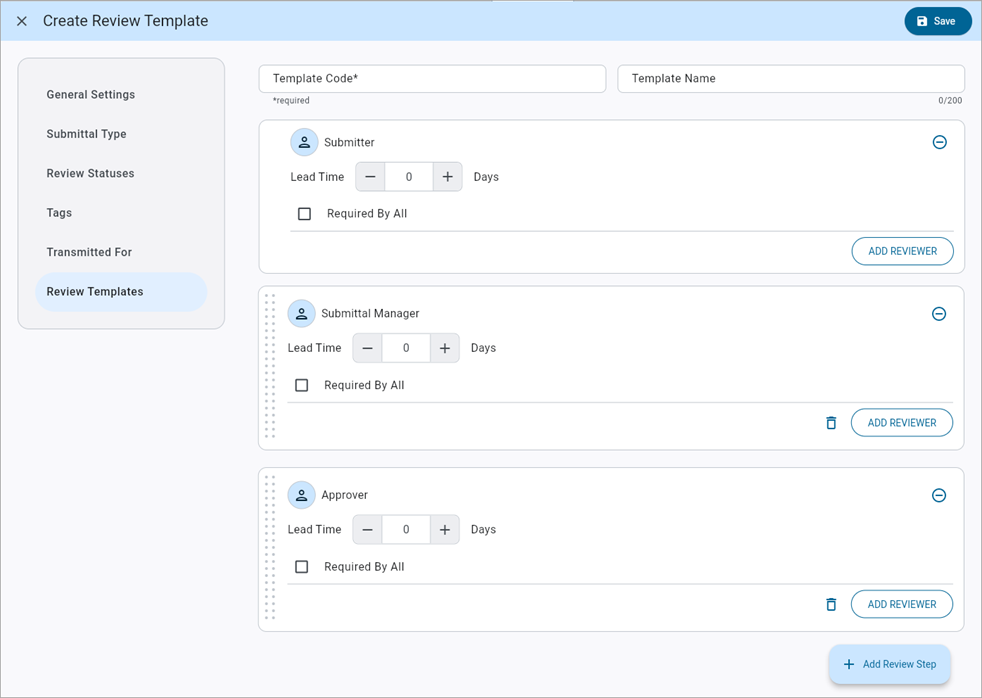
Press this button to launch the Create Review Template screen. By default, the first review step will be the submitter from the record header. Additional review steps can be added by pressing the [Add Review Step] button at the bottom of the screen.
Template Code, Template Name
Enter a template code and name.
Review Step
Lead Time
Enter/select a value in the Lead Time field to indicate the expected turnaround time for the reviewer(s) at that step. The due date for each receiver will be based on the received date (i.e., when the previous step was completed) plus the lead time. This means that all reviewers included in the same review step will have the same required due date.
Required By All – Checkbox
If more than one reviewer is added to a step, the 'Required By All' box will determine the criteria for moving to the next review step.
If checked, the review workflow will not move to the next review step until a review response has been provided by each of the reviewers included in the current review step. This can be used to support parallel review workflows with multiple contacts/entities reviewing simultaneously.
If unchecked, the first review response received will complete the review step and advance the workflow to the next step. This allows for a flexible review processes where a review response is required but it can be provided by any one from a set of contacts/entities.
Add Reviewer
Press the [Add Reviewer] button to select one or more reviewers. Users can choose from the following options:
Contacts: Any contact on the project. List: Any distribution set up on the project. Distribution lists are maintained in the Distribution Lists screen in CMiC Field (standard Treeview path: CMiC Field > Communication Management > Distribution Lists. For the purposes of the review workflow, the list is considered as one reviewer. When a distribution list is a BIC-reviewer, any of the included contacts may provide a response on behalf of the list. Company: Any company (i.e., project partner) on the project. When a company/partner is a BIC-reviewer, any contact registered under that company that has the 'Respond on behalf of Business Partner' privilege assigned may provide a review response. Keyword: These variables pull from the corresponding fields in the Submittal record header, inserting the contacts/ list/ company found there into the review workflow. This allows for a single template to be used for a variety of submittals with different parties, as long as the review workflow follows the same structure.