 Search Tips
Overview
In addition to the system-generated hyperlinks after a drawing set is published for all applicable callouts, users can also manually create hyperlinks and change the file path for existing hyperlinks using the Drawing Link feature located on the annotation toolbar.
To see the Drawing Link icon in the annotation toolbar, users will need to have ‘Administrate Detail/Elevation Hyperlinks’ privilege assigned to their project role. Refer to Construct PM – Security for more information.
Creating a Hyperlink
When editing a drawing or diagram through the Construct PM - Drawings screen, users can create hyperlinks to other drawings.
NOTE: For document packages, hyperlinks can only on be created between drawings within the same package. For more information, please refer to Construct PM - Document Packages.
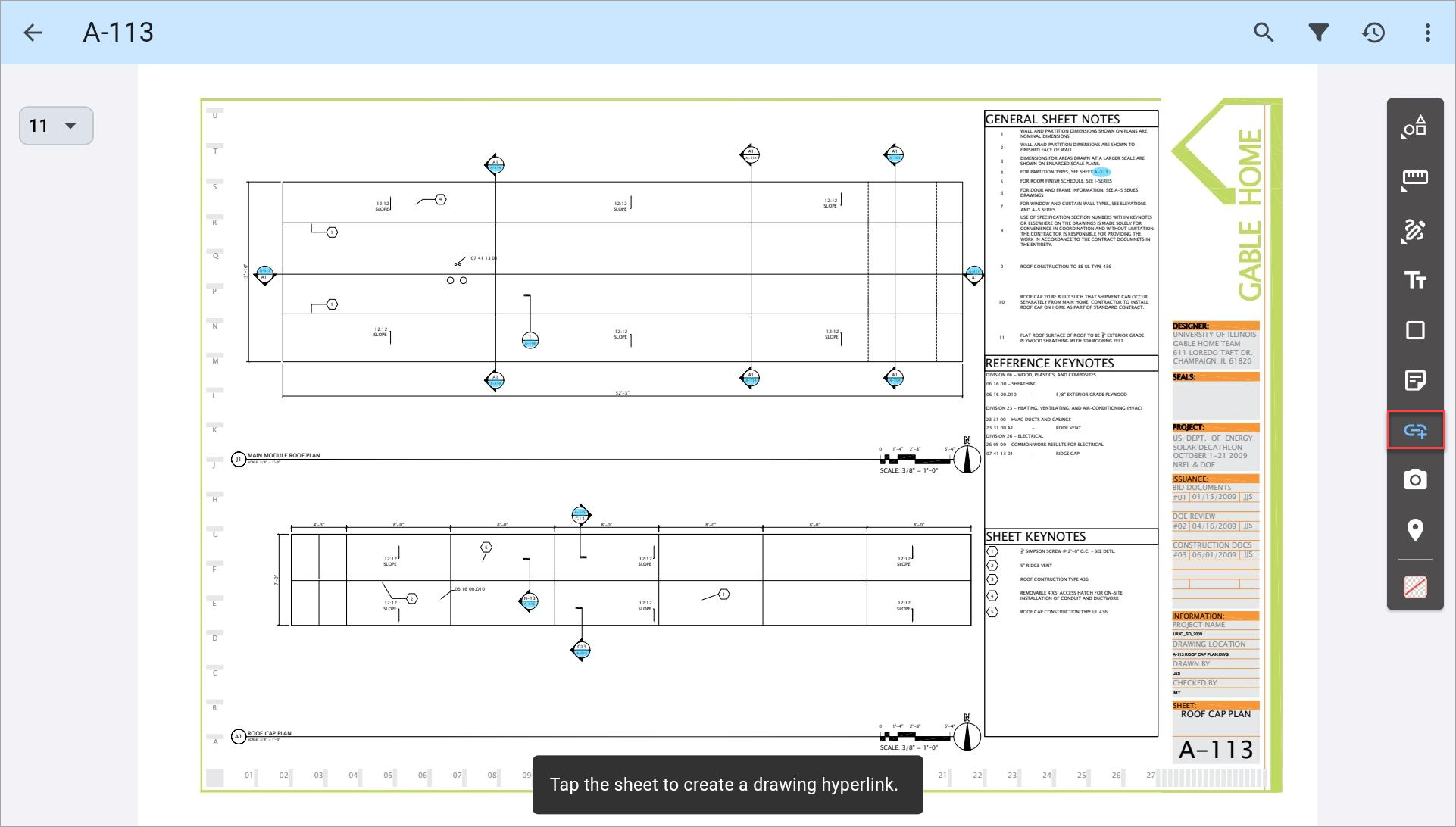
By selecting the Drawing Link icon on the toolbar, users are able to select a region of the drawing which they would like to link to another drawing.
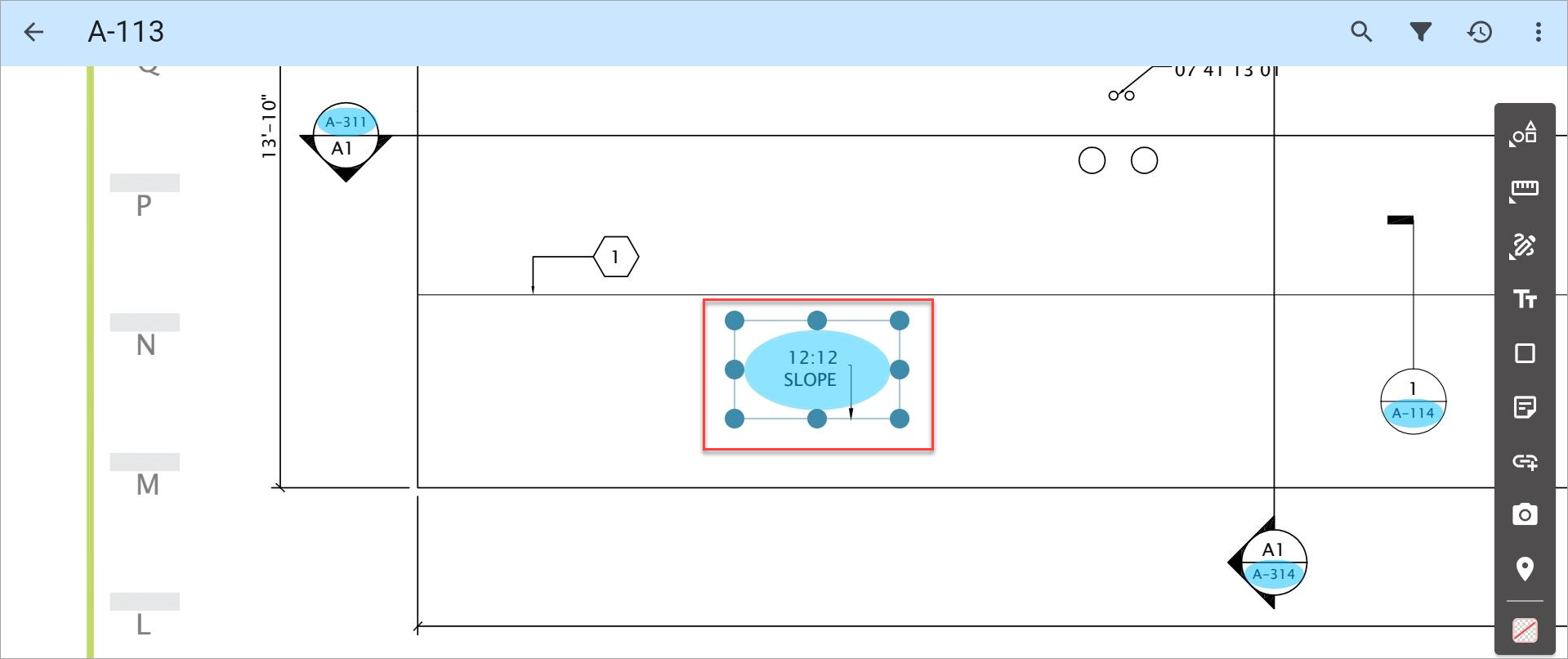
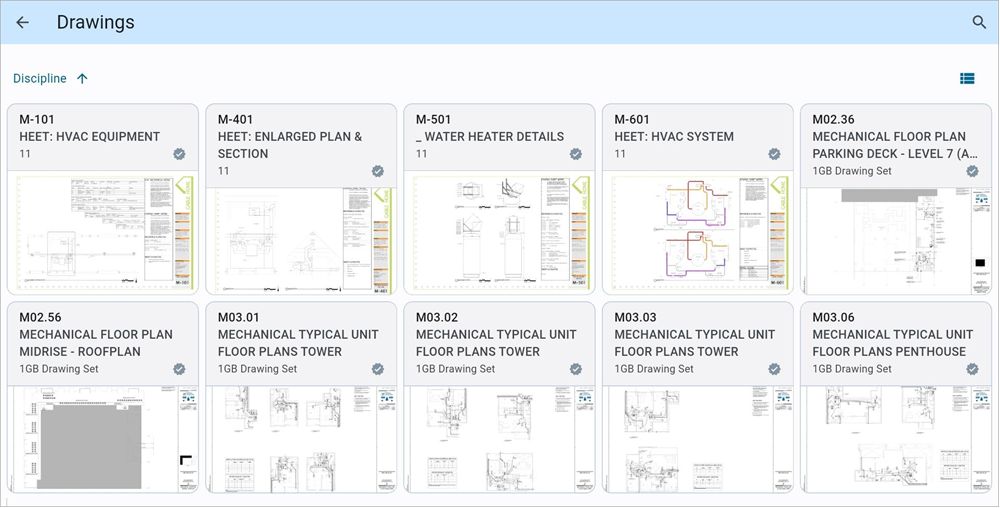
Once an area is selected, users are directed to the Drawings log screen, where they can select a drawing to hyperlink.
Once a drawing is selected, users are returned to the original drawing with the hyperlink visible.
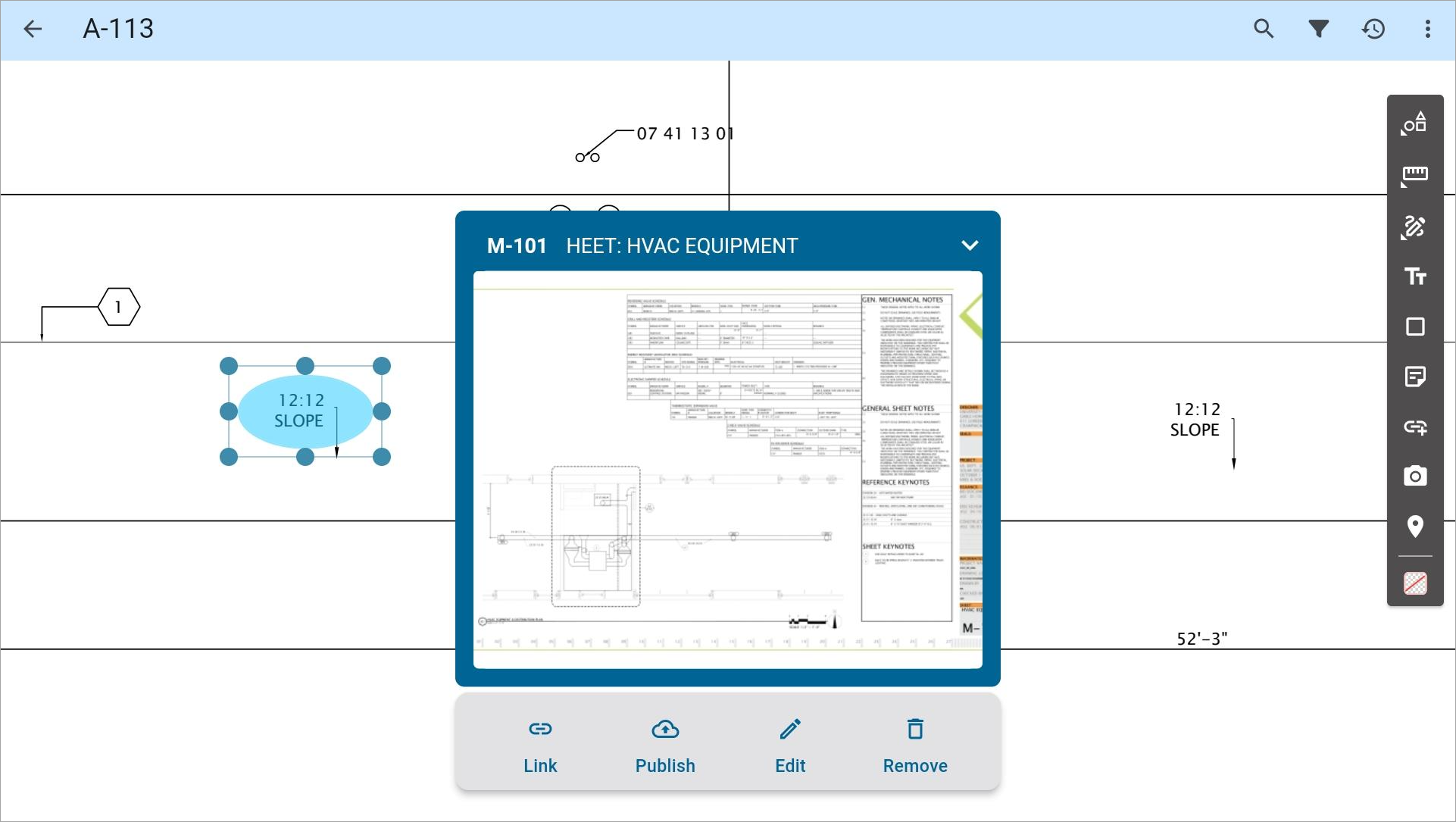
A preview thumbnail is available on tablet and web so users can see what drawing is linked. It is not visible on mobile due to screen size.
If adjustments need to be made to the size or location of the drawing link annotation, the grab handles can be used to re-size or move the area selected for the annotation link.
Editing Hyperlinks
Once a drawing is hyperlinked to an existing drawing, clicking the hyperlink brings up a pop-up with a preview of the hyperlinked drawing and the following toolbar.

Link
This option is used to update the currently linked drawing sheet with a link to a different drawing sheet. As this is a one-to-one path, only one drawing sheet can be linked using this function.
Publish/Unpublish
Hyperlink annotations are automatically published. This option allows users to select whether or not to publish the hyperlink for other project contacts to view.
Edit
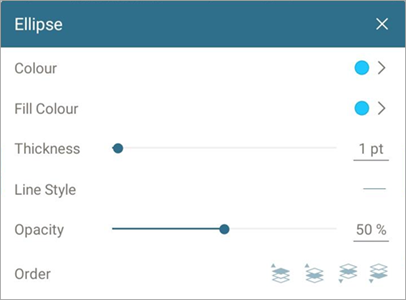
This option launches a pop-up window where formatting changes can be made to the hyperlink. This includes changing the color and line style of the ellipse used to highlight the annotation.
Move
This option allows users to move and resize the hyperlink. This option is only available for published hyperlinks.
NOTE: Users require the Edit privilege to access this option.
Remove
This option is used to remove the hyperlink.