 Search Tips
Master Benefits
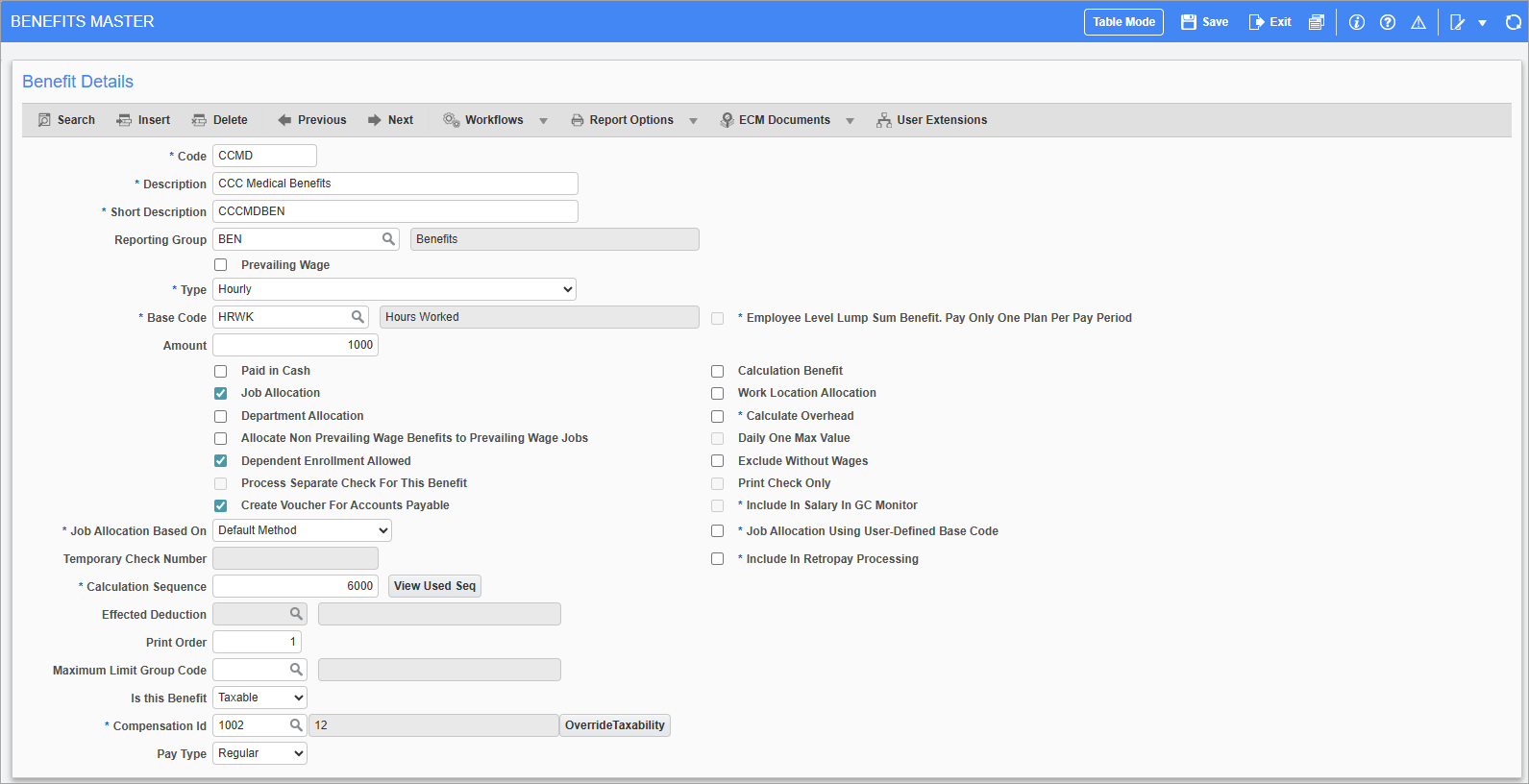
Pgm: PYBENFIT – Benefits Master; standard Treeview path: Human Resources > Benefit Administration > Benefits > Master
The Master Benefits screen is used to enter the master set of benefits from which to assign individual sets of benefits to companies, employees, jobs, and unions.
Benefit Code
Enter the code for the benefit.
Description, Short Description
Enter the full and short descriptions for the benefit.
Reporting Group
Enter/select the reporting group code for the benefit. These codes allow different types of payroll deductions and benefits to be grouped together for reporting purposes. These codes can be set in the Reporting Groups screen (standard Treeview path: US Payroll > Setup > Local Tables > Reporting Groups).
Prevailing Wage – Checkbox
Check this box if the benefit is subject to the prevailing wage rule. The benefit is only used if the job associated with the time is a prevailing wage job.
The prevailing wage rule is a U.S. requirement based on the Davis-Bacon Act, whereby some government jobs are subject to minimum wage rates and mandatory benefits.
Checking this box denies access to the Job Allocation Based On field but grants access to the Effected Deduction field, both of which can be found later in this screen.
Type
Select the type of the benefit. The system allows selection from the following:
-
Lump Sum: This indicates that the benefit is a flat amount, no matter how much the employee earns or how many hours are worked. Choosing this type grants access to the ‘Employee Level Lump Sum Benefit’, ‘Pay Only One Plan Per Pay’, and ‘Include In Salary In GC Monitor’ checkboxes.
-
Percentage: This indicates that the benefit is based on a percentage of wages earned.
-
Hourly: This indicates that the benefit is based on the number of hours worked. Most prevailing wage benefits are hourly.
-
Daily: This indicates that the benefit is based on days worked.
-
Percent of Union Pay Rate: This indicates that the benefit is based on the union pay rate.
Employee Level Lump Sum Benefit. Pay Only One Plan Per Pay Period – Checkbox
Check this box to make the benefit a lump sum type at the employee level only.
Base Code
Select the code upon which the benefit is based. The options available in this field come from the Benefit and Deduction Base Maintenance screen (standard Treeview path: US Payroll > Administration > Benefits > Bases).
This field works in conjunction with the Type field to determine how the benefit is calculated. For the following types, select the corresponding base codes:
-
Lump Sum: Select “None”.
-
Percentage: Select “Base Wage”.
-
Hourly: Select “Hours Worked” or “Hours Paid”.
-
Daily: Select “Daily”.
-
Percent of Union Pay Rate: Select “Hours Worked”.
NOTE: The benefit type selected for a custom base option is determined by the desired calculation against that base.
Amount
Enter the amount or value for the benefit. This amount is a dollar amount or a percentage depending on the type of benefit selected in the previous fields.
This field may be left blank in the master list if the amount that is required for this benefit is specific to each company, union, or employee to which it will be assigned.
Paid in Cash – Checkbox
Check this box if the benefit is a receivable benefit such that the employee is paid monies directly. An example of this is a car allowance.
Leave this box blank if this benefit is not receivable and the employer pays a third party on behalf of the employee. An example of this is group life insurance.
Checking this box grants access to the ‘Process Separate Check For This Benefit’ box.
Calculation Benefit – Checkbox
Check this box if this benefit is only used in the calculation of other benefits. When this box is checked, this benefit does not appear in the employee history or on any reports.
Leave this box blank if this is a standard benefit and should be recorded in the employee history and on the relevant reports.
Checking this box denies access to the ‘Paid in Cash’, ‘Job Allocation’, and ‘Allocate Non Prevailing Wage Benefits to Prevailing Wage Jobs’ boxes.
Job Allocation – Checkbox
Check this box if this benefit should be charged as a payroll burden to the job on which the employee is working during the pay periods for which this benefit is calculated.
The payroll burden associated with this benefit is pro-rated by the total wages calculated for the pay period. The calculated amount is divided amongst the timesheet entry lines in relative proportion to the total wages represented on each line.
Work Location Allocation – Checkbox
Check this box if the benefit should be allocated to the employee's work location to be included in the taxable income in that location.
Leave this field blank if the benefit should be included in the taxable income in the employee's home location.
NOTE: This box only pertains to the appropriate allocation of benefits that are not job allocated. When the benefit is allocated to the job it is automatically allocated to the job work location.
Department Allocation – Checkbox
Check this box if the benefit should be charged as a payroll burden to the department entered on the timesheet.
Calculate Overhead – Checkbox
Check this box to calculate payroll job costing overhead.
Daily One Max Value – Checkbox
Check this box to restrict the daily benefit calculation to once per day during processing, regardless of the number of jobs or cost codes entered.
NOTE: This box is only enabled for benefits of type "Daily".
Allocate Non Prevailing Wage Benefits to Prevailing Wage Jobs – Checkbox
To avoid having to set up a benefit twice, once as a prevailing wage benefit and once as a non-prevailing wage benefit, check this box if the benefit is applicable to both job types.
Dependent Enrollment Allowed – Checkbox
Check this box if dependents are allowed on the benefit. Dependents can be set in the Dependents screen which can be found later in this sub-menu.
Exclude Without Wages – Checkbox
Check this box to not calculate this benefit for employees with no wages (basic wage or paid leave) in the processing period. This is only applicable for lump sum benefits.
Process Separate Check for this Benefit – Checkbox
Check this box to process the benefit as a separate check. This option is only available if the benefit is set up as a lump sum cash benefit and it can’t be overridden at the company or employee level.
This box is only available if the benefit is a Lump Sum type and the ‘Paid in Cash’ box is ticked.
Checking this box grants access to the ‘Print Check Only’ box and the ‘Temporary Check Number’ field.
Print Check Only – Checkbox
Check this box to print a check for the benefit regardless of the employee’s direct deposit setup.
Create Voucher for Accounts Payable – Checkbox
Check this box to create the vouchers for this benefit through the Generate AP Voucher screen (standard Treeview path: US Payroll > Processing > Generate AP Voucher).
Include in Salary in GL Monitor – Checkbox
Check this box to automatically assign an employee to a GC Employee Group linked with the employee department (if found).
Job Allocation Based On
Select the appropriate option from the drop-down list. The system provides for the following options: Default Method, Base Wage, Hours Worked, and Hours Paid.
This field works in conjunction with the Base Code field to determine how the benefit is calculated. For the following base options, select the corresponding base codes:
-
Default Method: Select “None”.
-
Base Wage: Select “Base Wage”.
-
Hours Worked: Select either “Hours Worked” or “Hours Paid”.
Job Allocate Using User-Defined Base Code – Checkbox
Check this box to only allocate jobs to benefits with the same base code.
Temporary Check Number
Enter a number, equal to or greater than 100, to appear on the separate checks processed for the benefit.
Include In Retropay Processing – Checkbox
Check this box to include the benefit in retroactive pay processing.
Calculation Sequence
The calculation sequence is a 38-digit number which indicates the numeric order of the benefit relative to all other benefits and deductions. The system uses the sequence number of each benefit and deduction to determine the correct processing order for all the payroll calculations. All sequence numbers that are already in use can be seen via the [View Used Sequences] button.
This can be critical when a benefit requires the prior calculation of another benefit or deduction to process its amount.
For example, 401K deduction may be calculated as the base wage plus the benefit car allowance minus the deduction union dues. In this case, the 401K deduction must have a calculation sequence number larger than the car allowance benefit and the union dues deduction.
Effected Deduction
Enter/select the deduction affected by the benefit. When a deduction is assigned in this field the system excludes the amount of wages used for the benefit when calculating this deduction.
Take for example the situation where defining a prevailing wage benefit such as a pension trust. In this case, enter the 401K deduction into this field so that when it is calculated it would exclude the portion of wages that were used to calculate the pension trust benefit.
This would mean that if $40 of a total $100 week were earned working on a prevailing wage job, the associated 401K deduction would only be calculated on the remaining $60.
Print Order
Enter the print order number for the benefit. This determines where the benefit appears on the payroll journal.
Maximum Limit Group Code
Enter the maximum limit group code. This includes the benefit in that group when processing payroll.
The following fields are used to capture information for Vertex tax calculations.
Is this Benefit
Select whether the benefit is exempt or taxable. The default value is null.
Compensation ID
Enter/select the compensation ID. This field is only enabled when the benefit is set as "Taxable" in the Is This Benefit field. If left blank, the system will default to the Vertex-defined value.
The Compensation ID LOV displays system and user-defined compensation codes. User-defined codes are maintained in the Vertex User-Defined IDs screen in the US Payroll module. For more information, please refer to US Payroll - Vertex User-Defined IDs (Beta).
NOTE: The 'Use Vertex API' box must be checked on the Payroll Processing screen prior to processing. For more information, please refer to US Payroll - Processing, Checks and Postings.
NOTE: This field is part of ongoing Vertex enhancements and is currently in Beta testing.
[Override Taxability] – Button
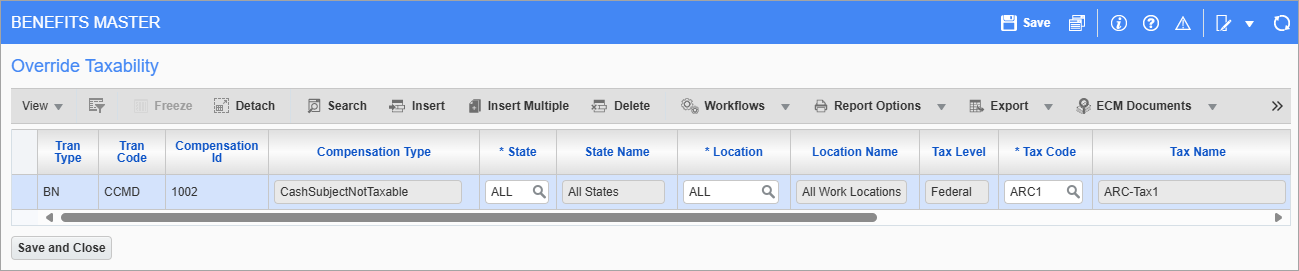
Press this button to launch the Override Taxability pop-up to modify tax rules at the federal, state, and local levels. This button is only enabled when a user-defined compensation code (between 1001 and 1099) is selected in the Compensation ID field.
NOTE: This field is part of ongoing Vertex enhancements and is currently in Beta testing.
Pay Type
Select whether the pay type is regular or supplemental. This field is only enabled when the benefit is set as "Taxable" in the Is This Benefit field. By default, this field is set to "Regular".
NOTE: This field is part of ongoing Vertex enhancements and is currently in Beta testing.
Company Benefits
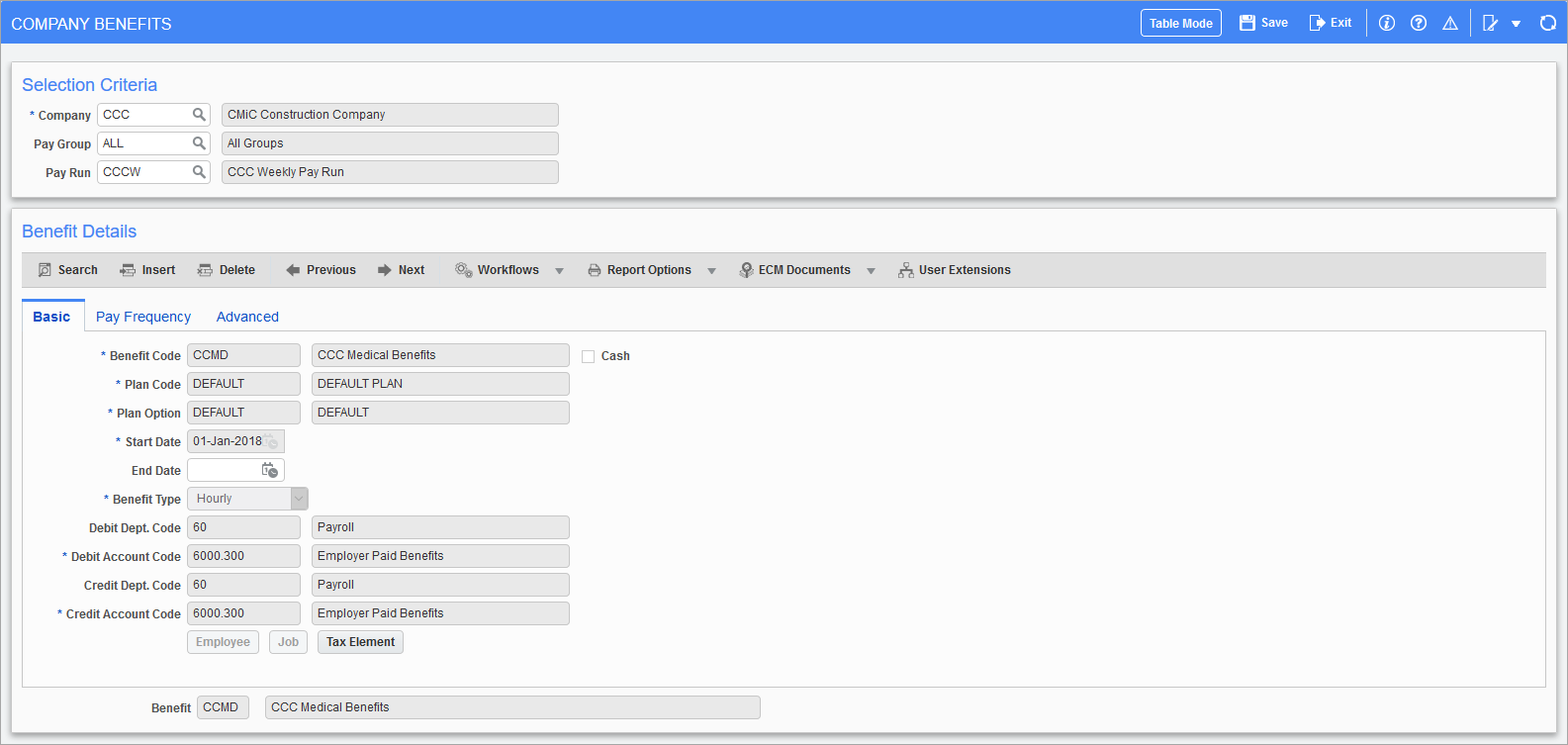
Pgm: PYCOMBEN – Company Benefits Maintenance; standard Treeview path: Human Resources > Benefit Administration > Benefits > Company
This screen is used to assign benefits to companies. It is possible to change the frequency and amount of the benefit, declare eligible amounts for a particular pay run, and assign the debit and credit accounts that are used. Benefits can also be connected with plans and options.
Pay Groups
The way company benefits are assigned to pay groups is vital in terms of how those benefits apply to employees. Before assigning them, map out the required benefits by determining whether they belong to one of the following categories:
-
Benefits that belong to all (or most) employees in a pay run: Enter/select “ALL” in the Pay Group field to have all employees receive this benefit regardless of their individual pay group. Benefits can be customized at the employee level in the Employee Benefit screen. If certain employees do not require a benefit, the amount of the benefit for that employee can be reduced to zero and the benefit is not calculated.
-
Benefits that belong to specific employees in a pay run: Enter/select “NONE” in the Pay Group field. This automatically excludes this benefit from all employees in the pay run. For this benefit to apply to an employee it must be assigned directly to the employee in the Employee Benefit screen.
-
Benefits that belong to a specific pay group: Enter/select the pay group code in the Pay Group field. This automatically assigns this benefit to all employees in that pay group and excludes that benefit from employees in other pay groups. In order for this benefit to apply to an employee outside of the pay group it must be assigned directly to the employee in the Employee Benefit screen.
-
Benefits that belong to unions: Enter/select “NONE” in the pay group field. This automatically excludes this benefit from all employees. Once unions are defined, union benefits can be assigned in the Union Benefits screen. Any employee that is a member of that union automatically receives that benefit. All other employees will not have this benefit assigned.
-
Benefits that are connected to plans and options: Enter/select “NONE” in the pay group field. Benefits connected to a plan or option must be excluded from all employees and assigned individually at the employee level in the Employee Benefit screen or at the union level in the Union Benefit screen.
Basic – Tab
Benefit Code
Enter/select the benefit code for the company pay run.
Cash – Checkbox
This box is checked if the ‘Paid in Cash’ box on the Benefits Master screen is checked. This can’t be changed at the company level.
Plan Code, Plan Option
Enter/select the plan code and option associated with the benefit.
The plan code and option field fills with the code “DEFAULT” when a company benefit is defined under a specific pay group or the pay group “ALL”. When defining a benefit under the pay group “NONE”, a plan code or option may be selected from the available list. Only those plan codes or options previously defined in the Plans and Plan Options screens can be used.
Start Date, End Date
Enter/select the start and end date for the benefit. During payroll processing this benefit is only calculated if the pay run period processing date is on or after this date. To have this benefit active indefinitely, leave the End Date field blank.
Benefit Type
The benefit type defaults from the Benefit Master screen and can’t be changed at the company level. The system allows for the choice between the following:
-
Lump Sum: The benefit is a flat amount no matter how much the employee earns or how many hours he works.
-
Hourly: The benefit is based on the number of hours worked.
-
Percentage: The benefit is based on a percentage of wages earned.
Debit Department Code, Debit Account Code
Enter/select the department and account that are debited when this benefit is processed. If the department is left blank the employee department code is used.
If the ‘Job Allocation’ box is checked on the Benefit Master screen, the system debits the job/cost code/category department and account as defined by the timesheet entry line.
Credit Department Code, Credit Account Code
Enter/select the department and account that are credited when this benefit is processed. If the department is blank the system uses the employee department code.
Leave this field blank if the ‘Paid in Cash’ box is checked on the Benefit Master screen, as the system credits the cash/bank account (as defined by the pay group associated with the employee) for the receivable benefit.
[Employee] – Button
Press this button to see all employees who are eligible for the benefit.
[Jobs] – Button
Press this button to launch the Job Benefits/Deductions Maintenance screens to add benefits or deductions by jobs.
[Tax Elements] – Button
Press this button to assign taxes to the benefit.
Pay Frequency – Tab
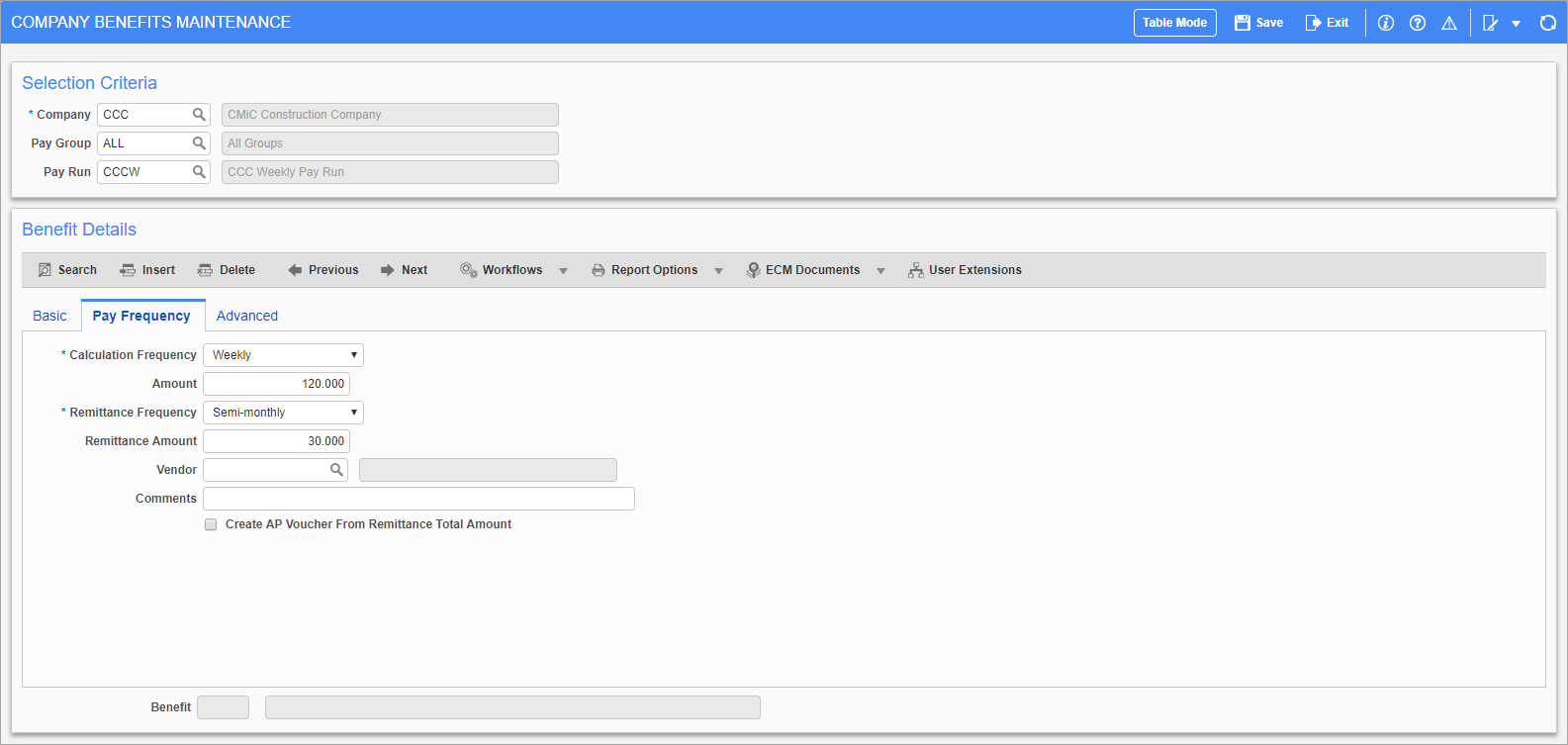
Pgm: PYCOMBEN – Company Benefits Maintenance; standard Treeview path: Human Resources > Benefit Administration > Benefits > Company – Pay Frequency tab
Calculation Frequency
Select the frequency with which this benefit is calculated. The Frequency type defaults from the Pay Run type but can be changed.
Amount
Verify/modify the amount for the deduction. The value entered on the Deduction master screen is defaulted but may be changed.
The amount field is a dollar amount or a percentage depending on the type of benefit selected in the previous fields.
NOTE: This amount must be zero if using the Remittance Amount and Frequency fields to define the payments for this benefit, or if the benefit is defined at the employee or union levels.
Remittance Frequency
Select the frequency with which payments are made to the vendor for this benefit.
Remittance Amount
Specify the remittance amount to be paid to the vendor based on the remittance frequency. This is typically used in cases where the payment is a fixed amount per period.
NOTE: This amount is zero if the benefit is defined at the employee or union levels.
Vendor
If the ‘Generate AP Voucher’ box is checked on the Benefit Master screen, enter/select the vendor code for the vendor that represents the benefit.
Comments
Enter any comments here to print on the AP check stub depending on the check format used.
Create AP Voucher From Remittance Total Amount – Checkbox
Check this box to use to use the Remittance Amount field to generate a voucher for Accounts Payable.
To use this box, the pay group should be “NONE” and the type should be “Lump Sum”. The ‘Create Voucher For Accounts Payable’ box should also be checked on the Benefit Master screen. The Amount field should be zero, the Remittance Frequency field should be set to a different value than the Calculation Frequency field, and some amount should be entered into the Remittance Amount field.
Advanced – Tab
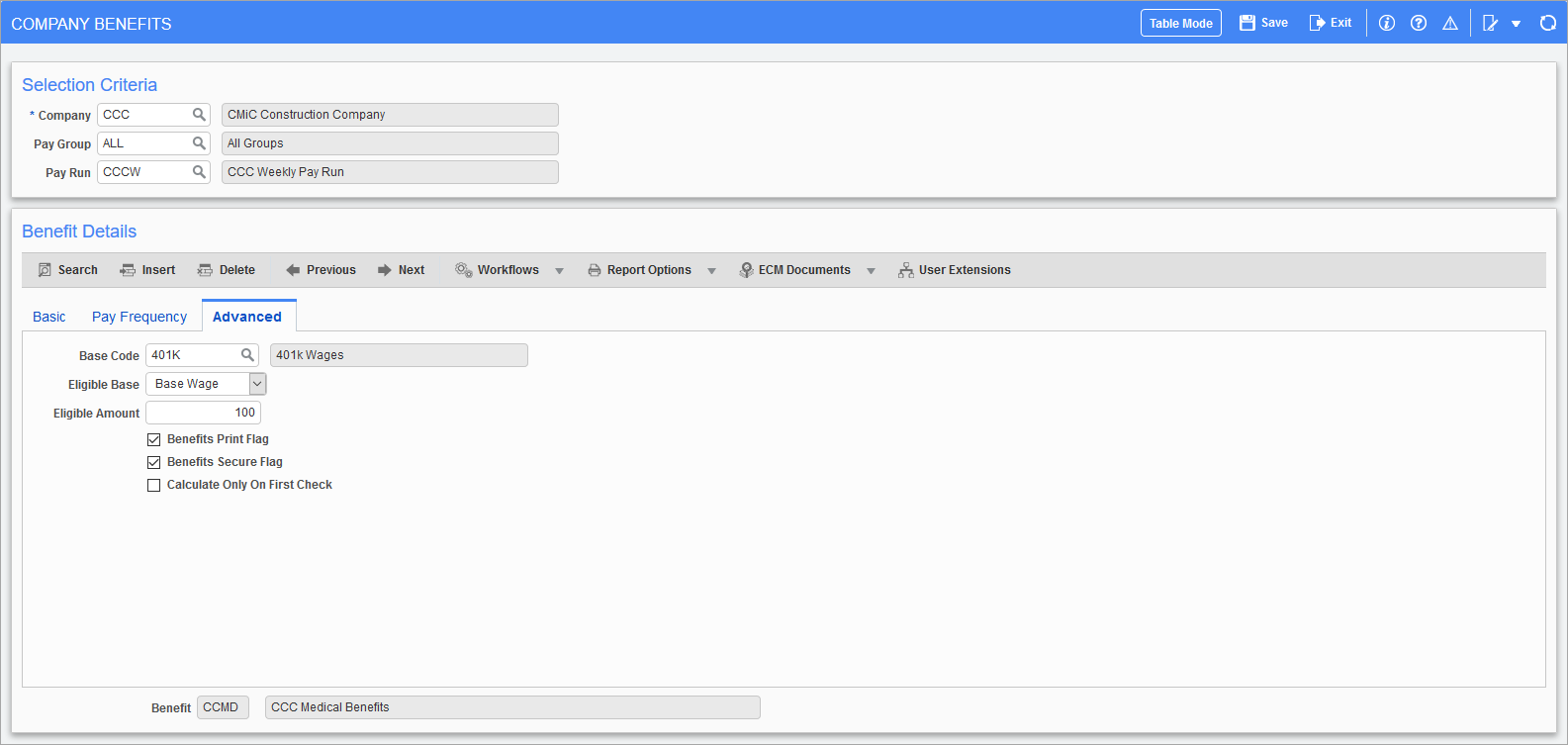
Pgm: PYCOMBEN – Company Benefits Maintenance; standard Treeview path: Human Resources > Benefit Administration > Benefits > Company – Advanced tab
Base Code
Enter/select the base code for the benefit. This field is only used to define a different base from the one defaulted in this screen. This field is not available for lump sum benefits.
Base codes are combinations of hours and benefits or deductions that are used to calculate other benefits and deductions. Base elements are required when a benefit or deduction calculation is nonstandard. Please refer to the section on Benefit and Deduction Base Elements for more details.
Eligible Base
Select the eligibility base for the benefit. Used in conjunction with the Eligible Amount field, a base amount can be established under which this benefit is not calculated. The value entered in this field is based on the previously selected base code.
Eligible Amount
Enter the eligibility amount for the benefit. The eligibility amount is a minimum restriction on the base from which this benefit is calculated. This is used in conjunction with the choice of eligible base:
-
Base amount: The eligible amount is the minimum gross wages earned before this benefit is calculated.
-
Hours Worked/Hours Paid: The eligible amount is the minimum number of hours worked before this benefit is calculated.
Benefits Print Box – Checkbox
Check this box to have this benefit appear on relevant payroll reports. Leave this field blank if this benefit is used for calculation purposes and should not be reported.
Benefits Secure Box – Checkbox
Check this box to have this benefit appear in the relevant queries. Leave this field blank if this benefit is used for calculation purposes and should not be reported.
NOTE: The ‘Benefits Print Box’ checkbox determines whether company-provided benefits are displayed on an employee’s pay stub. It gives the company the option to include or exclude these benefits from view. However, if a benefit is paid in cash or processed as a deduction, it will appear on the pay stub regardless of the checkbox selection. This is because cash payments and deductions directly impact the Net Pay calculation and must be shown.
Calculate Only On First Check – Checkbox
Check this box if the benefit should only be calculated and processed once per pay period regardless of how many checks are processed for the employee during the pay run. For example, if the benefit is for group term life, this box should be checked. This option only applies when the benefit is a percentage or hourly type.
Employee Benefits
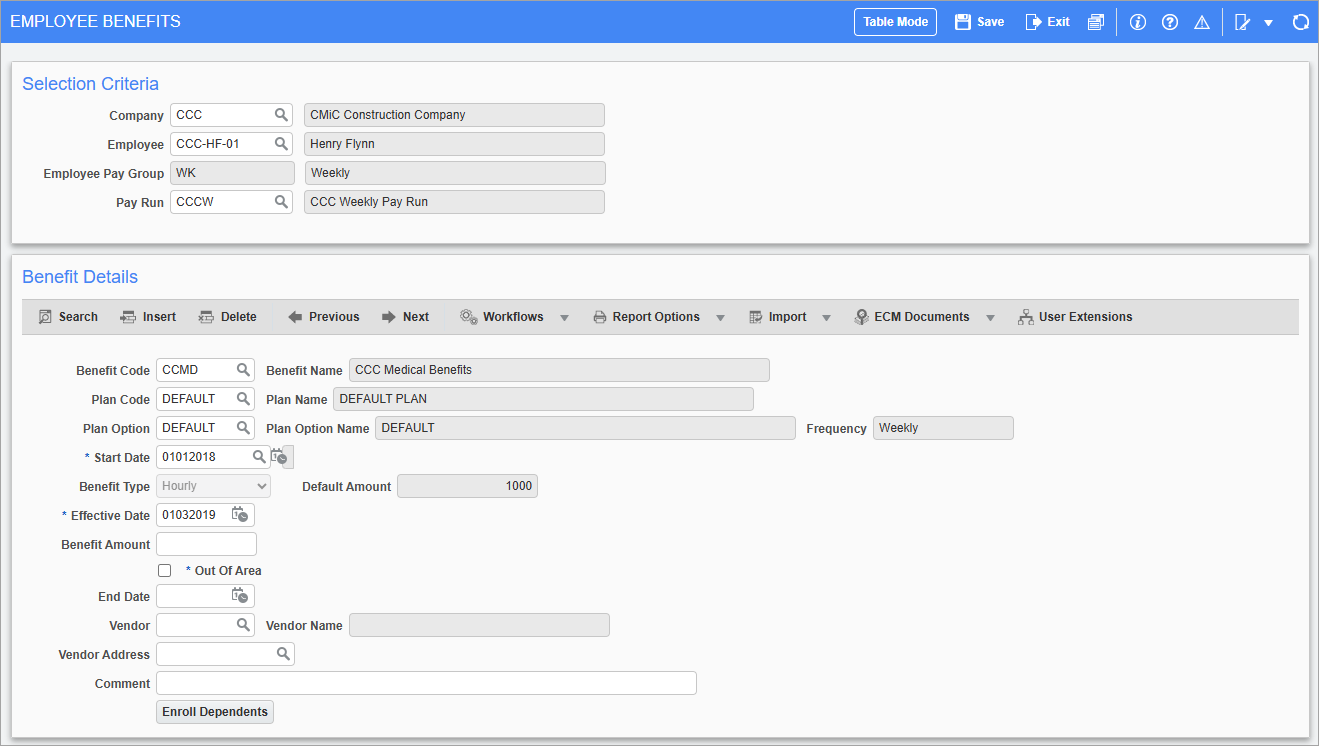
Pgm: PYEMPBEN – Employee Benefits; standard Treeview path: Human Resources > Benefit Administration > Benefits > Employee
The Employee Benefits screen is used to enter any nonstandard company benefits against a particular employee. This screen allows for the override of benefit amounts as well as the default effective and end dates. The benefit information is defaulted from the Company Benefits screen.
Benefit Code, Plan Code, Plan Option
Enter/select the benefit code, plan code, and plan option.
Start Date, End Date
Enter/select the dates when the benefit starts and ends.
Frequency
Select how often the benefit is applied.
Benefit Type
Select the type of the benefit.
Effective Date
Modify the effective date for this benefit if the employee requires a different date than the company default.
Benefit Amount
Modify the amount of this benefit if the employee requires a different amount than the company default.
Out of Area – Checkbox
Check this box if the employee lives outside of the area covered by the plan option.
Vendor
Enter/select the vendor code for the vendor that represents the benefit.
Vendor Address
Enter/select an alternate address code for the vendor specified if necessary. This address is used when generating AP vouchers. Multiple vouchers are generated if the benefits and deductions have different vendor address codes. The vendor address can be entered for existing records but is only applicable when processing new records.
Comment
Enter any comments related to the benefit being customized for this employee.
[Enroll Dependents] – Button
If the benefit being applied to the employee allows dependent enrollment this button can be used to add the required dependents.
Union Benefits Maintenance
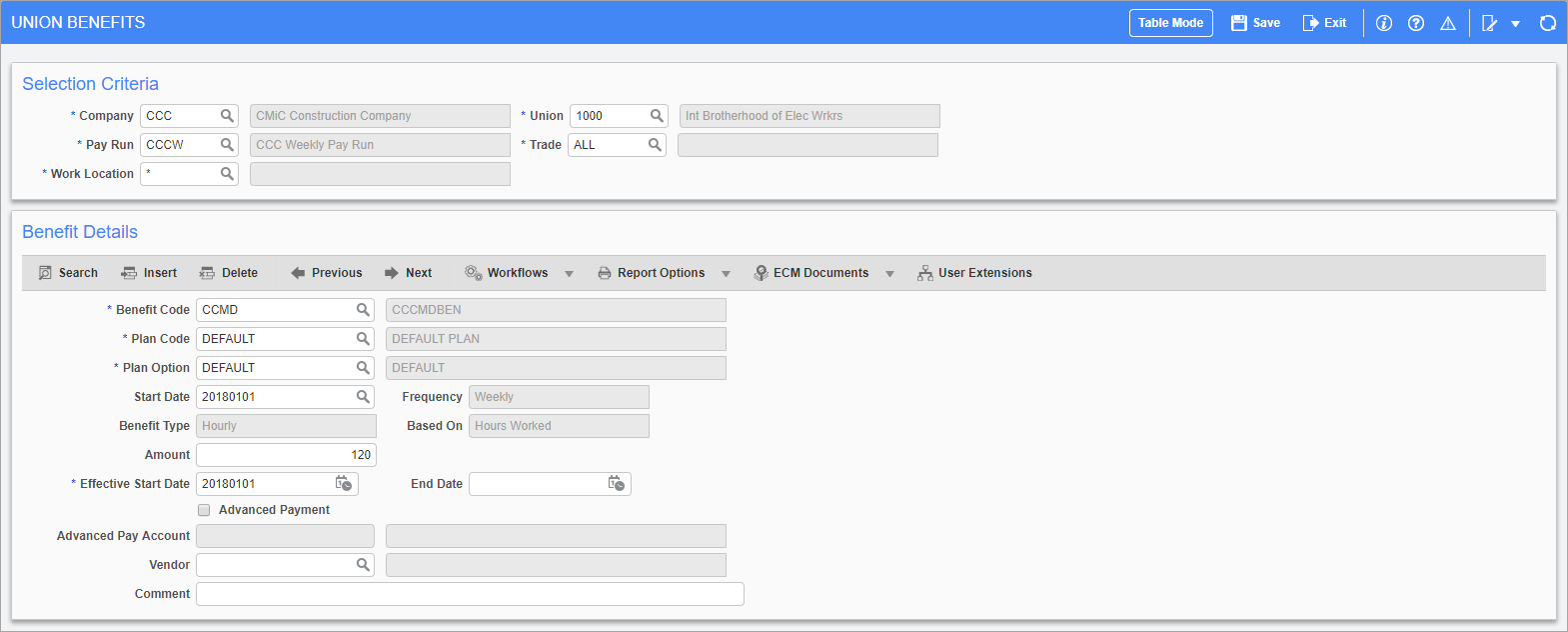
Pgm: PYUNIBEN – Union Benefits Maintenance; standard Treeview path: Human Resources > Benefit Administration > Benefits > Union
The Union Benefits screen is used to set different rates for union benefits by trade. Once the company, pay run, and union are selected benefits can be designated to a specific trade or to all trades in that union. The desired benefits are then selected, and rates can be modified by union as well as by trade. In each benefit assigned to a union and trade, benefit rates can be further separated into specific plans and options.
This screen is similar to the Employee Benefits screen. Please refer to the Employee Benefits section above for any further assistance.
Advance Payment – Checkbox
Check this box if this union benefit is an advanced payment benefit where a pre-payment has already been recorded on the company’s books. During payroll processing the system calculates the benefit amount for the period and reduces the payment by the amount in this field rather than credit the accrued liability account as specified by the Company Benefit Maintenance screen.
Leave this field blank if this benefit should be paid directly to the employee.
Advance Pay Account
If the ‘Advance Payment’ box has been checked, enter/select the advance pay account associated with this benefit. A credit is posted to this liability account for the amount of the benefit sent to the union.
Dependent Enrollment
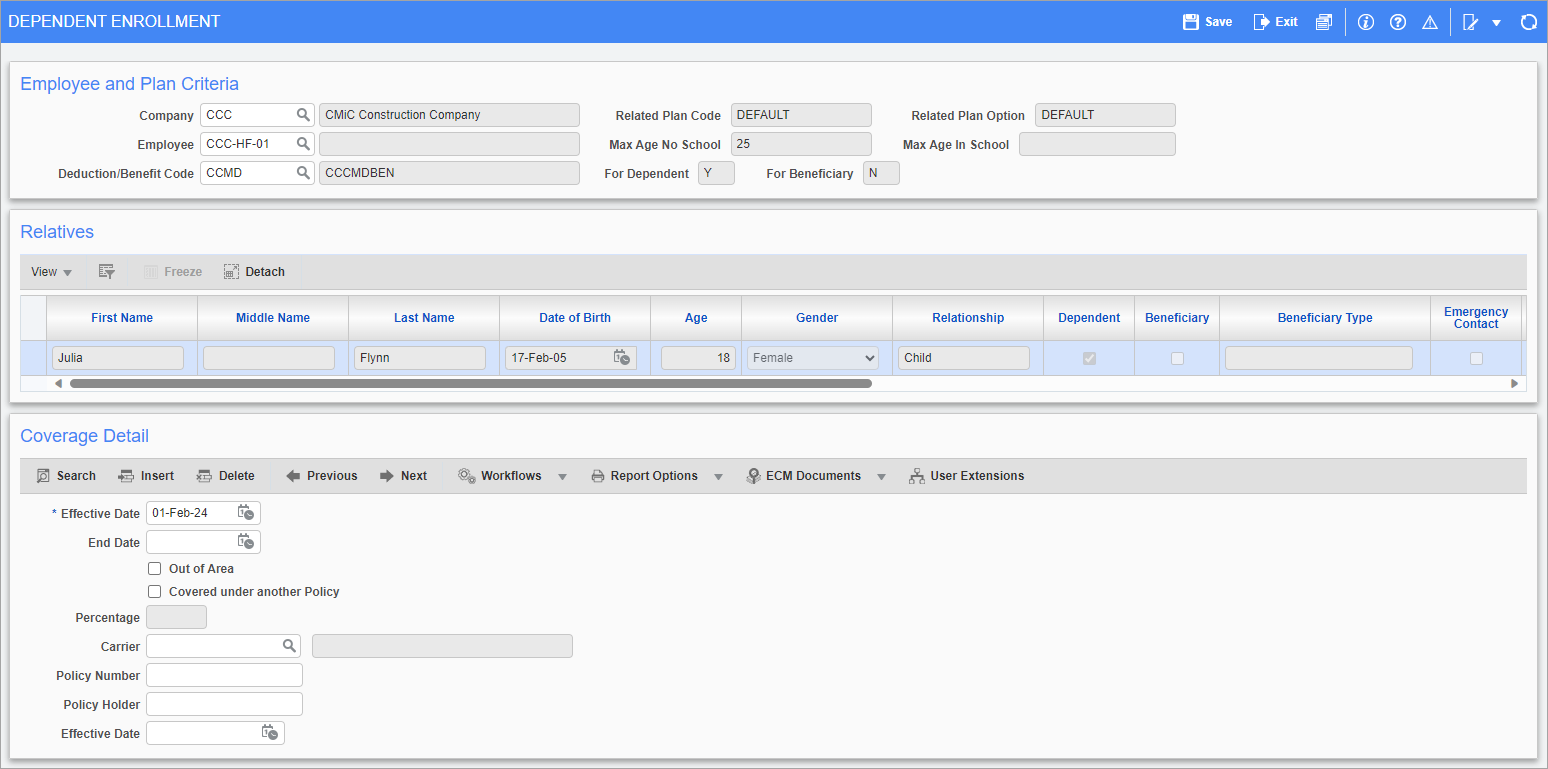
Pgm: HRDEPDED – Dependent Enrollment; standard Treeview path: Human Resources > Benefit Administration > Benefits > Dependent
The Dependent Enrollment screen is the only screen in the Benefits sub-menu unique to the Human Resources module (however, this screen is accessible in the US Payroll module via a button on the Employee Benefits screen). It is used to apply benefits to an employee’s qualified dependents and allows users to review dependents' enrollment at the plan option level.
NOTE: This screen is also available from the Employee Benefits, Employee Deduction, and Election by Employee screens via the [Enroll Dependents] button.
Employee and Plan
Company, Employee
Enter/select the company and employee having dependents assigned.
Deduction/Benefit Code
Enter/select the code for the deduction or benefit on which the dependent is being enrolled. Benefits are available here for selection if the ‘Dependent Enrollment Allowed’ box is checked on the Master Benefit screen.
Related Plan Code, Related Plan Option, Max Age No School, Max Age In School, For Dependent, For Beneficiary
These fields are for reference purposes only and can’t be changed here. Plan codes and the maximum ages dependent children can be enrolled on employee plans, whether in school or not, can be set in the Benefit/Deduction Plans screen. Plan options can be set in the Benefit/Deduction Plan Options screen. Both screens can be found later in the Benefit Administration menu.
Relatives
These fields are for reference purposes only and can't be changed here. Employee relative information can be managed in the Human Resources - Relatives screen.
Coverage
Effective Date
Enter the start date that the dependent is covered by the deduction or benefit.
End Date
Enter an end date if the dependent leaves the plan for any reason (e.g. children reaching 19 years of age, divorced spouses, etc.).
For dependent children this date is automatically set to either a manually entered date or the date that the dependent reaches the maximum threshold age for the plan, whichever comes first. These maximum ages, depending on if the child is currently in school or not, are displayed in the Max Age No School and Max Age In School fields above.
Out of Area – Checkbox
Check this box if the dependent can see doctors other than those normally associated with this plan.
Covered under another Policy – Checkbox
Check this box if the dependent is covered under another plan (i.e. a spouse’s group insurance). The remaining fields documented below are only applicable if this box is checked.
Percentage
Enter a percentage of the benefit payout (e.g., life insurance payout) that the beneficiary will receive. This field is only enabled if the 'Beneficiary' box is checked on the Benefits tab of the Human Resources - Relatives screen.
Carrier, Policy Number, Policy Holder, Effective Date
If the ‘Covered under another Policy’ box is checked, enter/select the carrier (i.e., policy vendor code), then enter the policy number, name of the primary policy holder, and the start date of this policy.
NOTE: Users can only insert records in this section if the 'Dependent' box is checked on the Benefits tab of the Relatives screen. For more information, please refer to Human Resources - Relatives.