Search Tips

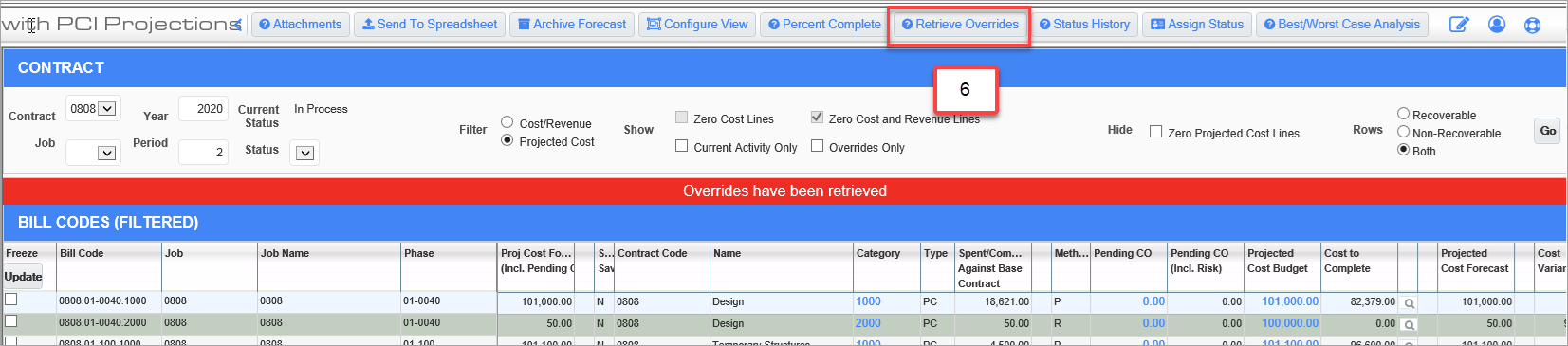
The Contract Forecasting with PCI Projections screen toolbar provides several program-specific functional buttons, as well as standard icons such as the Screen Editor, User Profile, and Help icons.
[Screen Editor] – Icon
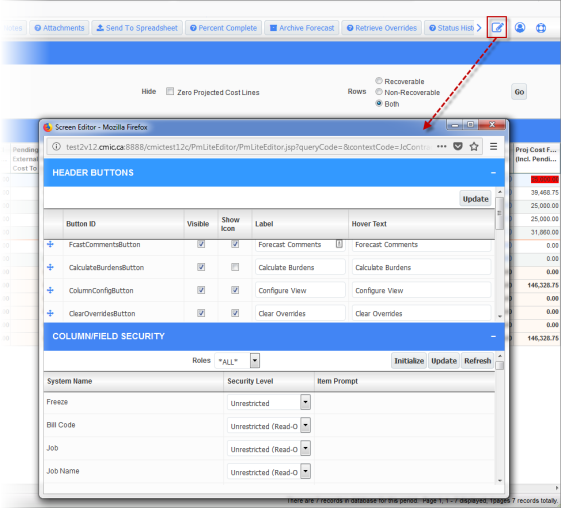
Pop-up window launched from Screen Editor icon on the Contract Forecast with PCI Projections screen
The Screen Editor pop-up window launched from the Screen Editor icon ( ) allows users to apply field security to the user role on one or more columns in the Contract Forecast with PCI Projections screen.
[User Profile] – Icon
The User Profile pop-up window launched from the User Profile icon ( ) is used to modify the user’s profile. Refer to the CMiC Field guide for more information on using this pop-up window to modify system contact information, e-mail notifications, user defaults, and external software logins.
[Forecast Comments] – Button
![Forecast UDF pop-up window launched from the [Forecast Comments] button on the Contract Forecast with PCI Projections screen.](../../../../Resources/Images/CF_12c_-_DRAFT/Contract_Forecasting_with_9_558x338.png)
Forecast UDF pop-up window launched from the [Forecast Comments] button on the Contract Forecast with PCI Projections screen
The [Forecast Comments] button displays a pop-up window with any underlying User-Defined Fields (UDFs) that are defined (header and detail level UDFs) in the Forecast UDF.
Forecast UDFs can be defined on the User-Defined Fields screen (standard Treeview path: CMiC Field > File Maintenance > User-Defined Fields – Forecast UDF). Users can define headings and the appropriate UDFs to be located under each heading.
Forecast comments are tied to each forecast period, for the current contract. Editing of the UDFs in the Forecast Comments pop-up window is allowed only for forecast periods after and including the Job Costing Control File forecast period (standard Treeview path: Job Costing > Setup > Local Tables > Control File – Forecasting tab).
Field security can be applied to the [Forecast Comments] button, if required (standard Treeview path: CMiC Field > Security > Role Maintenance). The default value is “Unrestricted”.
NOTE: The [Forecast Comments] button is not available when using the “Job” option for forecasting, which may have more than one contract’s details shown on the same screen.
[Calculate Burdens] – Button
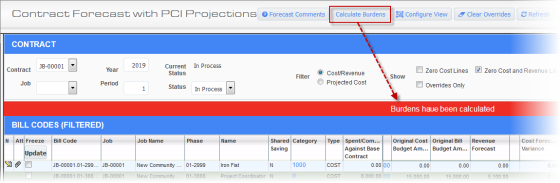
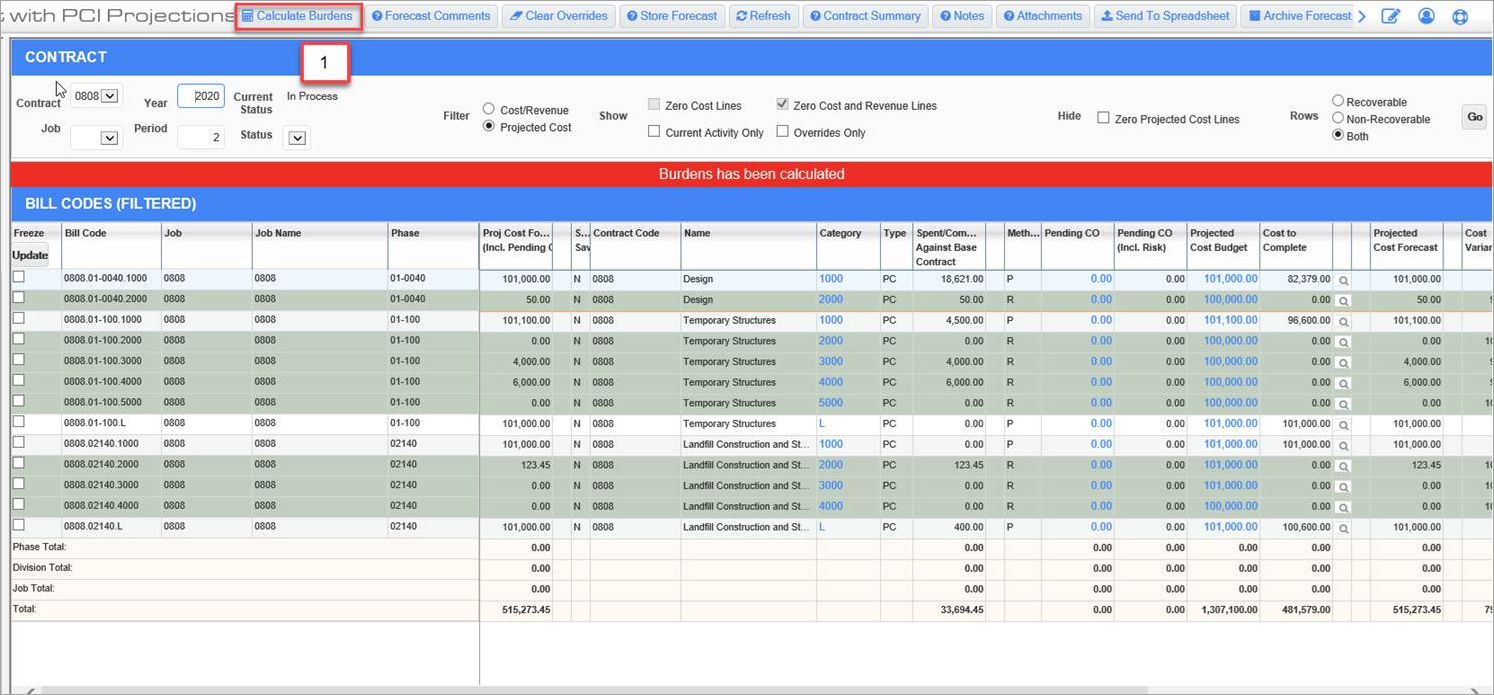
Example of Contract Forecast with PCI Projections screen after burdens have been calculated
When the ‘Calculate Forecast Revenue Amounts on Runtime’ checkbox is checked on the Project System Options screen in CMiC Field (standard Treeview path: CMiC Field > File Maintenance > Project System Options – Contract Forecast tab), when users update the values in the Cost To Complete or Projected Cost Forecast columns, and tab away from those fields, the Revenue Forecast column values are recalculated in real time for this line. Also, when the Productivity pop-up values are overridden by users and saved, the recalculation updates the Revenue Forecast column’s value in real time.
The [Calculate Burdens] button is used to re-calculate the burdened billings value in the Revenue Forecast for the entire forecast. Users will be notified with a red message bar indicating “Burdens have been calculated” when the processing is completed, as shown in the screenshot above.
[Configure View] – Button
![Pop-up window launched from [Configure View] button on Contract Forecast with PCI Projections screen.](../../../../Resources/Images/CF_12c_-_DRAFT/Contract_Forecasting_with_11_561x217.png)
Pop-up window launched from [Configure View] button on Contract Forecast with PCI Projections screen
The [Configure View] button launches the Contract Forecast Screen Configuration pop-up window. This pop-up window is a column configuration screen that allows users to configure the order of columns, hide columns, adjust the width of columns, and update the names of columns.
The pop-up configuration window lists all the columns in the Contract Forecast with PCI Projections screen and provides the following functionality:
-
Drag & Drop: The drag and drop handle icon can be used to change the order of the columns. Users can save a particular configuration as a default to a specific project or as a default to the entire system.
-
Vsbl: This checkbox hides/shows a column. If checked, the column is visible and vice versa. In addition, if any column in the Contract Forecasting with PCI Projections screen is hidden due to security privileges, this checkbox is ignored.
-
Lock: This checkbox locks/unlocks a column. If checked, locked columns will appear on the left side of the screen and remain in the frozen area when scrolling screen left or right.
-
Column: The table Column field name is read-only.
-
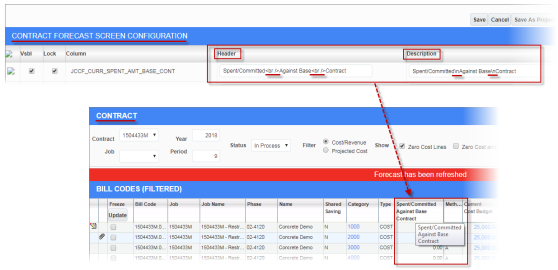
Header: The description entered in this field appears as the table column header in the Contract Forecast with PCI Projections screen. (This field replaces the prompt maintenance functionality.)
-
Description: The description entered here appears when a user hovers over the column header in the Contract Forecasting with PCI Projections screen.
-
Width: The width of any column can be set here, as required. This includes setting the width for locked columns. A width can't be decreased beyond the minimum required value for that particular column. For some columns, the minimum width value is "40". For others, it is calculated by measuring the width of longest word in the column header. This requirement is in place to ensure that column headings are not being cut by width value in column configuration. If the width is less than the width of longest word in the heading, then the system will recalculate it.
NOTE: If the user wishes to hide a column that also uses an override indicator column, the override indicator column can also be hidden.
The pop-up configuration screen has the following buttons:
-
[Save]: This button saves the column configuration for the current user and particular project. No other user under that project will have this user’s configuration.
-
[Cancel]: This button closes the column configuration pop-up screen without saving any changes made in the pop-up for that instance.
-
[Save as Project Default]: This button saves the column configuration for the current user and all other users under that project if they have not saved any particular configuration for that project.
-
[Save as System Default]: This button saves the column configuration for the system. Users who don’t have user/project configurations set up will be updated with this configuration set as the system default.
-
[Reset to Project Default]: This button will update the layout for the current user and project to the configuration saved as the project default. If no configuration is saved as project default, the system default will be used instead if the user clicks this button.
-
[Reset to System Default]: This button removes all the configurations set up as project default or saved for combination of user and project for the current user. It will not supersede the configuration of other users, if any have been set up.
NOTE: Field security can be applied to the [Configure View] button, [Save as System Default] button, [Save as Project Default] button, and [Reset to System Default] button.
[Clear Overrides] – Button
![Pop-up window launched from the [Clear Overrides] button on the Contract Forecast with PCI Projections screen.](../../../../Resources/Images/CF_12c_-_DRAFT/Contract_Forecasting_with_13.png)
Pop-up window launched from the [Clear Overrides] button on the Contract Forecast with PCI Projections screen
The [Clear Overrides] button allows the user to completely remove overridden values on all or the current line and revert to system-calculated values.
-
Clear Override on a Single Line: If users clear an override using the [Current] button in the pop-up window, all the overrides of the current bill code line in focus will be cleared and populated with system-generated values.
-
Clear Override on All Lines: The [All] button in the pop-up window will clear the overridden values of all the bill codes of the forecasted period and revert them to system-generated values.
NOTE: An alert message “Clearing or Retrieving all overrides is rarely used and cannot be undone. Are you sure you want to proceed?” will appear when users choose [All] option in the pop-up window when using [Clear Overrides], [Refresh], or [Retrieve Overrides] button functionality.
The [Clear Overrides] considers risk in the PCI Cost to Complete column. Users must refresh the Contract Forecast with PCI Projections screen to get the Projected Cost Forecast column to reflect the risk values as well.
The following provides more details on the [Clear Overrides] functionality:
-
When no history of forecast stored for a contract:
-
For a contract with no history of forecasts stored, initially, all columns in contract forecast have system-generated values for the first time. Users may override and store the very first forecast as required.
-
Clear override using [Current] button will clear the overridden values for the line in focus and revert back to system-generated values.
-
Clear override using [All] button will clear all the override values for the entire contract and revert all values to system-generated values.
-
-
When JC Control > ‘Copy Last Stored Forecast’ box is unchecked: The overridden values will not be carried forward to the next forecasting period and all columns will have system-generated values.
-
When JC Control > ‘Copy Last Stored Forecast’ box is checked: The overridden values will be carried forward to the next forecasting period for the very first time. All the overrides (inside drill-down and on the forecasting line for A, P and U) will be carried forward as well and the rest of the values will be system-generated. Clearing overrides in the next period using the [ALL] button will revert all the overridden values to system-generated values except the overrides in the Cost Detail drill-down for A type lines.
NOTE: Once clear overrides is performed, there is no way of carrying forward the overrides from the previous period.
NOTE: When users enter the year/period for a contract and press [Go], the forecast details are displayed, and they are stored automatically in the table for the specific period.
The [Clear Overrides] button clears the overrides, on all or the current line, and has the system calculate all the values, without overrides being brought in from the previously stored forecast, regardless of whether the ‘Copy Last Stored Forecast’ checkbox is checked or not on the Job Costing Control File (standard Treeview path: Job Costing > Setup > Local Tables > Control File – Forecasting tab).
The [Refresh] button brings in new costs and only recalculates any overrides that are already in the current forecast based on the rules below.
Rules:
|
1. |
The ‘Copy Last Stored Forecast’ checkbox in the Job Cost Control screen is checked, and the budget method is A. |
||
|
|
a) |
Upon entering a new forecast, when a previous forecast has been stored, the Projected Cost Forecast will be set to the Projected Cost Forecast from the previously stored forecast if the Projected Cost Forecast was overridden in the previously stored forecast - unless one or both of the following conditions are true: |
|
|
|
|
i) |
If the program calculates that the expected final costs will exceed the Projected Cost Forecast from the previously stored forecast. The calculation should be based on the Projected Final Type setting (standard Treeview path: Job Costing > Job > Enter Budget – Projected Final Type column). Note that the Cost Budget is initially defaulted as the Projected Final amount, but the Cost Budget should not be considered in this calculation. The forecast writes back to the Job Budget table when the user overrides the Projected Cost Forecast in the forecast screen. NOTE: The Projected Final Flag field is initially set on the Job Cost Control File screen (standard Treeview path: Job Costing > Setup > Local Tables > Control File – Job Setup tab). The setting defined on the Job Cost Control File defaults to the Projected Final Type column on the JC Enter Budget screen (standard Treeview path: Job Costing > Job > Enter Budget). In most cases, users will not be changing this setting on the JC Enter Budget screen. The program will automatically calculate the expected costs at the completion of the job, based on the setting in this field. |
|
|
|
ii) |
If the Current Cost Budget has changed from the last stored forecast. |
|
|
b) |
If one or both of the above conditions are true, and the system calculates a Projected Cost Forecast that is different from the previously stored forecast, and the user had overridden the Projected Cost Forecast in the previously stored forecast, then the program will function as follows: |
|
|
|
|
i) |
The Cost to Complete will be calculated as the Projected Cost Forecast minus Spent/Committed (per the Projected Final Flag field setting). |
|
|
|
ii) |
The Override checkmark will be cleared. |
|
|
|
iii) |
The Projected Cost Forecast field will be highlighted in light red. |
|
|
|
iv) |
If there are detail lines in the Cost to Complete pop-up window, then the Cost to Complete field should be highlighted in light red. |
Examples:
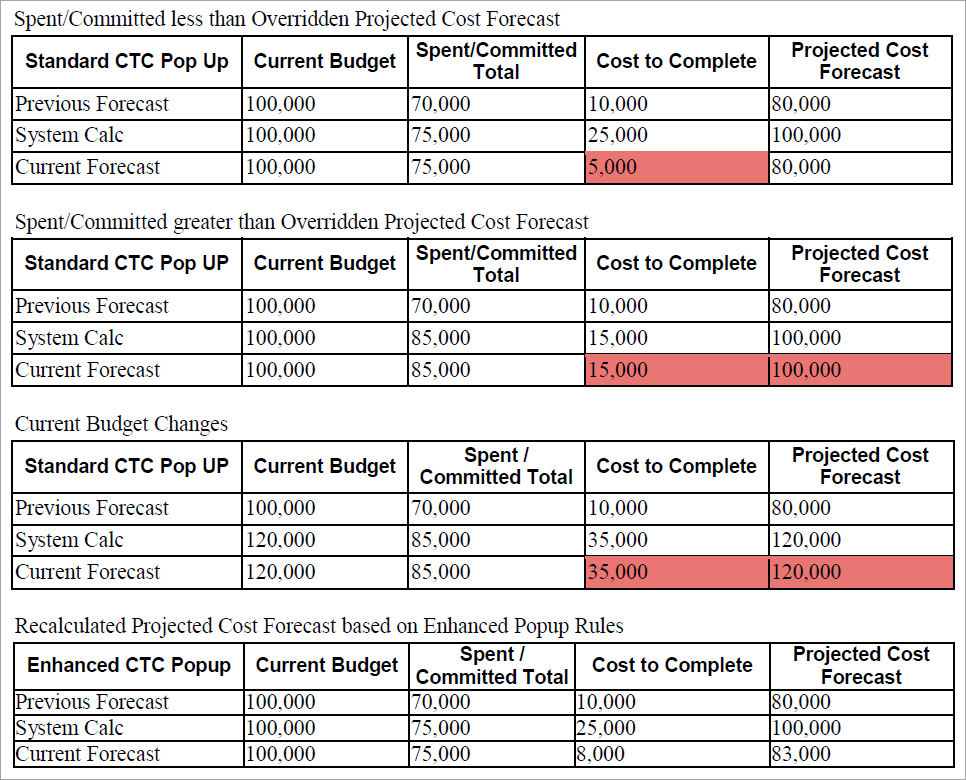
|
2. |
The ‘Copy Last Stored Forecast’ checkbox in the Job Cost Control screen is checked, and the budget method is P or U. |
||
|
|
a) |
Upon entering a new forecast, when a previous forecast has been stored, the Projected Cost Forecast will be set to the Projected Cost Forecast from the previously stored forecast if the Projected Cost Forecast was overridden in the previously stored forecast - unless one or both of the following conditions are true: |
|
|
|
|
i) |
If the program calculates that the expected final costs will exceed the Projected Cost Forecast from the previously stored forecast. The calculation should be based on the Current Output Rate and the Projected Output Quantity. |
|
|
|
ii) |
If the Current Cost Budget has changed from the last stored forecast. |
|
|
b) |
If one or both of the above conditions are true, and the system calculates a Projected Cost Forecast that is different from the previously stored forecast, and the user had overridden the Projected Cost Forecast in the previously stored forecast, then the program will function as follows: |
|
|
|
|
i) |
The Cost to Complete will be calculated as the Projected Cost Forecast minus Spent/Committed (per the Projected Final Type field setting). |
|
|
|
ii) |
The Override checkmark will be cleared. |
|
|
|
iii) |
The Projected Cost Forecast will be highlighted in light red. |
|
|
|
iv) |
The Projected Input Units will be recalculated based on the Current Productivity. (Note that the program always recalculates this value if the user overrides the Projected Cost Forecast without using the Cost to Complete pop-up window.) |
[Refresh] – Button
The [Refresh] button is used to update data for the forecasting period from that previously stored and bring in any new data created after the original storage. Refresh may be performed for [Current] or [All] detail lines, by clicking on the required button in the confirmation pop-up.
For example, refresh could be performed to include newly added bill codes to the forecast that were added to the contract.
NOTE: An alert message “Clearing or Retrieving all overrides is rarely used and cannot be undone. Are you sure you want to proceed?” will appear when users choose [All] option in the pop-up window when using [Clear Overrides], [Refresh], or [Retrieve Overrides] button functionality.
[Store Forecast] – Button
The [Store Forecast] button is visible to those users with the PM role privilege ‘Store Forecast’ checked on their project role (standard Treeview path: CMiC Field > Security > Project Roles). The default is unchecked, and the button will not be visible to any of the system users until assigned to specific roles.
The store forecast function is used to store the projections and updates the WIP information if the Job Cost Control file is set to use contract forecasting as the source for WIP amounts (standard Treeview path: Job Costing > Setup > Local Tables > Control File – WIP tab). When users enter a year and period, and press [Go] button, the forecasting is automatically generated and stored in the database.
NOTE: It is not necessary to use the [Store Forecast] button as the [Save] button function commits all the overrides performed on the column values. The [Store Forecast] button actually sends the updates to WIP for the specific period.
If ‘Allow Archiving on Store Forecast’ is checked in the Project System Options screen (standard Treeview path: CMiC Field > File Maintenance > Project System Options – Contract Forecast tab), then this value will default into the pop-up window launched from the [Store Forecast] button, which users may override as required. When this option is checked in the pop-up window, upon forecast, the Archive function will also be performed.
This function will store the forecast details as a snapshot for the contract or controlling job as queried on the screen in a table named JCCONTFORECAST_JSP_ARCHIVE. This stored data from CMiC Field’s Contract Forecast with PCI Projections screen may be used for any analysis in the future.
[Contract Summary] – Button
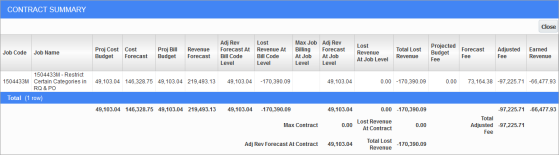
Pop-up window launched from the [Contract Summary] button on the Contract Forecast with PCI Projections screen
The Contract Summary pop-up window provides summary information for all the jobs under the contract, with key column values for cost, revenue, and lost revenue if any.
Field security can be applied to the [Contract Summary] button, if required (standard Treeview path: CMiC Field > Security > Role Maintenance).
NOTE: The Contract Summary columns may not be secured/hidden selectively. Users have only one option: to secure access to the button itself.
[Notes] – Button
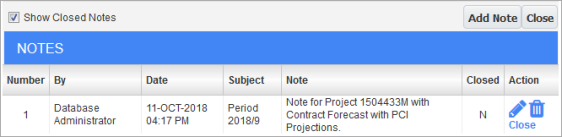
Pop-up window launched from the [Notes] button on the Contract Forecast with PCI Projections screen
The pop-up window launched from the [Notes] button allows users to maintain notes specific to a forecasting period against each individual bill code line item and may be carried forward to the next forecasting period depending on if ‘Notes to be Carried Forward through Periods’ checkbox is checked on the Job Cost Control File screen (standard Treeview path: Job Costing > Setup > Local Tables > Control File – Forecasting tab).
Since notes are entered against each individual line item, users must select a line before clicking on the [Notes] button.
The notes column displays a notepad icon if there are notes entered against a bill code. Users can click on the icon to open the Notes pop-up window, where they may review existing notes or add any new notes, as required.
If the user overrides a column value, tabs off the field and clicks on an existing notes icon before saving or cancelling the override, the override will be automatically saved. In addition, if the user overrides a column value, stays on the same field without tabbing off, and then clicks the [Notes] button, the program will automatically save the overridden value and open the Notes pop-up window. Users should be aware that overrides may not be limited to one field and all overridden values on a record will be auto-saved.
NOTE: Labels “N” for Notes and “Att” for Attachments can be added to the Notes and Attachments column headings by clicking on [Configure View] in the Main Toolbar and updating the Header field for the column in the Contract Forecast Screen Configuration screen. Users may need to click on the [Reset to System Default] button in column configuration functionality to see the labels.
[Attachments] – Button

Pop-up window launched from the [Attachments] button on the Contract Forecast with PCI Projections screen
The pop-up window launched from the [Attachments] button allows users to upload documents with the standard CMiC Field document upload functions.
Since attachments are entered against a line item in each period, users must select a line before clicking on the [Attachments] button. Users cannot carry forward the attachments to future periods.
The attachments column displays an attachment icon if attachments exist against a line item. Users can click on the icon to open the Attachments pop-up window, where they may review existing attachments or add any new ones, as required.
NOTE: The Contract Forecast with PCI Projections screen will save any changes to the screen when the [Attachments] button is clicked to prevent any overrides from being lost.
[Send to Spreadsheet] – Button
The [Send to Spreadsheet] functionality can be used with CMiC MIP (Microsoft Integration Program). Users can send data from the contract forecast columns to spreadsheet, either based on a previously stored template or without a template. This allows users to perform further analysis on the forecasting details.
Field security can be applied to the [Send to Spreadsheet] button, if required.
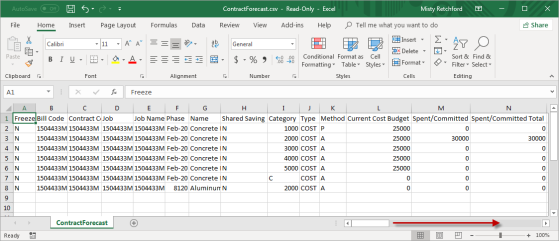
Example of contract forecast exported to spreadsheet
Users can create their own templates using the Excel Merge Maintenance screen. The log to select in this screen is “JCCFCAST – Contract Forecasting”, as shown in the screenshot below.
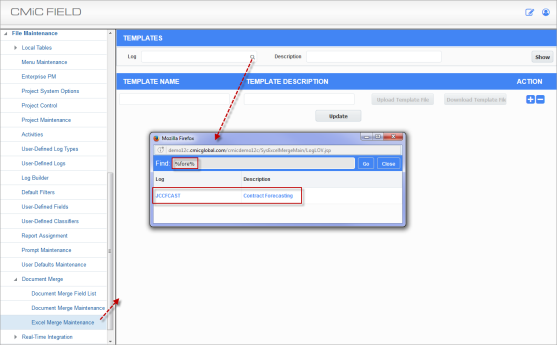
Excel Merge Maintenance; standard Treeview path: CMiC Field > File Maintenance > Document Merge > Excel Merge Maintenance
[Percent Complete] – Button
![Screenshot of Pop-up window launched from the [Percent Complete] button on the Contract Forecast with PCI Projections screen.](../../../../Resources/Images/CF_12c_-_DRAFT/Contract_Forecasting_with_20_560x317.png)
Pop-up window launched from the [Percent Complete] button on the Contract Forecast with PCI Projections screen
The pop-up window launched from the [Percent Complete] button is used to view historical revenue, cost, and profit forecasting and cost information, as well as to enter forecasted completion percentages for current and future years.
NOTE: The [Percent Complete] button is a custom alternate feature which is disabled by default and needs to be enabled in the da.SYS_ALTERNATE_FEATURE table by adding the following entry: JC: CONTRACT FORECAST ADDITIONAL POP-UP SCREEN. Please contact your CMiC consultant if you wish to use this alternate feature.
This screen allows users to view spend rates from previous periods and current year remaining amounts to guide them in determining an accurate percent complete forecast for the current year and future years.
Before clicking on the [Percent Complete] button, a job must be selected in the Job field of the Contract header section.
NOTE: In order for data to be populated in the Previous Years section of the Year End Percent Complete pop-up window, data must exist in the Enter WIP Adjustments screen for prior years in the Job Costing module (standard Treeview path: Job Costing > Forecasting > Work-In-Process Adjustments > Enter and Post Adjustments).
[Retrieve Overrides] – Button
![Pop-up window launched from the [Retrieve Overrides] button on the Contract Forecast with PCI Projections screen.](../../../../Resources/Images/CF_12c_-_DRAFT/Contract_Forecasting_with_21_557x283.png)
Pop-up window launched from the [Retrieve Overrides] button on the Contract Forecast with PCI Projections screen
The [Retrieve Overrides] button is used to retrieve overrides from the last period, if available. This is regardless of whether the budgeted amounts have changed since the last forecast.
Users can select [All] in the pop-up window to retrieve overrides for the entire contract or select [Current] to retrieve overrides for the current line.
NOTE: An alert message “Clearing or Retrieving all overrides is rarely used and cannot be undone. Are you sure you want to proceed?” will appear when users choose [All] option in the pop-up window when using [Clear Overrides], [Refresh], or [Retrieve Overrides] button functionality.
Field security can be applied to the [Retrieve Overrides] button, if required (standard Treeview path: CMiC Field > Security > Role Maintenance).
[Status History] – Button
![Pop-up window launched from the [Status History] button on the Contract Forecast with PCI Projections screen.](../../../../Resources/Images/CF_12c_-_DRAFT/Contract_Forecasting_with_22_558x256.png)
Pop-up window launched from the [Status History] button on the Contract Forecast with PCI Projections screen
The [Status History] button launches a pop-up window that displays the history of status updates that have occurred for the selected contract.
Users can change the status of a forecast using the Status field drop-down menu, located in the Contract header section of the screen. The forecast is automatically updated with the selected status and the pop-up window launched from the [Status History] button will display the change.
Users with the PM Role privilege ‘Notify on Forecast Status Change’ will receive an email notification detailing that a forecast status change has occurred. This privilege is located in the “Other” section under the PM Roles screen (standard Treeview path: CMiC Field > Security > Project Roles). The email will include the contract code and the status to which the forecast has been changed.
Field security can be assigned to the [Status History] button, if required.
[Assign Status] – Button
![Pop-up window launched from the [Assign Status] button on the Contract Forecast with PCI Projections screen.](../../../../Resources/Images/CF_12c_-_DRAFT/Contract_Forecasting_with_23_562x188.png)
Pop-up window launched from the [Assign Status] button on the Contract Forecast with PCI Projections screen
The [Assign Status] button allows the current user to assign one or more statuses to a selected user, to be included in the list of available statuses in the Status field drop-down menu in the Contract (Header) section.
Field security can be assigned to the [Assign Status] button, if required.
Forecast status codes are created in the Forecast Status Maintenance screen.
[Best/Worst Case Analysis] – Button
![Pop-up window launched from the [Best/Worst Case Analysis] button on the Contract Forecast with PCI Projections screen.](../../../../Resources/Images/CF_12c_-_DRAFT/Contract_Forecasting_with_24_558x258.png)
Pop-up window launched from the [Best/Worst Case Analysis] button on the Contract Forecast with PCI Projections screen
This pop-up window is used to perform best/worst case analysis. The values in the Current column for Current Report Earnings, Pending Fee Not Recognized, and Prepending Fee Not Recognized populate automatically from the forecast and are read-only. For newly added categories, the Current column is enabled. The remaining fields in the pop-up window can be entered manually.
The Pending Fee Not Recognized column will include all PCIs with status pending that are flagged to be included in the forecast and the Prepending Fee Not Recognized column will include all PCIs with status pre-pending that are flagged to be included in the forecast. The Current Report Earnings will be calculated as projected profit total from contract forecast less (the Pending Fee Not Recognized plus the Prepending Fee Not Recognized).
New user-defined categories can be created on the fly directly from the pop-up window. The [Assign Previous Categories] can also be used to assign previously created user-defined categories.
[Opps and Risks] – Button
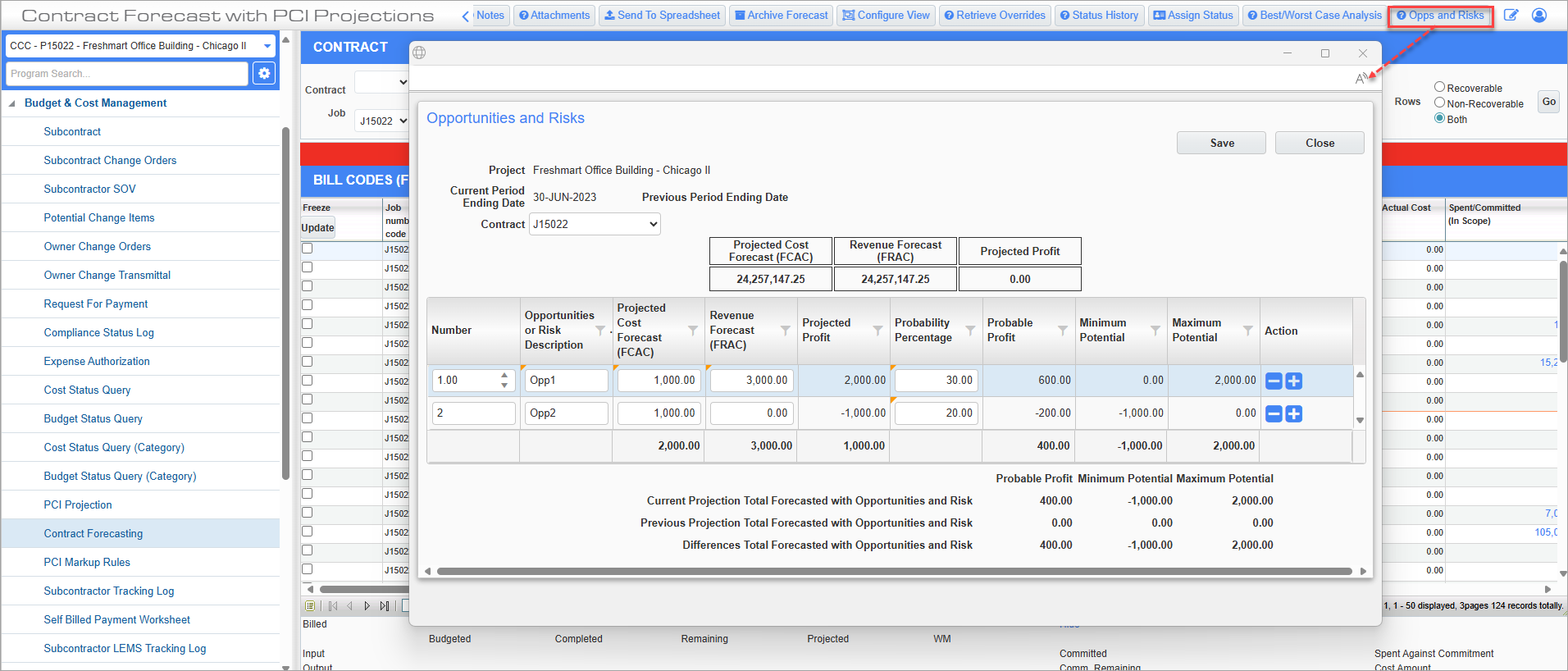
Pop-up window launched from the [Opps and Risks] button on the Contract Forecast with PCI Projections screen
This pop-up window is used to enter, manage, and monitor opportunities and risks related to the project. Users can enter projected cost forecast amounts (FCAC), revenue forecast amounts (FRAC), and probability percentages in the pop-up window, and automatic calculations will provide real-time total updates. Entered data is saved and carried forward for every year and period within Contract Forecasting until the user deletes the rows.
NOTE: Field security can be added to the [Opps and Risks] button, if necessary (standard Treeview path: CMiC Field > Security > Role Maintenance – Contract Forecast 1). By default, this field is hidden for the “ALL” role.
Contract
This field displays the contract code when the forecast is launched by contract. When the forecast is launched by job, the Contract field is a drop-down that displays all the linked billing contracts for the controlling job and its sub-jobs.
The grand totals are calculated as:
Current Projection Total = Projected Profit (header) + Probable Profit/Minimum Potential/Maximum Potention
Previous Projection Total = Previous FRAC - Previous FCAC
Differences Total = Current Projection - Previous Projection
[Percent Complete Projections] – Button
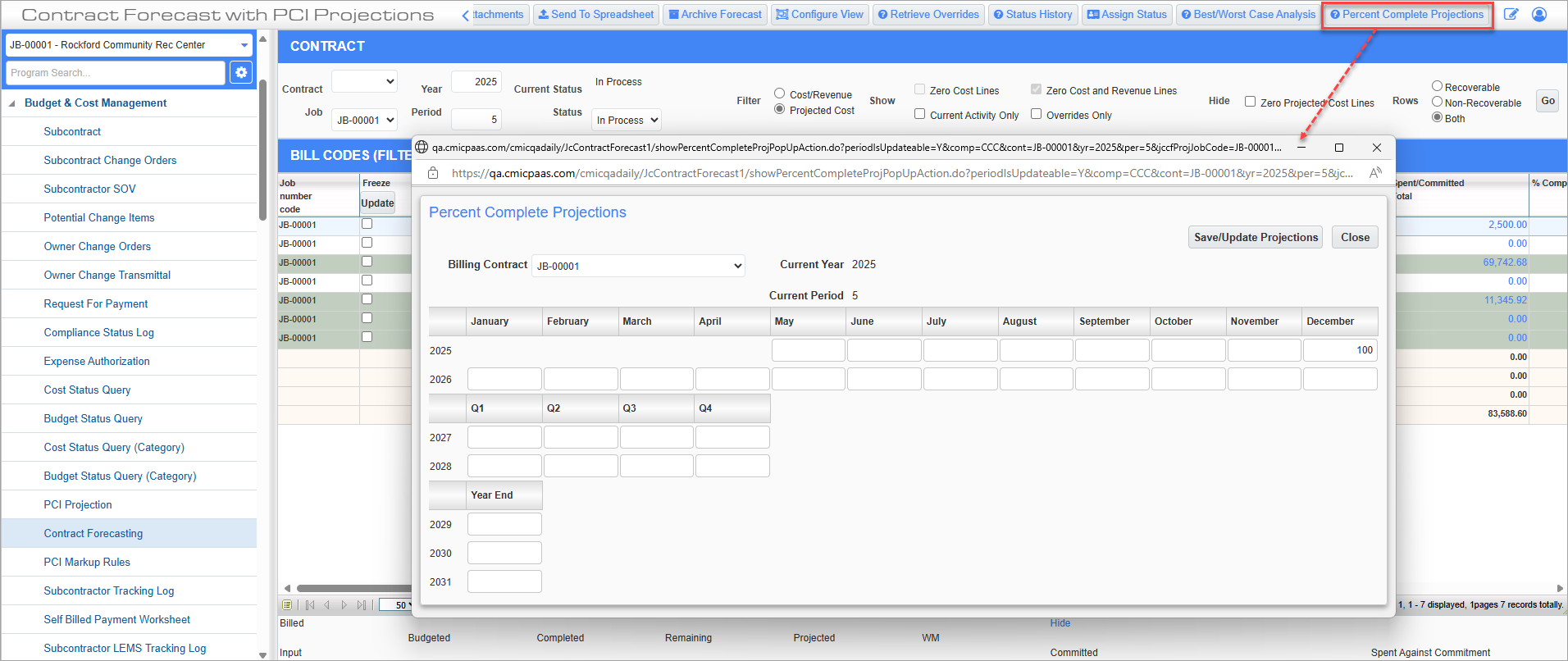
Pop-up window launched from the [Percent Complete Projections] button on the Contract Forecast with PCI Projections screen
The Percent Complete Projections pop-up window allows users to input percent complete values monthly, quarterly, and yearly for controlling and sub job billing contracts. If the Contract section of the screen is filtered by job, then the pop-up window's Billing Contract field will include a drop-down to allow users to choose between the controlling or sub billing contract. Job security will control which billing contracts a user has access to, as per standard functionality.
NOTE: This button is only available if the System Alternate Feature 'FCAST_WIP_PCT_COMPL_POP-UP’ is enabled. By default, this feature is turned off. To enable this feature, please contact CMiC Support.
Projections can be entered per period for the first two years, quarterly for the next two years, and as a year-end percent complete for the next three years. The periods prior to the contract forecasting period will not show any percent complete values.
The maximum percent complete for each of the billing contracts under a controlling job is 100%. If it exceeds 100%, the system will validate and revert to 100%.
When 100% is entered for any period, then all the following future periods will be auto populated with 100%. When the entered 100% is overridden to a lesser percent complete, then the system will automatically clear the 100% from future periods.
Once the projections are saved/updated, the values will be pushed to the Percent Complete pop-up in the Enter WIP Adjustments screen in CMiC Enterprise for the same contract. As well, values will also auto populate the WIP Monthly Forecasts and WIP Annual Forecasts pop-ups. For more information, please refer to Job Costing - Enter and Post WIP Adjustments.
NOTE: If the 'Quarterly WIP % complete' box is checked on the Forecast tab of the System Options screen, only quarterly values from the Percent Complete Projections pop-up will be displayed in the Percent Complete pop-up in WIP. For more information, please refer to System Data - System Options - Forecast - Tab.
[Archive] – Button
The [Archive] button functionality can be used to store a snapshot of the contract forecasting in a table, where all the column values from the contract forecasting screen will be dumped. This will be useful when users want to compare the contract forecasting values in a period with the archived values and analyze the cause and effects of the differences. This may be required in specific scenarios such as forecast has been stored and then a posted PCI is unposted or status changed to “rejected” or “cancelled”, affecting the following period forecasting.
The Archive function may be performed as per user requirements and on regular intervals. When the button is pressed, the confirmation dialogue pops up and users may accept to store the archive. The system will store only one set of records on any system date and pressing multiple times on a single day will simply overwrite the values in the tables.
Users should be aware that storing the archive in an unplanned manner will simply create large amounts of data using up system resources. Users should use their discretion and when a forecast is considered complete in a specific period and stored, then archive the forecast. Alternately, a snapshot of the forecast on a specific day of the week may be stored as well.
Archives help reconcile the stored values in the WIP screen compared to the contract forecasting values.
There are no queries and reports for the Archive function. Users can use their query tools for data retrieval and analysis.
Field security can be applied to the [Archive] button, if required (standard Treeview path: CMiC Field > Security > Role Maintenance).
NOTE: If ‘Allow Archiving on Store Forecast’ is checked in Project System Options (standard Treeview path: CMiC Field > File Maintenance > Project System Options – Contract Forecast tab), then this value will default into the pop-up window launched from the [Store Forecast] button, which users may override as required. When this option is checked in the pop-up window, upon forecast, the Archive function will also be performed.
Users should note the following:
-
When selecting the 'Contract Code' option and querying the stored forecast, only those details for the specific contract are queried and displayed. The Archive function will store all these records in the table.
-
When a forecast is queried for a controlling job, then the Archive function will store details as queried for all main/sub jobs, regardless of the contract code.
-
Users may press the [Archive] button as many times as required, and on a single day, the records for the contract/controlling job will be overwritten and the net result will be one set of records per day stored in the table.
-
Subsequent pressing of the [Archive] button on the following days will store a new set of archive details with the audit information of archive date with time.
-
Any overrides must be committed (saved) and then re-queried and archived again, in order to update the archive data.
Confirmation Message Banners
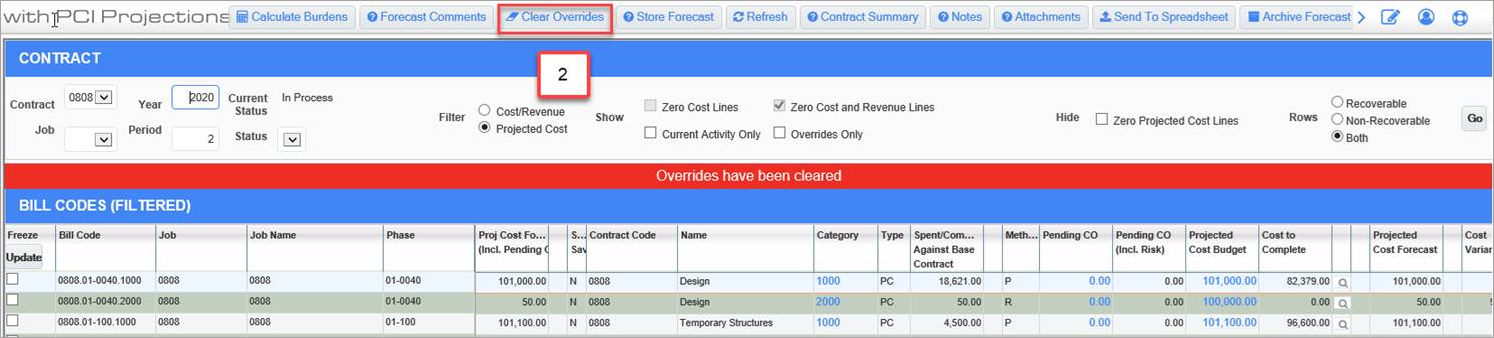
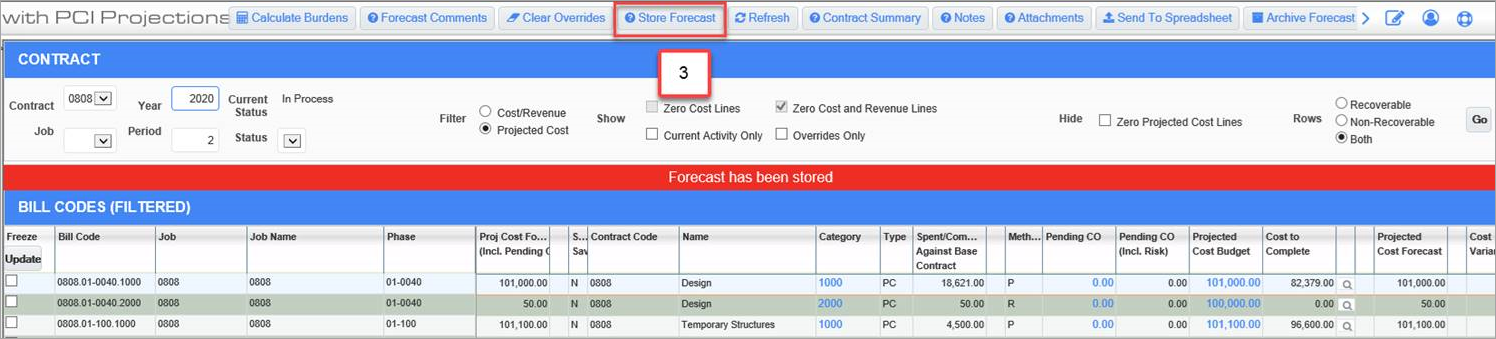
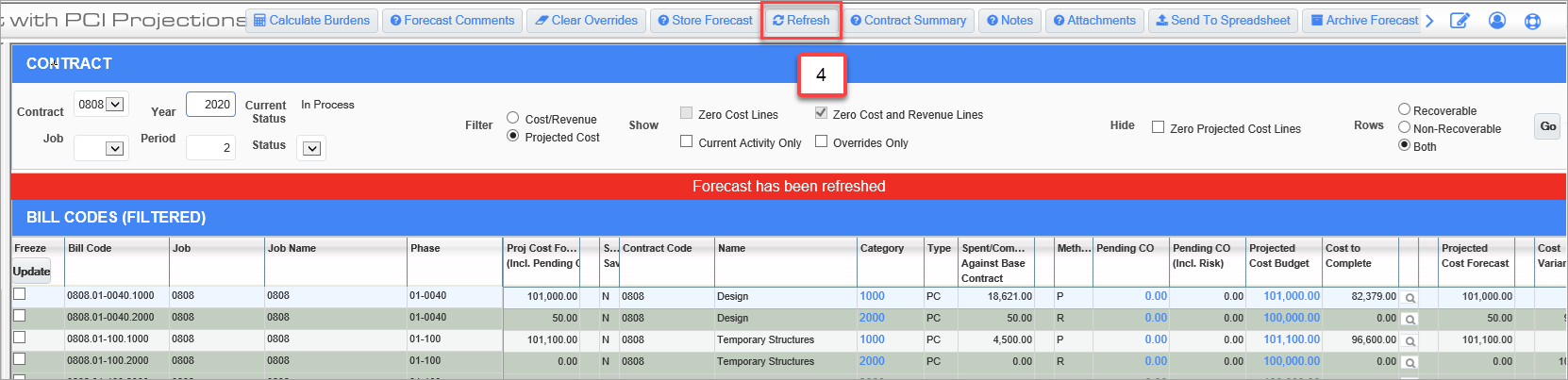
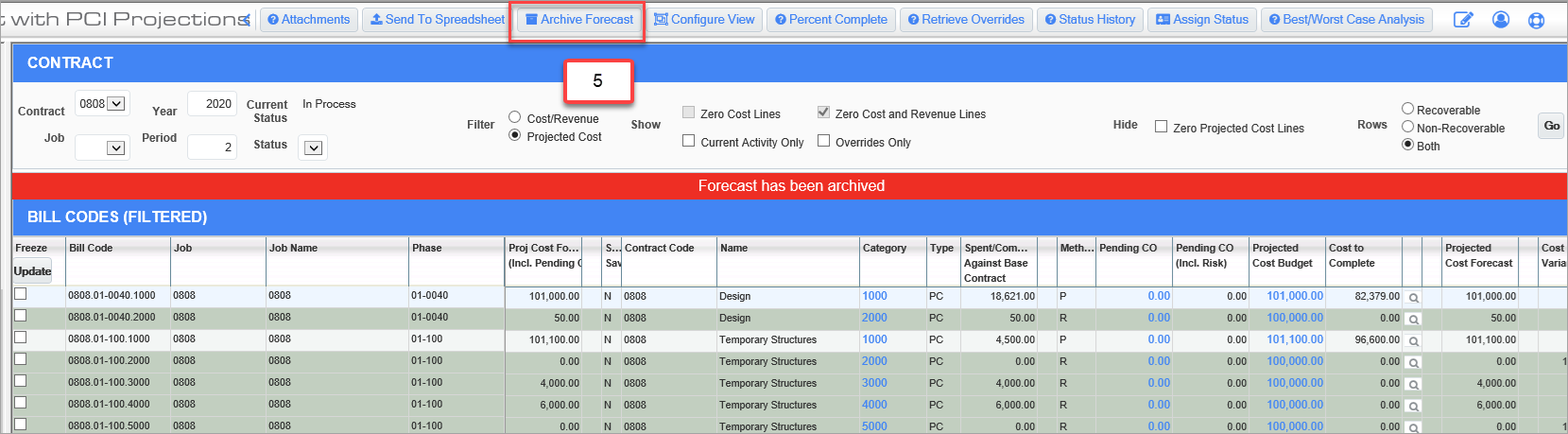
A confirmation message banner is displayed after successful completion of the following functions:
-
Calculate Burdens
-
Clear Overrides
-
Store Refresh
-
Refresh
-
Archive Forecast
-
Retrieve Overrides