 Search Tips
Overview
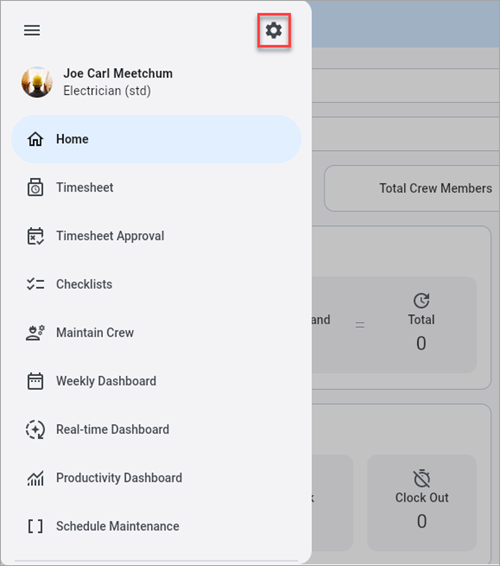
Settings icon on the Construct CT menu
Click on the Settings icon ( ) to launch the Settings screen.
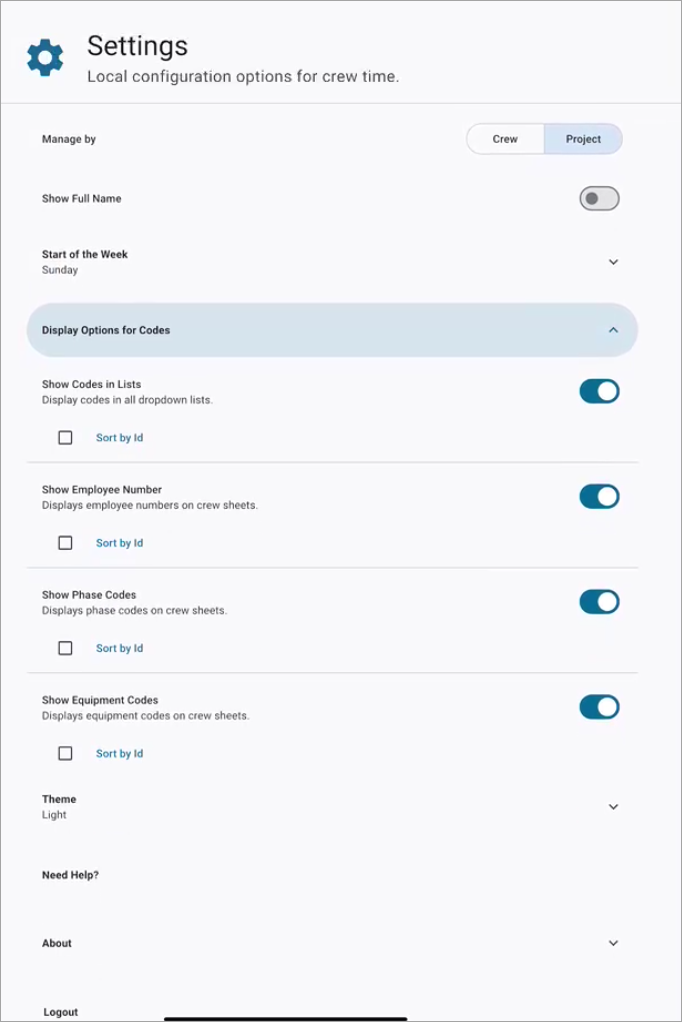
The Settings screen allows users to adjust their preferences in the Construct CT app.
Manage by Crew/Project
This toggle is used to control crew selection. If "Project" is selected, users can select a default project and then select a crew. If "Crew" is selected, users can only select an existing crew. If a crew does not exist, one can be added in the Crew Maintenance screen.When this toggle is enabled, crews can be moved to different projects.
NOTE: Users require the E-Time role privilege 'Allow Manage by Crew' to view this setting. For more information, please refer to E-Time - Role Maintenance (E-Time Roles).
Show Full Name
Press this toggle to view full employee names in the Creating Crews, Maintain Crews, Creating Timesheets, Employee Sign-Off Dashboard, and Crew Dashboard screens. Full names use all of the name fields, shown below, entered in the US Payroll - Employee Profile.

Full names are displayed in the following order:
Prefix
First Name
Middle Initial
Last Name
Suffix
Start of the Week
Use the drop-down to indicate which day the week starts on.
Display Options for Codes
Show Codes in Lists
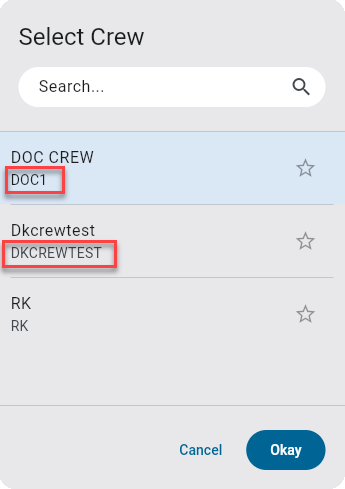
Enable this toggle to show codes for all employees, tasks, and equipment in all LOVs in the Construct CT app. An example of these codes is shown below.
Show Employee Number
Enable this toggle to display employee numbers on the Crew Maintenance and Timesheet screens.
When the toggle is enabled, the ‘Sort by ID’ checkbox is displayed. Check the 'Sort by ID' box to sort the employees by ID number.
Show Phase Codes
Enable this toggle to display phase codes on the Crew Maintenance and Timesheet screens.
When the toggle is enabled, the ‘Sort by ID’ checkbox is displayed. Check the 'Sort by ID' box to sort the codes by phase number.
Show Equipment Codes
Enable this toggle to display equipment codes on the Crew Maintenance and Timesheet screens.
When the toggle is enabled, the ‘Sort by ID’ checkbox is displayed. Check the 'Sort by ID' box to sort the codes by equipment number.
Theme
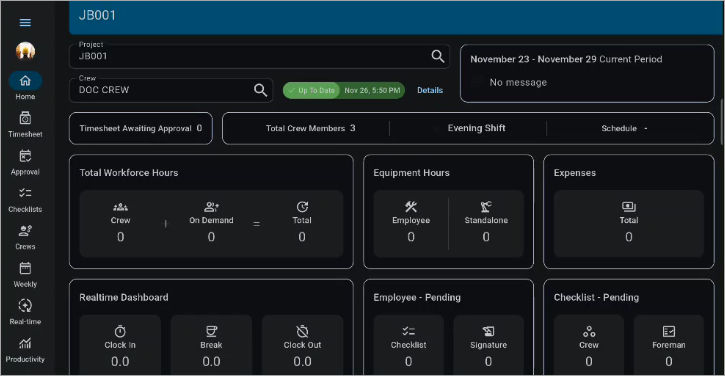
Use this drop-down to select the system default, light, or dark theme. Dark Theme will reduce the amount of light emitted by the device's screen while maintaining the minimum color contrast required for readability. An example of dark mode is shown below.
Need Help?
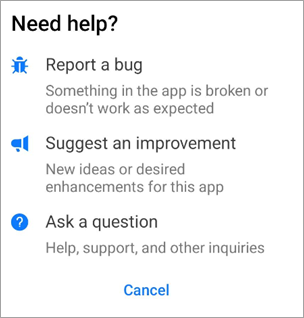
This setting is used to launch the Need Help? pop-up which provides access to bug reporting, feedback and help links.
About
This setting is used to show the app version, web service version, and system level.