 Search Tips
Overview
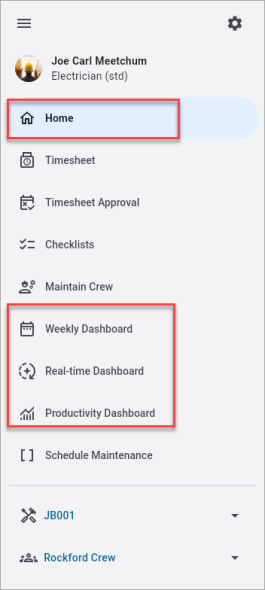
Dashboards in Construct CT can be launched from one of the dashboard links found in the main menu, shown above. These dashboards are a great tool for analyzing timesheet data and each one has been purposely designed so key elements can be examined at a glance.
-
The Home Dashboard serves as the main control panel for monitoring and managing daily crew activities, timesheets, and project progress.
-
The Productivity Dashboard provides users with an overall review of crew productivity.
-
The Weekly Dashboard displays timesheet summaries for all the project/crews to which the user has access. This dashboard also features:
-
Project Dashboard
-
Crew Dashboard
-
-
The Real-Time Dashboard displays the real-time activity of employees who are using the Construct CHK app to clock in/out and take breaks over the course of a shift on a job site.
Security
Access to the dashboards can be granted to a user's role in the Security Roles screen located in the E-Time module.
NOTE: The Security Roles screen launched from the E-Time module contains security options and settings that are not widely available in the security screens launched from other modules (e.g. CMiC Field, ESS, etc.). The dashboard programs being discussed here are only available for assignment in the Security Roles screen located in E-Time.
For convenience, the security for each of the dashboards listed below is highlighted in the screenshot.
-
Project Dashboard
-
Productivity Dashboard
-
Crew Dashboard
-
Crew Real-Time Dashboard
-
Weekly Dashboard
-
Real-Time Dashboard
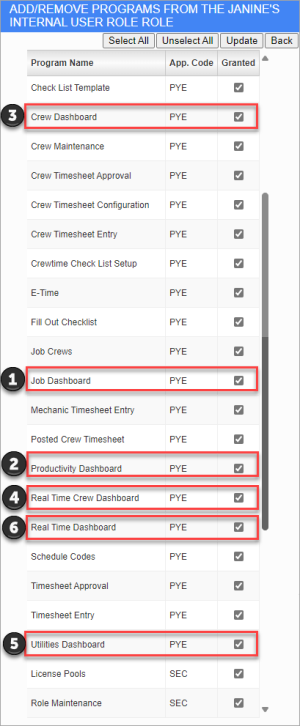
E-Time Security Roles; standard Treeview path: E-Time > Security > Role Maintenance
Home
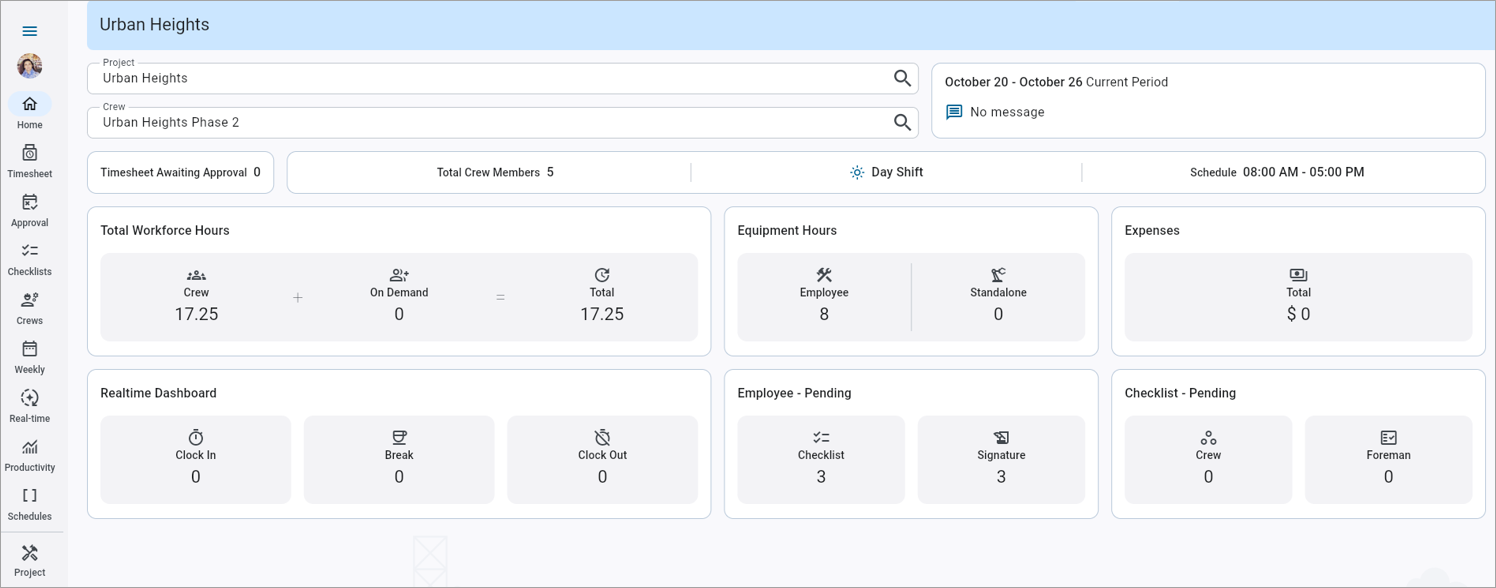
Construct CT - Home
The Home Dashboard serves as the main control panel for monitoring and managing daily crew activities, timesheets, and project progress. It provides a real-time snapshot of workforce, equipment, and expense metrics for the selected project and crew.
For more information, please refer to Construct CT - Home Dashboard.
Weekly Dashboard
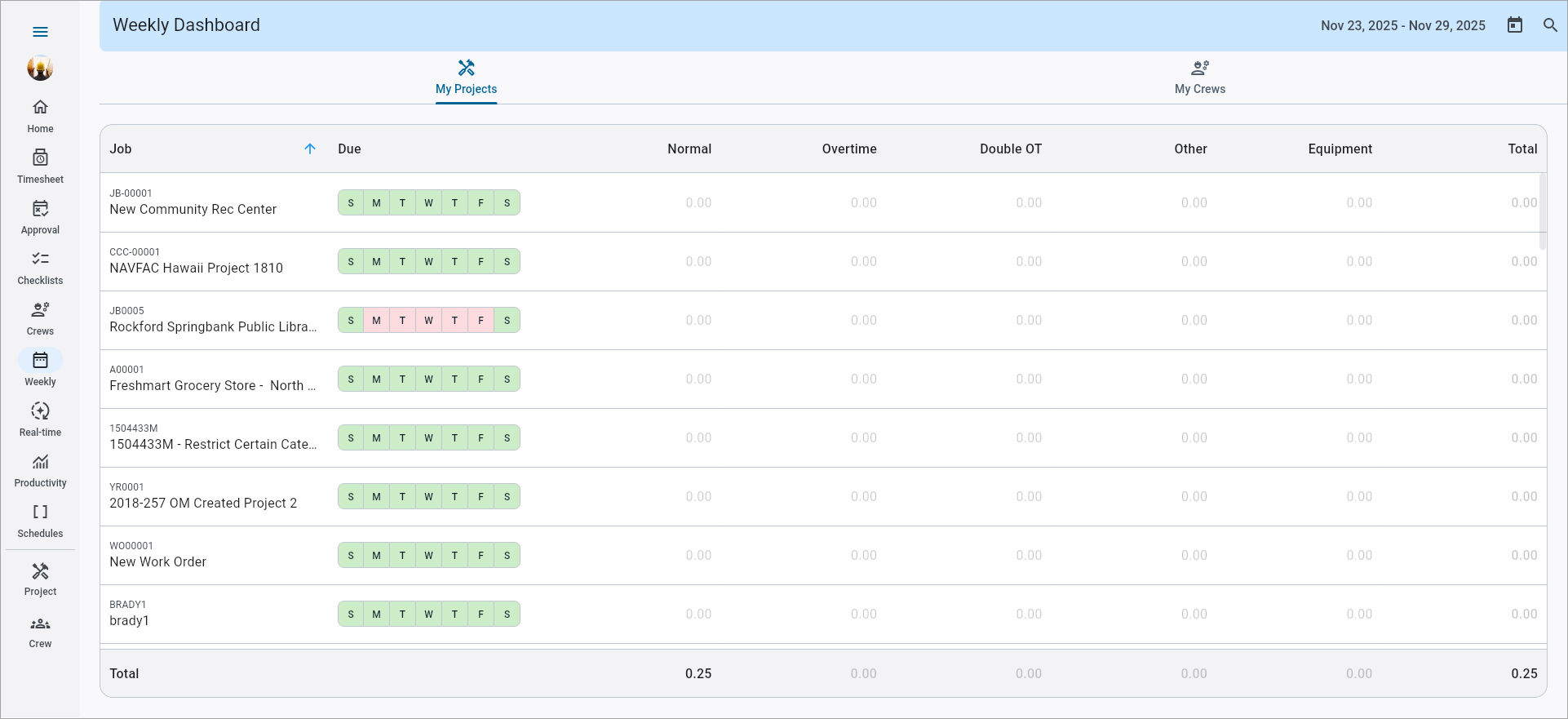
Construct CT - Weekly Dashboard – My Projects tab
The Weekly Dashboard provides a consolidated weekly overview of each project and crew’s working hours, employee activity, and missing time entries. This dashboard allows foremen and supervisors to instantly identify missing days and hours without drilling into individual employee records.
The Weekly Dashboard displays timesheet summaries for all projects to which the user has access. The dashboard contains two tabs: My Projects and My Crews.
My Projects – Tab
This tab on the Weekly Dashboard screen displays the information for all jobs to which the user has access. The user can select a job to bring up the Project Dashboard for that job, as shown in the screenshot below.
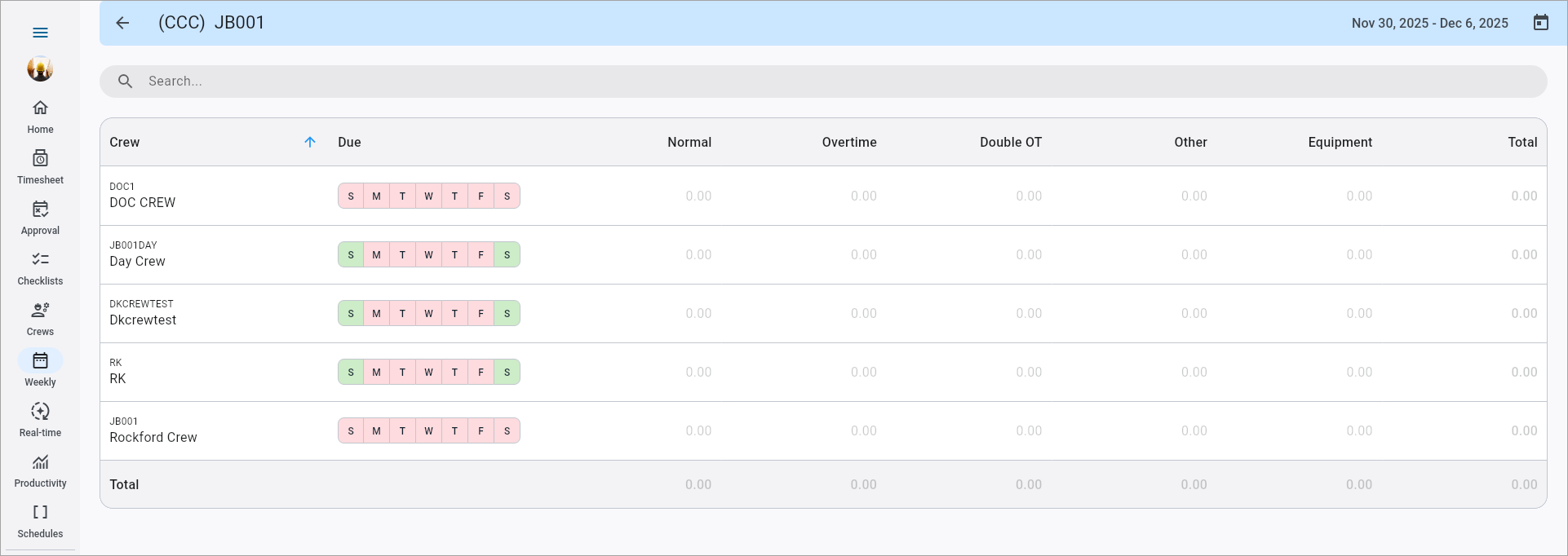
Project Dashboard
The Project Dashboard displays all crew timesheets related to the currently selected project. The current week is shown by default, but the date range can be changed by pressing the Calendar icon ( ).
).
The dashboard displays totals for normal, overtime, double OT, other, and equipment hours for each crew working on the project for the selected week. Press the crew code to drill down for further details. The Due column highlights missing or incomplete days using color coding (red for missing days, green for complete, and gray for weekends) and displays the total number of days due. A Total row at the bottom summarizes the cumulative hours across all crew members for the week.
This dashboard can also be reached by pressing the Crew Dashboard option in the Home Dashboard.
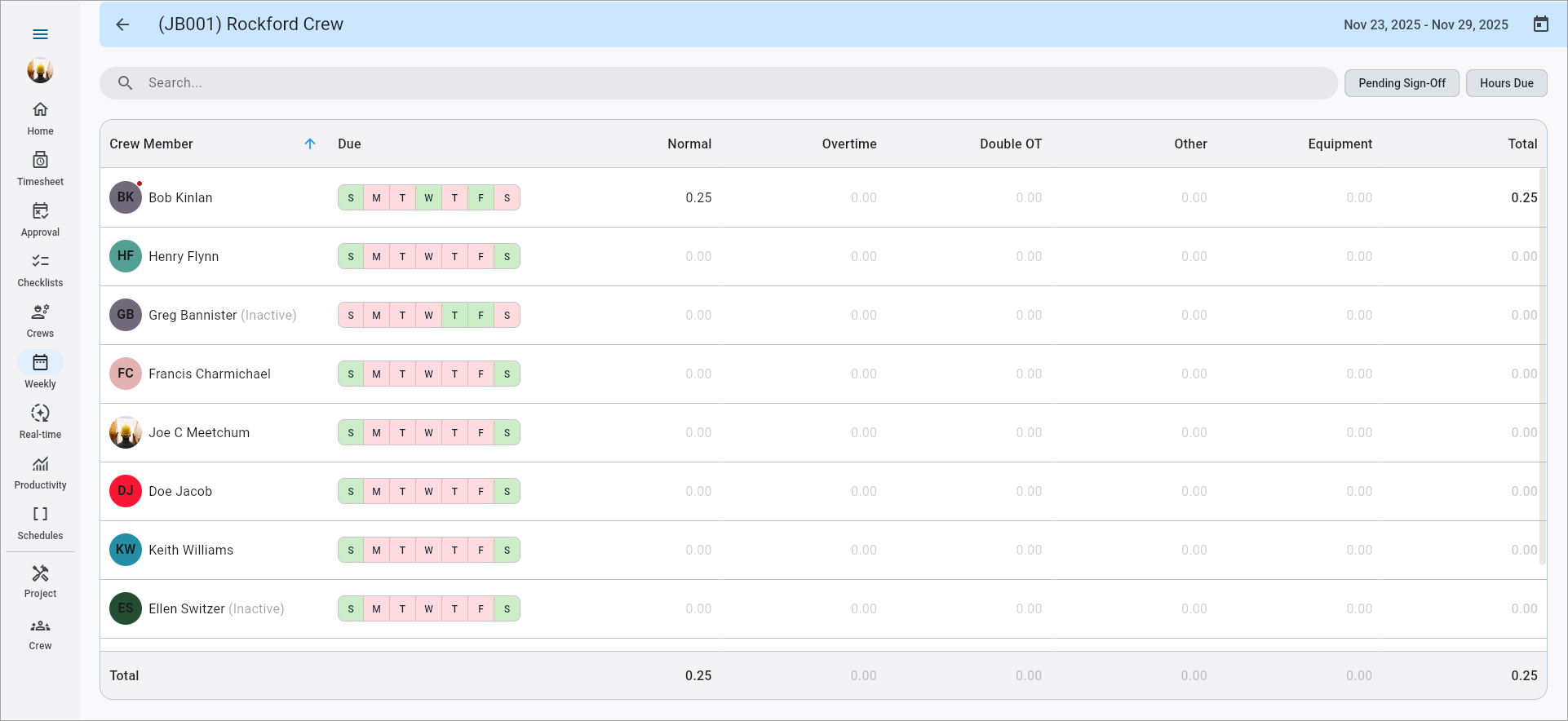
Crew Dashboard
Press an employee row to see details for that employee.
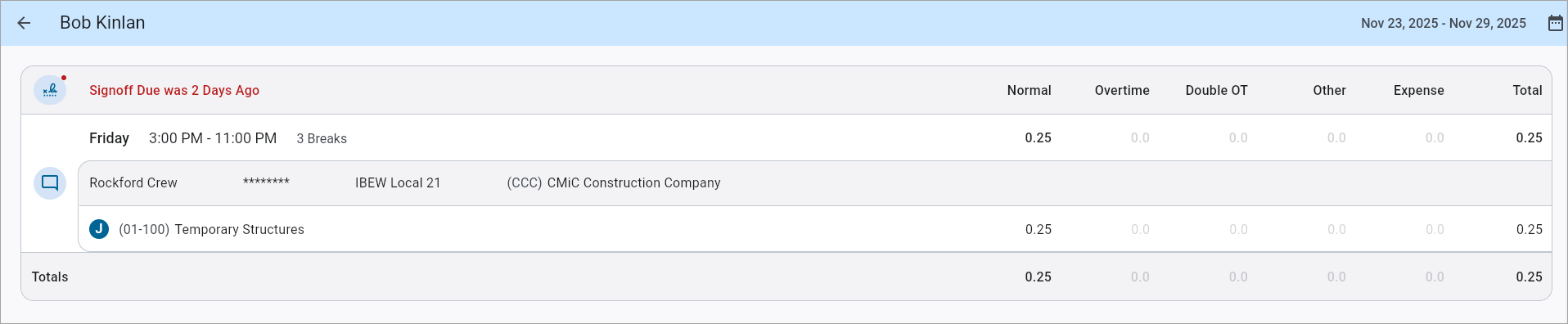
Employee Dashboard
My Crews – Tab
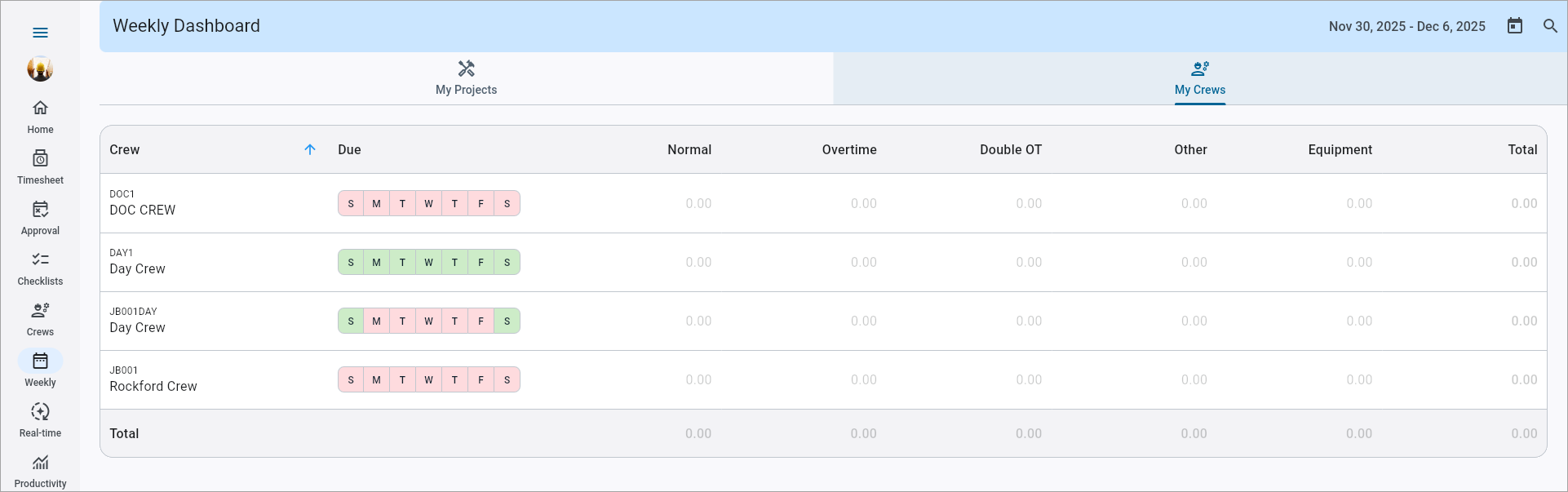
Construct CT - Weekly Dashboard – My Crews tab
This tab displays the information for all crews for which the selected user is responsible. The user can select a crew to bring up the Crew Dashboard for that job. The responsible person can be changed in the Maintain Crew screen.
Productivity Dashboard
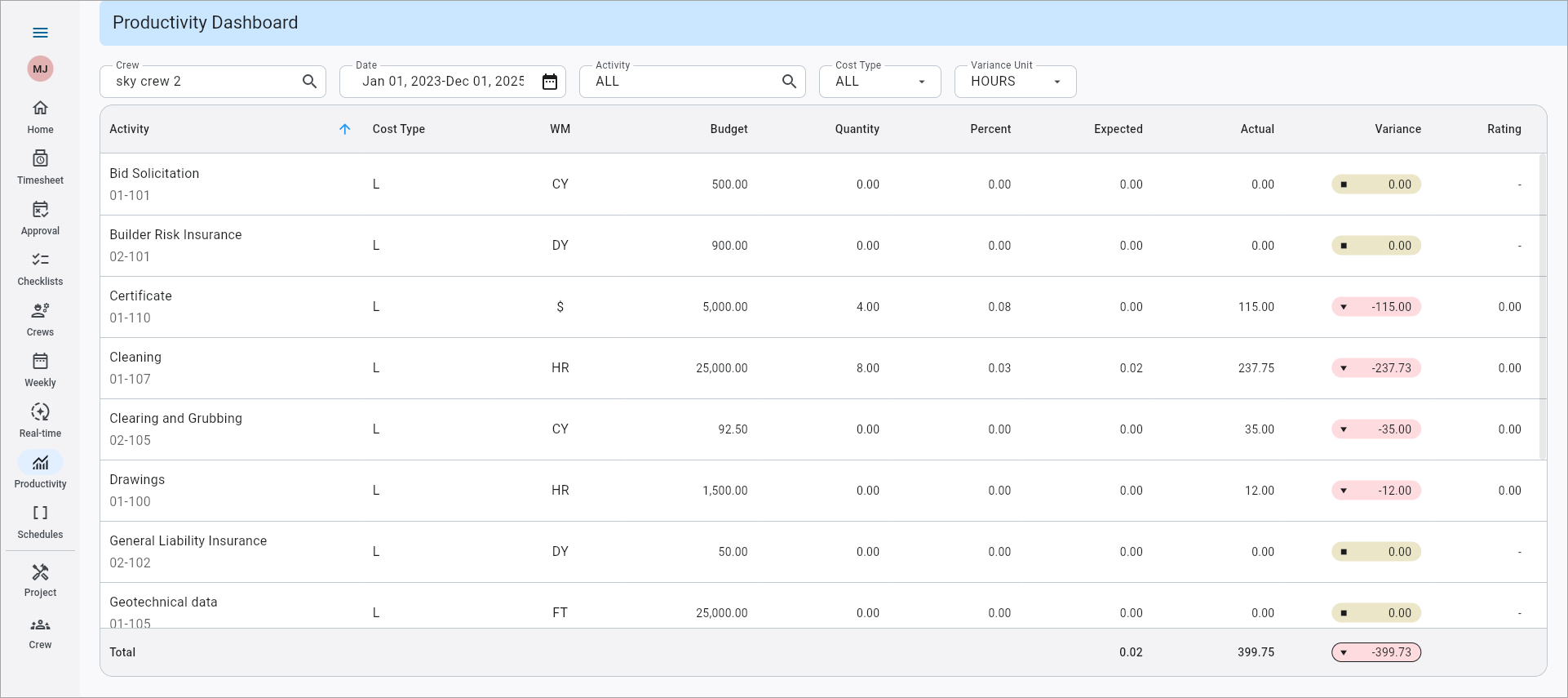
The Productivity Dashboard provides users with an overall review of crew productivity, including hour/cost/unit variances, ratings, and totals. Users can customize the dashboard by filtering the data by date, activity, cost type, and variance.
For more information, please refer to Construct CT - Using the Productivity Dashboard.Selection Criteria
Crew
Select a crew from the Crew LOV, which includes all crews in the project. This field defaults to the crew selected in the Construct CT menu.
Date
Select a date or range of dates from the calendar. This field defaults to the current date. If a single date is selected, use the left and right arrows to navigate to the previous/next date.
Activity
Select one or more crew activities (tasks) from the LOV. This field defaults to "ALL".
Cost Type
Select whether to include labor, equipment, or all cost types. This field defaults to "Labor".
Variance Unit
Select whether to calculate the variance in dollars, dollars/units, hours, hours/units, units, units/hours.
Details
This table is recalculated every time you open it or change a filter, with no save step required. It will reflect the latest submitted crew timesheets compared against the job budget, at the moment you view it.The Task, Cost Type, WM, and Budget columns reflect values set up in the Job Costing module.
The Quantity column represents the units entered on the crew sheet at the activity level, regardless of the cost type.
For more information about the formulae used in the Percent, Expected, Actual, Variance, and Rating columns, please refer to Construct CT - Dashboards.
Activity
The task/phase of work. If your company displays phase codes, the code appears under the task name.
Cost Type
The cost type recorded against that activity.
WM
The unit of measure the activity is tracked in (e.g., SF, LF, or CY).
Budget
The phase's total budgeted quantity, in the WM unit.
Quantity
The quantity of work reported/installed so far.
Percent
Percent complete for the activity.
Expected
How much should have been produced by now, based on budget and progress.
Actual
How much has actually been produced or spent, in the same unit as the Expected column.
Variance
The gap between Expected and Actual. The Variance column is color-coded to reflect the variance between the expected and actual values, and is calculated as:
| Icon | Status | Description |
|---|---|---|
 | Up - Ahead | Expected is greater than Actual. The crew has used less than planned for its progress. |
 | Down - Behind | Actual is greater than Expected. The crew has used more than it planned for its progress. |
 | Flat - On Target | Expected equals Actual exactly. |
Rating
A numeric productivity score for that activity and cost type.
Real-Time Dashboard
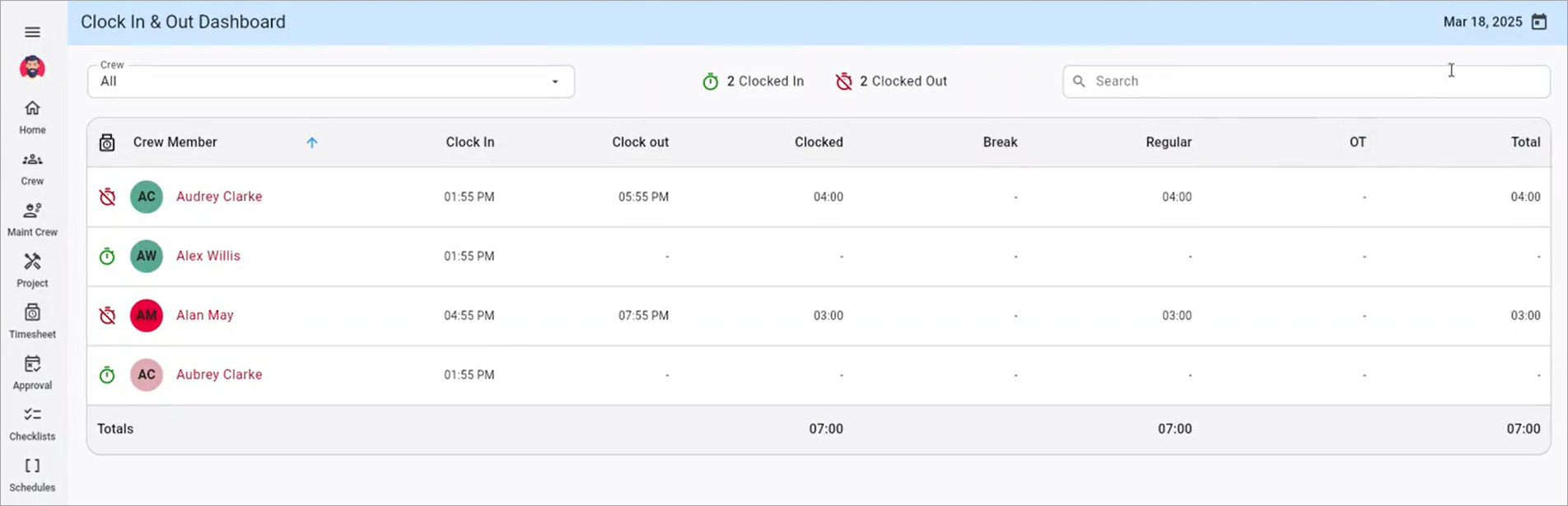
The Real-Time Dashboard captures the real-time activity of employees who are using the Construct CHK app to clock in/out and take breaks over the course of a shift on a job site.
To learn more about using this dashboard, refer to Using the Real-Time Dashboard.