 Search Tips
Overview
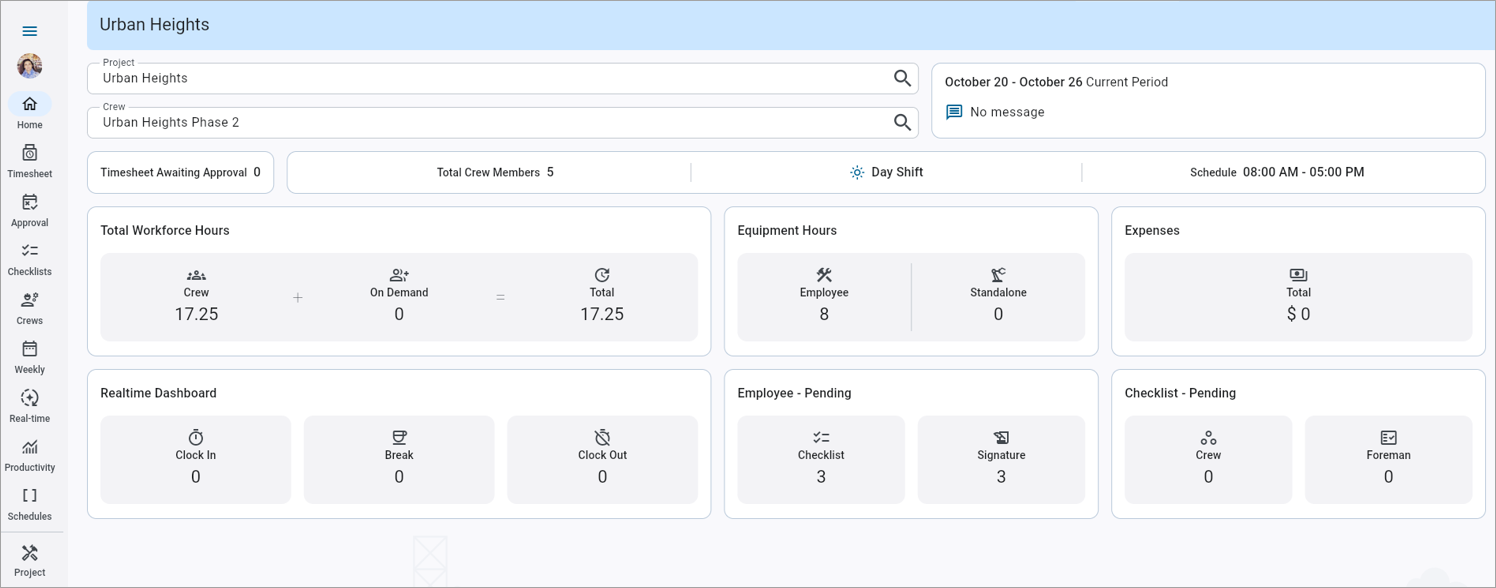
Construct CT - Home
The Home Dashboard serves as the main control panel for monitoring and managing daily crew activities, timesheets, and project progress. It provides a real-time snapshot of workforce, equipment, and expense metrics for the selected project and crew.
Project
Enter/select the project name (e.g., Urban Heights). This field displays the default project name but users can switch between active projects.
Crew
Enter/select the crew name (e.g., Urban Heights Phase 2). This field displays the default crew code but users can switch between crews.
Date Range
This field displays the current week being viewed.
Message Area
This section displays any E-time period messages or announcements.
Timesheet Awaiting Approval
This field displays the count of timesheets pending approval for the current crew. Click on this field to go to the Approval screen for review and authorization.
Crew
This section displays the details for the selected crew. Click anywhere in this section to go to the Crews screen.
Total Crew Members
This field displays the number of employees assigned to the selected crew.
Shift Type
This field displays the selected shift on the crew.
Schedule
This field displays the standard working hours.
Total Workforce Hours
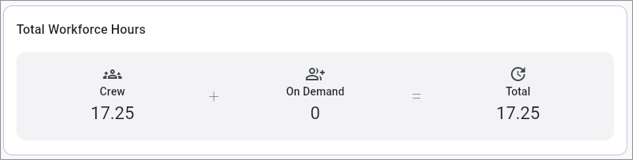
Construct CT- Home - Total Workforce Hours
This section provides a breakdown of total hours recorded by the crew:
-
Crew: Total regular hours entered for crew members.
-
On Demand: Additional labor hours, such as temporary or subcontracted staff.
-
Total: Combined total of crew and on-demand crew members hours for the period.
Click on this tab to go to the Timesheet screen.
Equipment Hours
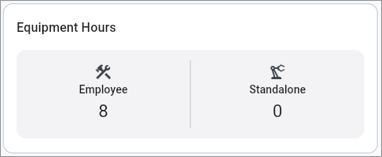
Construct CT- Home - Equipment Hours
This section displays the total hours logged for project equipment usage:
-
Employee: Equipment hours associated with specific crew members.
-
Standalone: Equipment hours not linked to a particular employee.
Click on this tab to go to the Equipment tab on the Timesheet screen.
Expenses
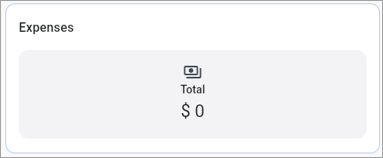
Construct CT- Home - Expenses
This section displays the total dollar value of expenses recorded for the crew during the current period. This includes labor costs, equipment charges, and material or miscellaneous expenses when entered.
Click on this tab to go to the Expense tab on the Timesheet screen.
Real-time Dashboard
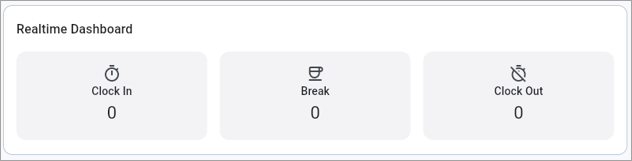
Construct CT- Home - Realtime Dashboard
This section provides live tracking of workforce activity throughout the day:
-
Clock In: Number of employees currently clocked in.
-
Break: Employees currently on break.
-
Clock Out: Employees who have clocked out for the day.
Click on this tab to go to the Real-time Dashboard.
Employee - Pending
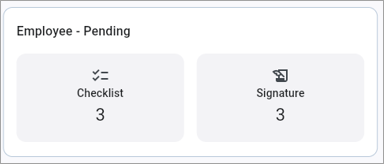
Construct CT- Home - Employee - Pending
This section displays incomplete employee actions that require attention:
-
Checklist: Number of employees with pending daily checklists (e.g., safety or equipment verification).
-
Signature: Number of employees who still need to sign their timesheets for submission.
Click on this tab to go to the Employee Dashboard.
Checklist - Pending
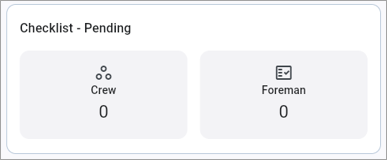
Construct CT- Home - Checklist - Pending
This section summarizes the pending checklist verifications by role:
-
Crew: Number of crew-level checklists awaiting completion.
-
Foreman: Number of supervisor/foreman checklists pending review or sign-off.
Clicking on this tab to go to the Crew and Foreman Checklist.