 Search Tips
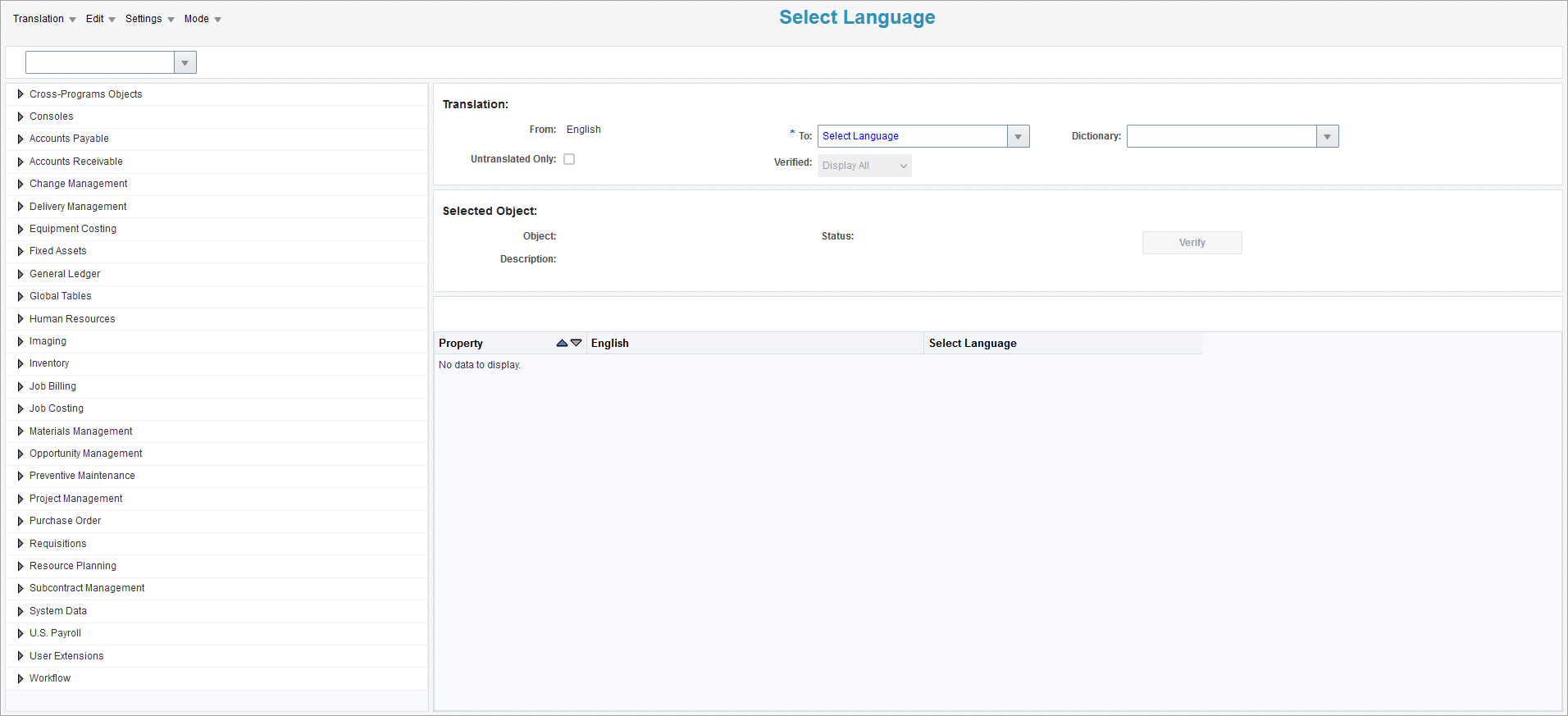
The Program Mode contains a complete list of scanned objects found in each program of the CMiC Enterprise System, such as fields, buttons, captions, etc. After creating a dictionary and translating terms in Dictionary mode, the Program mode is used to review and edit translated terms for a specific object found on the Treeview. Each program can also be previewed and verified for accuracy.
By default, the Translation Manager opens in Program mode, but it can also be accessed by clicking on the Mode drop-down menu and selecting the "Program" option.
Search Functionality – Filtering & Sorting

Users can use the Search drop-down lists to navigate the Treeview making it easier to find a specific item. Each drop-down list has a Search option which opens a LOV to filter and sort through the Program Mode's list of scanned objects.
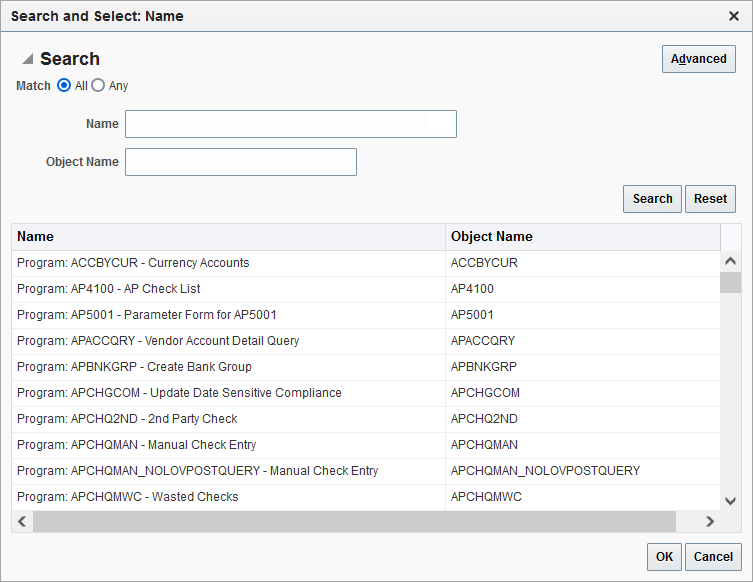
The Arrow icons to the left of the drop-down list allow users to quickly jump to the parent's objects in the Treeview.
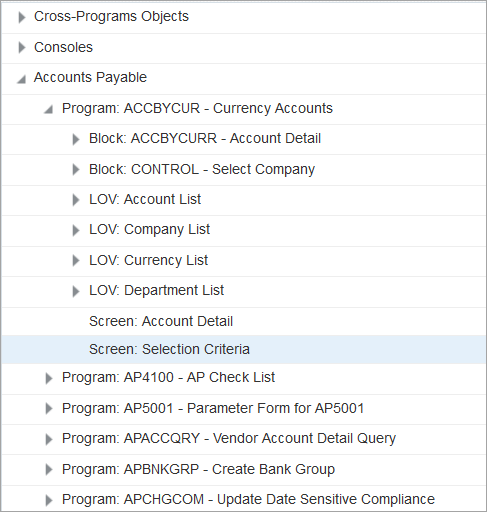
The Treeview section displays all scanned objects of the CMiC Enterprise System, such as programs, logs, fields, buttons, etc. Users can drill down the Treeview by clicking on the  icon next to the associated object to view and modify the translation details for the selected object.

The following describes the editable fields available in this section.
To
Select the language to translate to.
Dictionary
This field is optional. Select a dictionary to be used for translations fulfilled by the [Translate] button on each program element. If a dictionary is not selected, the [Translate] button will be disabled.
Untranslated Only – Checkbox
Use this checkbox to filter for terms that have not been translated.
Verified
Use this drop-down menu to filter for terms that have been verified or unverified. By default, this field is set to "Display All".

The following describes the fields available in this section.
Program
Displays the program ID.
Description
Displays the name of the program.
Status
Indicates whether all program elements of the selected program have been verified or not.
[Verify Program] – Button
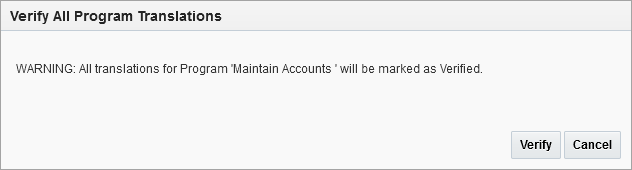
If the Status field is set to "Unverified", this button can be used to mark all translations for the selected program as "Verified". The Verify All Program Translations will appear to warn users that all translations will be marked as "Verified". Click the [Verify] button to proceed or the [Cancel] button to cancel. After verification is complete, the Status field is set to "Verify" and the [Verify Program] button becomes disabled.
[Preview Program] – Button
Click this button to open a preview of the translated program in a new tab.

This section displays the program element type, such as "Program", "Field", etc., and a table listing all translatable properties associated to the selected program element. The Property column displays the label of the property, such as "Title", "Description", etc., and the English column displays the English term for the property.
The following describes the editable fields available in the table.
Name of Translated Language
This column will display the name of the selected language that the English text will be translated to, such as "French". Users can manually enter the translation for the associated English term within the text box or use the [Translate] button to automatically translate the term.
Verified – Checkbox
Users must manually review the accuracy of a translation and check the 'Verified' box to indicate that the translation has been confirmed to be correct.
Alternatively, users can click on the Edit drop-down menu and select the "Verification" option to open the Verification pop-up window. See the Translation Manager - Verified - Checkbox for further details.
[Translate] – Button
A dictionary must be selected in the Dictionary field on the Translation section in order for this button to be enabled. Use the [Translate] button to automatically translate the selected object using the translation for the term in the selected dictionary. This button will only translate the selected object. If the dictionary term needs to be applied for all objects in Program Mode, use the [Apply] button for the associated term found in Dictionary Mode, or the [Propagate] button described below.
[Propagate] – Button
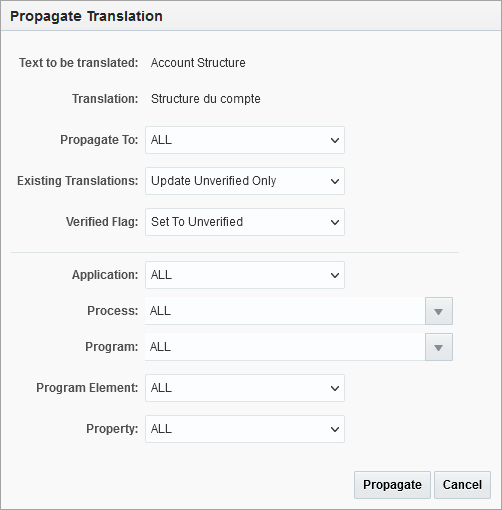
Use the [Propagate] button to open the Propagate Translation pop-up window and propagate the translation for the associated term to selected programs, processes, applications, etc. within Program Mode.
For example, the term "Company" appears multiple times in different applications, programs, etc. Users can edit the translation for one object and then use the [Propagate] button to apply the translation to each occurrence of the term in other objects of the Treeview using the filter functionality.
The following describes the fields available in this pop-up window. Please see Translation Manager - Using the Filter Functionality for details on the filter fields.
Propagate To
Select where to propagate the translation to. Users can select "All", "Programs, Logs, and Consoles Only", "Processes Only", and "Cross-Program Objects Only". The filter options that are available on the lower section of this pop-up window are dependent on this field.
Existing Translations
Select if all or none of the existing translations should be updated, or if only unverified existing translations should be updated.
Verified Flag
Choose to set the 'Verified' checkbox in Program Mode as either verified or unverified, or choose to not update it for the propagated translations.