 Search Tips

This feature is used to create a user-defined log in CMiC Field based on a table visualization, and it is only available to users with the system privilege BILOGCRT (CMIC BI: Allows the user to create User-Defined Logs). Also, this option is only available in BI Dashboard Builder – it is not available in dashboards at runtime.
NOTE: Only users with the system privilege will be able to see the Create User-Defined Log menu item; otherwise, the menu item will be hidden.
To create a User-Defined Log screen in CMiC Field, after a table is created, select the Create User-Defined Log option from the table’s Visualization Menu (shown above).
To have the User-Defined Log filtered for particular values, use Pivot Items, as detailed under: Part 3: Format.
If page filters, visual filters or ‘Current Project Only’ checkbox filter are defined in Dashboard Builder properties, these properties will be replicated in CMiC Field’s user defined logs.
Grant Security Access to New Log’s Treeview Link
When the new User-Defined Log is created, the user that created it is automatically granted rights to the Treeview link for the new log.
Security access to the log’s Treeview link for other users or for CMiC Field security roles is granted using the “Assign Menu Items” option in the Role Maintenance or User Access screen, as shown below.

After security access to the new User-Defined Log has been granted, the log may need to be manually added to the CMiC Field Treeview menu using the Menu Maintenance screen. Locate and drag the custom log from the Default menu into the Current Project Menu and click on [Save].

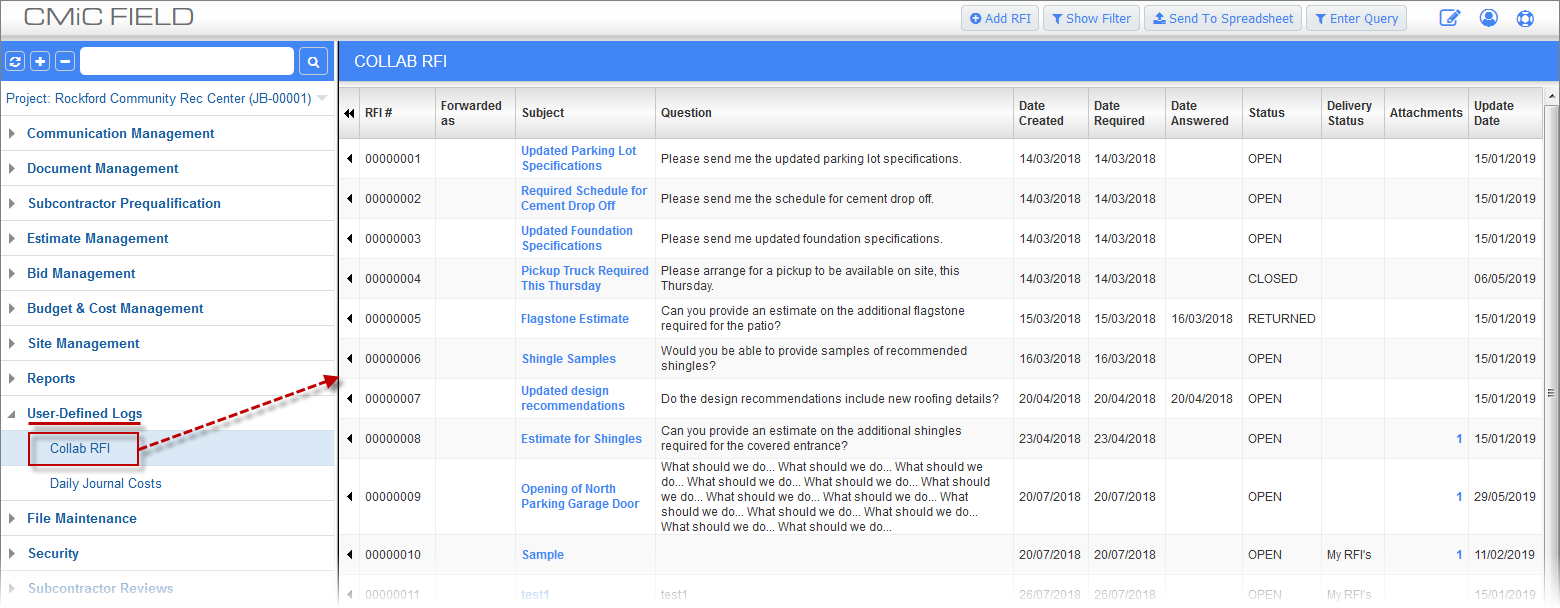
The new User-Defined Log will now be available under the User-Defined Logs Treeview node in CMiC Field:
Edit User-Defined Log
After the User-Defined Log has been created, like any other User-Defined Log, it can be edited using the User-Defined Log Types and User-Defined Logs screens:
