 Search Tips
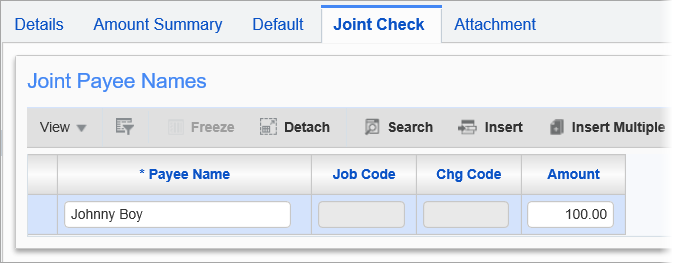
Pgm: SCPAYREQ – Enter Request for Payment; standard Treeview path: Subcontract Management > Payments > Enter Request for Payment – Joint Check tab
The joint payee names will be defaulted from the Subcontract, if entered via the CMiC Field version of the Subcontract Entry screen (PMSCFM).
If at the time of entering the RFP, it is known that its payment is to be split among multiple payees, with each payee being issued a separate payment, the payees can be entered on this tab, along with the amounts they are to receive.
To add a joint payee, click the Block Toolbar’s [Insert], then use the new row to enter the payee’s name and the amount they are to receive. The amount cannot be greater than the Net Amount of the voucher or a null value.
NOTE: The joint payee will be validated against the Business Partner LOV if the 'Enable Joint Payee Validation' box is checked on the Financials tab of the System Options screen. For more information, please refer to System Data - System Options - Financials - Tab.
If Voucher has been posted, and you need to modify the joint payee details, the Adjust Voucher Status screen can be used to do so before issuing the payment.
NOTE: The joint payee will not be taken into consideration if the corresponding voucher is paid through ‘Quick Pay’ on the Voucher Entry screen.