 Search Tips
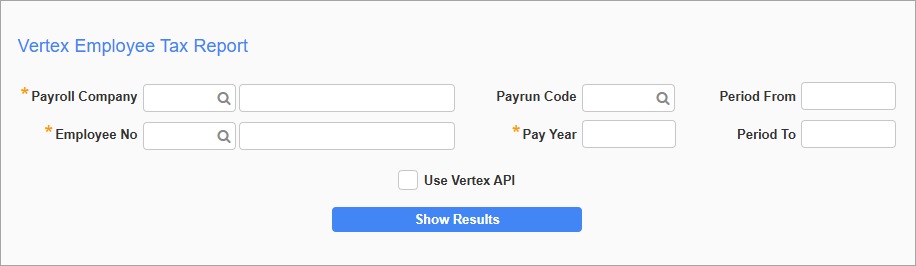
Vertex Employee Tax Report; standard Treeview path: US Payroll > Utilities > Generate Vertex Employee Tax Report
This screen can be used to generate employee reports for a selected year and pay period. Enter the search terms and press the [Show Results] button to display available reports for the employee. If the Period From and Period To fields are empty, the search will return all Vertex tax reports for the employee for the entered year.
Use Vertex API – Checkbox
Check this box if the payroll was processed using Vertex API (i.e., with the 'Use Vertex API' box checked on the Payroll Processing screen), otherwise no results will be generated. Likewise, if payroll was processed without using Vertex API, leave this box unchecked in order to generate reports. For more information, please refer to Processing.
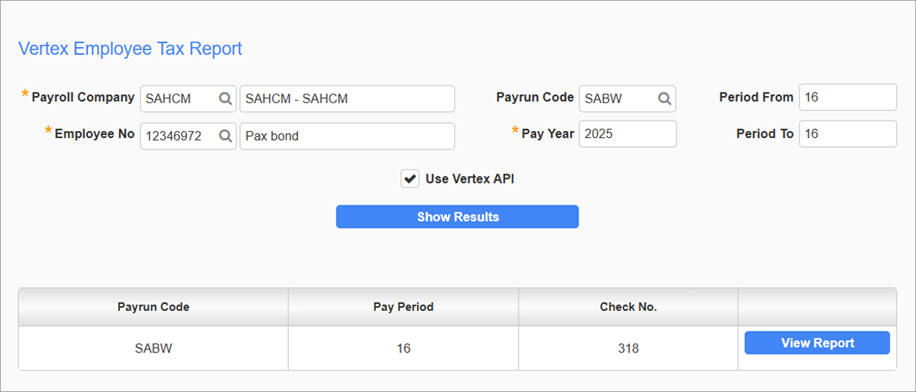
Vertex Employee Tax Report; standard Treeview path: US Payroll > Utilities > Generate Vertex Employee Tax Report - [Show Results] Button
From here, press the [View Report] button to view the tax report, an example of which is shown below.
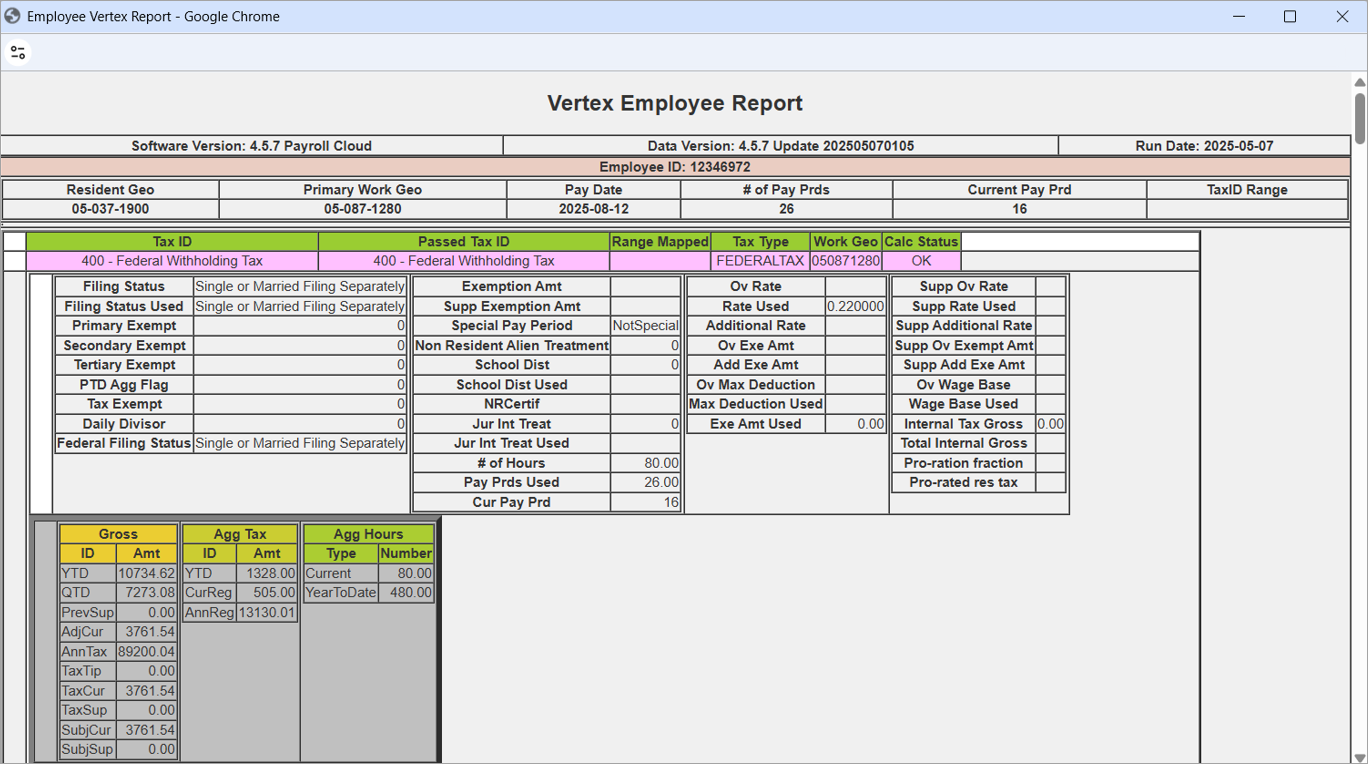
An example of the tax report generated
Once the report has been generated, it can be printed in an HTML format by pressing the [Print] button.
NOTE: For employees who reside or work in Alabama, wages earned above 40 hours per week or 80 hours biweekly will be exempt from state tax. For withholding purposes, only wages subject to Alabama withholding will be used in calculating when the 40-hour weekly threshold has been exceeded. The EXEMPTION.OVERTIME_PAY form will be passed to Vertex to allow the consideration of overtime wages as exempt, as shown in the example below.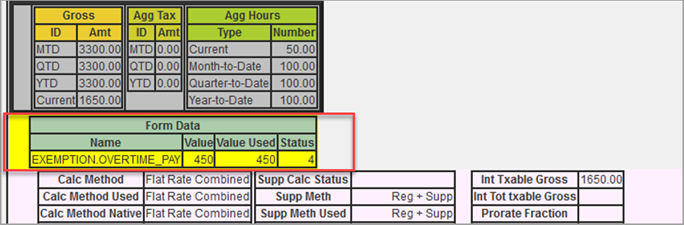
Adding This Report To The Treeview
If the Vertex Employee Tax Report does not appear in the CMiC Field Treeview automatically, please follow the following steps.
1. Verify the menu name.
To verify the menu that appears in CMiC Enterprise, first select the Edit Mode tab at the top of the console. In the Menu region, press the [Region Content] button and select "Edit Region" from the drop-down list.
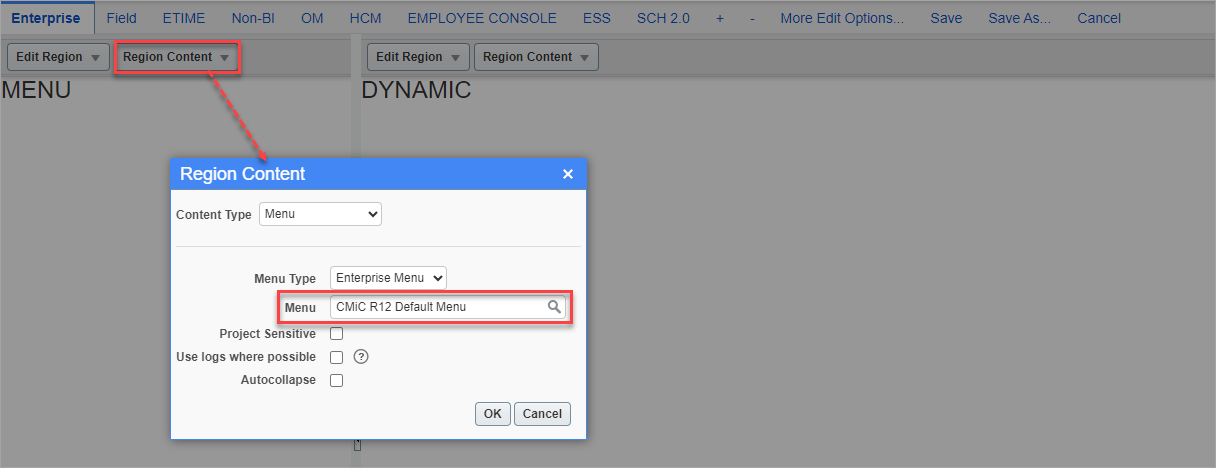
The standard menu option associated with the Enterprise menu is R12STDMENU.
2. Open the Treeview Builder.
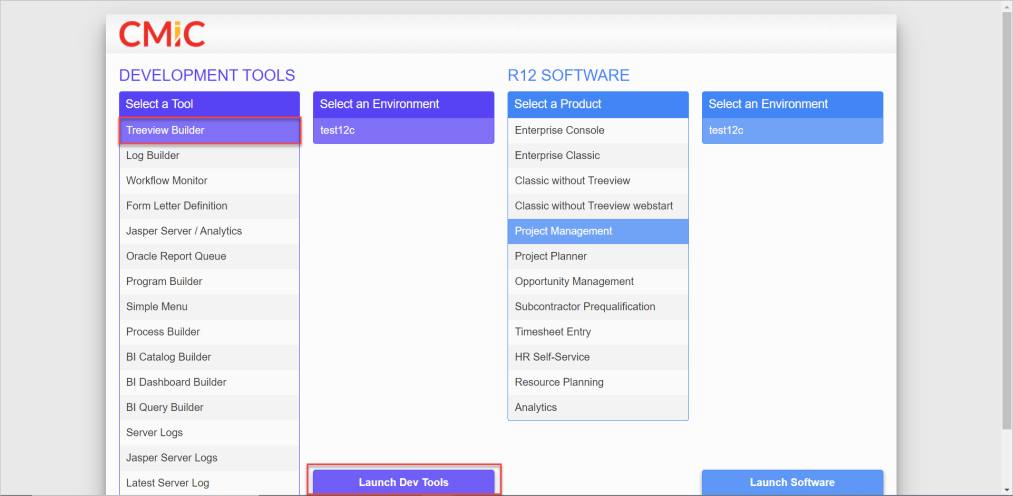
Select the Treeview Builder application in your preferred environment and press the [Launch Dev Tools] button.
3. Search for the menu.
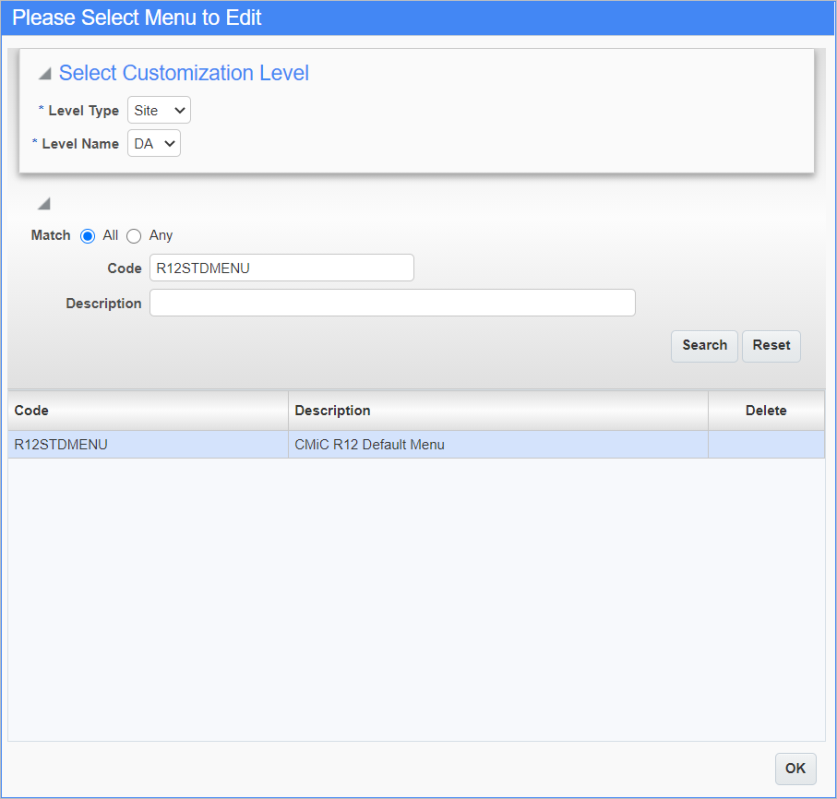
Select the menu option from the search results. In this example, the standard menu R12STDMENU is selected.
4. Add a new item to the Utilities menu in the US Payroll module.
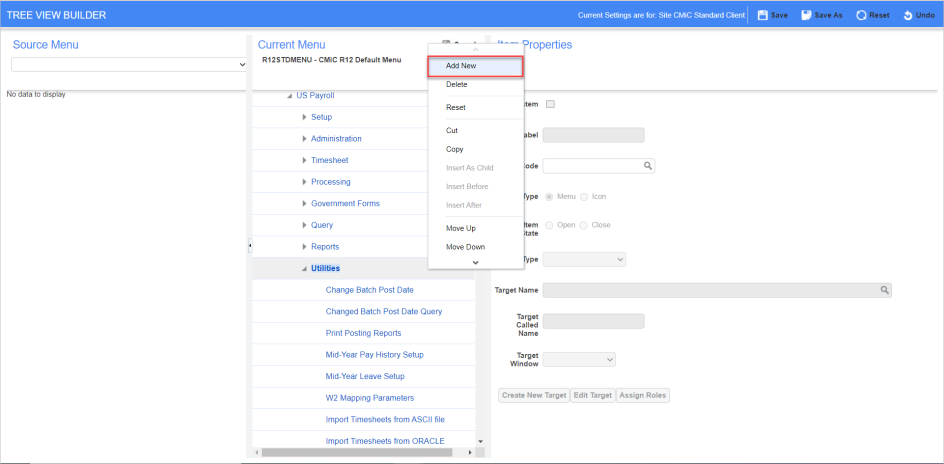
Right-click the Utilties menu, found under the US Payroll module, and select the Add New option.
5. Enter the information displayed in the Item Properties section.
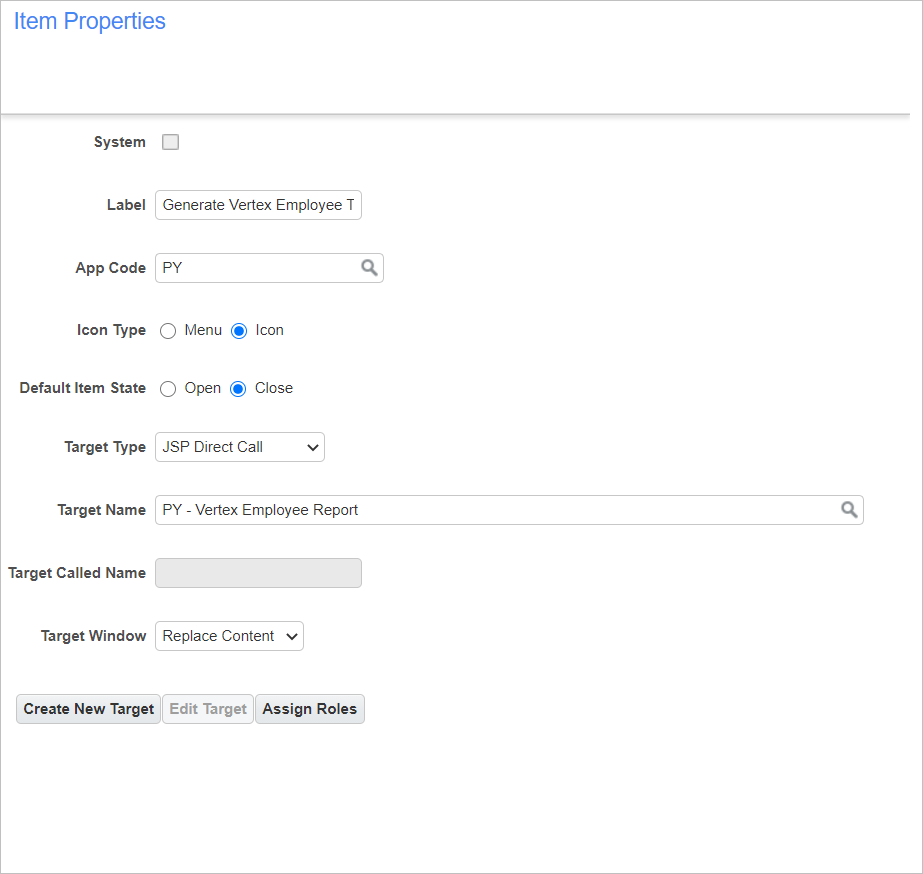
6. Press the [Save] button.
Once all the information has been entered, press the [Save] button to add the report to the Treeview.