 Search Tips
NOTE: As of Patch 20, support for the JSP Mechanic Time Entry screen will be limited. While the screen will remain accessible from our standard menu, no further enhancements will be made. Users are encouraged to transition to the timesheet entry solutions available in the Construct ESS (App) to benefit from continued support and new feature development.
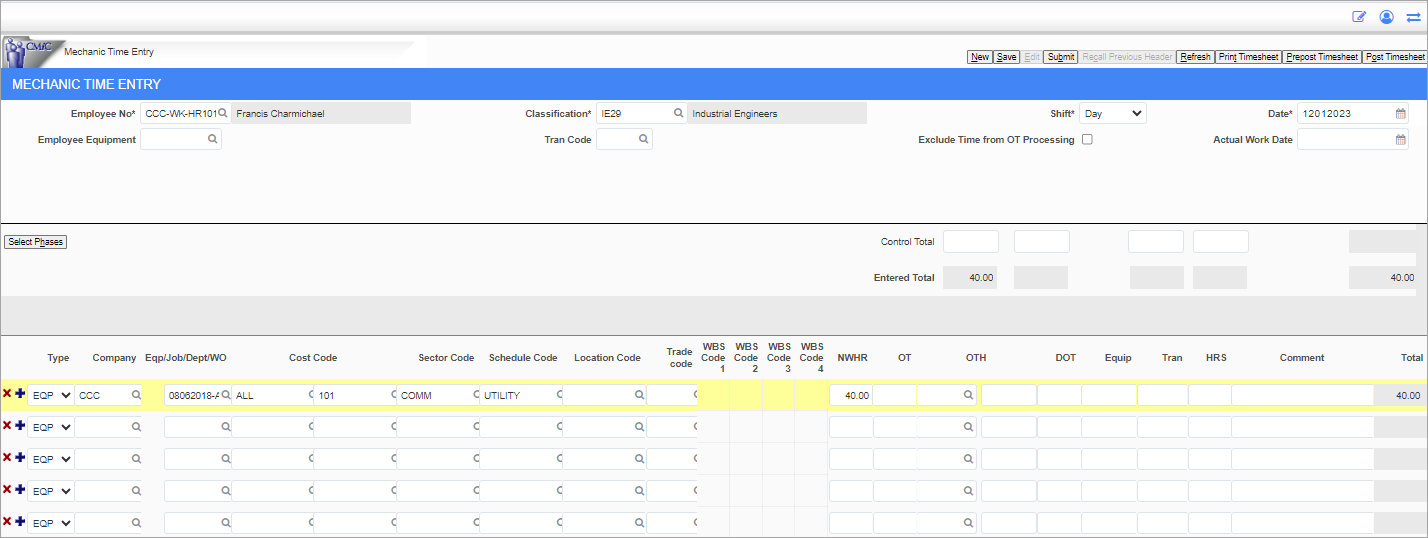
Mechanic Timesheet Entry; standard Treeview path: E-Time > E-Timesheet > Mechanic Timesheet Entry
The Mechanic Timesheet Entry screen can be used to enter time for mechanics and the equipment they use.
NOTE: Many of the buttons available along the top of this screen are similar to the Crew Timesheet Entry screen. Refer to E-Time - Crew Timesheet Entry for more information on how these buttons are used.
Employee No
Enter/select the mechanic for which time is being entered. These employee codes can be set in the Employee Profile.
Employee Equipment
Enter/select the code for the equipment loaned to the selected mechanic. The value of this field defaults from the Employee Profile.
Classification
Enter/select the classification under which the mechanic falls. These codes can be set in the Job Classifications screen in the Human Capital Management module (standard Treeview path: Human Capital Management > Position Control > Job Classifications).
Tran Code
Enter/select the transaction code associated with this timesheet. The value of this field defaults from the Employee Profile.
Shift
Select whether the crew worked day, evening, night, or all shifts.
Exclude Time from OT Processing - Checkbox
Check this box to ignore this time when applying OT rules.
Prior Period - Checkbox
Check this box if the date entered in the Actual Work Date field is in a prior pay period to the date entered in the Date field.
Date
Enter/select the date of the timesheets being entered.
Actual Work Date
If the date of the work done differs from the date of the timesheets, enter/select the actual date the work was done.
[Select Phases] - Button
If the distribution is a job, then press the [Select Phases] button. Phases default to the first field of each row.
Type
Select whether to cost the mechanic time to a job, piece of equipment, GL account, or work order.
Company
Enter/select the company for which the mechanic worked.
Eqp/Job/Dept/WO
Depending on the selection made in the Type field, select the equipment, job, department, or work order code to which to cost the mechanic’s time.
NW, OT, OTH, DOT
Enter the normal, overtime, double overtime, and other time worked for that timesheet line. In order for the OTH field to be available, the 'Show Other Hours in Mechanic Timesheet' box should be checked in the Crew Timesheet Configuration screen
Equip, Tran, Work, Idle, Repairs
Enter the equipment and transaction codes. Enter the time the selected piece of equipment was used for work, idle, and repaired.
Once the details have been entered, press the [Save] and [Submit] buttons or go directly to the [Post Timesheet] button.
Posting Reports
Posting reports in Mechanic Timesheet Entry is similar to Crew Timesheet Entry. Refer to Posting Reports in Crew Time for more information.