 Search Tips
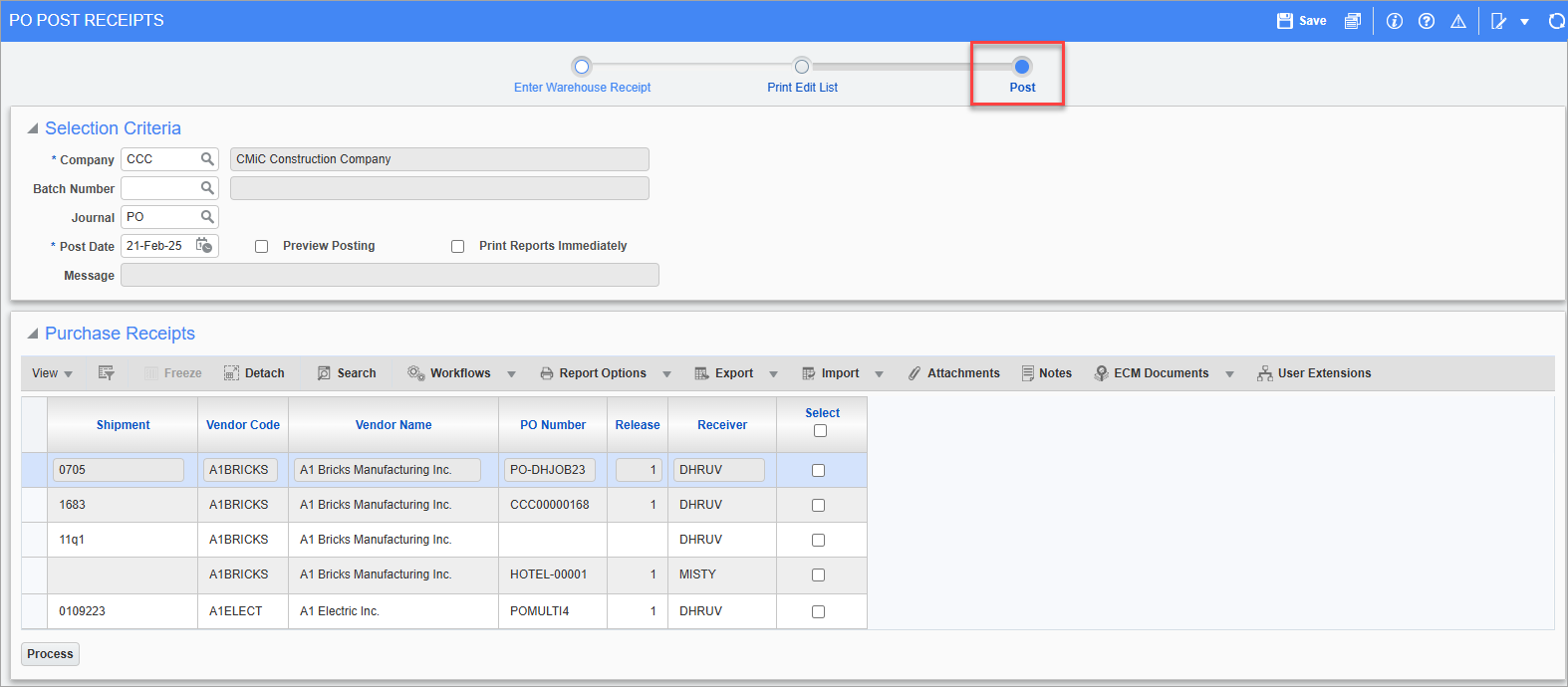
Pgm: POPSTRCC – PO Post Receipts; standard Treeview path: Purchase Order > Receipt > Post Receipts
When ‘Automatic’ receipt is checked for the Normal Receiving field on the PO Entry screen when creating a PO, manual receipt posting is not required. However, if ‘Manual’ receipt is selected, users will have to post receipts manually and will use this screen.
The Post Receipts screen handles posting of warehouse, cost and job receipts that have been entered. Check the ‘Select’ checkbox beside the receipt(s) to be posted and click on the [Process] button to post the receipt(s).
NOTE: The Post Receipts report will normally only be printed when using inventory items. If using non-stock or free-form items, then the PO Control screen must have the post to GL/JC options checked (standard Treeview path: Purchase Order > Setup > Local Tables > Control – Posting tab). Ensure that both options are checked for each item type, otherwise the report will not print.
Selection Criteria
Batch Number
The batch number is only relative to job receipts where a batch has been created, and may be left blank for posting warehouse or cost receipts.
Journal
Enter/select journal.
Post Date
The system will default the current system date into this field. Change the posting date, if required.
NOTE: The system will validate the receipt date against the date entered in this field if the 'Receipt Posting Date Validation for Receipt Date' is checked on the Purchase Order - Purchase Order Control screen.
Preview Posting – Checkbox
Select 'Preview Posting' checkbox and click on the [Process] button to preview the posting report(s) before posting the receipts.
Print Reports Immediately – Checkbox
Select 'Print Reports Immediately' checkbox to print the posting report(s) immediately on posting.
Purchase Receipts
This section displays all receipts available for posting.
Select – Checkbox(es)
Check the 'Select' box(es) to select the receipts to be posted
NOTE: The system will only allow a batch to be posted when all the available receipts are selected. If not all the receipts are selected, an error message will warn the user to select or delete the receipts as needed.
[Process] – Button
Press the [Process] button to post selected receipts.