 Search Tips
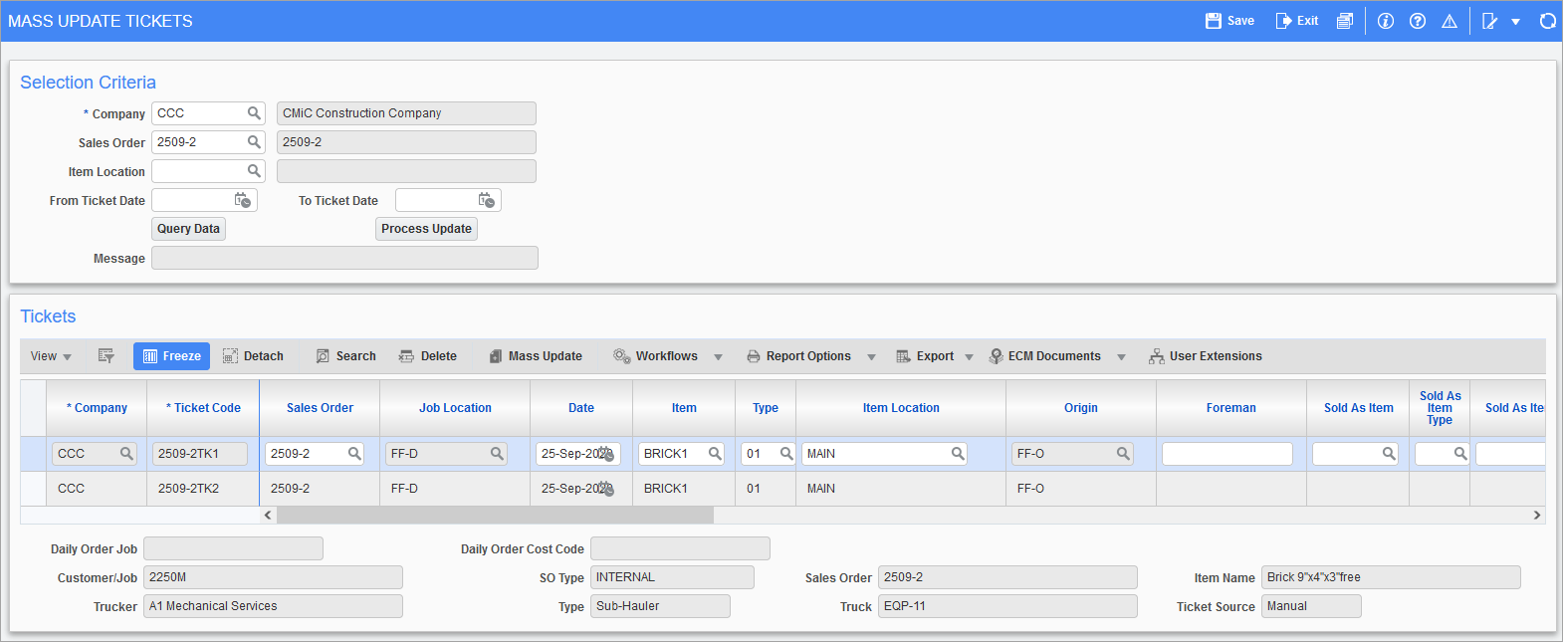
Pgm: MS_TICKET_MASS_UPDATE – Mass Update Tickets; standard Treeview path: Material Sales > Utilities > Mass Update Tickets
Use this utility to update unposted tickets in bulk. Users can define values for multiple fields and apply a mass update to all queried records.
This screen is hidden by default and can be added to the Treeview using the Treeview Builder tool, using the target name "MS – Mass Update Tickets". For more information, please refer to the Treeview Builder - R12 guide.
Selection Criteria
Company
Enter/select the company code for the tickets.
Sales Order
Enter the sales order code associated with the tickets.
Item Location
Enter/select the item location, or leave this field blank to include all locations.
From/To Ticket Date
Enter/select the range of dates for the tickets, or leave these fields blank to include all dates.
[Query Data] – Button
Press this button to display all unposted tickets based on the selected criteria.
NOTE: Posted tickets will not be displayed upon pressing the [Query Data] button.
[Process Update] – Button
Press this button to validate the mass update. Upon validation, a message will appear in the Message field reporting the number of tickets successfully updated. If no changes are registered, the following message will display: "Nothing to process. No tickets were updated."
Tickets
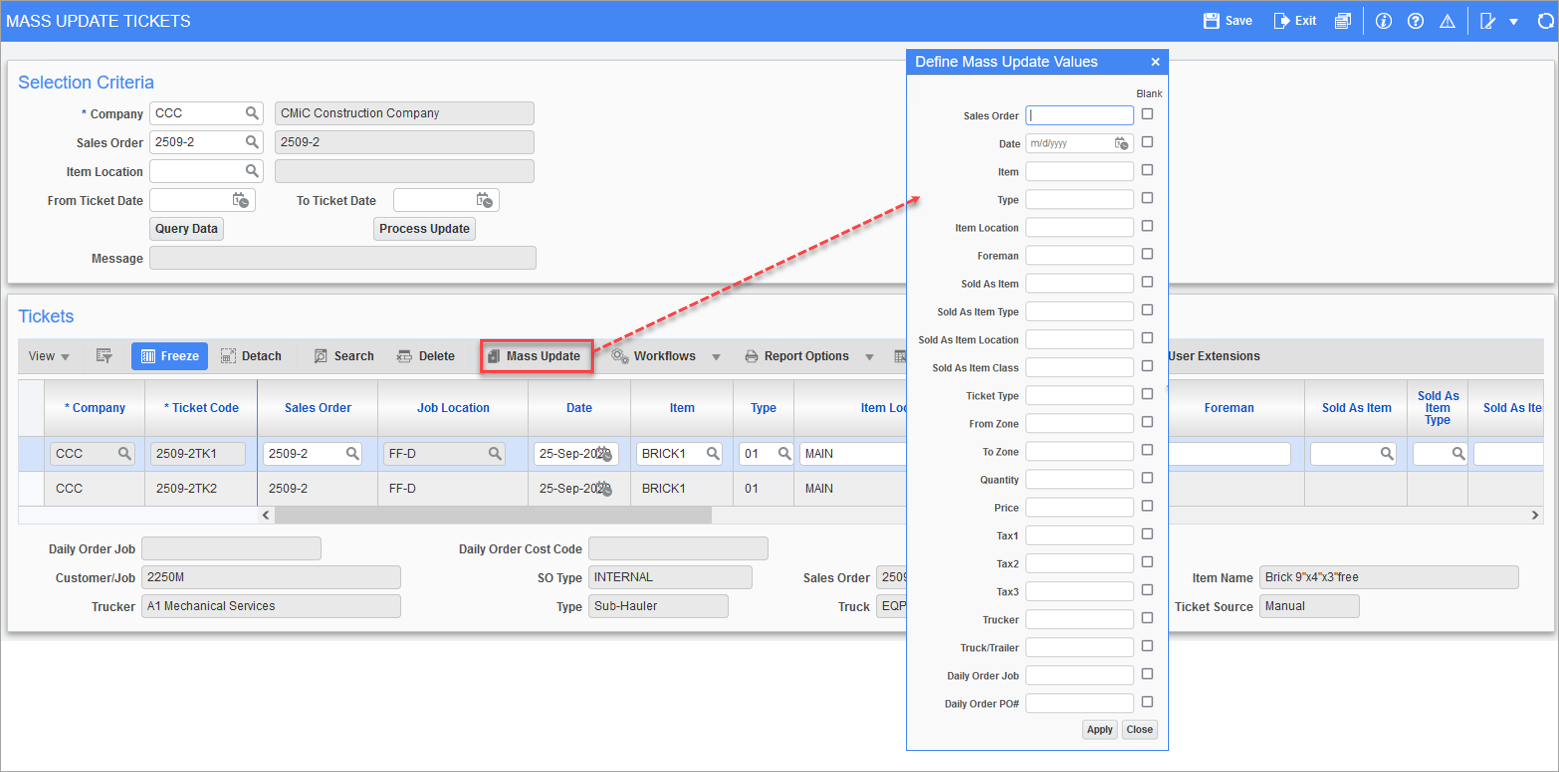
Unposted tickets are displayed in this section and are ready for modification. Users can press the [Mass Update] button on the toolbar to update multiple fields for all the queried tickets. If non-valid values are entered, an error message will be generated. For more information on these fields, please refer to Ticket Entry.
Users can also mass update fields with blanks by checking the 'Blank' checkbox for selected fields. If a value is required and the user selects the 'Blank' checkbox, an error message will be generated. The following table lists the mass update value requirements:
| Value Required | Can Be Left Blank |
|---|---|
|
|
Press the [Apply] button to populate the tickets with the new values and to validate any blank fields. Value validation only occurs when the [Process Update] button is pressed.
Use the Material Sales - Ticket Entry screen to verify newly updated fields.
NOTE: The following fields are available in the Mass Updates tickets screen but are hidden by default in the Ticket Entry screen: Foreman, PO Line, Sold As Item, Sold As Item Class, Sold As Item Location, and Sold as Item Type.