 Search Tips
Overview
The standard workflow for fillable PDFs streamlines the process of handling new PDF documents within your Imaging document folder. This workflow is initiated automatically when a new PDF arrives after a user has entered the relevant information and submitted the document, triggered by the workflow engine configured in the System Options screen. The following outlines the steps required to set up and execute this workflow effectively.
For more details on Workflows, see Workflow - R12.
Process
-
Workflow Activation:
-
The workflow engine, located in the [Job Queues] button under the General tab of System Options, initiates the workflow process.
-
Ensure that the workflow engine is active, as it may take up to five minutes to start the workflow process. This workflow engine is on by default for Public Cloud customers.
-
-
Workflow Options:
-
The workflow for fillable PDFs offers two options:
-
Approval: Requires approval from designated users.
-
FYI (For Your Information): Sends notifications to specified users without requiring action.
-
-
-
Document Type Setup:
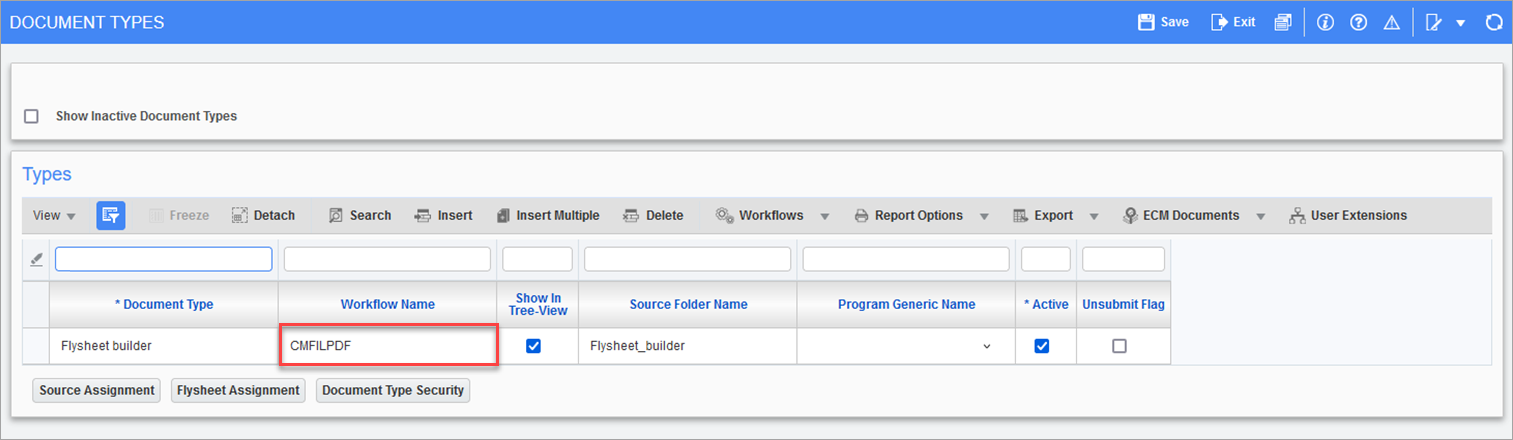
Pgm: IMGDOCTP - Document Types; standard Treeview path: Imaging > Setup > Document Types
-
Navigate to Imaging > Setup > Document Types screen.
-
Identify the document type(s) that will undergo the workflow process.
-
In the Workflow Name column, enter the code "CMFILPDF", or select it from the Workflow Item Type LOV.
-
Assign the workflow to the designated document type(s) and save the settings.
-
-
Workflow Assignment:
-
Configure the workflow teams using the Workflow Teams screen.
-
If the Workflow Teams screen is not visible, add the UIRuntime Program named "WKFTEAMAPPR" to your Treeview using the Treeview Builder - R12.
-
Assign team members based on whether approval or FYI notifications are required.
-
-
Workflow Approval Setup:
-
The workflow activation is based on whether approval or FYI notifications are needed for a new document.
-
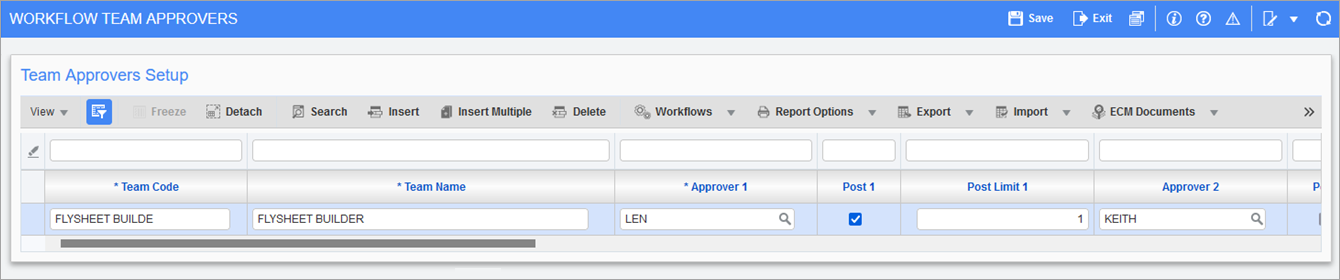
In the Workflow Teams screen:
-
Enter values for the Team Code and Team Name columns.
-
The team name should match the Imaging document type exactly, regardless of case.
-
If the 'Post 1' box is checked, the workflow follows the approval path, notifying up to five approvers sequentially.
-
If the 'Post 1' box unchecked, the workflow selects the FYI path, notifying up to five users simultaneously without requiring action.
-
-
-
Workflow Notification:
-
Upon activation, the workflow notification includes a link to the document in question.
-
Users can access the document directly from the notification list to review and provide approval.
-