 Search Tips
(Classic)
NOTE: CMiC ECM in Outlook (Classic) has been deprecated and is no longer supported as of February 28, 2024. CMiC encourages users to use Enterprise Content Management - CMiC for Outlook Add-In going forward.
The ECM Outlook plug-in can be downloaded using the following link:
http://outlookplugin.cmicglobal.com
ECM in Outlook
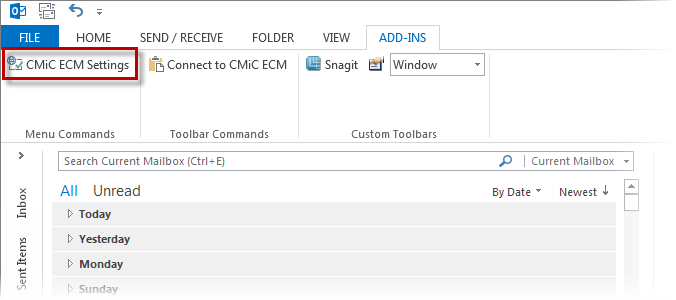
The CMiC ECM Plug-In is located in the Add-Ins tab of the Outlook menu.
Clicking on the [CMiC ECM Settings] button, framed in red above, brings up the following pop-up window:
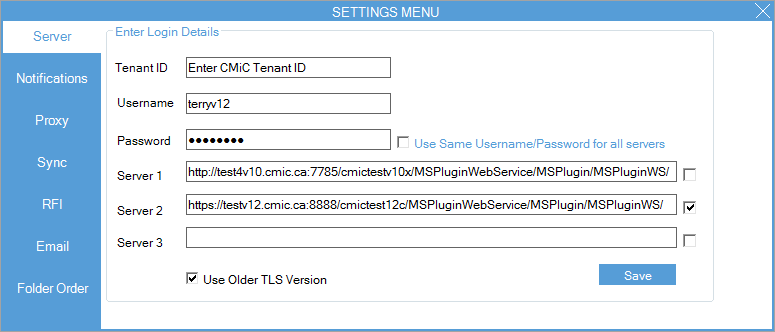
Enter the single sign-on (SSO) user-ID, password and URL for the CMiC environment that is applicable.
NOTE FOR CLOUD CUSTOMERS: The Cloud URLs are as follows:
-
ATLAS: https://atlas.cmiccloud.com/cmicprod/MSPluginWebService/resources/MSPluginWS/
-
NOVA: https://nova.cmiccloud.com/cmicprod/MSPluginWebService/resources/MSPluginWS/
Click [Save]. The user’s security profile for the environment will take effect.
These settings will be retained every time the user signs into MS Outlook, until they are changed for another user.
Clicking on the [Connect to CMiC ECM] button will display the CMiC ECM section in Outlook.
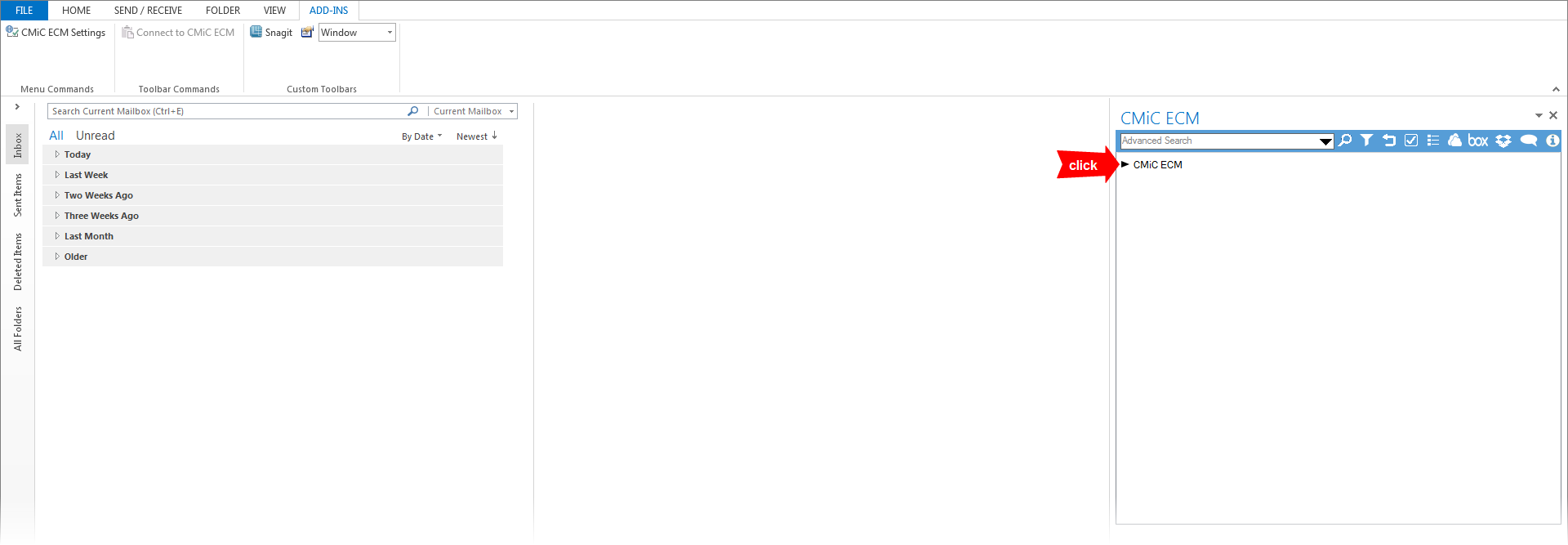
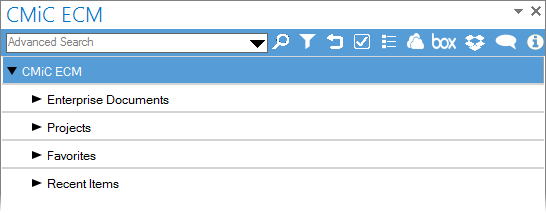
Click the CMiC ECM root node, pointed to by the red arrow in the above screenshot, to expand the tree, revealing its four sub-nodes:
|
CMiC ECM Node |
Description |
|---|---|
|
Enterprise Documents |
Provides access to the ECM documents in Image Manager. |
|
Projects |
Displays the Treeview with CMiC Field menu items. |
|
Favorites |
Provides quick access to favorited projects. |
|
Recent Items |
Stores the documents accessed recently. |
Expanding the nodes will display the folders and items under them. The displayed information is dependent on the user’s Imaging and CMiC Field security.