 Search Tips
Overview
To use AI features in CMiC, the following setup must be completed.
Install AI License
Contact your Account Manager to have the AI license installed on your system.
NOTE: Only Enterprise customers are required to install the AI license. Cloud customers will see the AI tab in the System Options screen by default.
Enable AI
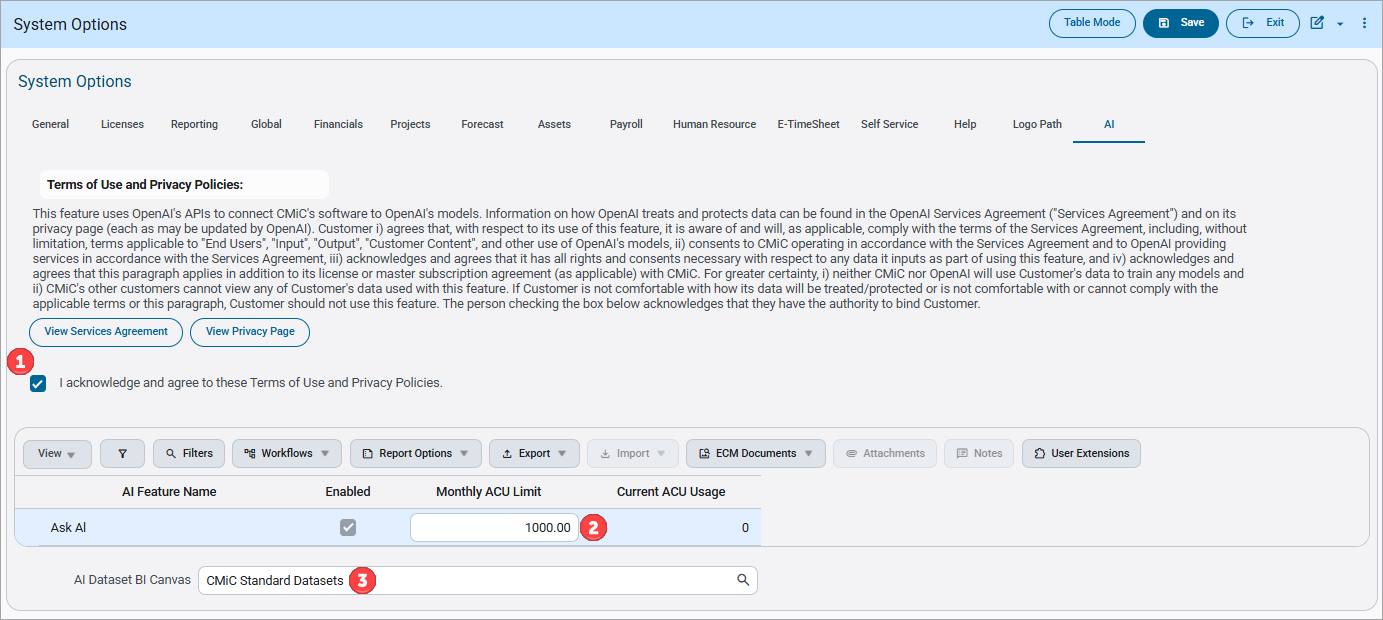
Pgm: SYSOPT – System Options; standard Treeview path: System > Setup > System Options – AI tab
After the AI license is installed on your system, complete the following steps in the AI tab of the System Options screen in the System Data module:
-
Agree to the Terms of Use and Privacy Policies. This automatically checks the 'Enabled' box.
-
In the Monthly ACU Limit field, enter the monthly AI Compute Unit (ACU) spending limit from your annual subscription agreement (e.g., 1000). To learn more about tracking and pricing ACUs, refer to ACU Usage Plan and Tracking.
-
In the AI Dataset BI Canvas field, select the BI canvas to use as the AI dataset in the database. The default setting is "CMiC Standard Datasets".
To learn more about the settings on this screen, refer to System Data - System Options - AI - Tab.
Configure AI Security and User Access
Assign Security Privileges
Administrators must assign the required privileges to themselves, either by role or by user. The following table lists the two minimum privileges required. One gives users access to agent functionality, and the other lets administrators assign security to specific agents, which controls user access. AI is enabled globally, but you can use the AIASKAL privilege to limit agent access by role or user. To learn more about AI-related system privileges, refer to AI & Analytics - Security.
| Code | Name | Functionality | User Level |
|---|---|---|---|
| AIASKAL |
CMIC AI: Allows the user to use "Al" functionality. NOTE: This privilege controls access to the [AI] button and Smart Search option. |
Basic AI Features | General |
| AISECMNG | CMIC AI: Allows the user to modify security | Role Security for Agents | Administrator |
You can assign privileges by role or by user, as shown below.
Assign Privileges by Role
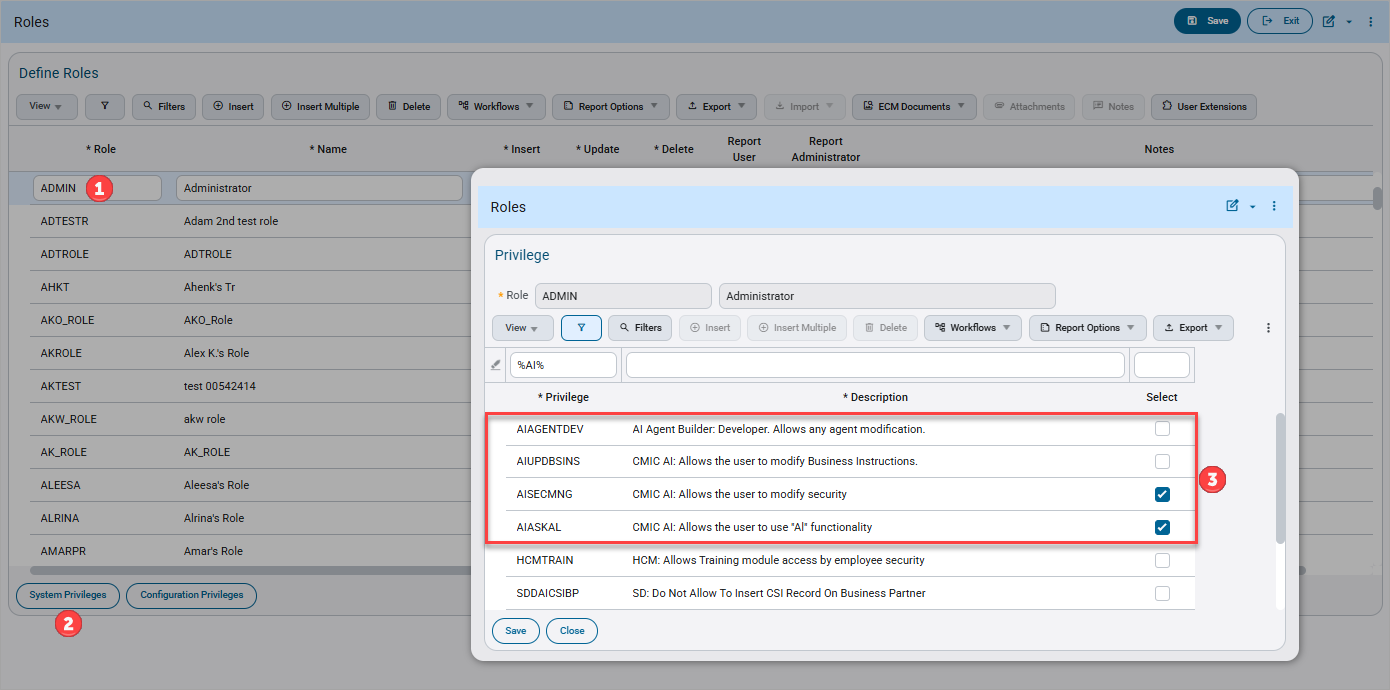
Pgm: ROLES – Roles; standard Treeview path: System > Security > Roles > Define Roles
To assign AI privileges by role, add them to the role's definition. Any user with that role gets the privileges. For more information, refer to System Data - Define Roles.
Assign Privileges by User
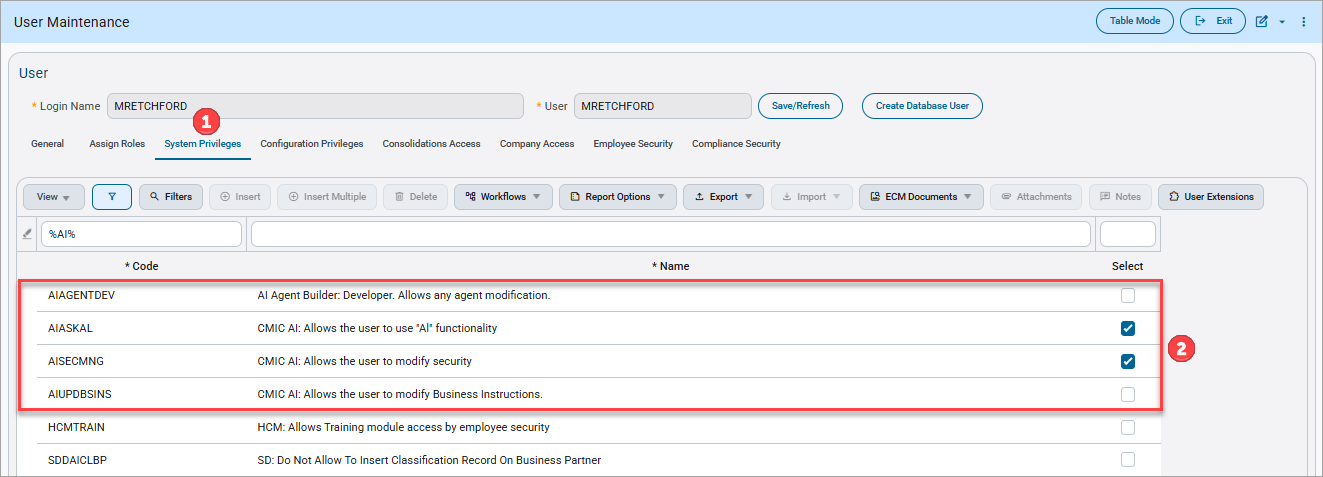
Pgm: SDUSRMNT – User Maintenance; standard Treeview path: System > Security > User Maintenance – System Privileges tab
If your configuration allows it, you can also add AI privileges directly to a User record. For more information on configuring a user's system privileges, refer to System Data - User Maintenance.
Assign Roles to Agents
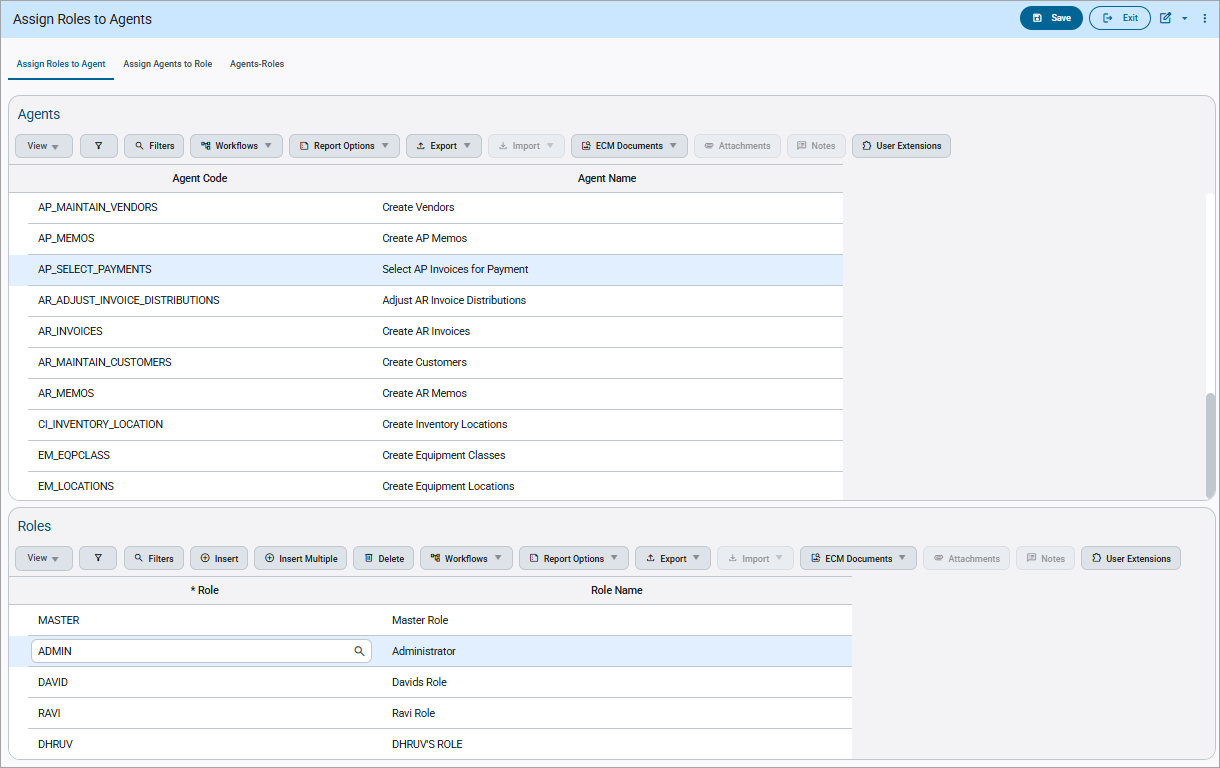
Pgm: AIAGENTROLES – Assign Roles to Agents; standard Treeview path: System > Security > Roles > Assign Roles to Agents - Assign Roles to Agent tab
For added security, roles must also be assigned to agents on the Assign Roles to Agents screen. You can assign agents to roles or roles to agents, and the Agents-Roles tab lets you assign multiple agents to multiple roles at once. AI agents must have at least one security role assigned to be accessible by users. For more information, refer to System Data - Assign Roles to Agents.
To access and use the Assign Roles to Agents screen, administrators must complete the following two security requirements:
-
Add a role (that is also assigned to their user) in the Assign Roles to Programs screen. For more information, refer to System Data - Assign Roles to Programs.
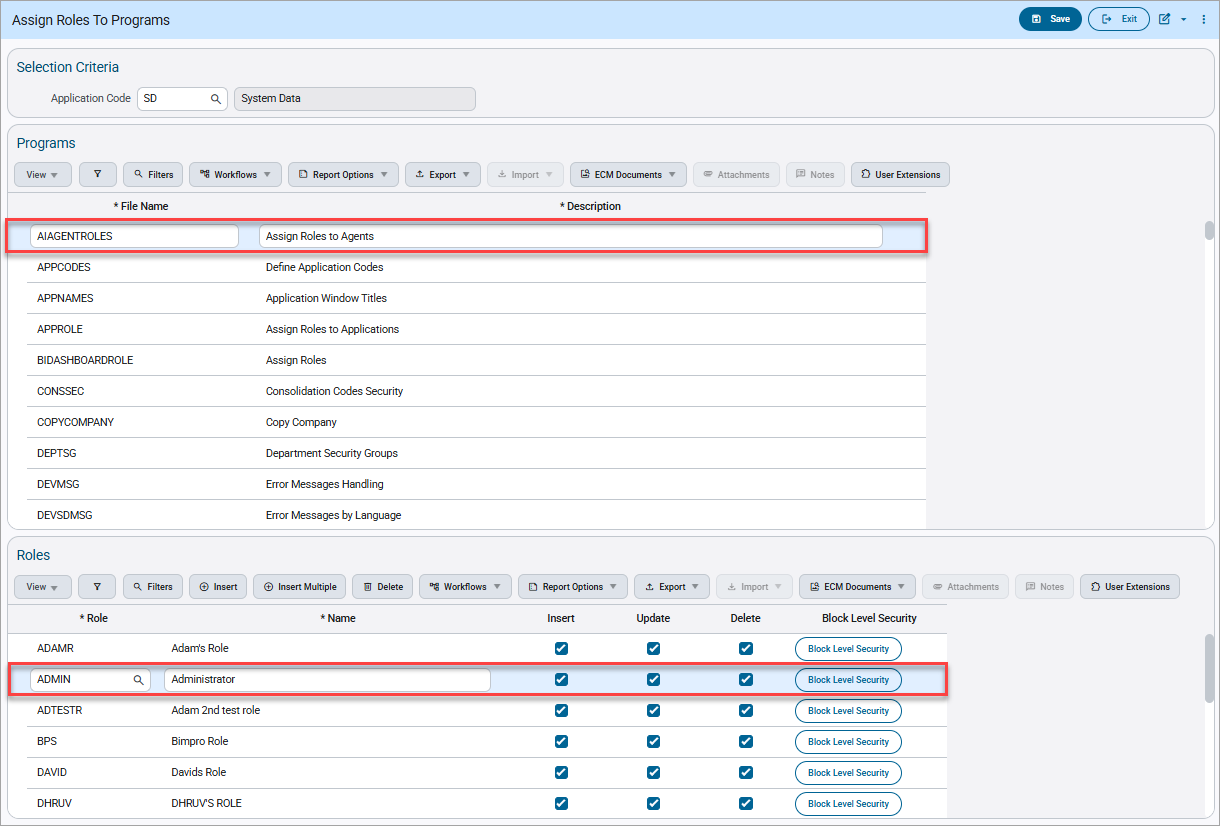
Pgm: FORMROLE – Assign Roles to Programs; standard Treeview path: System > Security > Roles > Assign Roles to Programs
-
Have the following system privilege assigned: AISECMNG - CMiC AI: Allows the user to modify security. This privilege lets users view, select, and assign AI agents. For more information, refer to the Enable AI section above.