 Search Tips
Setup of Purchase Order Change Order Approval Workflow
Complete the following steps to set up the PO change order workflow.
-
Open the Workflow Maintenance screen and select the program and block as shown in the screenshot below. Next, select the workflow’s item type and process in the Workflow Processes section and then complete the attribute mapping in the bottom section of the screen.
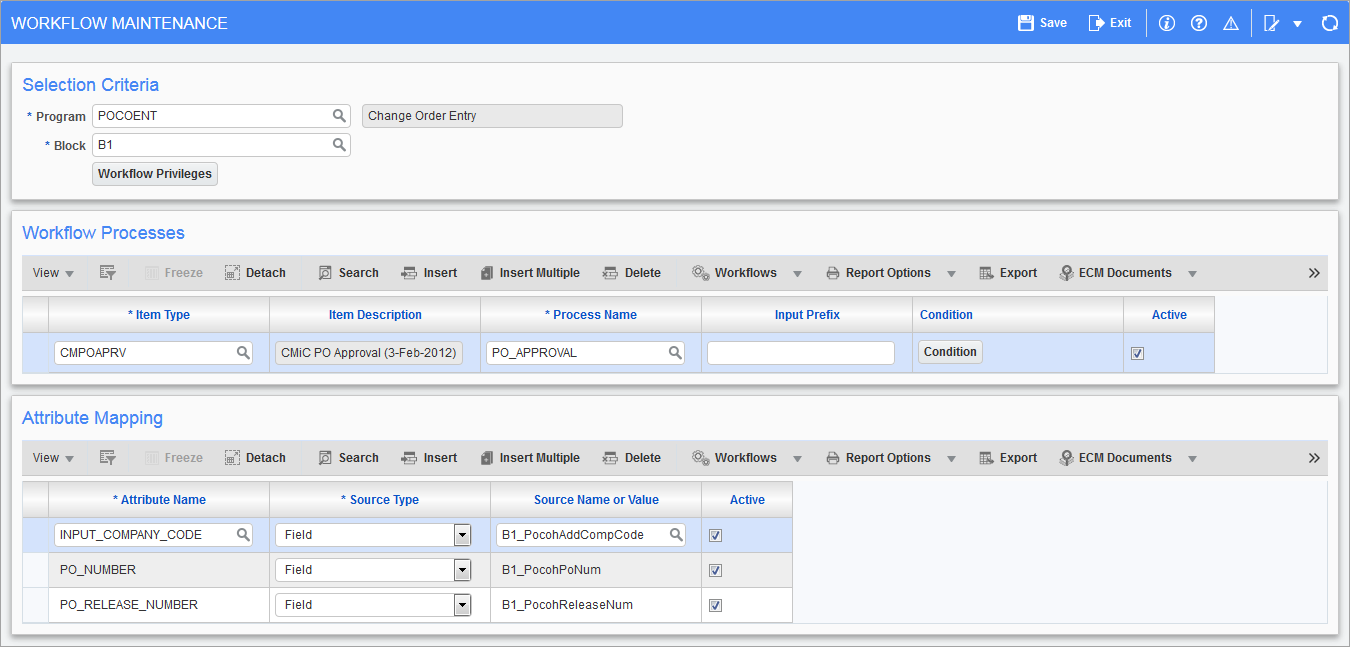
Pgm: WKFUSRMT – Workflow Maintenance; standard Treeview path: Workflow > Setup > Screen Based Launch Maintenance
NOTE: The attribute mapping information below is specific to public cloud only.
Attribute Name Source Type Source Name or Value DEFAULT_REC_CODE FIELD :B1_PocohDefaultRecCode INPUT_COMPANY_CODE FIELD :B1_PomstCompCode PO_CO_NUMBER FIELD :B1_PocohNum PO_NUMBER FIELD :B1_PocohPoNum PO_RELEASE_NUMBER FIELD :B1_PocohReleaseNum REQUESTOR CONTEXT PORSEC_USER TENANT_CODE CONSTANT {Tenant_Code} The Tenant Code for public cloud is the only variable that will change for each tenant. Ensure the correct one is set.
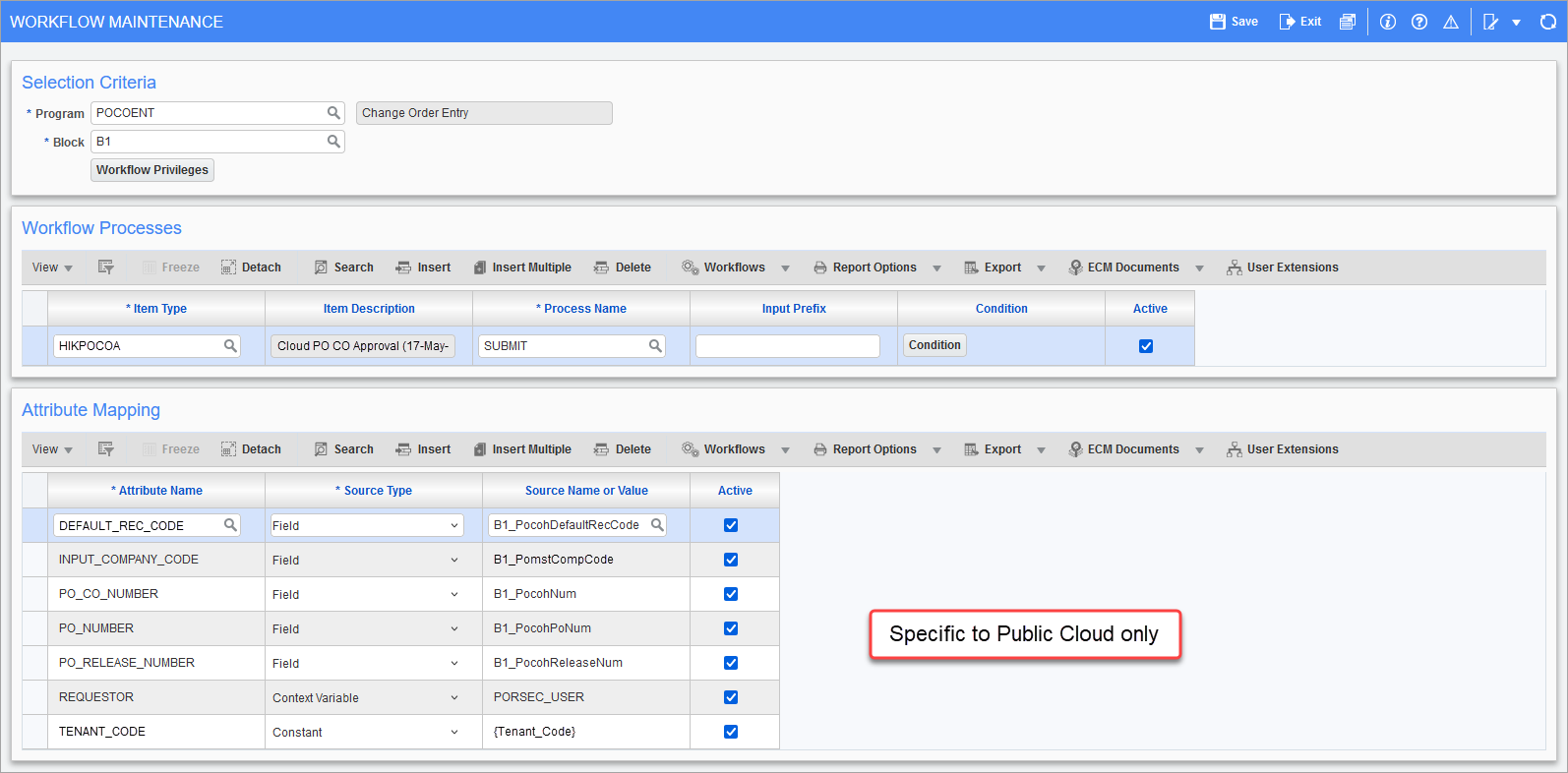
Pgm: WKFUSRMT – Workflow Maintenance; standard Treeview path: Workflow > Setup > Screen Based Launch Maintenance
-
Open the Lookups By Type screen and set up the applicable roles.
NOTE: For details on different lookups used for approvals in public cloud, see Workflow - Workflow Lookups Used for Approvals.
For POCO Approval Workflows, create a new lookup called "Use PO lookups for POCO" with input type of "None" and output type as "User Defined Text". If the value is set to "Y", the workflow will use the PO Job Approver lookups and the correct lookups for level 2 and level 3 are "PO Job Approver Level 2" and "PO Job Approver Level 3" respectively. If the value is set to "N" or not defined, the workflow will use the POCO Job Approver lookups and the correct lookups for level 2 and level 3 are "PO Job Approver Level 2" and "PO Job Approver Level 3" respectively. For level 1, the "PO Job Approver 1" lookup remains the same for both PO and POCO Approval Workflows.
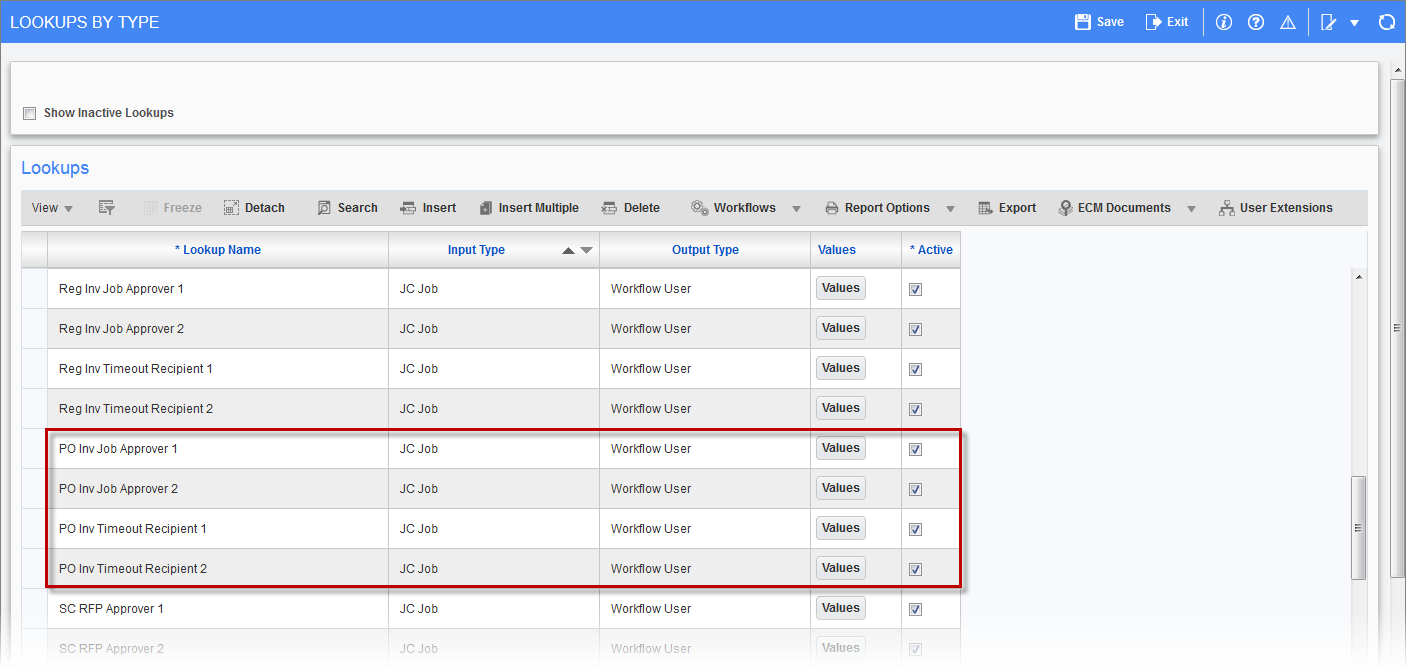
Pgm: WKFLOOK - Lookups By Type; standard Treeview path: Workflow > Setup > Resource Lookup Rules
-
Add the approvers to the role by pressing the [Values] button, and then specify the approvers for each company/dept/job.
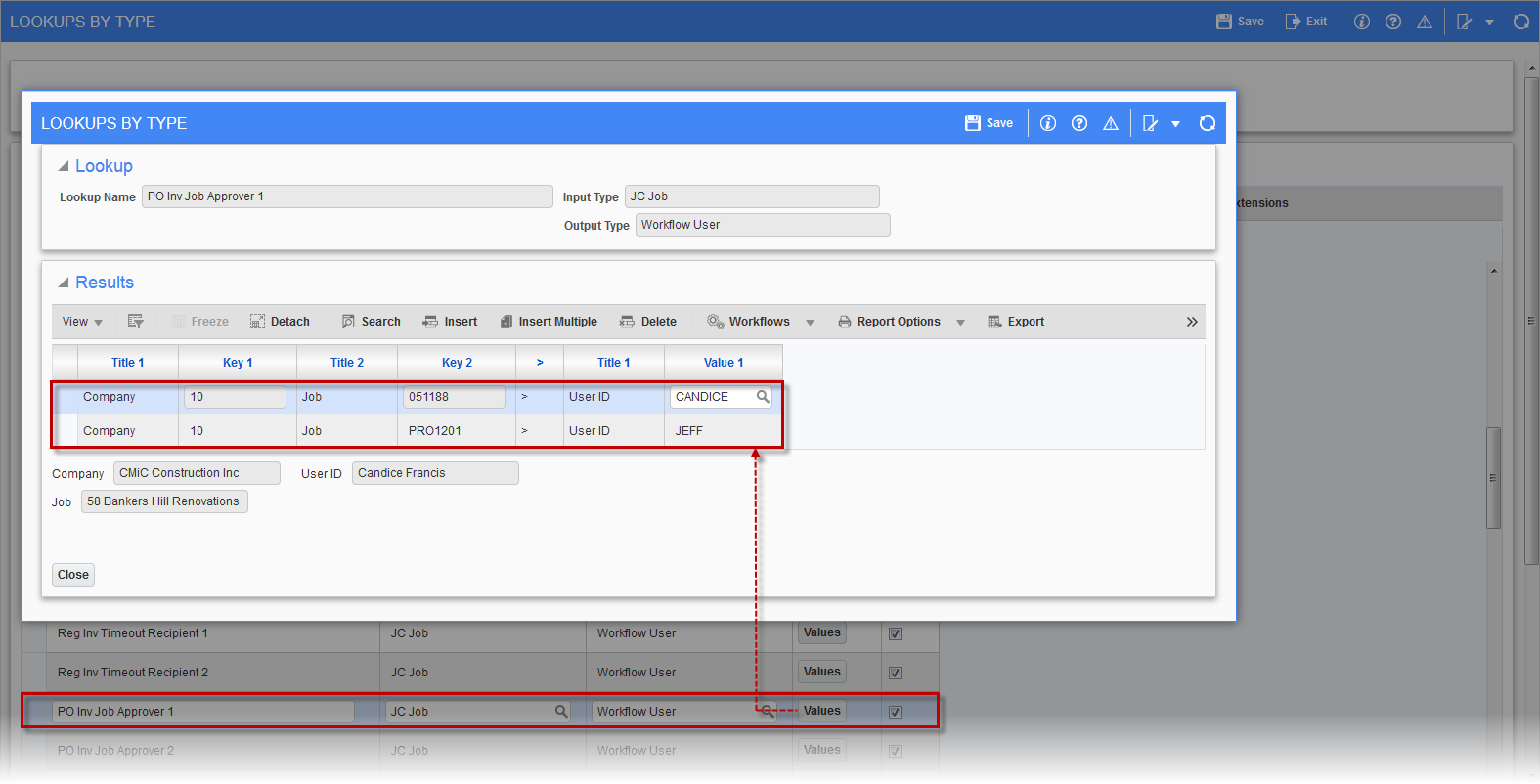
-
Ensure that the WKF_LAUNCH system privilege has been enabled for the user/role launching the workflow.
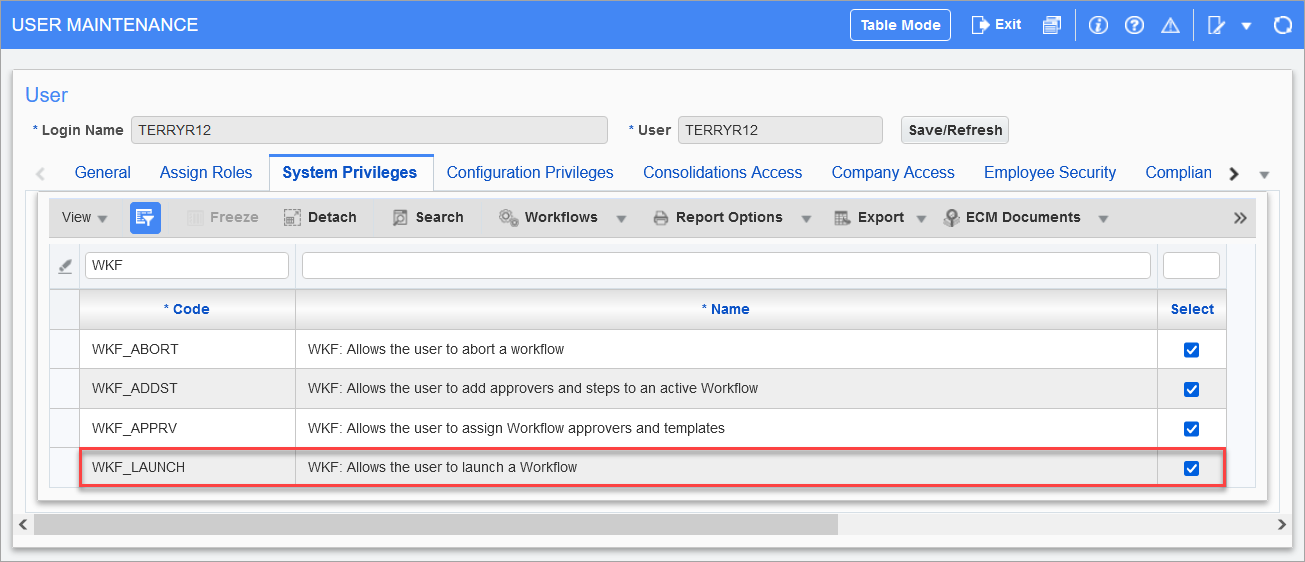
Pgm: SDUSRMNT – User Maintenance; standard Treeview path: System Data > Security > Users > User Maintenance
-
Launch the workflow on the PO’s Change Order Entry screen by clicking the [Workflows] button on the Block Toolbar of the Change Order section of the screen and selecting “Launch Workflow” from the drop-down menu.
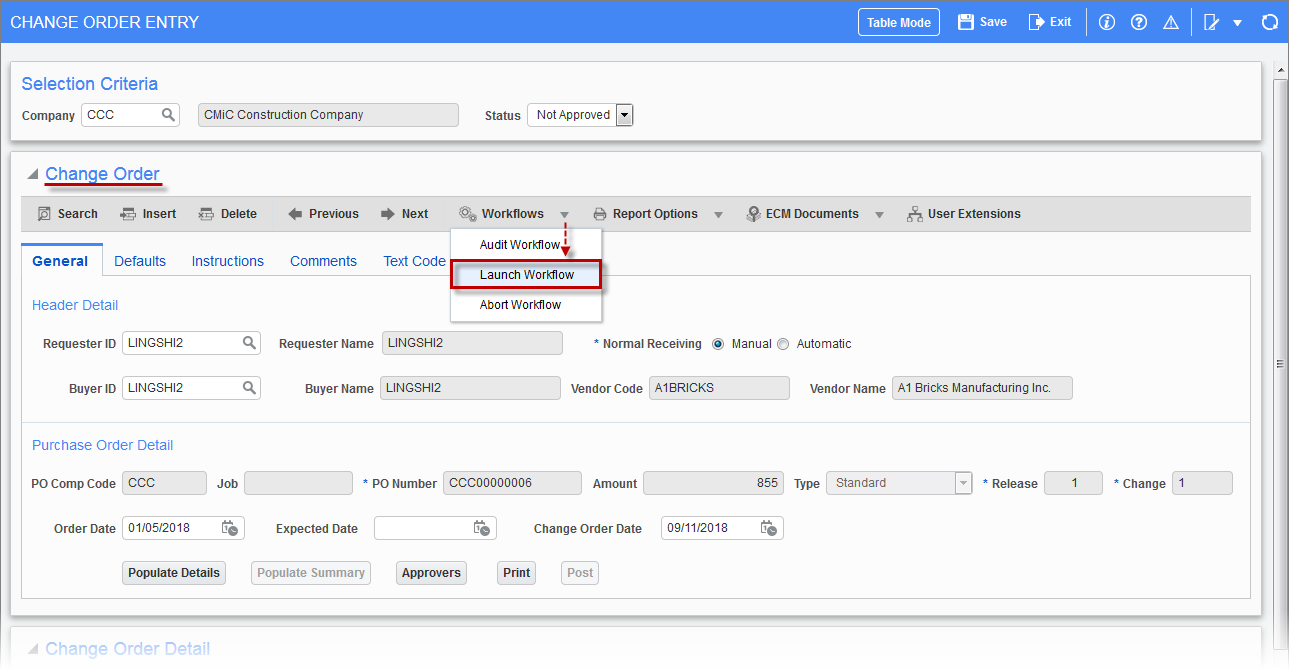
Pgm: POCOENT – Change Order Entry; standard Treeview path: Purchase Order > Change Orders > Enter Change Order
-
For further details on the approval process for public cloud, see Workflow - Approval Process.