 Search Tips
Configuring CMiC Field Subcontract Workflow
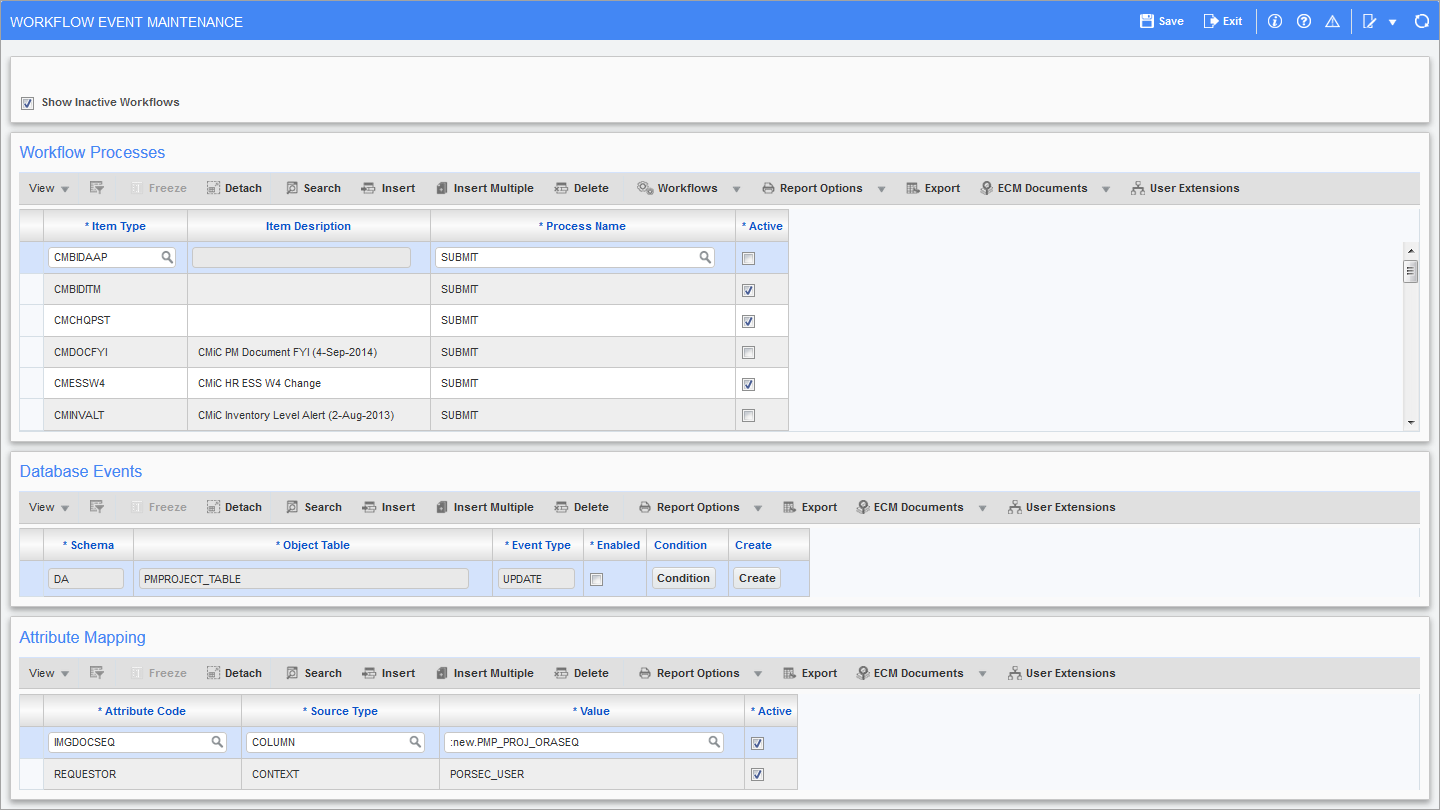
Pgm: WKFEVMNT – Workflow Event Maintenance; standard Treeview path: Workflow > Setup > Event Based Launch Maintenance
To attach the workflow to the PM Subcontract object, follow these steps:
-
In the Workflow Processes section of the Workflow Event Maintenance screen, specify/select a workflow item type and select the process to launch when the user presses the [Workflow] button on the CMiC Field Toolbar.
-
In the Database Events section of the screen, specify the schema, select an object table, select an event type, and then apply the launch condition using the [Condition] button.
-
In the Attribute Mapping section of the screen, complete the attribute mapping.
-
Press the [Create] button in the Database Events section of the screen to create the trigger and bring the Workflow online.
Create the Condition
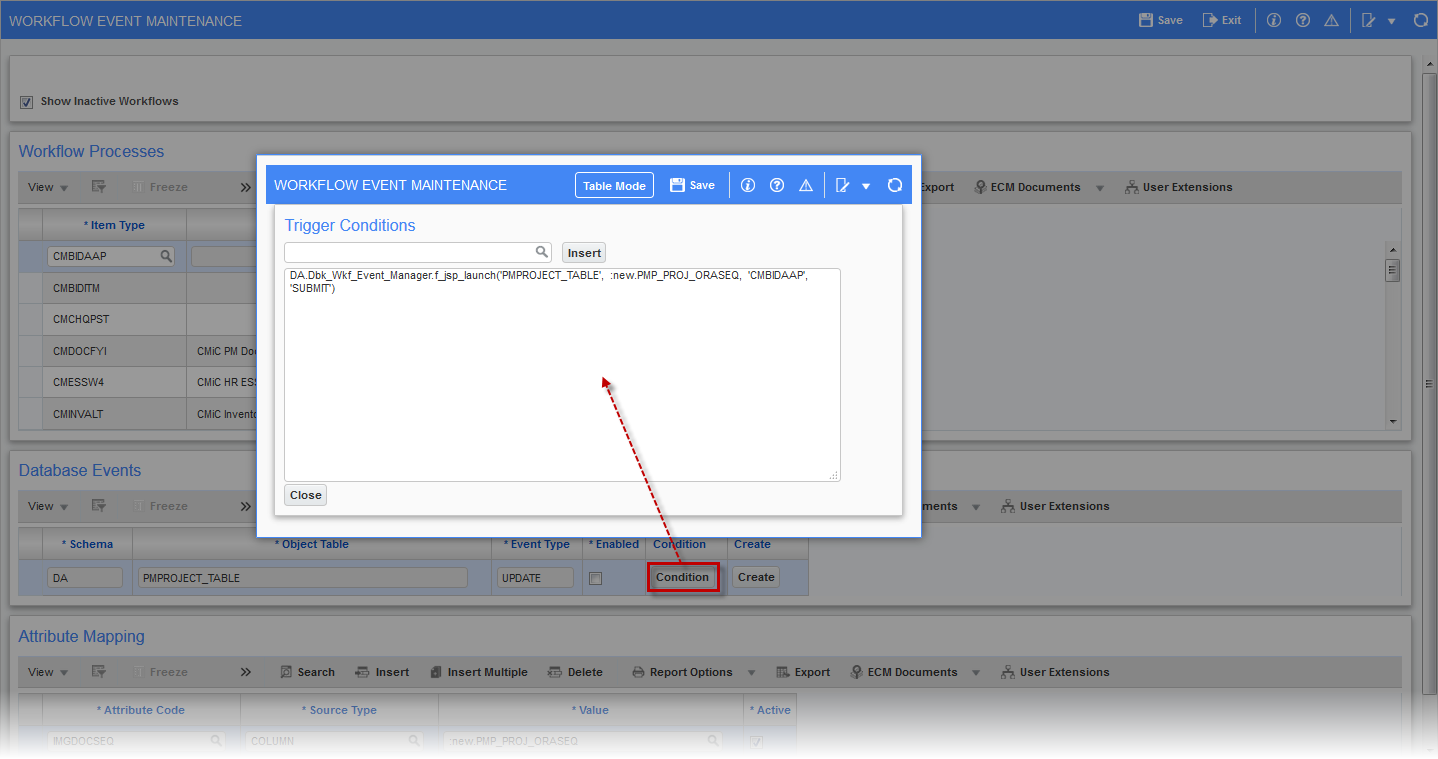
Pop-up window launched from the [Condition] button on the Workflow Event Maintenance screen (standard Treeview path: Workflow > Setup > Event Based Launch Maintenance)
Press the [Condition] button to launch the Trigger Conditions pop-up window. Enter a launch condition in the pop-up window by typing it in or inserting it using the Trigger Conditions LOV and clicking on the [Insert] button. Here’s an example of a launch condition for subcontracts:
da.Dbk_Wkf_Event_Manager.f_jsp_launch('SCMAST', :old.SCMST_ORASEQ, 'CMSCAPPR', 'Approve_SC')
Click the [Close] button to save and close the pop-up window, then press the [Create] button in the Database Events section of the Workflow Event Maintenance screen to generate the trigger and bring the workflow/item type online.
Create the PM Subcontract
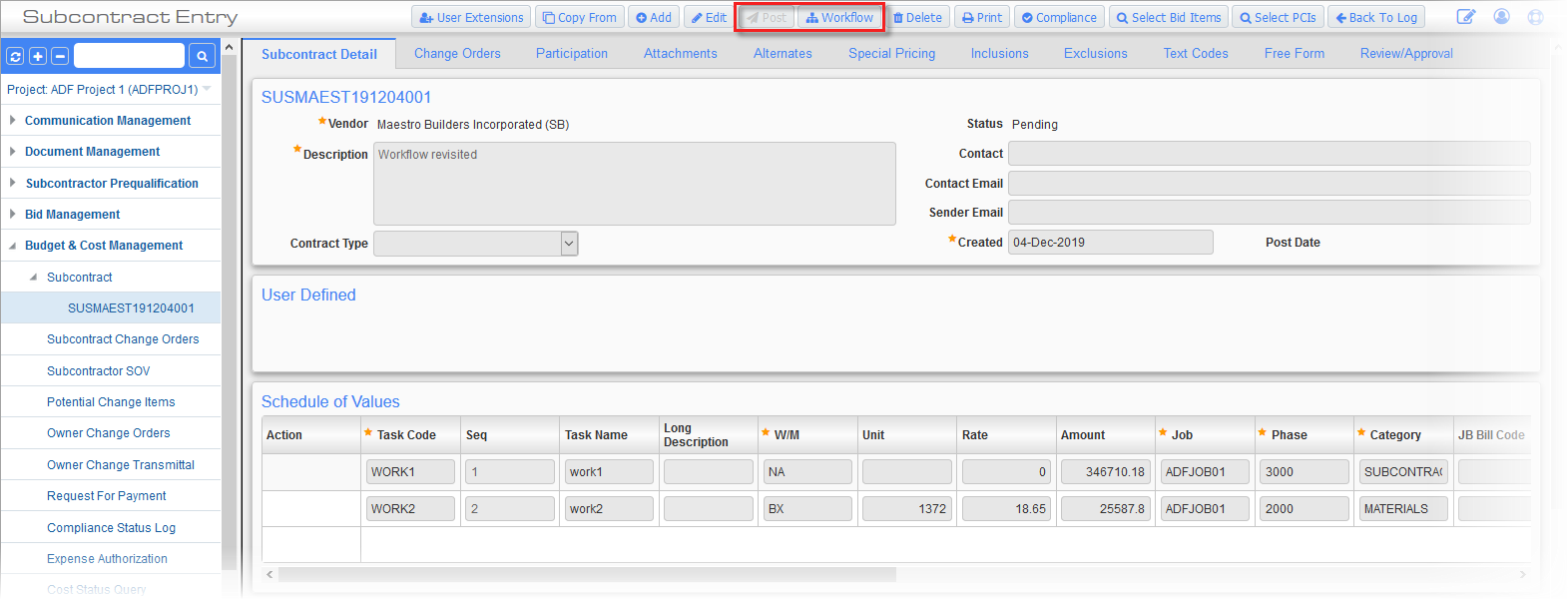
Workflow Option from CMiC Field JSP Subcontract
Create and [Save] the fully completed subcontract as required.
NOTE: The [Post] button is disabled and the [Workflow] button is enabled.
Launch the Workflow
Click the [Workflow] button to submit the CMiC Field Subcontract to the approval workflow and close the pop-up window.
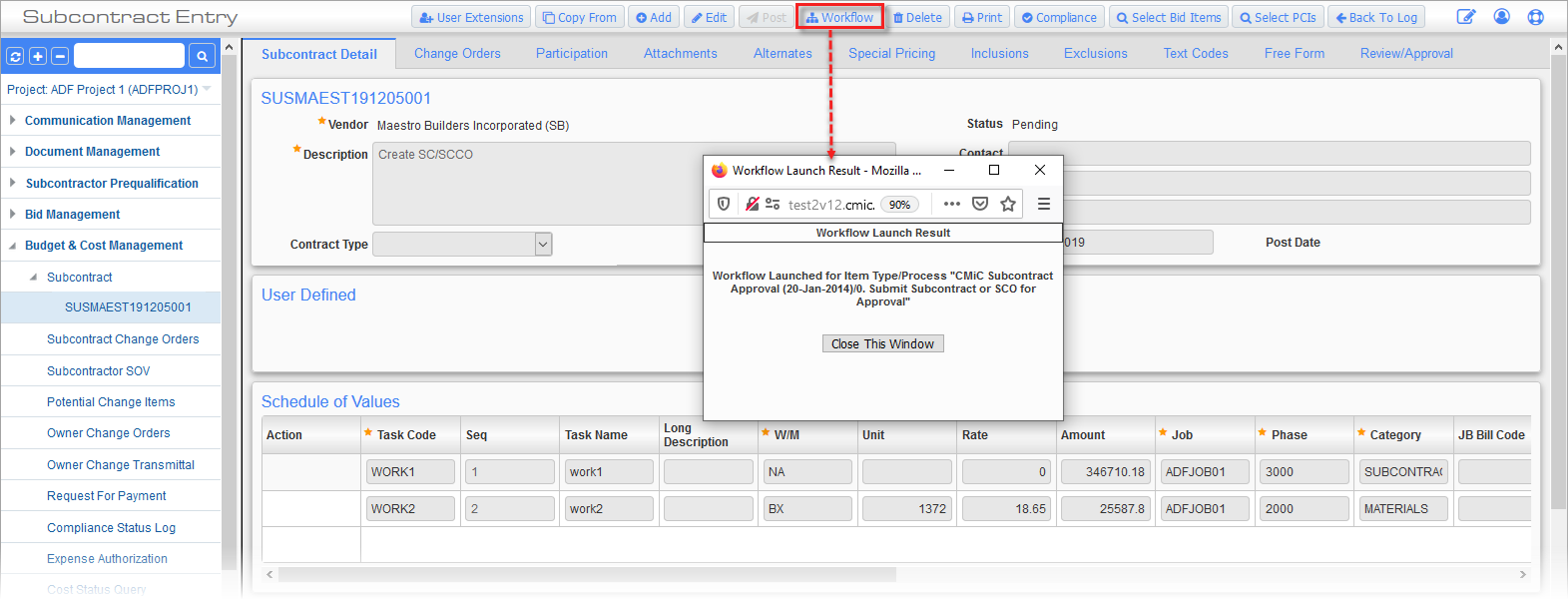
The banner will display “In Workflow” and the Workflow Status field will display “Pending”.
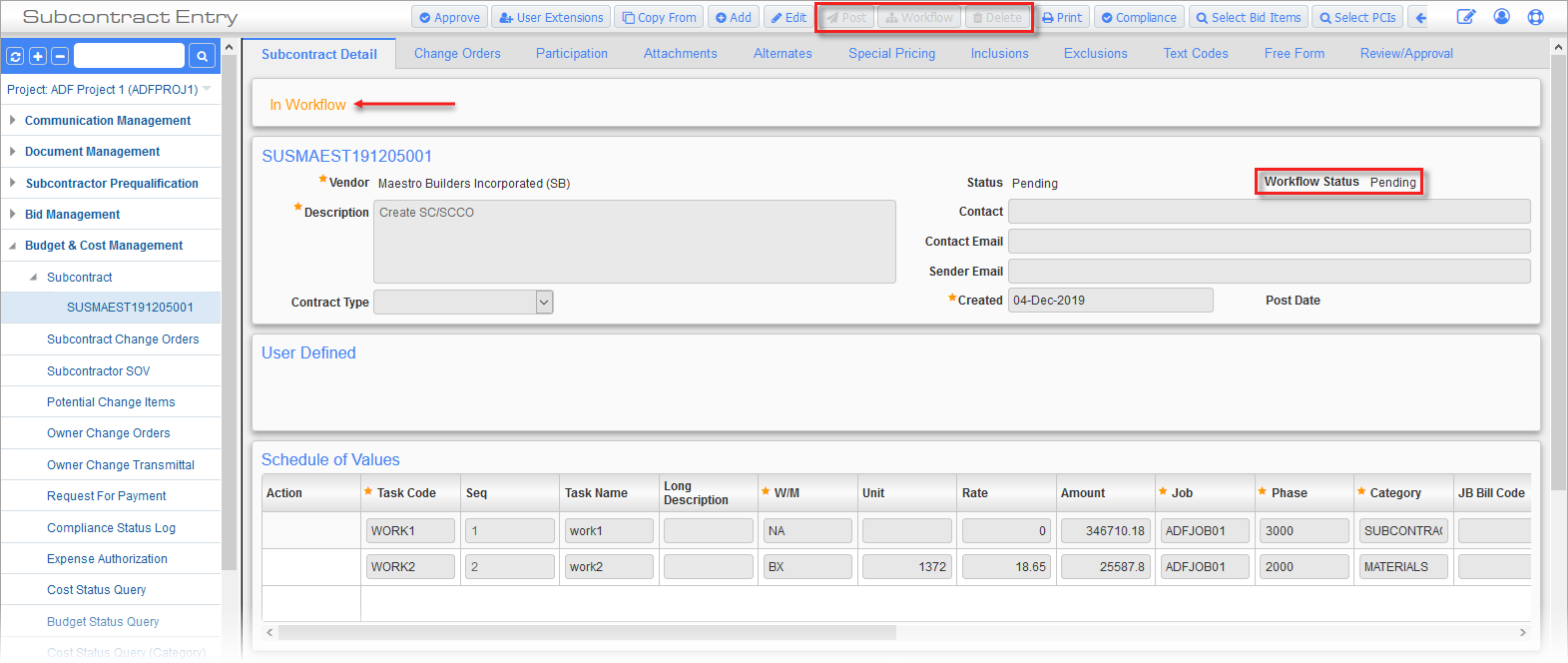
NOTE: The [Post], [Workflow], and [Delete] buttons are greyed out when the CMiC Field Subcontract is in a “Pending” status.
Subcontract Workflow Approval
A Workflow approval request is sent to the approver for review. This process repeats for all the approval levels defined in the Workflow definition.
NOTE: It is not possible to assign the same user ID to two different contacts associated with different vendors. Therefore, when a workflow uses a PM role to route approvals and that role is linked to a user ID, a single Contact record must be used, even if the user’s base company does not match the vendor associated with the project. Creating additional Contact records in this scenario should be avoided.
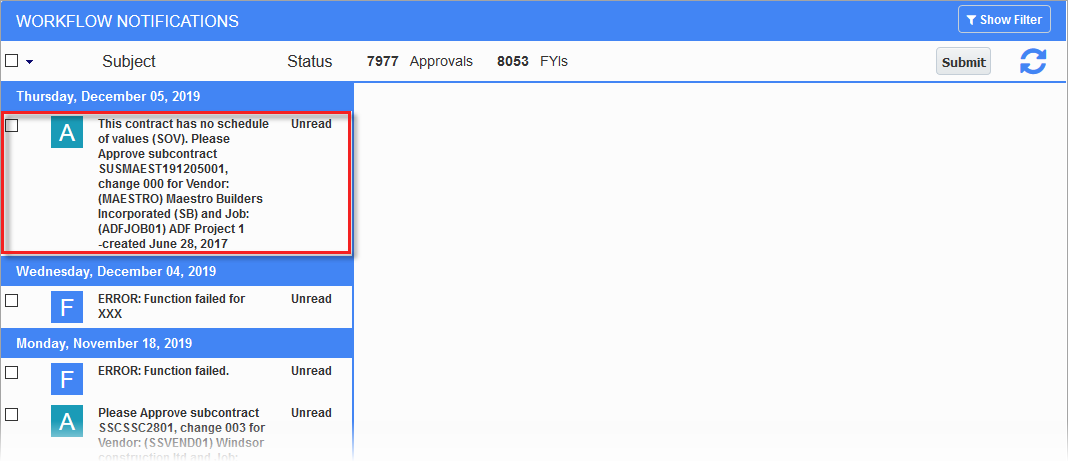
Click on the subject to see the details of the notification and either approve, reject, or reassign it.

After approving and submitting the notification, the subcontract is now approved.
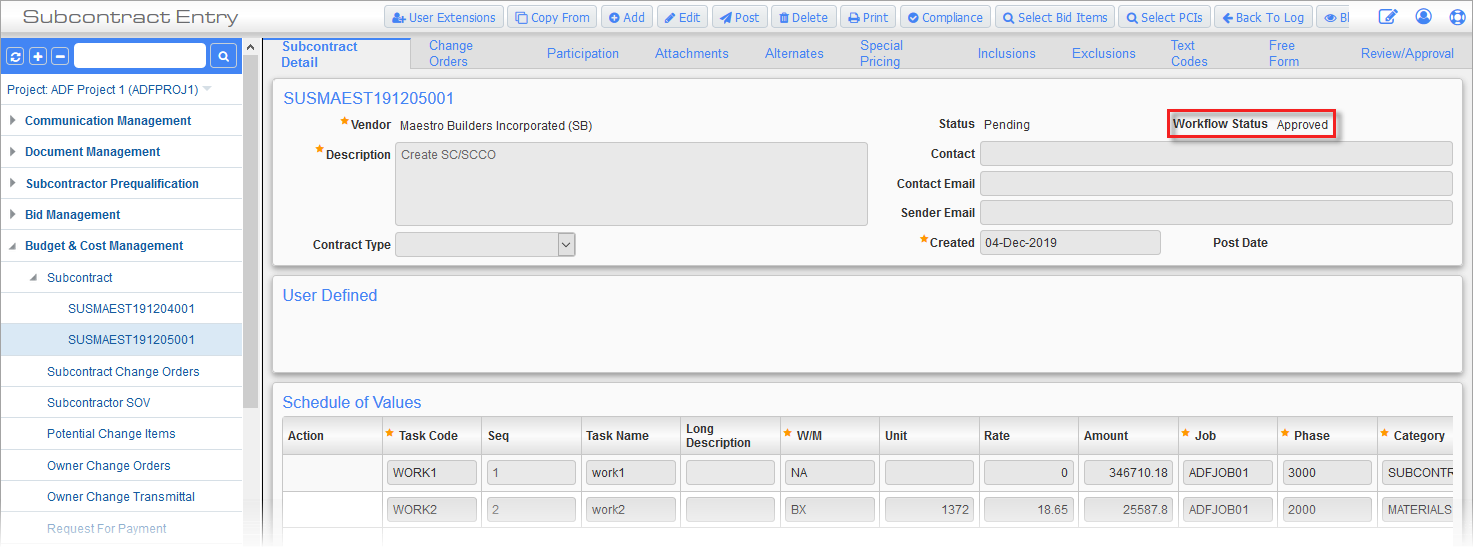
Subcontract/Subcontract Change Orders Log
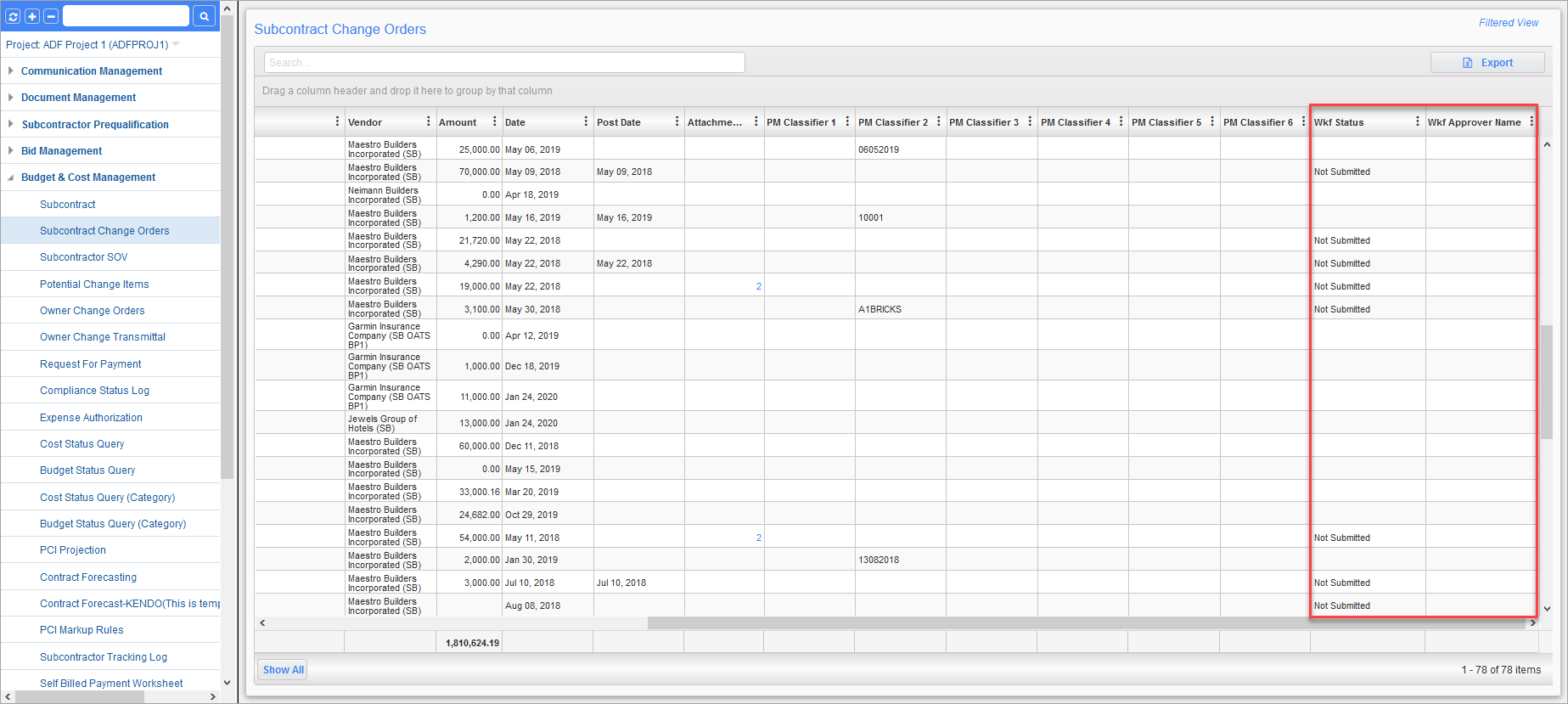
Subcontract Change Orders; CMiC Field > Budget & Cost Management > Subcontract Change Orders
If Workflow is being used for subcontracts and subcontract change orders, additional workflow columns are available to be used in the SC and SCCO logs but they must be incorporated during the workflow design process. These columns include the Workflow Status and Workflow Approver Name, as highlighted in the screenshot above. If these columns have not been built into the workflow design, they will not be populated during workflow and can be removed from the logs.