 Search Tips
The UI Console tool was designed to be versatile. One of the intended results of this versatility is that the UI Console tool allows for the simplification of a user’s set of named consoles. This simplification for end-users, however, comes at the cost of a steeper learning slope for administrators.
Specifically, the UI Console tool provides 2 saving protocols for maintaining sets of named consoles for users (set of consoles made available to users for selection), as shown by the following example, and detailed in the following sections:
Saving Protocol 1: Hierarchical Set of Named Consoles
Saving Protocol 2: Flat Set of Named Consoles
Saving Protocols Overview – Examples
The following are examples of the sets of named consoles available to user BillyB created using the 2 saving protocols. Note, user BillyB is a member of the AP Console UIC group.
Saving Protocol 1 Example: Hierarchical Set of Named Consoles
Using this saving protocol, user BillyB would only see the following two consoles, and the console loaded for this user would be the customized version for the user, as explained by the following section: Load Console – Part 2: Hierarchy for Determining Which Console is Loaded.
|
User’s Set of Consoles |
Base & Variant Levels |
Notes |
|---|---|---|
|
1. Standard Console |
Site (Base Console Level) User – BillyB (Variant Level) |
Site level version is not relevant to BillyB, only the customized version is. |
|
2. AP Console |
Group – AP Group (Base Console Level) User – BillyB (Variant Level) |
Group level version is not relevant to BillyB, only the customized version is. |
Saving Protocol 2 Example: Flat Set of Named Consoles
Using this saving protocol, user BillyB would see the following four consoles, with each console being at only one customization level.
|
User’s Set of Consoles |
Levels |
|---|---|
|
1. Standard Console – Site |
Site (Base Console Level) |
|
2. Standard Console - BillyB |
User – BillyB (Base Console Level) |
|
3. AP Console |
Group – AP Group (Base Console Level) |
|
4. AP Console - BillyB |
User – BillyB (Base Console Level) |
Load Console – Part 2: Hierarchy for Determining Which Console is Loaded
When a user logs into Enterprise, the user selects which named console to use from the list of named consoles that apply to the user. The system assumes that all named consoles potentially have variant versions for the user, thus, the first thing the system does is it checks if there is a variant version of the selected console at the user level for the user. If none is found, the system then checks if there is a variant of the selected console at the group level for the user’s UIC group. If none is found again, the system uses the selected console at the site level.
The first customized version the system encounters in the preceding order is the version loaded for the user, and if no customized version is found, the console loaded is a site level console. The system does not check if there is a version of the selected console at the site level, since all users have access to consoles at the site level.
Saving Protocol 1: Hierarchical Set of Named Consoles (Each Named Console Can Have Variants at Various Customization Levels)
NOTE: These two suggested saving protocols are intended to give the user an idea of a consistent protocol their company could establish to maintain its set of named consoles. One of them may be adopted, or their company could choose to create its own protocol that is a combination of the two.
This saving protocol for creating consoles is used by administrators that wish to have a smaller, neater set of named consoles, to simplify the choosing of consoles by not cluttering LOVs with irrelevant consoles (e.g. Consoles at the system level would not be relevant to users that have customized versions).
NOTE: By design, administrators were intended to create and edit consoles at the site and group level, and variants at the user level were intended to be created by users themselves, not by administrators. However, an administrator can create and edit a variant for a single user by adding the user to a UIC group, in which case the user would be the sole member of the group.
Create Variant
To save a customized version of a loaded console, use [Save] instead of [Saves As] to save it for a particular user or group. Since the modified console is not saved with a new name, it does not become a new named console. It becomes a variant of the named console on which it was based, and the loaded console remains unmodified. Behind the scenes, the system is able to distinguish between the two, as they are associated to different system level objects (site, UIC group, user ID). When a user logs in, if the system finds a customized version for the user, it loads the customized version, otherwise it loads the site level version.
NOTE: Due to the order in which variants are searched and loaded, explained in the preceding Load Console – Part 2: Hierarchy for Determining Which Console is Loaded section, if variants of a particular named console exist for a user at the user level and at the group level, only the user level version is loaded, since user level variants are searched for first and the first variant found is loaded. Thus, for each named console, a user can have either a user level variant or a group level variant, but not both.
Create New Named Console
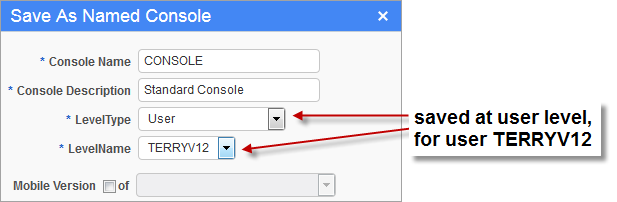
If a new named console is required in the set of named consoles, use [Save As] to save the customized console with a new name. As expected, since the console is saved with a new name, it becomes a named console, visible to the users for which it was saved (if saved at the site level, available to all users; if saved at the group level, available to all members of the group; if saved at the user level, available to that user).
Edit Console
To edit a named console, load the console for the relevant system level object (site, UIC group, or user ID). For details about ensuring that the correct console is loaded, by adhering to a rule, please refer to the Load Console – Part 3: Customizing Consoles as Administrator section.
When saving the modified console, save it for the same system level object using [Save]. The result is that the loaded console is overwritten with the modified version.
NOTE: Due to the order in which variants are searched and loaded, explained in the preceding Load Console – Part 2: Hierarchy for Determining Which Console is Loaded section, if variants of a particular named console exist for a user at the user level (created by user himself/herself) and at the group level, only the user level version is ever loaded, since user level variants are searched for first, and the first variant found is the one that gets loaded. Thus, for each named console, a user can have either a user level variant or a group level variant, but not both.
Saving Protocol 2: Flat Set of Named Consoles (Each Named Consoles is at Single Customization Level)
If administrators wish to have variant consoles and the consoles they were based on in the set of named consoles, use [Save As] instead of [Save] to save new variant consoles with a different name. As expected, since the variant is saved with a new name, it becomes a named console, completely detached from the console on which it was based. To distinguish between the base and variant versions, include the system level object’s name for which the variant was saved.
To summarize, if this option is used, the set of named consoles will contain the base consoles and all of their variants, and the name used to save them is used to distinguish them. Since variants are in the set of named consoles, variants are also named consoles.
Create New Named Console – Base or Variant
To create a new named console, based on the loaded console, use [Save As] to save the modified console with a new name. As part of the name, specify the system level object (UIC group, or the site) for which it was created. Since the console is saved with a new name, it becomes a named console, visible to the users for which it was saved.
Edit Console – Base or Variant
To edit a named console or a variant for a UIC group or the site, load the console for the relevant system level object (UIC group or the site). For details about ensuring that the correct console is loaded, please refer to the Load Console – Part 3: Customizing Consoles as Administrator section.
When saving the modified console, save it for the same system level object using [Save]. The result is that the loaded console is overwritten with the modified version.