 Search Tips
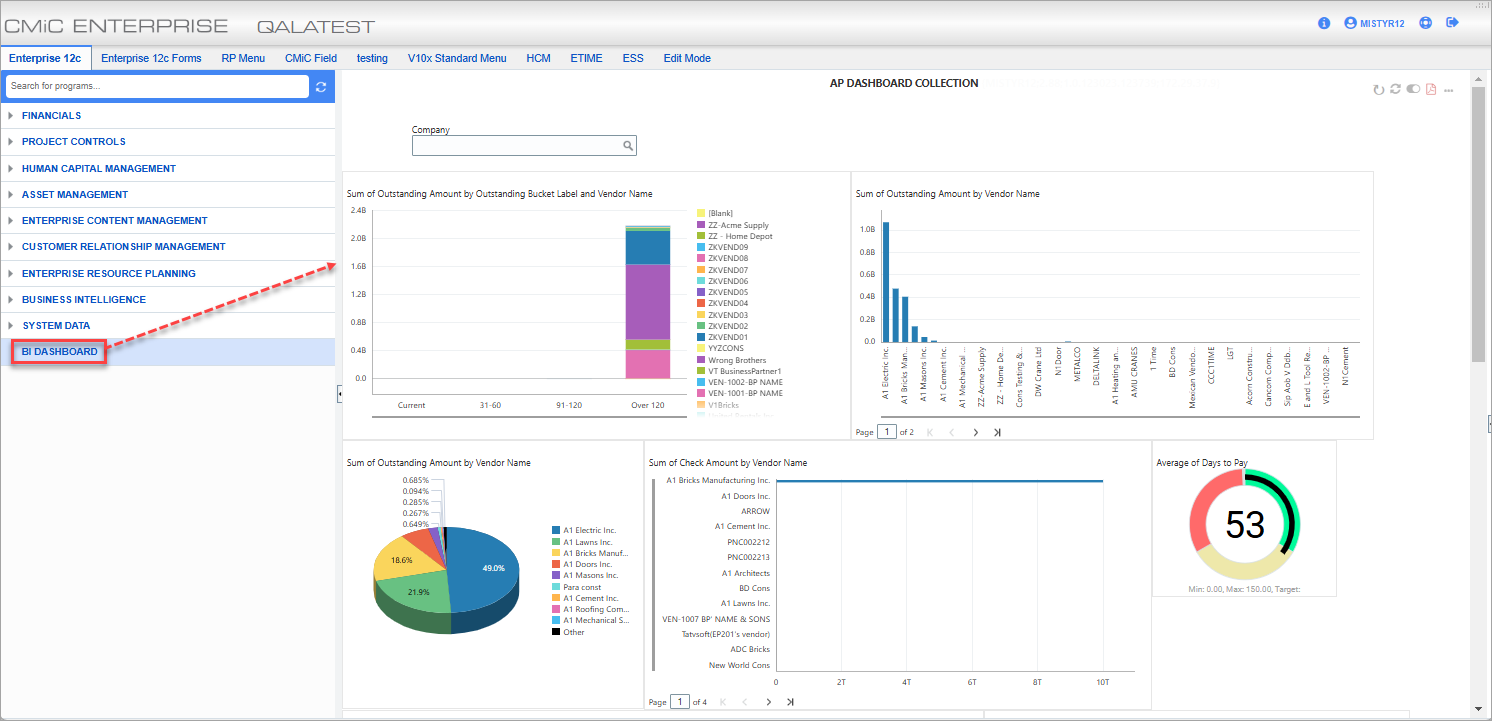
To add a link to a dashboard in Treeview, please refer to the Treeview Builder reference guide in conjunction with the following instructions.
There are two ways to add a link to a Treeview once the menu item has been added. Both methods are described below.
Use Dashboard’s URL
On the UI Treeview Builder screen, add a new menu item to a Treeview and use the Item Properties section to set the Target Type field to “External URL”.
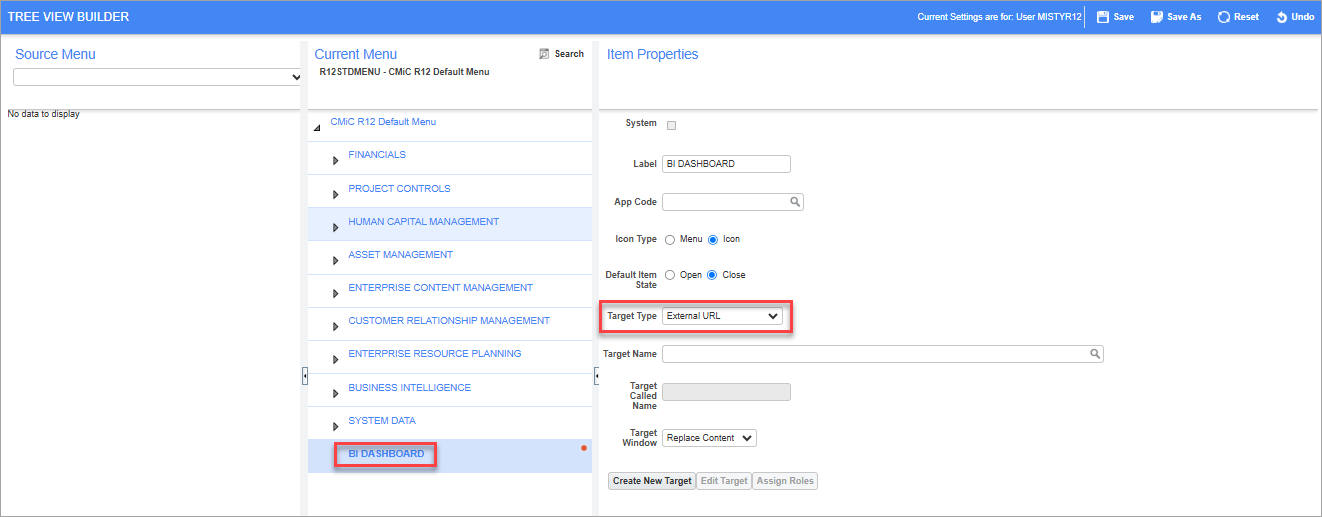
Next, click on [Create New Target].
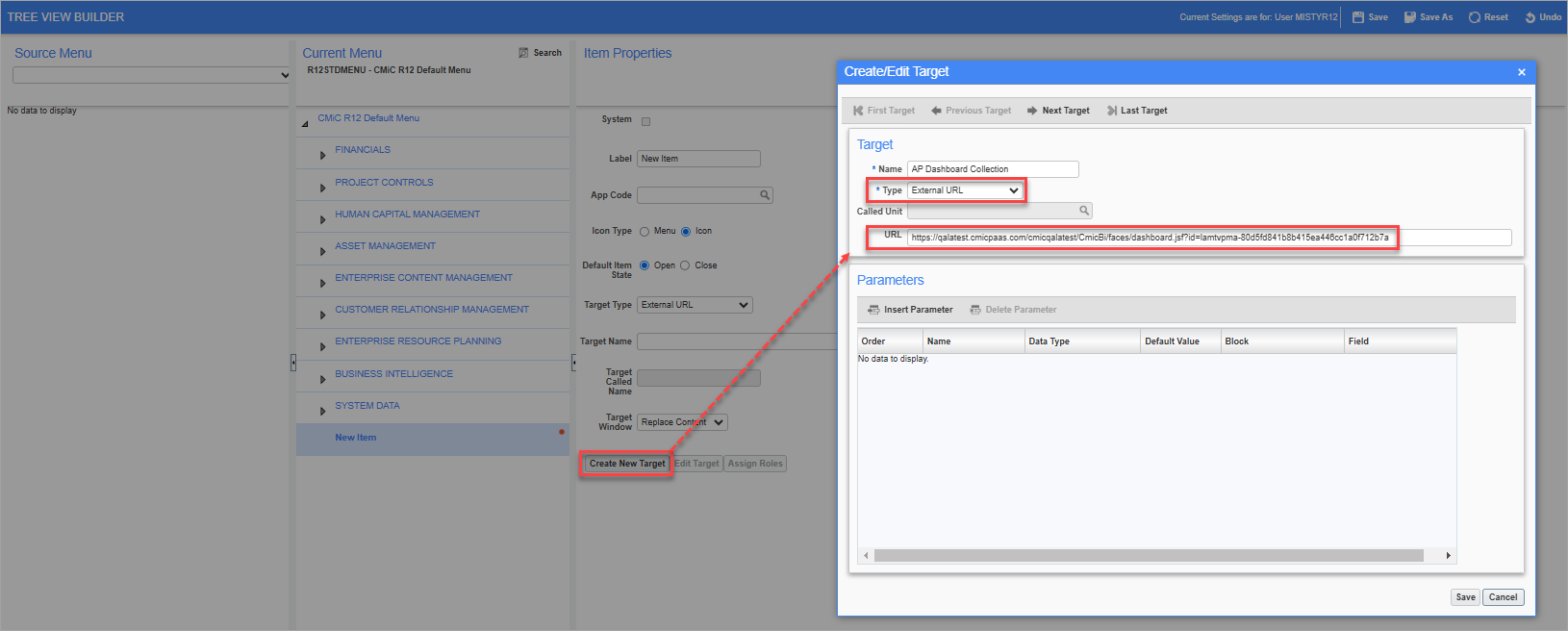
In the Create/Edit Target pop-up window, enter the target’s name in the Name field and select “External URL” in the Type field. In the URL field, enter the dashboard’s URL as provided by the Get Link option under the Dashboard drop-down menu in BI Dashboard Builder. Refer to Get Dashboard URL Link for more information. Click on [Save] to close the Create/Edit Target pop-up window.
Finally, select the created target via the Target Name field in the Item Properties section of the UI Treeview Builder screen and click on [Save].
Get Dashboard URL Link
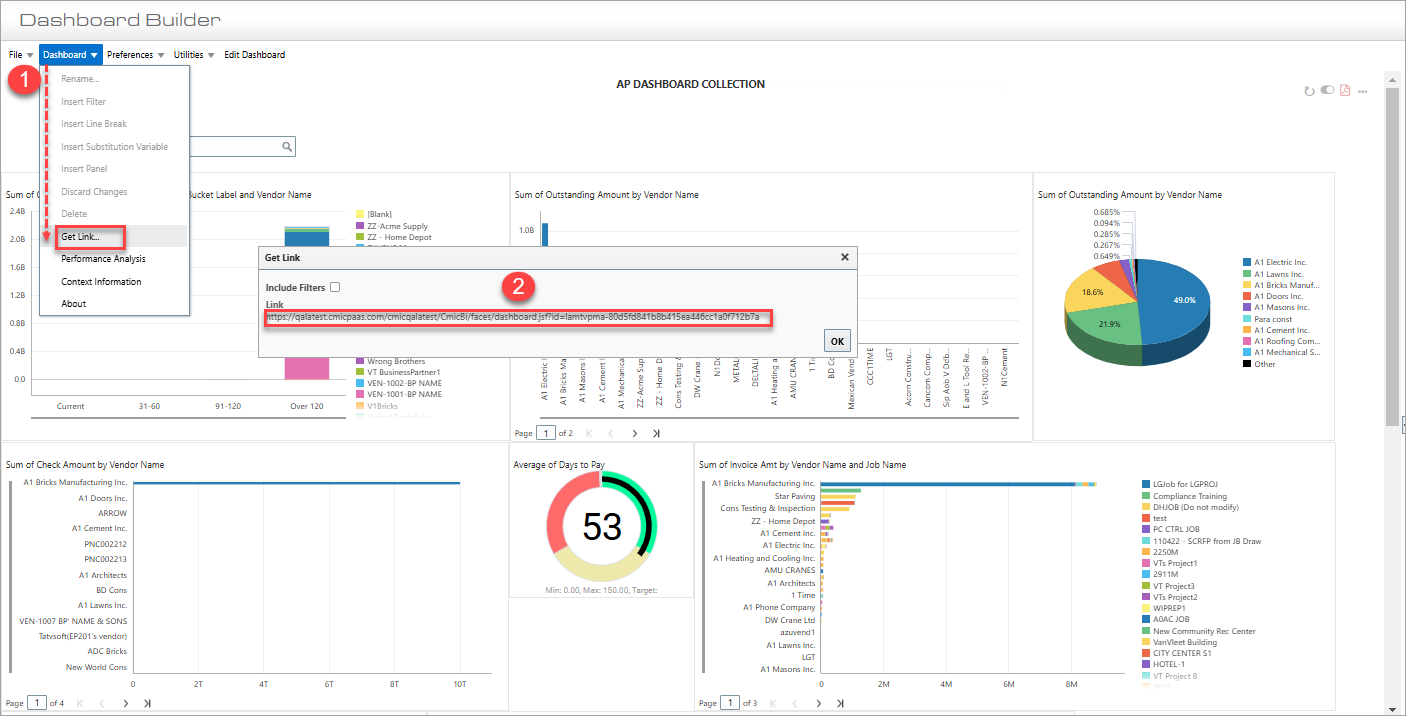
Using Get Link option to copy Dashboard URL link
When creating a link to a dashboard in Treeview Builder, you will need the dashboard’s URL. In Dashboard Builder, open the dashboard and click on the Dashboard drop-down menu and select the "Get Link..." option. In the Get Link pop-up window, right-click on the URL to copy. The 'Include filters' checkbox is used to control whether filters are included in the link. If checked, then the URL will be updated accordingly so if the link is copied and shared, it will contain the pre-defined filters.
Create User-Defined Target
On the UI Treeview Builder screen, add a new menu item to a Treeview and use the Item Properties section to set the Target Type field to “BI Dashboard”.
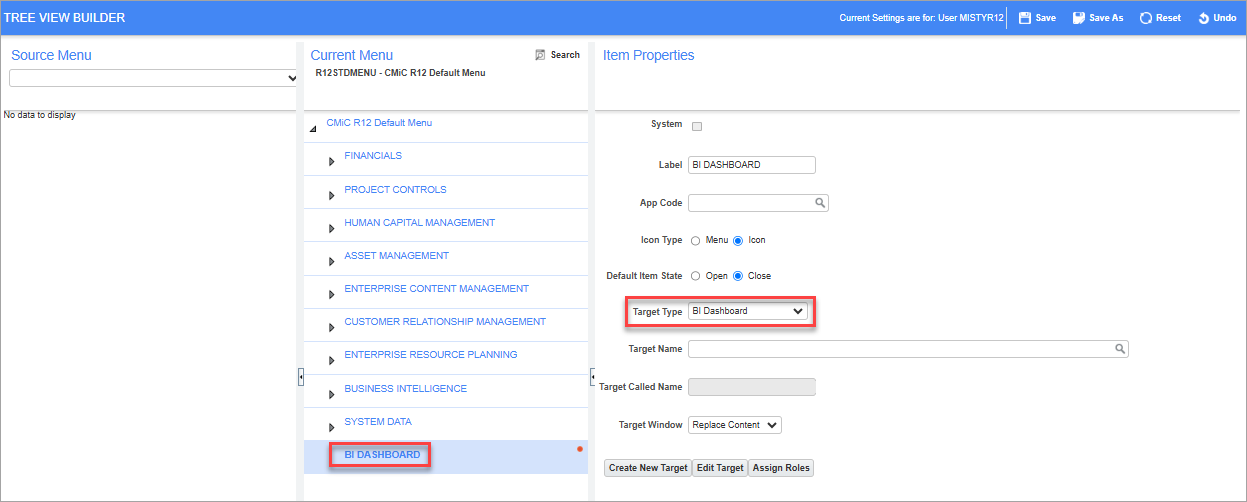
Next, click on [Create New Target].
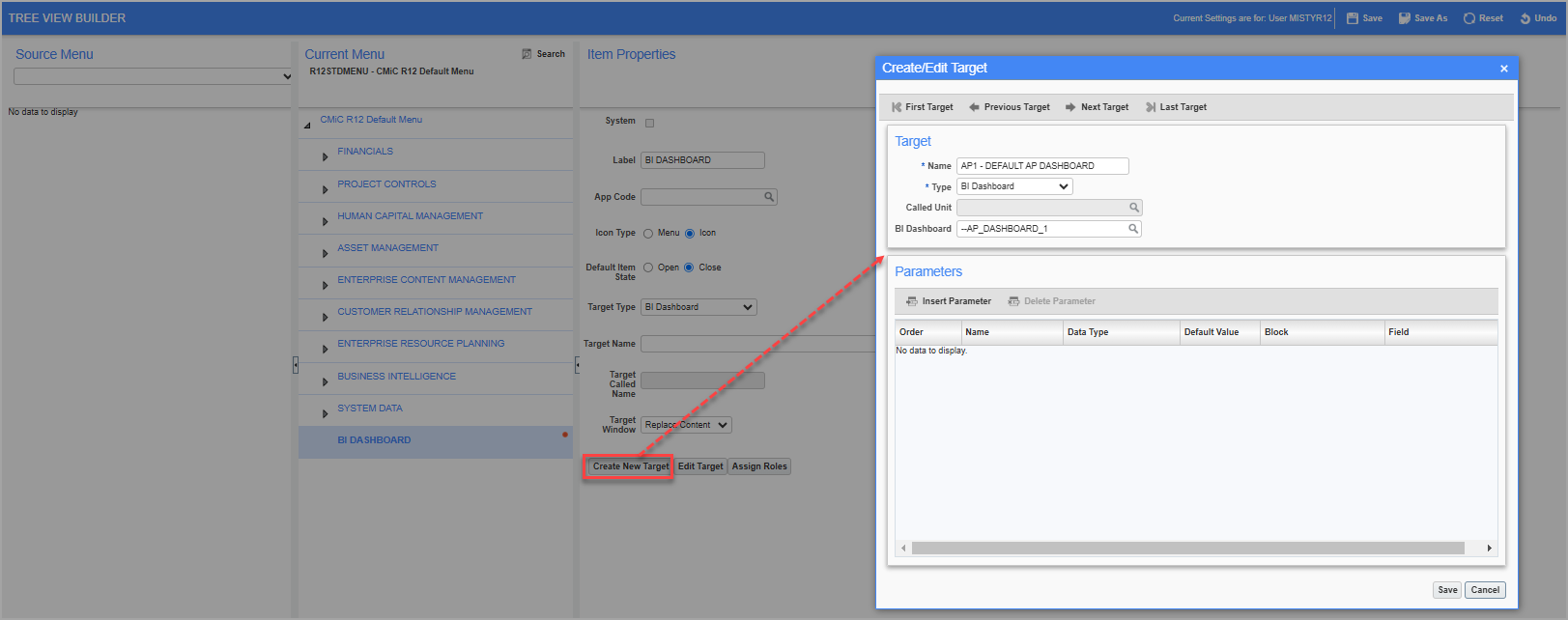
In the Create/Edit Target pop-up window, enter the target’s name in the Name field and select “BI Dashboard” in the Type field. Use the BI Dashboard field’s LOV to select the dashboard you would like to add to the target. When finished, click on [Save].
Finally, select the created target via the Target Name field in the Item Properties section of the UI Treeview Builder screen and click on [Save].