 Search Tips
Overview
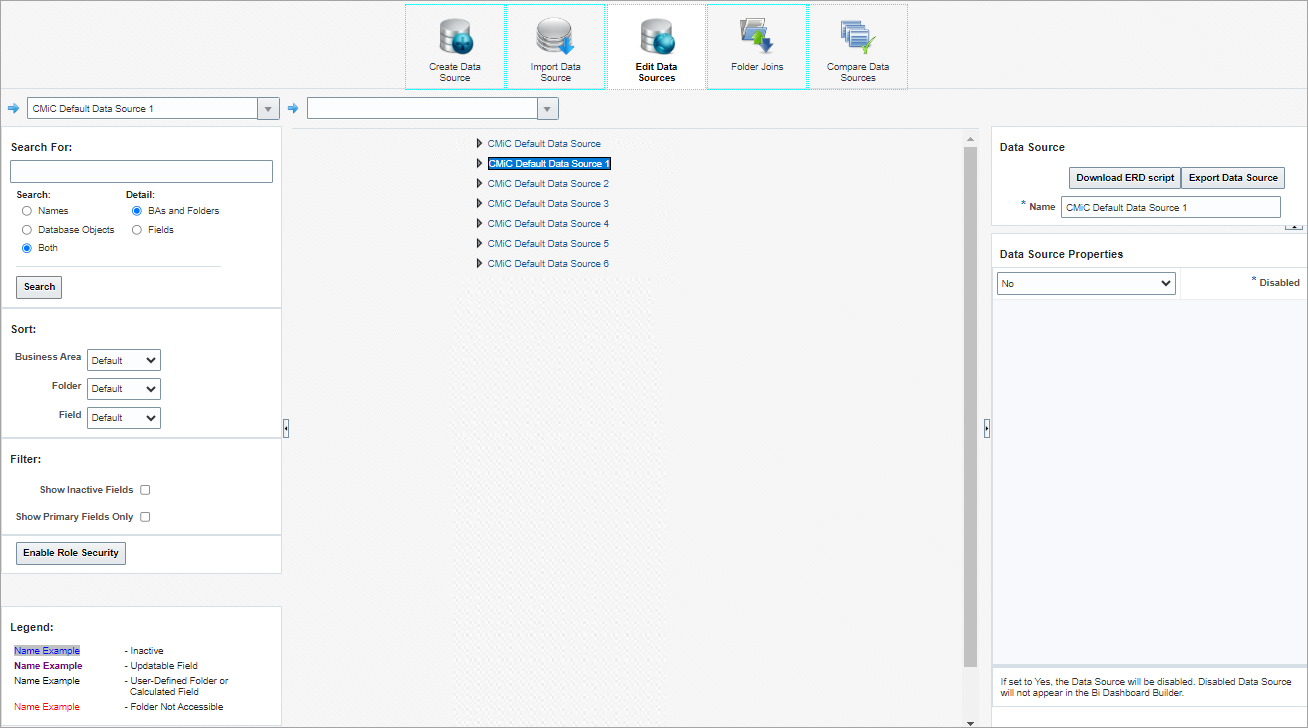
Edit Data Sources Screen
This screen is used to edit existing data sources and to create new data sources via the following actions:
-
Provide more meaningful names for folders and files of new data source’s business areas.
-
Set the default aggregate function for the fields.
-
Set which fields are visible in the BI Dashboard Builder tool, for simplification’s sake.
-
Restrict access to data source by associating security role(s) to it.
A Navigation panel is provided on this screen to allow users to navigate the data source tree and selected tree nodes using drop-down lists. Refer to BI Catalog Builder - Navigation Panel (Edit Data Sources) for more details.
Search, Sort, and Filter panels are also provided on this screen. These panels allow users to:
-
Search a data source's tree for specified text or for specific objects/columns.
-
Sort business areas, folders and fields.
-
Filter to show/hide hidden fields.
Refer to BI Catalog Builder - Search, Sort and Filter Tree Nodes for more details.
A Legend is also available on this screen to explain what the colors represent for the folders and fields in the data source tree.
Operations to a data source and its components are made via this screen’s context menu, which is launched via a right-click.