 Search Tips
To enhance account security, Multi-Factor Authentication (MFA) is now offered when accessing the CMiC Support Portal. MFA adds an extra layer of protection by verifying your identity when you log in.
If you would like to enable MFA, please contact us through the following options:
-
Email us at loginassist@cmicglobal.com
-
Contact your Account Manager or Project Coordinator
Once MFA has been enabled, follow the steps below to complete your setup.
NOTE: When MFA is enabled for your company’s Support Portal account, all users associated with your account will be required to use MFA to log in.
Logging In with MFA Enabled
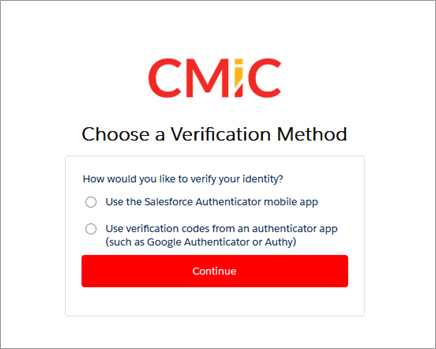
When MFA is enabled on your account, you’ll see a Verification Method screen after entering your username and password.
You can choose how you’d like to verify your identity.
NOTE: There is no "Remember this device" option on the Support Portal. You will need to verify your identity each time you log in.
Option 1: Using Verification Codes from an Authenticator App
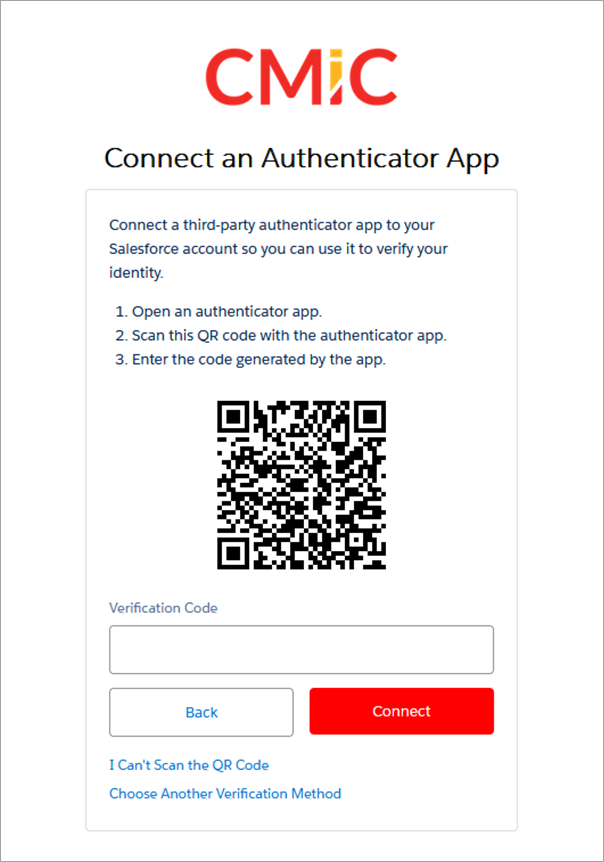
If you prefer to use an Authenticator app (such as Microsoft Authenticator or Google Authenticator), you can choose the "Use verification codes from an authenticator app" option to verify using generated codes.
-
On the Verification Method screen, select "Use verification codes from an authenticator app".
-
A QR code will appear on your screen.
-
Open your chosen Authenticator app and scan the QR code.
-
Enter the six-digit code from your app to complete the setup.
-
For future logins, open your app to retrieve a new six-digit code each time you sign in.
Guides for Popular Authenticator Apps
-
Microsoft Authenticator: Set up Microsoft Authenticator
-
Google Authenticator: Set up Google Authenticator
Option 2: Using the Salesforce Authenticator Mobile App
-
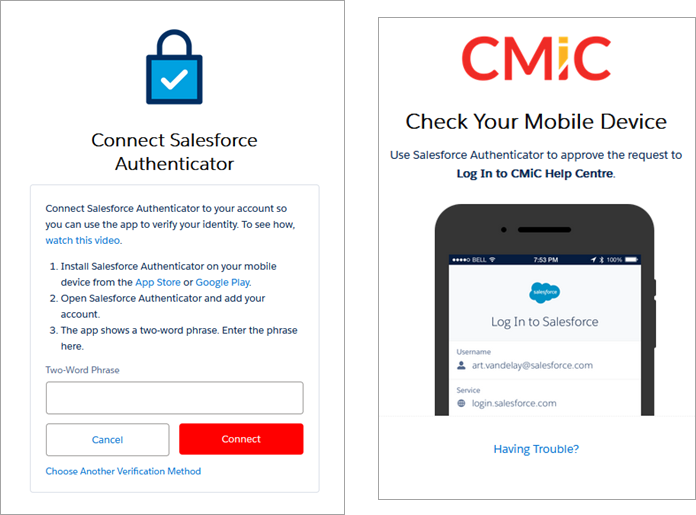
Download and install the Salesforce Authenticator app on your mobile device:
-
Log in to the Support Portal.
-
When prompted, select Salesforce Authenticator as your verification method.
-
Open the app on your phone and follow the on-screen instructions to connect your account. Watch the following video to see how to set this up (starting at 0:58): How to Use Salesforce Authenticator for MFA Logins
-
The app will show a two-word phrase. Enter the phrase in the Two-Word Phrase field.
-
Each time you log in, you’ll receive a notification in the app. Tap Approve to verify your identity.