Search Tips
We’re excited to introduce a major upgrade to our live chat experience, designed to make your support journey smarter, faster, and more connected. Our new chat platform is fully integrated with the Support Portal, bringing chats and support cases together in one place for a seamless experience. With the addition of an AI-powered bot, you’ll now have instant access to guided assistance and knowledge resources anytime you need them. And you can still connect with a live support agent during business hours for personalized assistance. This new approach ensures quicker answers, better case management, and more ways to get the help you need, all within a single, convenient support hub.
Coverage
NOTE: Live Chat is only available for SaaS customers.
Our new AI bot is available 24/7 in English, giving you instant answers, guided steps, and helpful resources anytime you need them.
If you prefer to connect with a person, our live support agents are available Monday to Friday, 8:00 AM – 8:00 PM EST to provide personalized assistance.
Why this Change?
We’ve listened to your feedback and identified new ways to make live chat more effective, seamless, and helpful. Here’s what you can expect from the upgrade:
-
AI-Powered Assistance – Get instant answers from our AI bot anytime. Whether you need quick guidance or step-by-step instructions, the AI Assistant is always available, with the option to connect to a live agent during business hours.
-
Seamless Case Integration – Chats and support cases now live together in the Support Portal, making it easier for our team to track information, convert chats into cases, and ensure smooth follow-ups.
-
More Available Staff, Faster Help – A larger portion of our support team can now assist through live chat, reducing wait times and getting you connected to the right person faster.
-
Smarter Self-Service Tools – Access guided steps, knowledge base articles, and other resources directly in the chat window, without having to wait for an agent.
Who is this for?
Our new AI assistant and live chat are designed to support both end users and system admins, making it easier for everyone to get the help they need, when they need it.
-
For End Users
Sometimes you just need quick guidance, whether it’s finding the right help doc or getting unstuck. We understand that your system admin isn’t always available, especially in a fast-growing company. Our AI assistant and live chat is here to share the load, so your admins can focus on improving processes instead of handling routine requests like password resets or basic navigation questions.
-
For System Admins
Admins carry a big responsibility: configuring the system while also supporting end users. Balancing these demands can slow you down. With the AI assistant and live chat, we help triage and summarize user requests, so you can resolve them on your schedule. For issues that do require configuration changes, we’ll provide clear explanations and context, making it easier to understand what needs updating and why, without having to dig for answers.
How to Request Live Chat Support?
-
Launch the Chat Messenger.
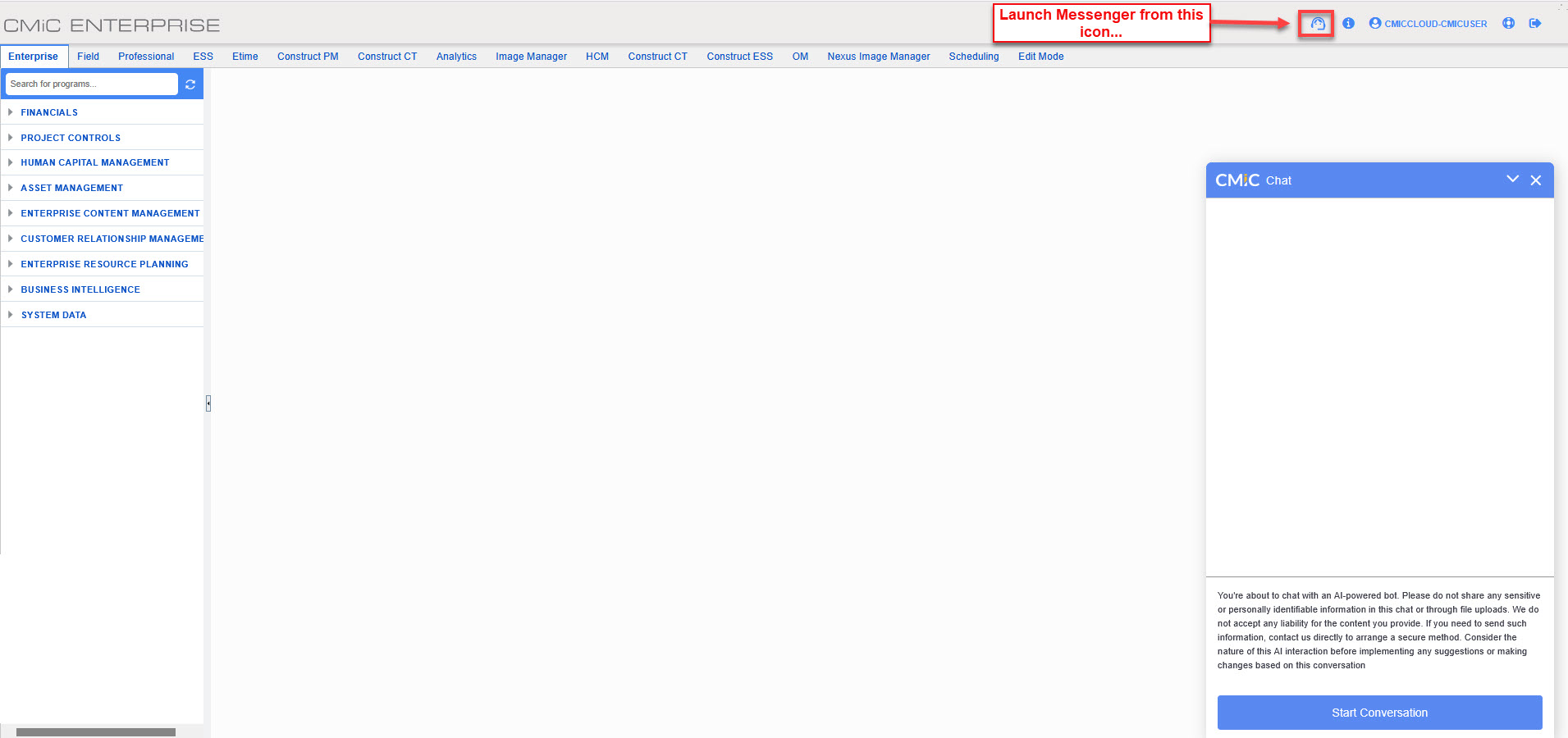
The chat window is launched by clicking on the Messenger icon on the CMiC console.
-
Start a new conversation.
![Screenshot of the [Start Conversation] button in the Chat window](../../Resources/Images/Support/AILiveChat2.png)
A new conversation can be started by clicking the [Start Conversation] button in the Chat pop-up window.
-
Get your question answered by the AI Assistant.

Type your message in the text box, then press the Enter key and the AI Assistant will respond directly. For the best results, try to keep your questions related to similar topics as this helps the AI provide more accurate responses.
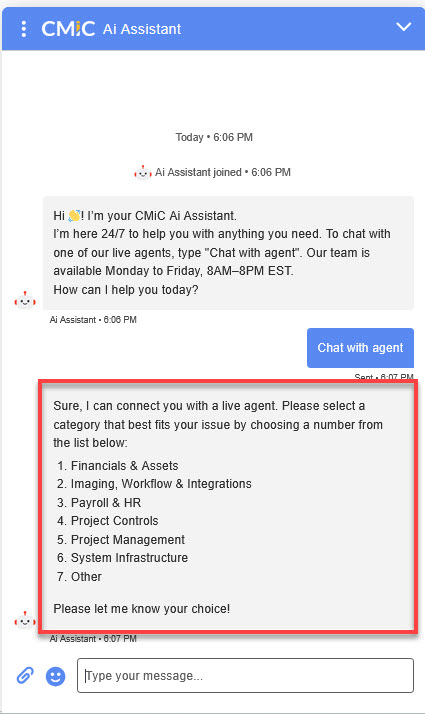
At any point during a chat, you can type "Chat with agent" to connect to a Live Agent for further assistance.
-
Chat with a live agent by selecting the category that best fits your issue. An easy way to determine the category is by identifying the program header from your Treeview.
-
Don't forget to end the chat session.
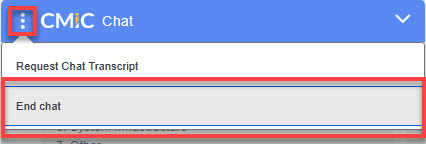
You can end a chat at any time by selecting the "End Chat" option shown in the above screenshot. If you’d like to keep a record of the resolution or response, please be sure to select "Request Chat Transcript" (see the Frequently Asked Questions section for details).
-
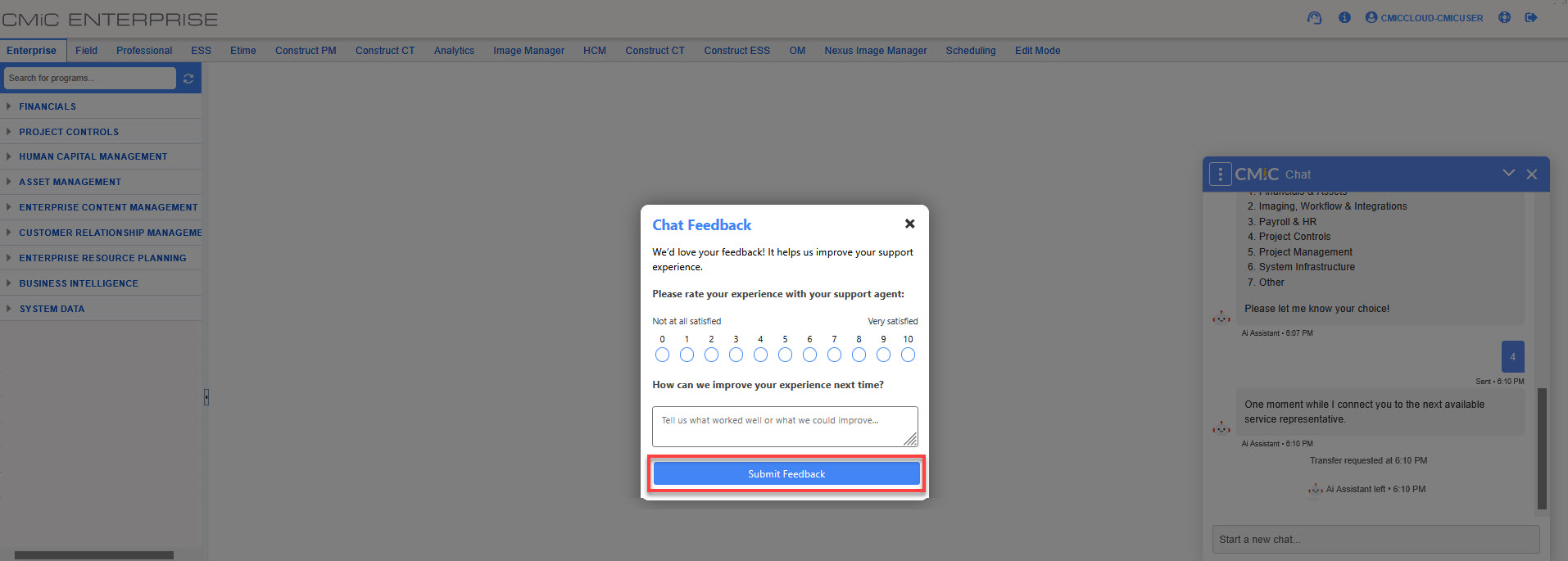
Let us know how we did by rating your experience and providing feedback when you end a chat.
Escalation
Our Live Chat agents will make every effort to resolve requests directly within the chat. However, certain issues go beyond providing advice or reference materials. For matters such as administrator configuration changes, software bugs, or service requests, a support case will need to be created so our technical teams can properly investigate and resolve the issue.
When a case is created in our Support Portal, end users will be notified of the case number assigned. One of your system administrators will also be notified and can follow up through the Support Portal as usual. If an end user does not have access to the Support Portal, the case may be opened under a system administrator’s name. In that situation, the administrator will be responsible for reviewing and managing the case on behalf of the end user. Where appropriate, our Support team will also coordinate with the Account Management team.
Ad Blockers and Connection Issues
The CMiC AI Assistant may not function properly if ad-blocking browser extensions are enabled. Common examples include uBlock Origin, Adblock Plus, and Total Adblock.
To resolve this, you can disable the ad-blocking extension for the CMiC site while logged in. This typically resolves the issue. If the problem persists after doing so, please create a case in the Support Portal for further assistance. Once a chat is ended, it cannot be accessed again. Before ending any conversation, please download a copy of the chat transcript. The "Request Chat Transcript" option is located right above the "End Chat" option, so you can’t miss it.
If you are experiencing a connection issue, you may need to whitelist the Salesforce recommended domain, "*.salesforceliveagent.com".
Frequently Asked Questions
How do I add images (attachments)?
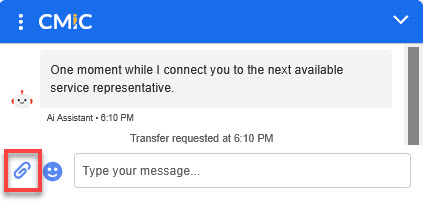
Screenshots are helpful in getting you the answers you need. You can add images to a chat with a live agent by clicking on the paperclip icon and uploading your saved images.
Please do not upload images to chats with the AI Assistant.
How can I access my chat history?
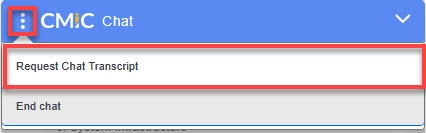
Once a chat has ended, it cannot be accessed again. Before ending any conversation, please download a copy of the chat transcript. The "Request Chat Transcript" option is located right above the "End Chat" option, so you can’t miss it.