 Search Tips
Overview
An opportunity’s data sheet is used to keep additional, user-defined information about an opportunity, which can include industry-specific information about an opportunity and its associated bid job, job, and project. The data sheet is composed of user-defined groups (sections), and these groups contain user-defined fields.
For instance, there could be a section to track project attributes. This section can be broken down by industry type, and each type could contain industry specific attributes. More specifically, sections for educational, commercial, and medical industry types could exist, which contain project attributes specific to the industry types.
Furthermore, the groups and fields on an opportunity’s data sheet can be made available or unavailable, depending on the opportunity’s data fields and on user-defined conditions. For instance, the opportunity data sheet can be configured so that an opportunity that has its Market Sector field set to “Commercial” will only have industry sections on its data sheet that are relevant to the commercial type.
Using the following two maintenance screens, the following steps are required to set up the data sheet for Opportunity records:
Field Maintenance (standard Treeview path: System > User Extensions > Field Maintenance):
1. Create the user-defined fields required for the different sections of the Opportunity data sheet.
Data Sheet Maintenance (standard Treeview path: System > User Extensions > Data Sheet Maintenance):
2. Create the sections to which user-defined fields belong, and add the user-defined fields to the sections.
3. Define visibility conditions to control which sections and fields are available for an opportunity’s data sheet, based on the opportunity’s fields.
Field Maintenance (User Extension Maintenance)
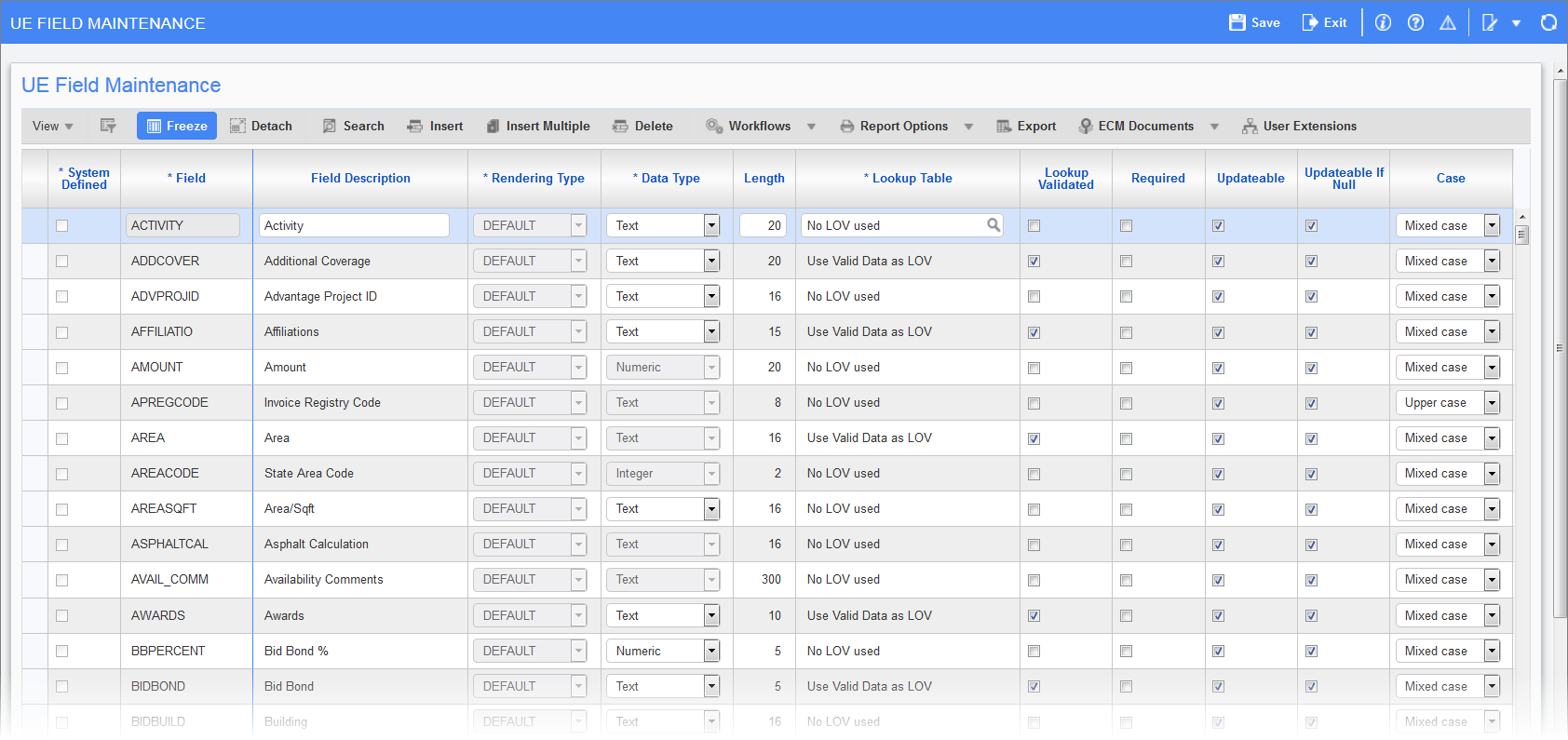
Pgm: UEFIELD – UE Field Maintenance; standard Treeview path: System > User Extensions > Field Maintenance
The Field Maintenance screen is used to create and define new data fields, which can be added to various objects throughout CMiC Enterprise that contain user-defined fields, such as data sheets. Before the Data Sheet Maintenance screen can be used to add user-defined fields, the user-defined fields must have been created through this screen.
Data Sheet Maintenance

Pgm: SDCLASSIFIERS – Data Sheet Maintenance; standard Treeview path: System > User Extensions > Data Sheet Maintenance
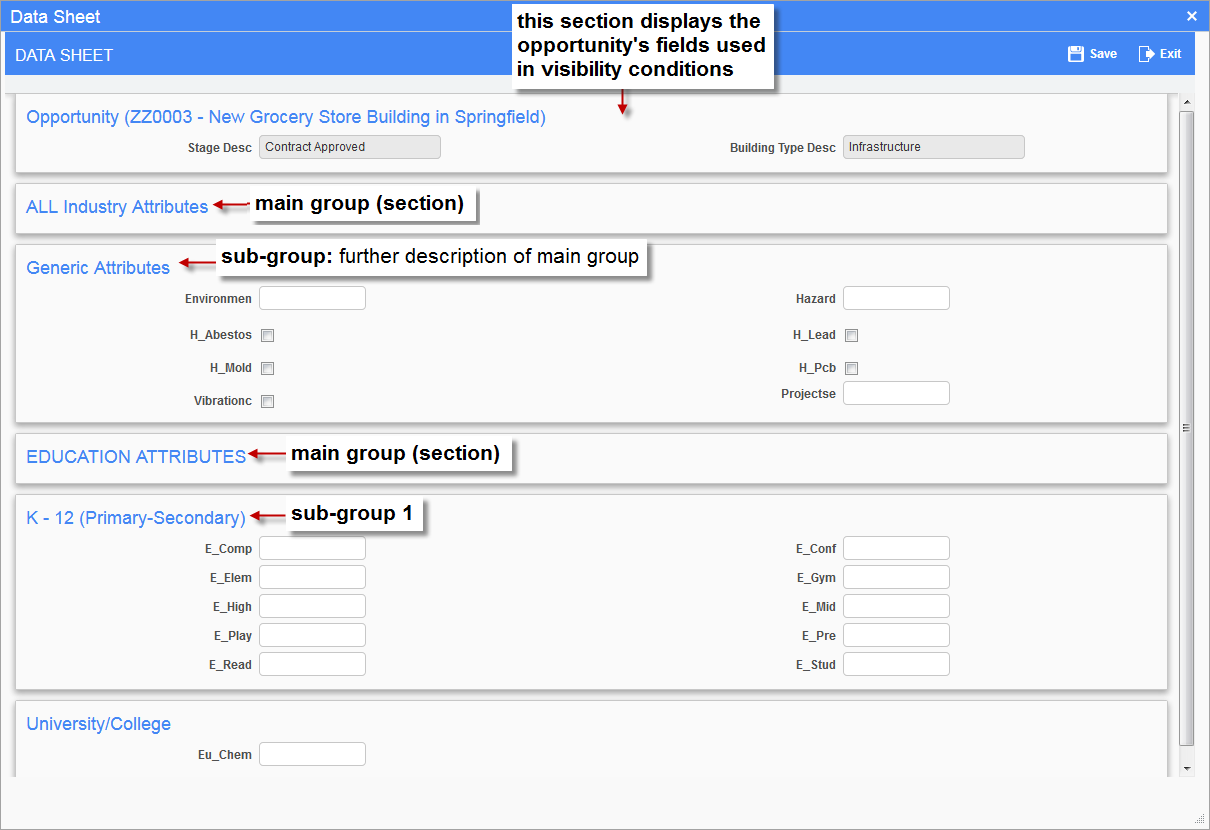
Data Sheet created from setup in previous screenshot
The Data Sheet Maintenance screen is used to specify what groups (sections) appear on data sheets, and what user-defined fields appear under each group. It is also used to create visibility conditions, which are conditions used to determine when a group or field is to be available on an opportunity’s data sheet, based on the opportunity’s fields.
There are data sheets for various types of objects used in CMiC Enterprise. This section focuses on the data sheet for Opportunity objects. To select the data sheet for Opportunity objects, on the Data Sheet Maintenance screen, select “Opportunity UDF Tab” from the Object Type drop-down list.
There are two types of groups on data sheets, as shown in the above screenshots: Main groups and sub-groups. All main groups appear in groups of two. The first group is the title of the main group, and the second group is either just a more detailed description of the main group, if there are no sub-groups, or the title of the first sub-group. Except for the first sub-group, which is under its main group, all subsequent sub-groups appear as a single entry.
Create Groups
To create a group or sub-group, select the row under which the new row is to appear, using the selection area framed by the red rectangle. Click [Insert] on the Block Toolbar. For the new row, click the ‘Group’ checkbox, to indicate that the row is for a group (section) on the data sheet. Enter the group’s description in the Description field, enter the text that is to be displayed on the data sheet in the Default Value field, and enter the order in which the group is to appear in the Order field.
If the group is a main group, click [Insert] on the Block Toolbar to create a second group under the main group. Recall that all main groups occur in a group of two groups. For the new row, click the ‘Group’ checkbox. If the main group has no sub-groups, use this new row to provide a more detailed title or description for the main group. If it does have sub-groups, use this row to detail the first sub-group. When finished, click [Save].
To add user-defined fields to the created group, refer to Add User-Defined Fields.
If this group, including its fields, requires a visibility condition to control when it is available, refer to Add Visibility Conditions.
Add User-Defined Fields
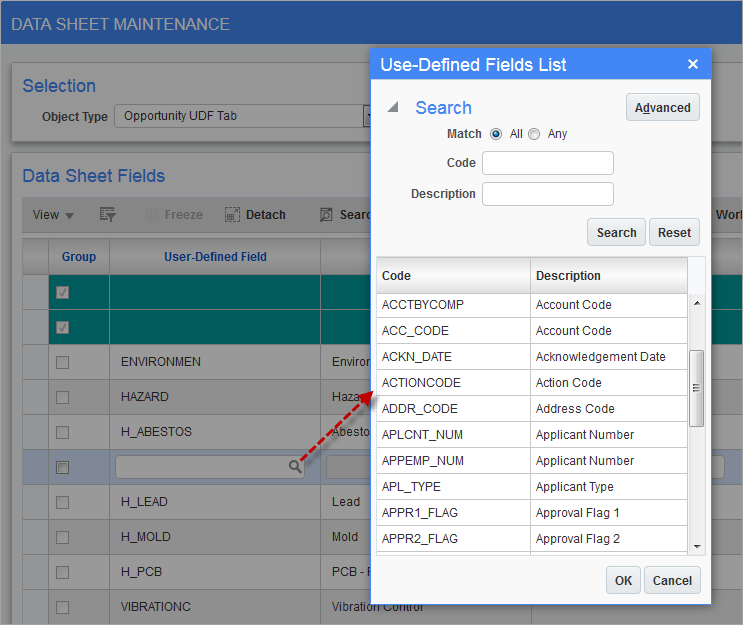
Pop-up LOV launched from the search icon of the User-Defined Field on the Data Sheet Maintenance screen (standard Treeview path: System > User Extensions > Data Sheet Maintenance)
To add a user-defined field that was created using the Field Maintenance screen (standard Treeview path: System > User Extensions > Field Maintenance), select the row under which the new row should appear. Click [Insert] in the Block Toolbar. In the new row, click the Search icon ( ) in User-Defined Field column to open the User-Defined Fields List pop-up window. In the pop-up window, use the Search option to locate the desired field by entering its code or description, then press Enter on your keyboard. When the field appears in the lower section of the pop-up window, double-click it to select it and close the window.
Enter the field’s label, as it should appear on the data sheet, in the Default Value field, and enter the order in which the group is to appear in the Order field.
If this field requires a visibility condition to control when it is available, refer to Create Visibility Conditions.
Create Visibility Conditions
The Data Sheet Maintenance screen is also used to create visibility conditions for groups or single fields.
NOTE: The visibility condition for a group overrides the visibility conditions for the fields it contains.
Visibility conditions are based on the fields of an opportunity’s record. For instance, a data sheet’s group that contains fields that are only relevant to opportunities which have their Market Sector field set to “Educational” can have its visibility condition set so that the group will only appear for opportunities that belong to that specific market sector.
To create a visibility condition, you must first declare an alias for the opportunity field that will be used in the condition. This is done using the Driving Fields screen. Before you can declare the alias, however, you need to identify the system name of the opportunity field.
You can find this information in the About screen, accessed by selecting the Main Toolbar’s About option ( ), as detailed in the next section.
Discover Field’s Name
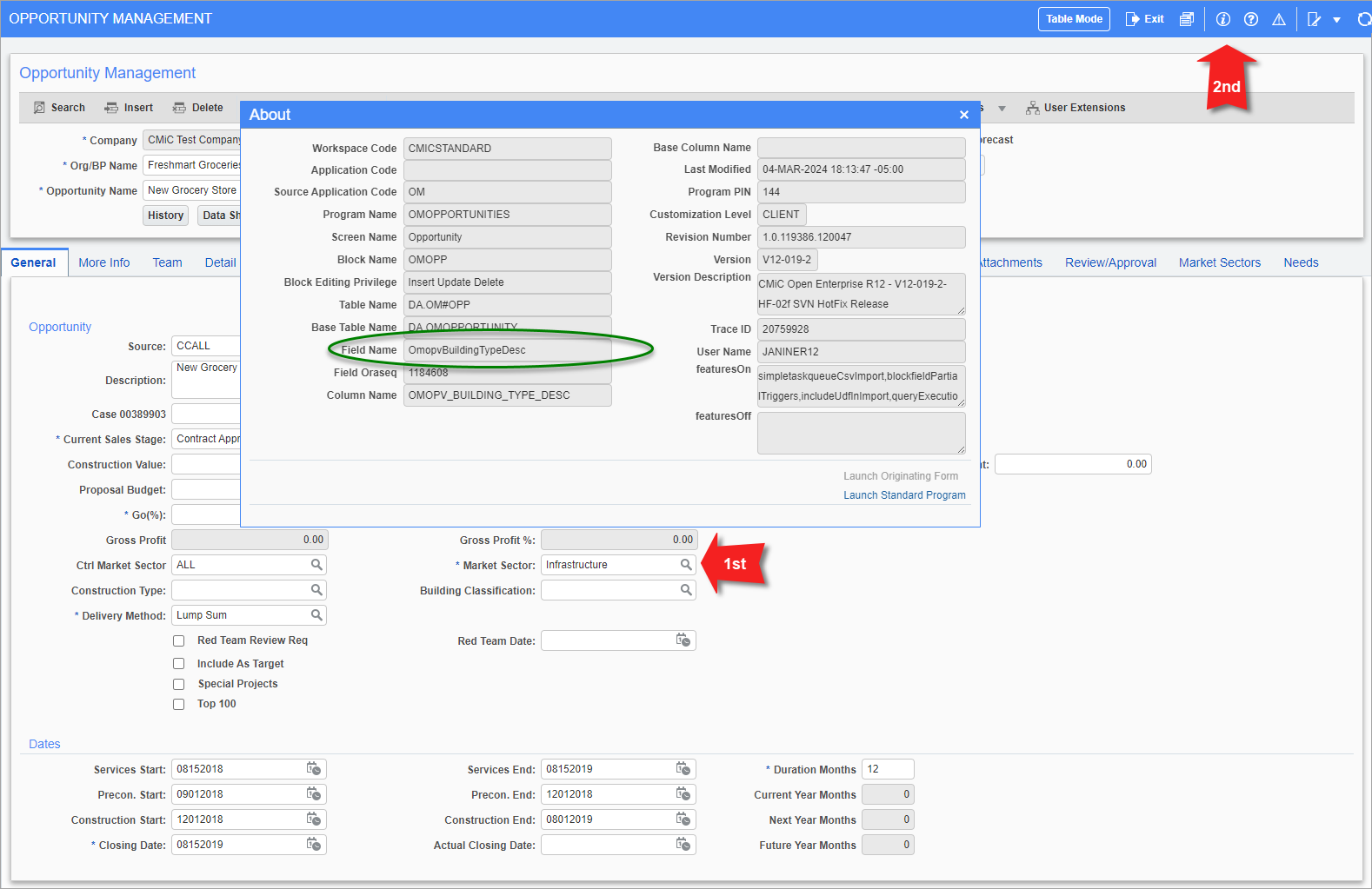
Pgm: OMOPPORTUNITIES – Opportunity Management; standard Treeview path: Opportunity Management > Opportunities
To identify an opportunity field's system name, navigate to the Opportunity Management log and open an Opportunity record. In the Opportunity record, click inside the field for which you wish to know its system name (1st red arrow), and then click the About option on the Main Toolbar (2nd red arrow). A pop-up window titled “About” will appear, as shown in the above screenshot. The field’s system name is given by the Field Name field in the About window, encircled by the green oval. Using the mouse, highlight and copy this field.
Create Alias for Field
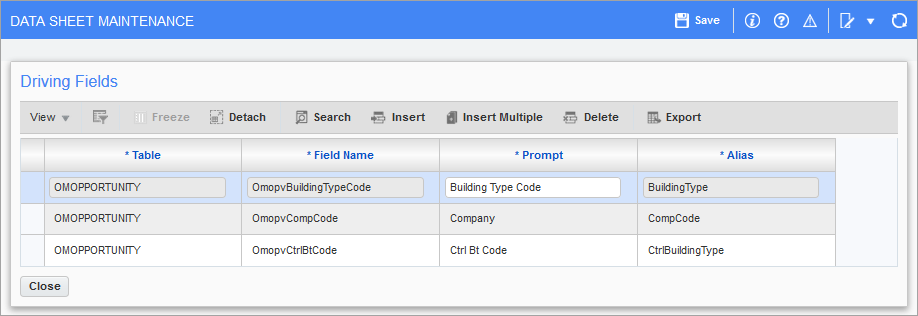
Pop-up window launched from [Driving Fields] button on the Data Sheet Maintenance screen (standard Treeview path: System > User Extensions > Data Sheet Maintenance)
Now that the opportunity field’s system-name is known, using the previous step, an alias can be created for it. Back in the Data Sheet Maintenance screen, click the [Driving Fields] button to open the Driving Fields pop-up window, as shown in the above screenshot. This pop-up window is used to create aliases for opportunity fields used in visibility conditions. Click [Insert] on the Block Toolbar to create a new entry for the alias. In the Field Name field of the new row, paste the field’s system-name, or select it from the list. In the Alias field, enter a descriptive alias for the field. For instance, as shown in the above screenshot, for an opportunity’s Market Sector field with the system name OmopvBuildingTypeDesc, the alias BuildingTypeDesc was created.
Add Visibility Conditions
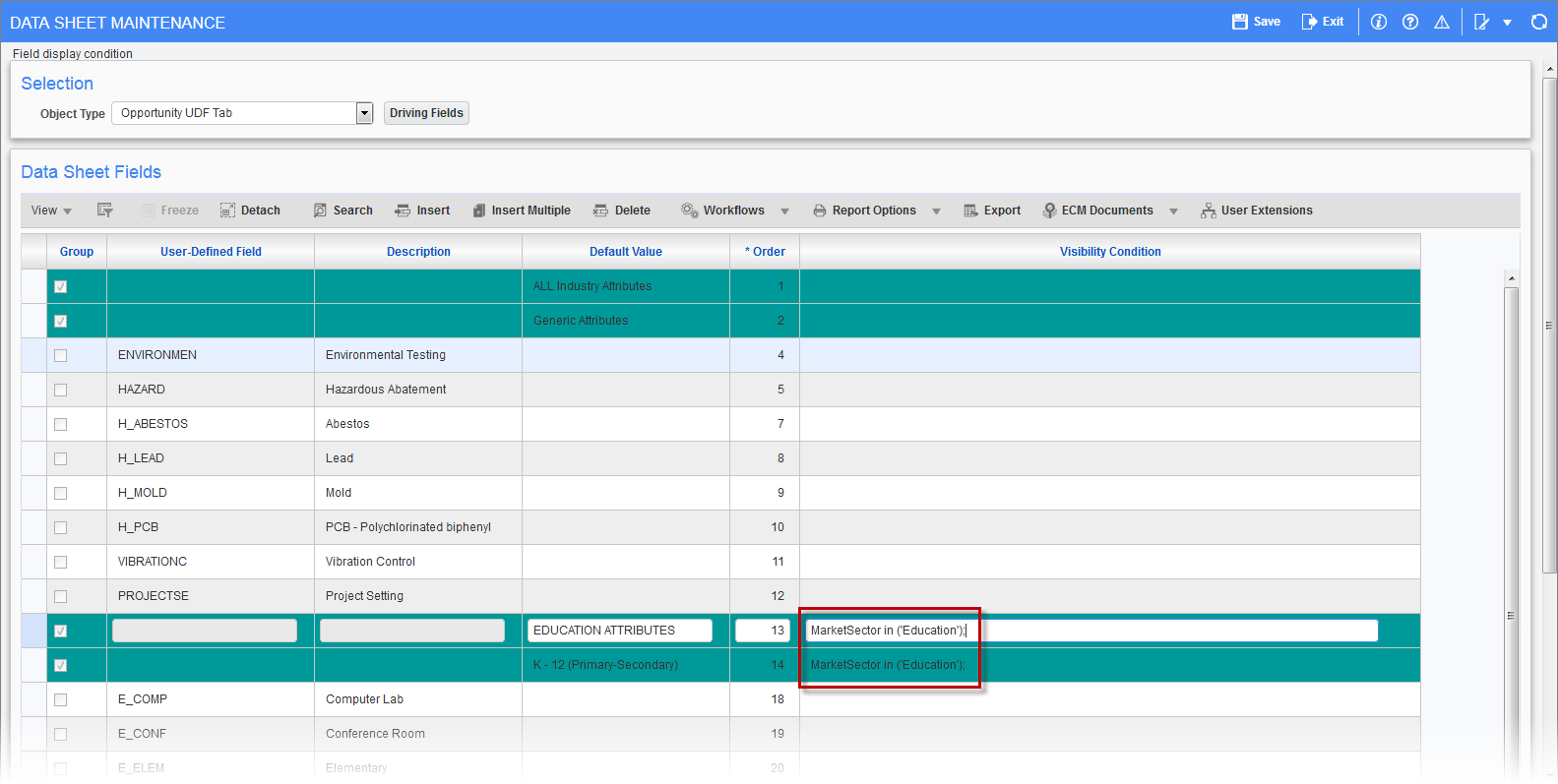
Pgm: SDCLASSIFIERS – Data Sheet Maintenance; standard Treeview path: System > User Extensions > Data Sheet Maintenance
When all of the opportunity fields that are going to be used in a visibility condition are set up with an alias, their aliases can be used to create a visibility condition. Visibility conditions are added to a group or user-defined field in the Visibility Condition field.
In this case, as shown above, the alias MarketSector is used to create a visibility condition for the Education Attributes group and its K-12 (Primary-Secondary) sub-group. Recall that the visibility condition of a group overrides the visibility condition of its fields, so if the visibility condition of a group evaluates to false, the group and all of its fields will not be visible in the data sheet. In this example, the alias is used to create visibility conditions that limit the visibility of the Education Attributes group, and the K-12 (Primary-Secondary) sub-group and its fields.
The visibility condition used for the two groups, “MarketSector in (‘Education’)”, states that the groups can only appear when the opportunity field specified by the MarketSector alias is set as “Educational”. The particular value to compare the alias against is found by looking at the list of values available for the field for which the alias was created. In this case, the alias was created for an opportunity’s Market Sector field. To see all of the particular values that can be compared against for this field, see the following step.
View Particular Values of Alias
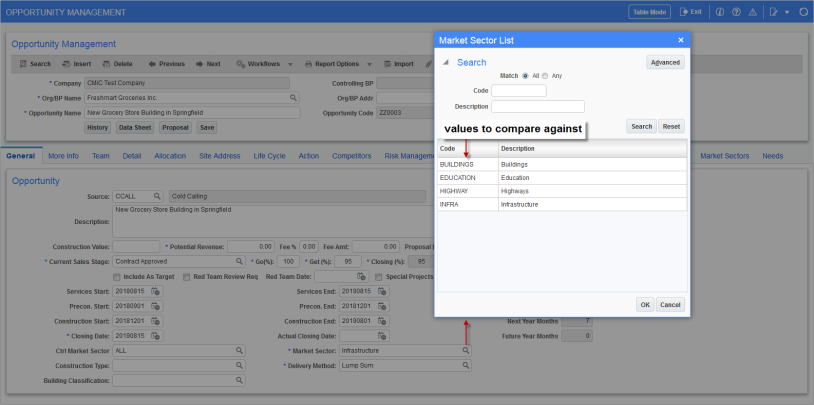
Pop-up LOV window launched from Market Sector field on the Opportunity Management screen (standard Treeview path: Opportunity Management > Opportunities)
When creating a visibility condition, the values for which to compare the alias against must be known. If the alias was created for a field that uses a drop-down list, launch the Opportunity Management screen for any opportunity. Next, as shown above, click the Search icon to open the pop-up LOV that lists all of the possible values for the list. The values under the Code field are used to compare against, in the visibility condition.
For the visibility condition “MarketSector in (‘Education’)”, the value the Market Sector field must be in order for the visibility condition to evaluate to true is “Education”.
Syntax of Visibility Conditions
Part 1: Simple Visibility Conditions & IN, NOT IN Conditions
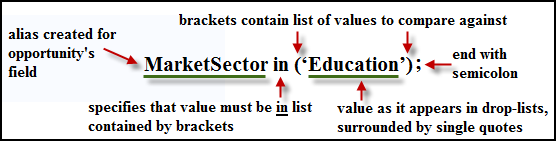
In regards to a visibility condition’s syntax, the alias appears first, as shown in the above image, followed by the IN condition. The IN condition specifies that the value of an opportunity’s field, represented by its alias, must be a value in the list contained by the brackets. In the above example, only one entry appears in the list. Each value in the list must be surrounded by single quotes. To complete the visibility condition, a semicolon is used.
To create a visibility condition that specifies that the condition can only evaluate to true if the alias’s value is not in the list contained by the brackets, use the condition NOT IN, as shown in the following example:
MarketSector NOT IN (‘Education’);
To list a series of values to compare the alias against, use a comma to separate the list of entries contained by the brackets, and recall that each entry must be surrounded by single quotes, as in the following example:
MarketSector IN (‘Education’, ‘Facilities’, ‘Infra’);
Part 2: Composite Visibility Conditions
A composite visibility condition is composed of two or more simple visibility conditions that are joined by conjunctions. The simple visibility conditions are connected using the conjunctions AND and OR, creating composite visibility conditions. The symbolization for these conjunctions is as follows:
|
Conjunction |
Symbolization |
|
AND |
&& |
|
OR |
|| |
The following is an example of a composite visibility condition, comprised of two simple conditions that are connected by the AND conjunction:
MarketSector IN (‘Education’, ‘Facilities’, ‘Infra’) && SalesStage NOT IN (‘Preliminary’);