 Search Tips
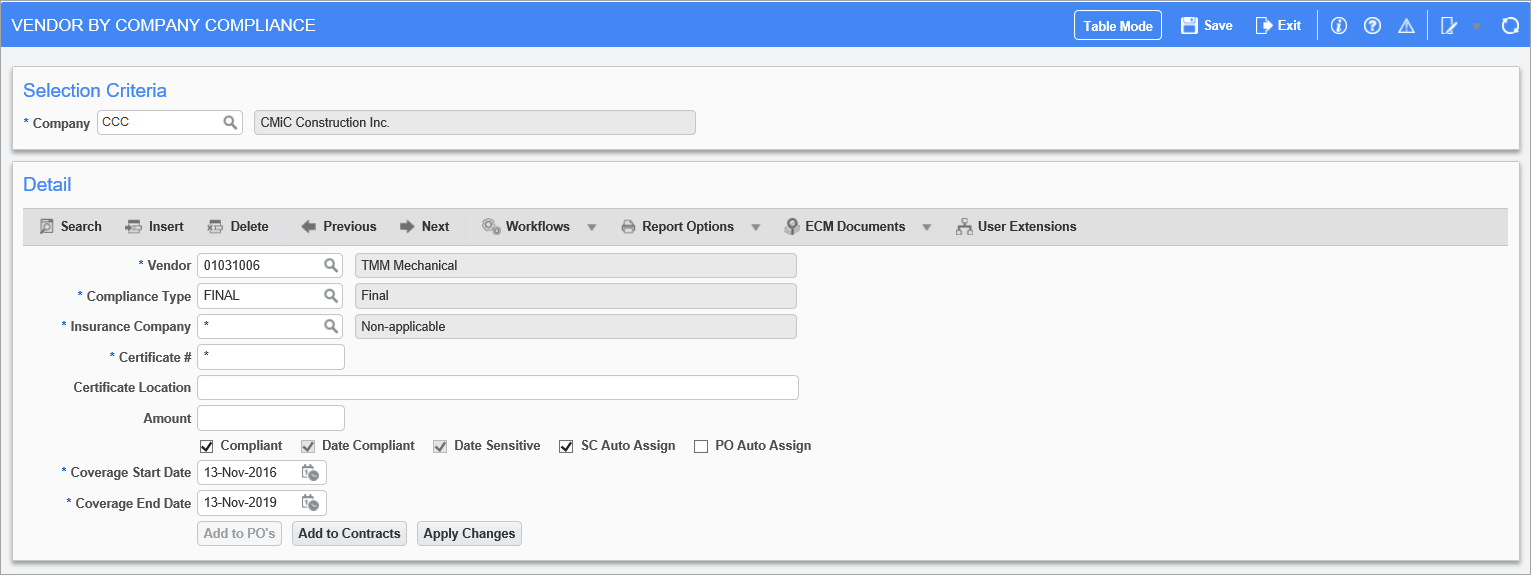
Pgm: INSVCFM – Vendor by Company Compliance; standard Treeview path: Subcontract Management > Local Tables > Compliance > Vendor Compliance
This screen is used to set up default compliance codes for a vendor at the company level. The default compliance codes will be assigned to new Subcontracts for the vendor if the ‘SC Auto Assign’ box is checked, and to new POs if the ‘PO Auto Assign’ box is checked. These assigned compliance codes are then inherited by the associated RFPs and Vouchers.
Using the [Add to POs] button, this screen can also be used to add a compliance code to a vendor’s existing POs, and to the posted Vouchers associated to the POs.
Using the [Add to Contracts] button, a compliance code can be added to a vendor’s existing posted Subcontracts, and to the posted Vouchers associated to the Subcontracts.
And via the [Apply Changes] button, users can update the details of a compliance code assigned to a vendor’s existing posted Subcontracts, POs, and posted Vouchers that are associated to a Subcontract or PO.
NOTE: Before using this screen’s buttons to apply changes, save the changes.
Vendor
Select the vendor to which to apply the compliance code.
Compliance Type
Select the compliance code being assigned.
Insurance Company
Enter the Insurance/Bonding company that holds the insurance policy being detailed.
Certificate #
An asterisk ‘*’ will default to this field to indicate that this field is not applicable. If it is, enter the certificate/policy number in this field.
Certificate Location
If applicable, enter the location of the certificate/policy.
Amount
Enter the amount of insurance coverage provided by the insurance policy being defined.
Coverage Start Date, Coverage End Date
Enter the coverage start and end date that represents the coverage period of the insurance policy being defined. The coverage end date will be used to warn the user if this date is approaching. If the compliance code was defined as date sensitive, then these fields are required.
If the vendor allows the insurance coverage to expire, and the compliance code’s ‘Date Sensitive’ box is checked, Vouchers cannot be created for the vendor, and checks to the vendor cannot be printed.
Compliant – Checkbox
This field sets the default compliance status of this compliance code for the specified vendor. If it is checked, when this compliance code is assigned to a vendor’s PO, Subcontract or Voucher, the ‘Compliant’ checkbox will default to checked.
In this screen, this checkbox’s default state comes from the master compliance code, in the Compliance Code Maintenance screen, and it can be changed at this level if desired.
Date Compliant – Checkbox
For Vouchers with date sensitive compliance codes, this field indicates if the Voucher is date compliant. This checkbox is not editable, as its state is automatically determined by the system. A Voucher with a date-sensitive compliance code is date compliant if its invoice date or the system date, depending on the date selected via the Update Date Sensitive Compliance field on the Voucher tab of the AP Control File (standard Treeview path: Accounts Payable > Setup > Local Tables> Control File Options – Voucher tab), is within the date-sensitive code’s start date and end date (Coverage Start & End Dates).
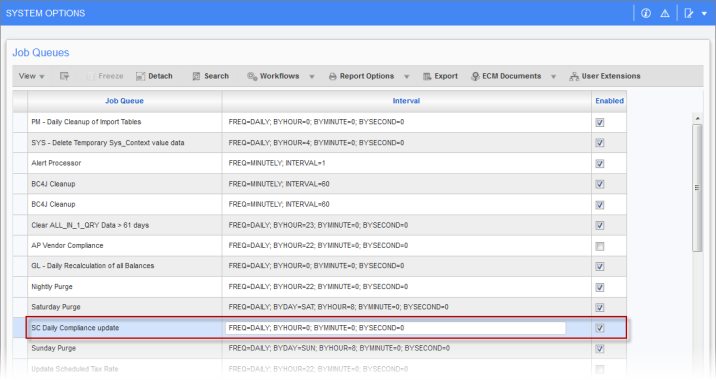
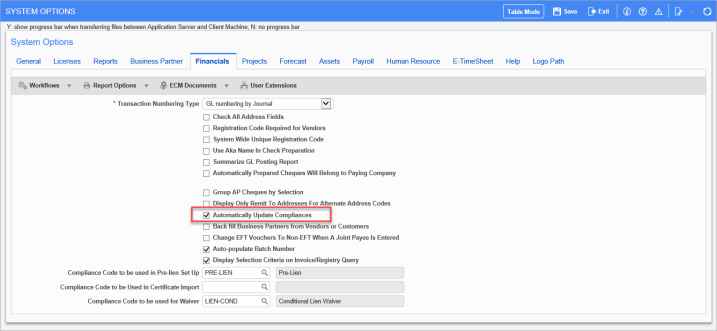
Also, a backend utility can be enabled to run nightly to check all posted Vouchers in the Accounts Payable module with date-sensitive compliance codes to update their Date Compliance Status, and if necessary, their Payment Status accordingly. To enable this nightly utility, the following two checkboxes in the System Options screen of the System Data module must be checked (standard Treeview path: System > Setup > System Options):
-
Check the ‘SC Daily Compliance update’ checkbox (shown below) in the Job Queues popup launched by clicking the [Job Queues] button on the General tab of the System Options screen:
-
Check the ‘Automatically Update Compliances’ checkbox (shown below) on the Financials tab of the System Options screen:
Date Sensitive – Checkbox

This checkbox indicates if the compliance code is date sensitive. This checkbox’s state defaults from the master compliance code’s setup in the Compliance Codes Maintenance screen, and it is not editable.
Date sensitive compliance codes are used to ensure that required insurance or certificates for vendors are up-to-date. When a date sensitive compliance code is defined, a start date and end date are specified, which the system uses to determine if a Voucher is date compliant. A Voucher with a date sensitive compliance code is date compliant if its invoice date or the system date (depending on which date is selected via the Update Date Sensitive Compliance field on the Voucher tab of the AP Control File: standard Treeview path: Accounts Payable > Setup > Local Tables> Control File Options – Voucher tab) is within the range specified by the compliance code’s start date and end date (Coverage Start & End Dates).
SC Auto Assign – Checkbox
This checkbox’s state defaults from the master compliance code’s setup in the Compliance Codes Maintenance screen.
The user should leave this box unchecked if they do not wish to assign this compliance code to all new Subcontracts under the specified vendor; otherwise, check this box.
PO Auto Assign – Checkbox
This checkbox’s state defaults from the master compliance code’s setup in the Compliance Codes Maintenance screen.
To assign this compliance code to all new Purchase Orders against the specified vendor, check this box.
[Add to POs] – Button
This button is used to add a compliance code to a vendor’s existing POs, and to the posted Vouchers associated to the POs.
NOTE: For Vouchers, a compliance code is added or updated only if the Voucher’s Payment Status is “Compliance Hold (C)”. A Voucher is automatically assigned the “Compliance Hold” Payment Status when it is posted and the system determines that it is not compliant. Once the Payment Status is changed to a different status, compliance codes can no longer be added to, or updated for the Voucher via this screen.
When this button is pressed, the system will examine every PO and posted Voucher associated to a PO for the selected vendor, under the selected company. If any of these items do not have the code, it will be added. If any of these items already have this compliance code, and the Insurance Company and Certificate # fields match, its details will be overwritten with this code’s details. If an item already has this compliance code, and the Insurance Company and Certificate # fields do not match, this code will be added under the variant version, so that users can see details such as when the older compliance certificate ends and the new one begins.
[Add to Contracts] – Button
Use this button to add a compliance code to a vendor’s existing posted Subcontracts, and to the posted Vouchers associated to the Subcontracts.
NOTE: For Vouchers, a compliance code is added or updated only if the Voucher’s Payment Status is “Compliance Hold (C)”. A Voucher is automatically assigned the “Compliance Hold” Payment Status when it is posted and the system determines that it is not compliant. Once the Payment Status is changed to a different status, compliance codes can no longer be added to, or updated for the Voucher via this screen.
When this button is pressed, the system will examine every Subcontract and posted Voucher associated to a Subcontract for the selected vendor, under the selected company. If any of these items do not have the code, it will be added. If any of these items already have this compliance code, and the Insurance Company and Certificate # fields match, its details will be overwritten with this code’s details. If an item already has this compliance code, and the Insurance Company and Certificate # fields do not match, this code will be added under the variant version, so that users can see details such as when the older compliance certificate ends and the new one begins.
[Apply Changes] – Button
This button is used to update the details of a compliance code assigned to a vendor’s Subcontracts, POs and posted Vouchers associated to a Subcontract or PO, under the selected company.
When this button is clicked, the system will examine every Subcontract, PO and posted Voucher associated to a Subcontract or PO for the selected vendor, under the selected company. If any of these items have the compliance code, and the Insurance Company and Certificate # fields match, the compliance code’s details will be updated using these details.
NOTE: For Vouchers, a compliance code is added or updated only if the Voucher’s Payment Status is “Compliance Hold (C)”. A Voucher is automatically assigned the “Compliance Hold” Payment Status when it is posted and the system determines that it is not compliant. Once the Payment Status is changed to a different status, compliance codes can no longer be added to, or updated for the Voucher via this screen.