 Search Tips
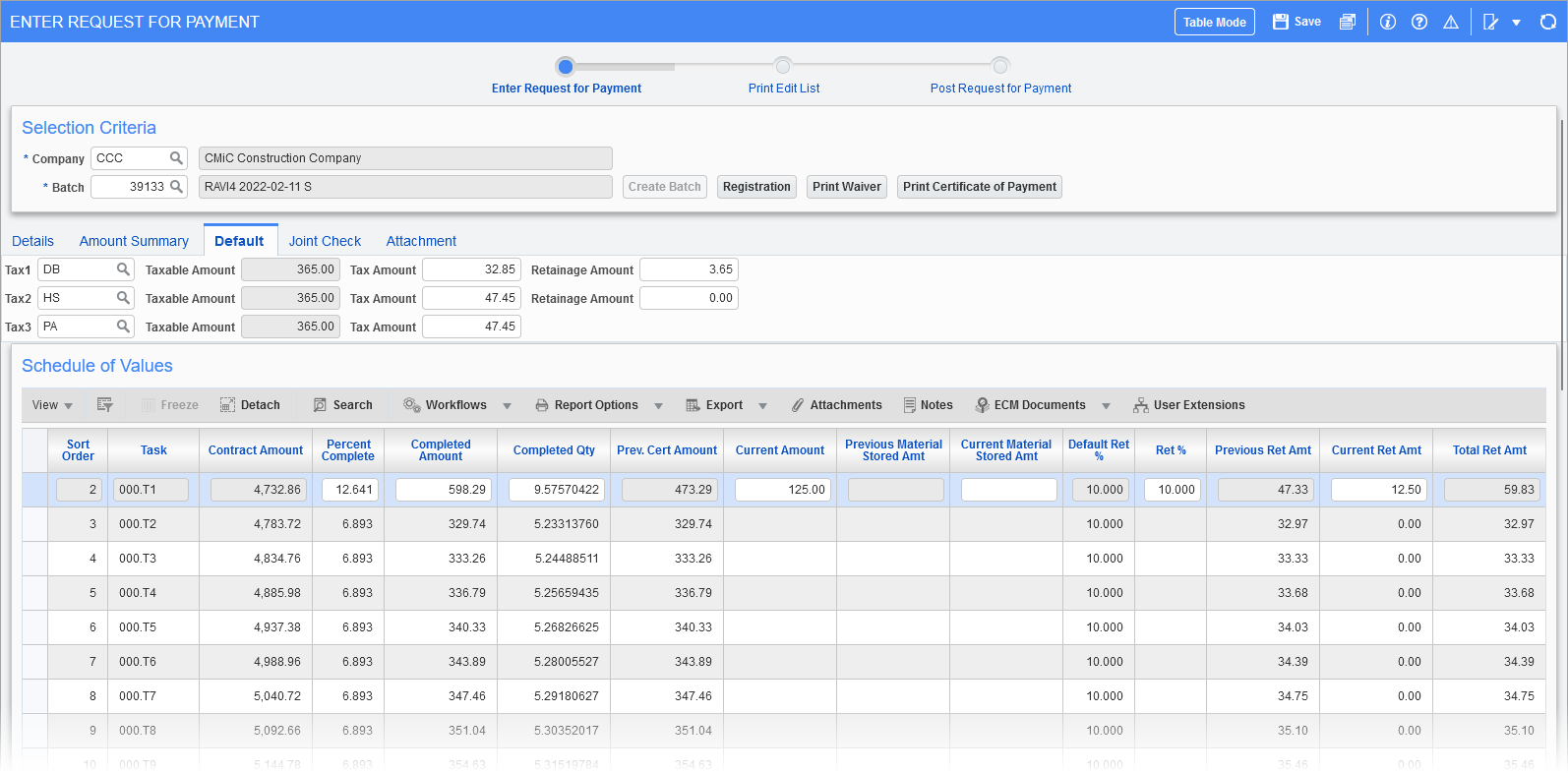
Pgm: SCPAYREQ – Enter Request for Payment; standard Treeview path: Subcontract Management > Payments > Enter Request for Payment – Default tab
The system defaults these details from the vendor’s record, such as payment terms, retainage %, and all applicable tax codes (standard Treeview path: Accounts Payable > Setup > Maintain Vendors). The Defaults tab is used to override these defaults. This tab allows amounts to be entered for taxes and retainage instead of using percentages.
NOTE:
-
Users must ensure that only a maximum of three distinct tax codes are used in a subcontract as the system supports only three tax codes.
-
All SOV lines must have the same tax code under a tax position. For example, if the Tax1 field is set to "DB" then the Tax1 column on all SOV lines must be set to "DB", if the Tax2 field is set to "HS" then the Tax2 column on all SOV lines must be set to "HS", and so on.
Tax 1, Tax 2, Tax 3 (Tax Codes)
Selected tax code(s) for the applicable taxes. Keep in mind, the system calculates taxes sequentially, hence if a tax is calculated on another tax (tax code’s 'Tax on Tax' checkbox is checked), it is important that the user enters the tax codes in the order that they want them calculated. If a tax code’s 'Tax on Tax' checkbox is checked, the tax code will be applied to the RFP’s amount plus the tax amounts due from preceding tax codes.
The behavior of these fields are as follows:
-
When there are Tax Credit type tax codes in the Subcontract Management SOV lines, RFP entry allows the users to edit the tax credit information.
-
Select another tax code from the LOV which is limited to Tax Credit type codes.
-
Override the tax amount calculated by the system.
-
Update the Retainage Amount on the calculated Tax Amount manually.
-
Normally, credit taxes are used in tax position 1 or both 1 and 2, but not in position 3.
-
-
When there are no taxes in the SOV lines or only one or two tax codes defined, then
-
All the blank tax rows can be updated with Tax Credit type codes by selecting from the LOV.
-
The calculated tax amount may be overridden.
-
The Retainage Amount on the calculated tax amount may be updated as required.
-
Normally, credit taxes are used in tax position 1 or both 1 and 2, but not in position 3.
-
-
When all three taxes are regular taxes in SOV, then
-
All three tax rows are disabled and users will not be allowed to update the codes or amounts.
-
Taxable Amount 1, Taxable Amount 2, Taxable Amount 3
These are the amounts that are taxable for the corresponding tax codes. The Taxable Amount is the total of the current completed amount on which the tax will be applied. This is a display-only field. The Tax% is applied on this amount and populated in the Tax Amount column. If a tax code has its ‘Freight’ and ‘Tax on Tax’ checkboxes checked, the freight amount and all preceding tax charges will be included. This field is automatically calculated, but its calculated value can be overridden with a user-specified amount.
Tax Amount 1, Tax Amount 2, Tax Amount 3
The Tax Amount column is automatically populated with the value of the Taxable Amount field applied with the Tax%. The Tax Amount column is editable only when the tax code is of Tax Credit type.
Retainage Amount – Tax 1
This is the amount of Tax 1 that is being withheld due to retainage. This is only applicable for Tax Credit style taxes such as VAT and GST taxes.
Retainage Amount – Tax 2
This is the amount of Tax 2 that is being withheld due to retainage. This is only applicable for Tax Credit style taxes such as VAT and GST taxes.