 Search Tips
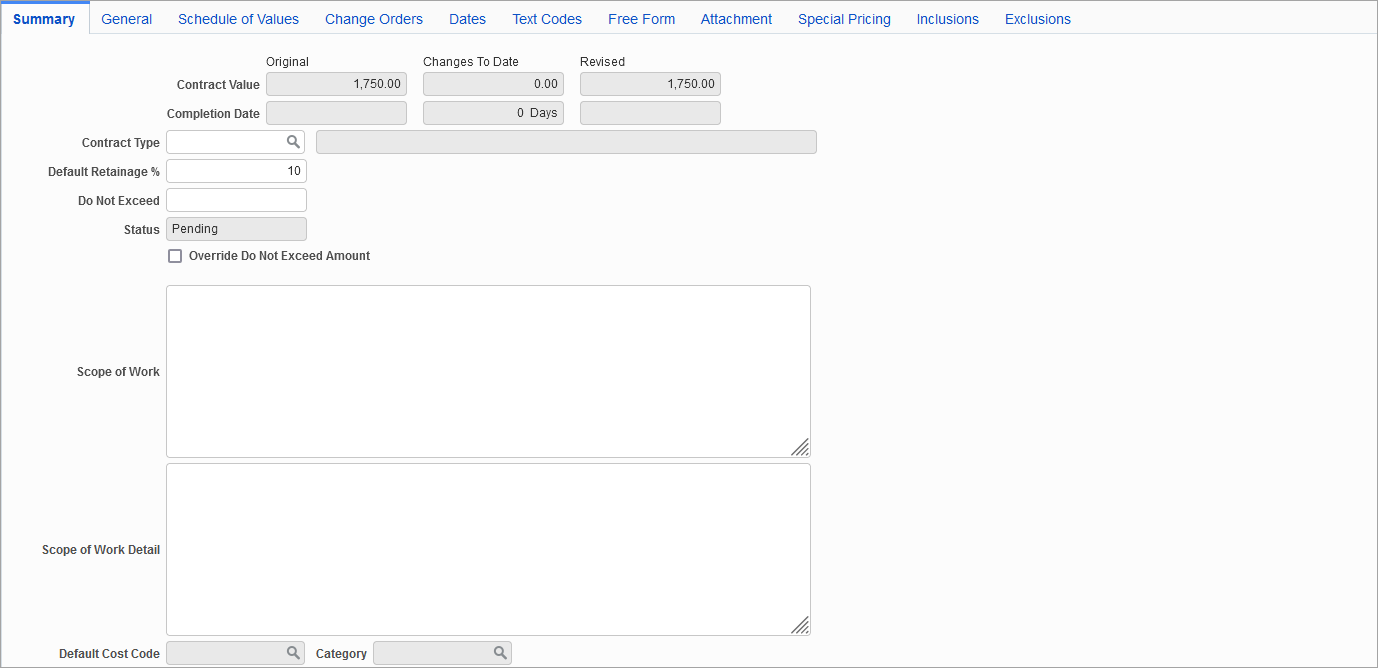
Pgm: PMSCFM – Subcontract Maintenance; standard Treeview path: Subcontract Management > Contracts > Enter Subcontract/Change Order – Summary tab
The Summary tab displays information pertaining to the Subcontract related to the company and project selected. The following fields are available for review:
Contract Value
NOTE: In table mode of the Subcontract Maintenance screen, the Current Amt column can be added using the Lite Editor. This column will display the current subcontract amount including the change order amounts.
Original
This is the original contract amount. This amount is the JC Cost Budget Amount (not JB Revenue Budget Amount) for the Subcontract’s SOV lines.
Changes to Date
The total amount of changes to date for Subcontract’s JC Cost Budget Amount.
Revised
This is the revised total of the subcontract.
Completion Date
Original
This is the original completion date as set during setup.
Changes to Date
The number of days that have been affected by changes to the contract.
Revised
This is the revised completion date, after changes.
Contract Type
Select a contract type from the LOV.
The PM Contract Type maintenance screen is used to maintain this field’s LOV (standard Treeview path: System > Global Tables > Maintain Data Process – Contract Type (node on the process train).
NOTE: The PM Contract Type maintenance screen is not the same as the Opportunity Management module’s Contract Type maintenance screen (standard Treeview path: Opportunity Management > Setup > Contract Type).
If creating subcontracts in CMiC Field, contract types are created in the Contract Type Maintenance screen, where subcontract settings can also be applied to the contract type (standard Treeview path: CMiC Field > File Maintenance > Contract Type Maintenance). Check the 'Default SC Settings from Contract Type' checkbox on the Project System Options screen to default the subcontract settings for the selected contract type to the subcontract being created (standard Treeview path: CMiC Field > File Maintenance > Project System Options - General tab). If unchecked, the subcontract standard functionality applies and compliances with 'SC Auto Assign' checked in the compliance screens in the Subcontract Management module will be assigned.
NOTE: The 'SC Auto Assign' checkbox can be checked on the following compliance screens in the Subcontract Management module: Compliance Codes Maintenance screen (Subcontract Management > Local Tables > Compliance > Compliance Codes), Vendor Class Compliances screen (Subcontract Management > Local Tables > Compliance > Vendor Class Compliance), and Vendor by Company Compliance screen (Subcontract Management > Local Tables > Compliance > Vendor by Company Compliance).
Default Retainage %
This field's value defaults in from the Vendor's or Subcontract’s setup, based on the following hierarchy, with the first defined default being used:
-
System checks if default is set using Retainage % field on Accounting tab of vendor's record.
-
System checks if default is set for term code assigned to vendor using the Terms field on the Vendors tab of the vendor's record.
-
System defaults in value from Retainage field on the Contract Defaults tab of the Subcontract Control file (standard Treeview path: Subcontract Management > Local Tables > Control).
Depending on the Retainage Release Method, this field’s value is either the default retainage percentage for the task lines (SOVs) to be entered on the Schedule of Values tab, or it is the overall retainage percentage for the complete Subcontract.
Do Not Exceed
Enter maximum amount allowed for RFPs against the subcontract.
Status
Subcontract's status: Open, Pending, Posted, or Closed.
Self-Billed – Checkbox
This option is applicable to our UK clients, to indicate that the Subcontract is "self-billed".
This checkbox's state defaults in from the 'Default Contract To Self-Billed' checkbox on the Contract Defaults tab of the Subcontract Control file.
Override Do Not Exceed Amount – Checkbox
If the 'Do Not Allow Posting If Contract Exceeds Budget' box is checked on the Contract Defaults tab of the Subcontract Control file, check this box to disable that option for this particular subcontract.
Scope of Work Detail
This field can be added using the Lite Editor if needed. While creating a subcontract, details for the scope of work can be entered in this field before posting. This field is also available in the Subcontract Change Order Maintenance pop-up window when clicking the [Edit CO] button on the Change Orders tab.
Scope of Work
Use this text area to enter details about the scope of work.
Default Cost Code, Category, Amount (Single-Cost-Code Subcontracts)
The Default Cost Code, Category and Amount (only visible before a new Subcontract is saved) fields are relevant to single-cost-code Subcontracts. If these fields are utilized, saving the subcontract causes the corresponding SOV line to be automatically created on the Schedule of Values tab.
Default Cost Code
Select the cost code associated with the cost element on the job handled by this single-cost-code subcontract.
Category
Enter the category code for the cost element being handled by this subcontract. The entered category must have been associated to the cost code entered via the Default Cost Code field to this field’s left.
This field’s default category is set by the Default Category Code field on the Contract Defaults tab of the Subcontract Control file.
Amount
This field is only visible before a new single-cost-code subcontract is saved, as it is only used to automatically create the corresponding SOV line based for the selected cost code, category and this amount.