 Search Tips
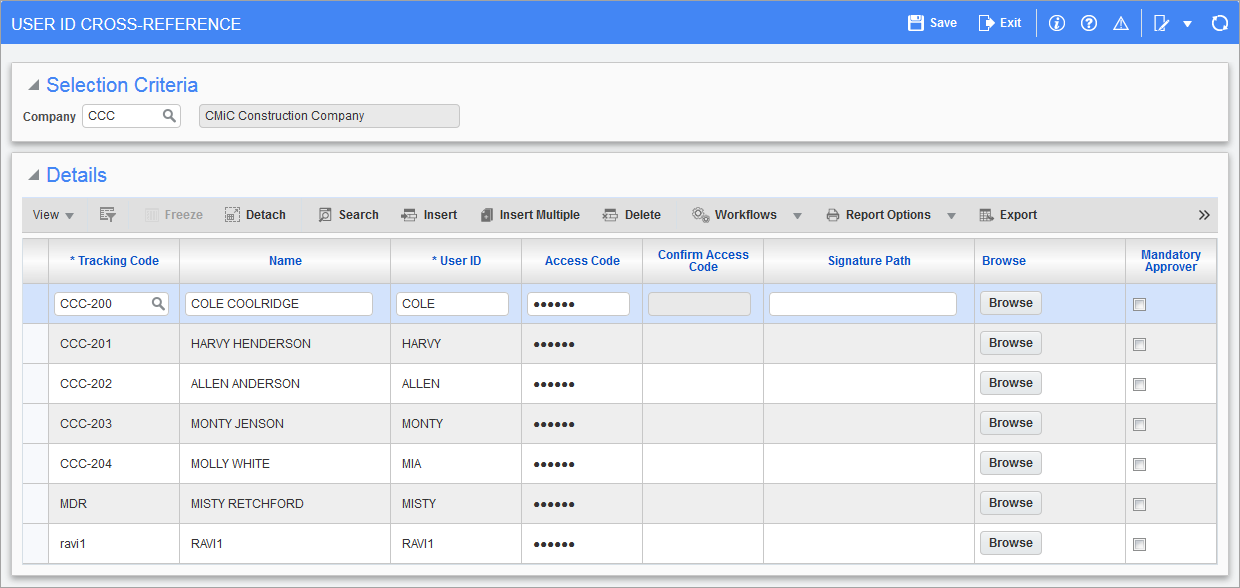
Pgm: EMPMAP – User ID Cross-Reference; standard Treeview path: Requisitions > Setup > Local Tables > User ID Cross-Reference
The User ID Cross-Reference screen is used to create and/or set up the requesters, buyers and approvers to be used within the Requisition (as well as Purchase Order) module. The user ID cross- reference requires the setup of a tracking code, user name, user ID, as well as a separate password.
Although the user ID will most often match a valid ORACLE® user ID, separate requesters can also be set up that may not require computer access, but make purchase requests nonetheless.
NOTE: Before deleting a user ID in this screen, first delete it from the related module(s). The system will alert users if they have not deleted the user ID from any related screens (e.g., from the Purchase Order Roles screen).
Tracking Code
Enter the tracking code for the approver being defined. The tracking code is an internal code, used by the system to track and maintain the approvers for requesting. In most instances, it is recommended that the tracking code match the user ID or some variation of the approver name. The tracking code can’t be accessed once committed.
This field can be linked to an employee ID. The LOV on this field shows all employees and if selected, the employee name will also be returned into the name field.
Name
Enter the name of the user being defined.
NOTE: Once the Name field has been entered and committed, it is not accessible for amendment.
User ID
Enter/select the user ID that represents the entity.
In most cases, this user ID will coincide with the ORACLE® user ID. The ORACLE user ID must have been previously set up on the user Maintenance screen within the System Data module.
NOTE: The user ID can also represent an individual that does not have an official ORACLE® user ID. For example, requesters may exist that do not access the system but may request the purchase of items nonetheless.
Access Code
Enter the access code/password to be associated with the user being defined. Although this is not a mandatory field, the user will not have access to the approval screens.
The access code will be used to access the requisitions and purchase orders that fall under this user’s jurisdiction (where the user has been defined as an approver).
As this is a secured field, the value entered here will not show on the screen but be presented as ****. To change the access code, re-type the code and when prompted, confirm the entry by re-typing the value a second time.
NOTE: If this field is left blank, the user will not be able to access the approval screen even if they are set up as an approver.
Signature Path
Clicking the [Browse] button launches a pop-up window which allows the user to browse for and select an image of a buyer signature for uploading. The buyer signature will print at the bottom of the PO along with the written name.
NOTE: This field is a custom report option and does not apply to standard reports.
Mandatory Approver – Checkbox
Check the 'Mandatory Approver' checkbox to establish the approver that is being defined as a mandatory approver.
When a user is designated as a mandatory approver, their approval is required regardless of the other approvers assigned.