 Search Tips
How the Workflow to Send Prequalification Notices Works
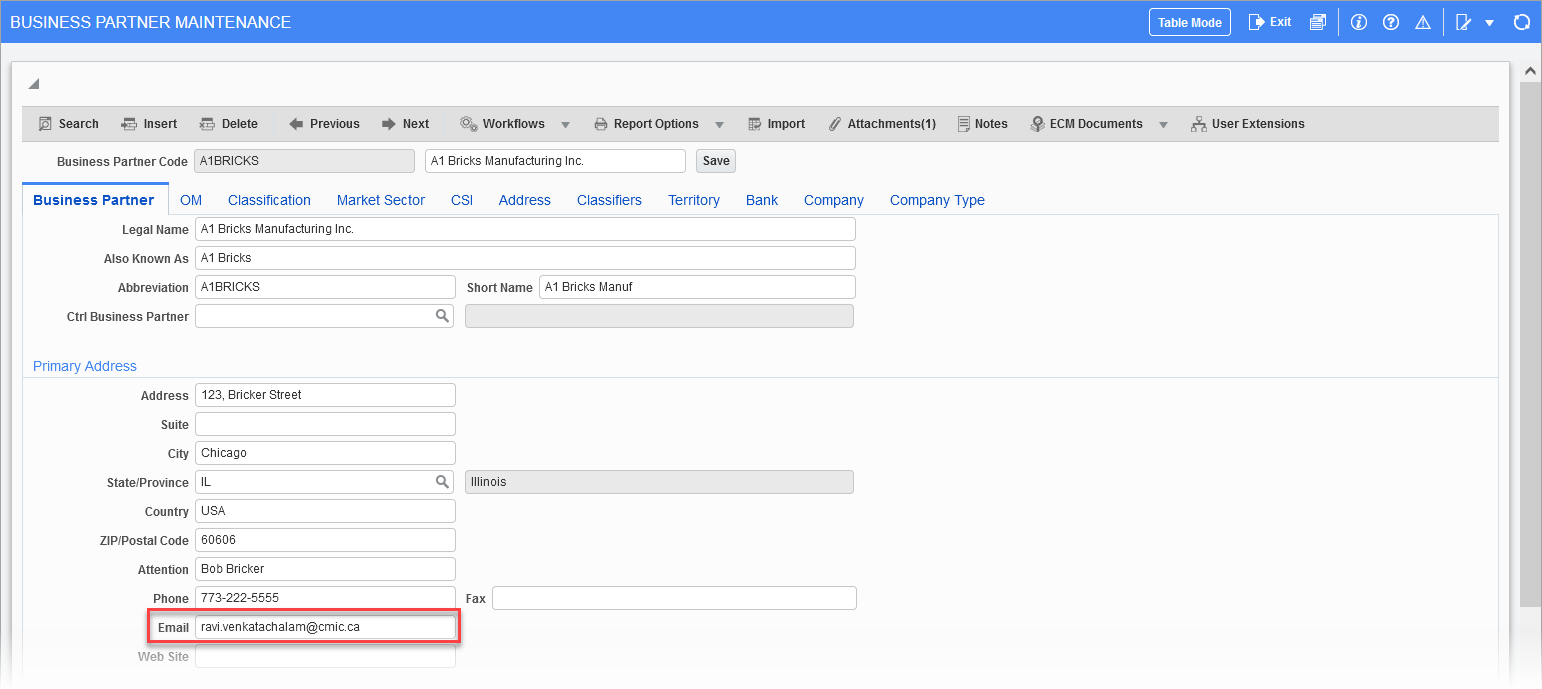
What does the workflow look at to know who the renewal notifications need to go out to?
It will look at the email listed under the Business Partner tab of the Business Partner Maintenance screen, as shown below.
Is it the expiration date on the prequal?
Yes.
If so, is it set up to go out on the day the prequal expires, or a set interval prior to the expiration date?
Two set intervals.
What are the parameters on the First Renewal and Second Renewal notices going out?
The intervals are specified by the Interval for First Notice and Interval for Second Notice lookups, as shown in the screenshot below. Ensure these are set up before launching the workflow. If these intervals are not defined before the launch, the workflow will terminate immediately with an error.
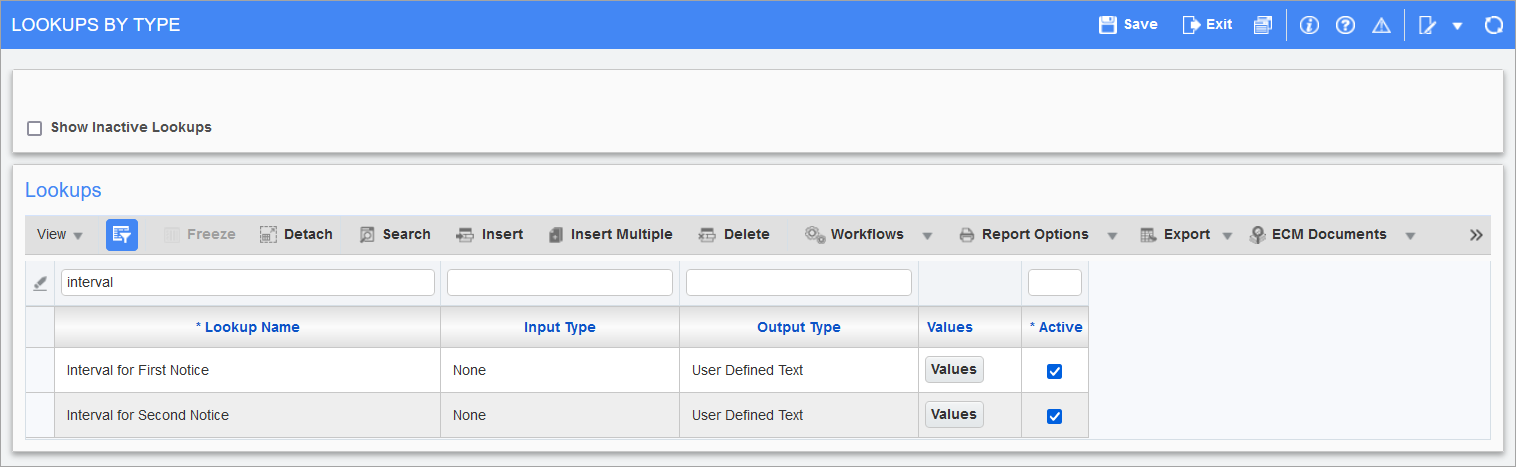
Pgm: WKFLOOK - Lookups By Type; standard Treeview path: Workflow > Setup > Resource Lookup Rules
Set Up CMiC Send Prequalification Notices Workflow for Enterprise
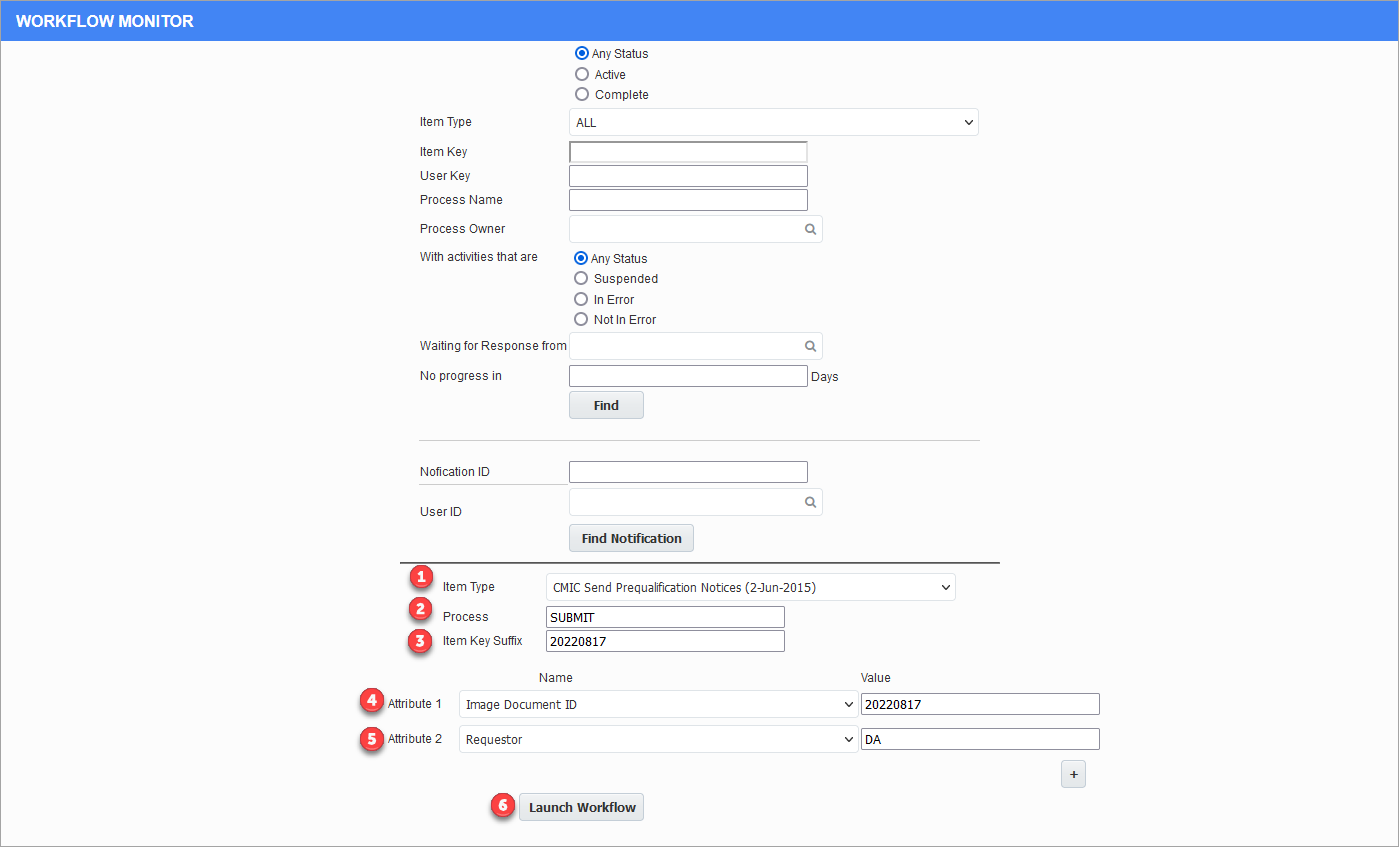
After ensuring that the screens mentioned in How the Workflow to Send Prequalification Notices Works are set up, follow the steps below to launch the workflow.
-
Open the Workflow Monitor screen found in the Workflow module and set the Item Type field to "CMiC Send Prequalification Notices".
-
The Process field always needs to be set to "Submit", which is the starting process of the workflow.
-
The Item Key Suffix field is the date at which the workflow is started.
-
Select "Image Document ID" for the Attribute 1 field. The Value field is the same as the Item Key Suffix value.
-
Select "Requestor" for the Attribute 2 field. This should be the admin or master user. Simply enter their user ID.
-
Click the [Launch Workflow] button to launch the workflow.
NOTE: Please keep in mind this is not to be done with all workflows, only workflows that run daily to check and send notices, such as this workflow. Please do not try this with Invoice, RFP, Subcontract, etc. workflows.
Set Up CMiC Send Prequalification Notices Workflow for Cloud
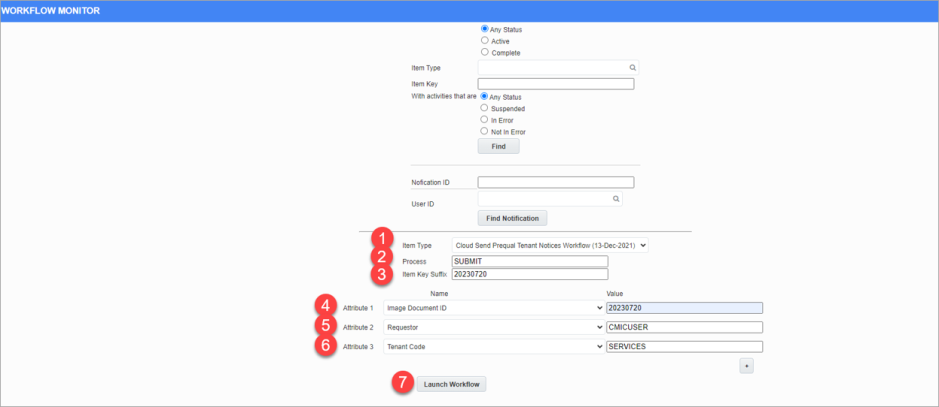
After ensuring that the screens mentioned in How the Workflow to Send Prequalification Notices Work are set up, follow the steps below to launch the workflow.
-
Open the Workflow Monitor screen found in the Workflow module and set the Item Type field to "Cloud Send Prequal Tenant Notices Workflow".
-
The Process field always needs to be set to "Submit", which is the starting process of the workflow.
-
The Item Key Suffix field is the date at which the workflow is started.
-
Select "Image Document ID" for the Attribute 1 field. The Value field is the same as the Item Key Suffix value.
-
Select "Requestor" for the Attribute 2 field. This user should belong to the Administrator role. Simply enter their user ID.
-
Select "Tenant Code" for Attribute 3 field. Enter the tenant ID.
-
Click the [Launch Workflow] button to launch the workflow.