 Search Tips
Voucher Header Import
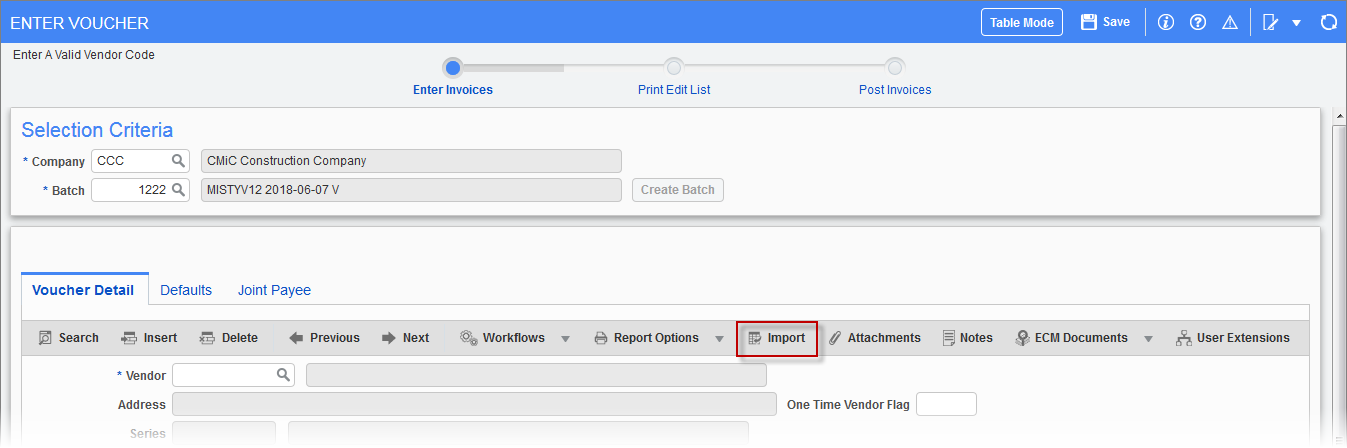
Pgm: VOUCHENT– Enter Voucher; standard Treeview path: Accounts Payable > Voucher > Enter Vouchers – [Import] button
The Accounts Payable Voucher Entry program allows for the matching of vendor invoices, entered as vouchers in the system, to Purchase Orders processed and received within the system. When entering a voucher that is associated to a PO, the header information can be imported using the Header Import program but PO Details must be manually populated using the [PO Selection] button.
Voucher Header Import Template
|
Column Name |
Description |
Required |
Type |
Length |
|---|---|---|---|---|
|
Vendor |
Vendor code. This must be a valid CMiC vendor code. |
Yes |
Char |
8 |
|
Invoice |
Invoice number. This must be a unique number per vendor. |
Yes |
Char |
20 |
|
Amount |
Invoice amount |
Yes |
Number |
11,2 |
|
Invoice Date |
Date of the invoice (DD/MM/YYYY) |
Yes |
Date |
10 |
|
PO Number |
A valid PO number with posted receipts. |
Yes |
Char |
11 |
|
PO Rel |
PO release number. Normal starting release number is 1 for all POs. |
Yes |
Char |
11 |
|
Description |
Description of the invoice. * Required when AP Control > Voucher > Mandatory Voucher Description flag is set as ‘Y’ |
*No |
Char |
60 |
|
Distribution Type |
A valid distribution type is required. G – General ledger J – Job M – Multiple distribution |
Yes |
Char |
1 |
|
Department |
Enter a valid department code when using ‘G’ distribution only. *NOT required for ‘J’ or ‘M’ distribution |
*Yes |
Char |
16 |
|
Account |
Enter a valid account code when using ‘G’ distribution only. *NOT required for ‘J’ or ‘M’ distribution |
*Yes |
Char |
16 |
|
Job Code |
A valid CMiC job code must be entered, if creating a ‘J’ distribution. *NOT required for ‘G’ or ‘M’ distribution |
*Yes |
Char |
8 |
|
Cost Code |
A valid cost code must be entered, when the distribution type is ‘J’ and the Job field is populated. *NOT required for ‘G’ or ‘M’ distribution |
*Yes |
Char |
16 |
|
Category |
A valid category code must be entered, when the distribution type is ‘J’ and the Job/Cost Code fields are populated. *NOT required for ‘G’ or ‘M’ distribution |
*Yes |
Char |
16 |
Voucher Header Import
Use the [Import] button on the Block Toolbar of the Enter Voucher screen to upload the Voucher Header .csv file.
Follow the same steps as those described in Warehouse Receipt Header Import to upload, validate and import records. The following screenshots will visually guide users through the process.

Example of Voucher Header .csv file in Notepad
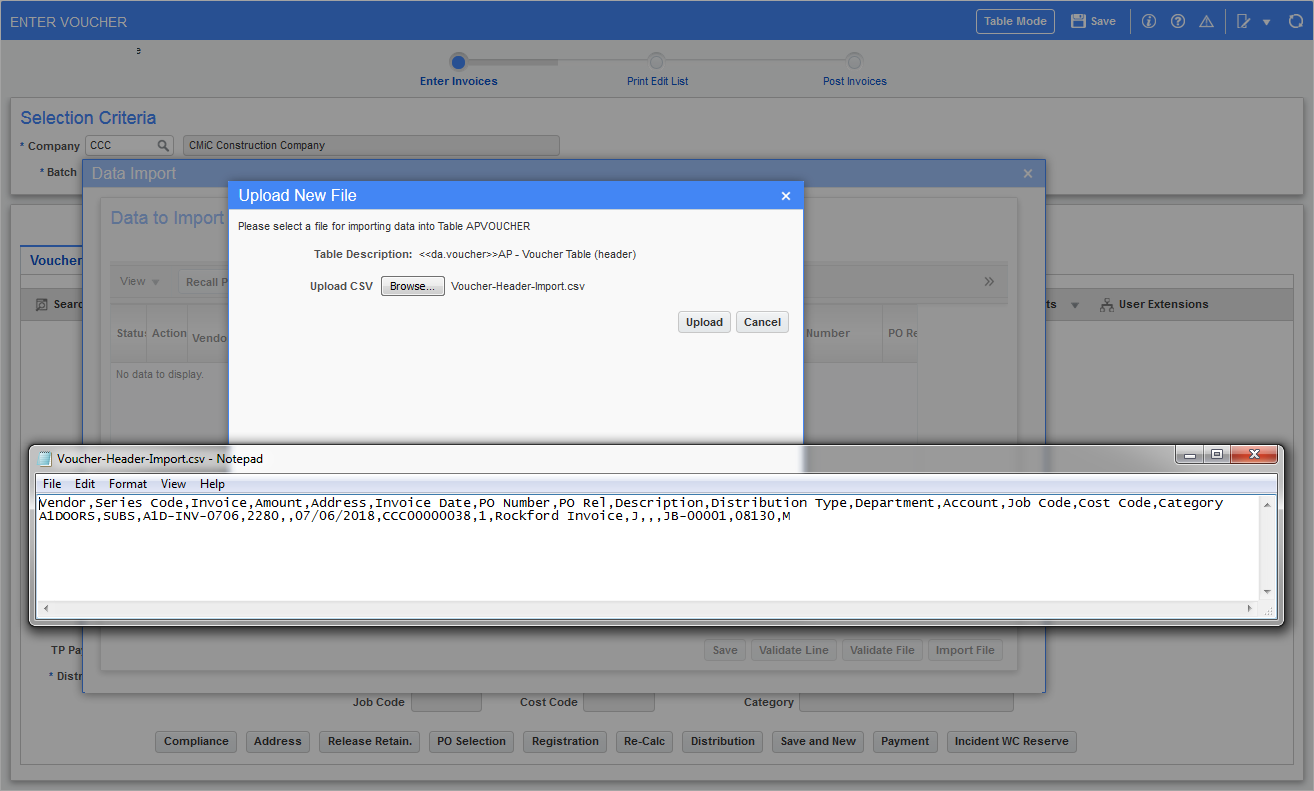
Example of uploading the .csv file using the [Upload New] button on the Data Import pop-up window
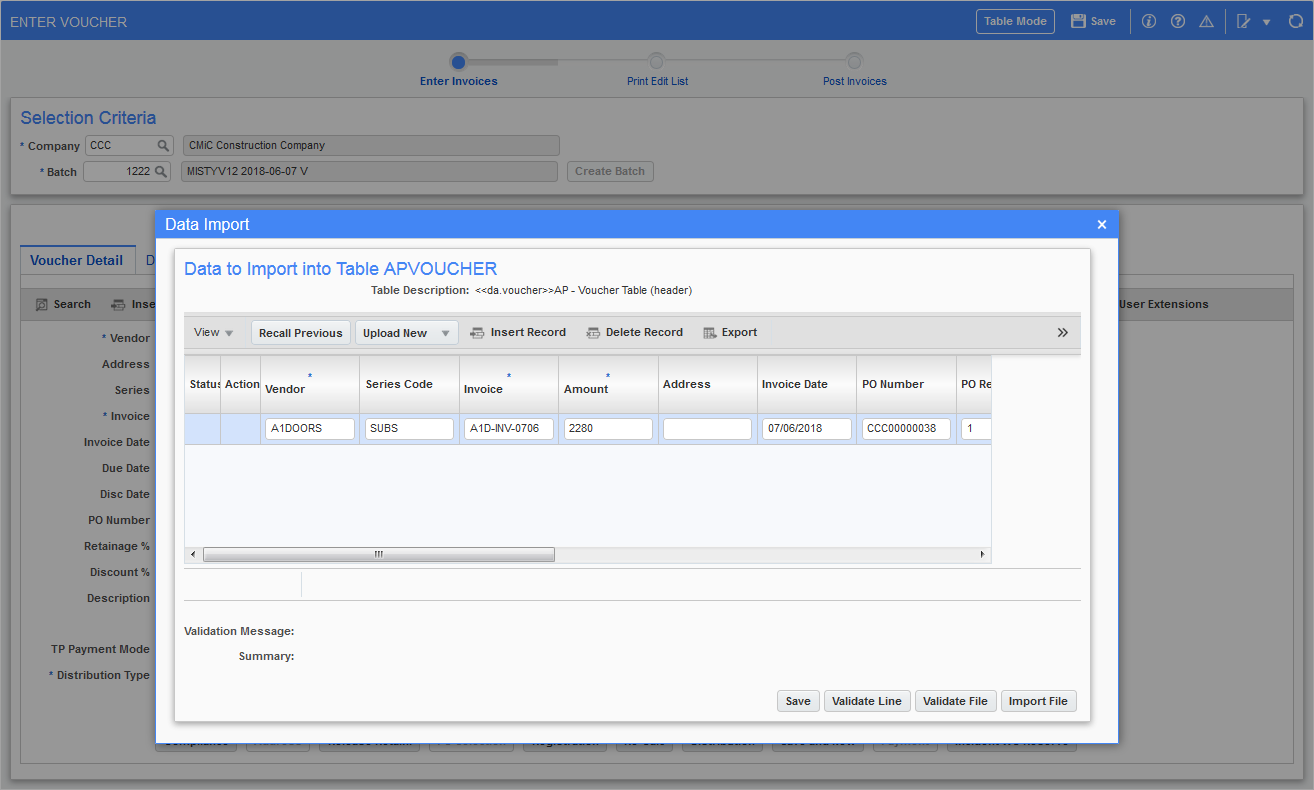
Data Import pop-up displaying uploaded Voucher Header record ready to be validated
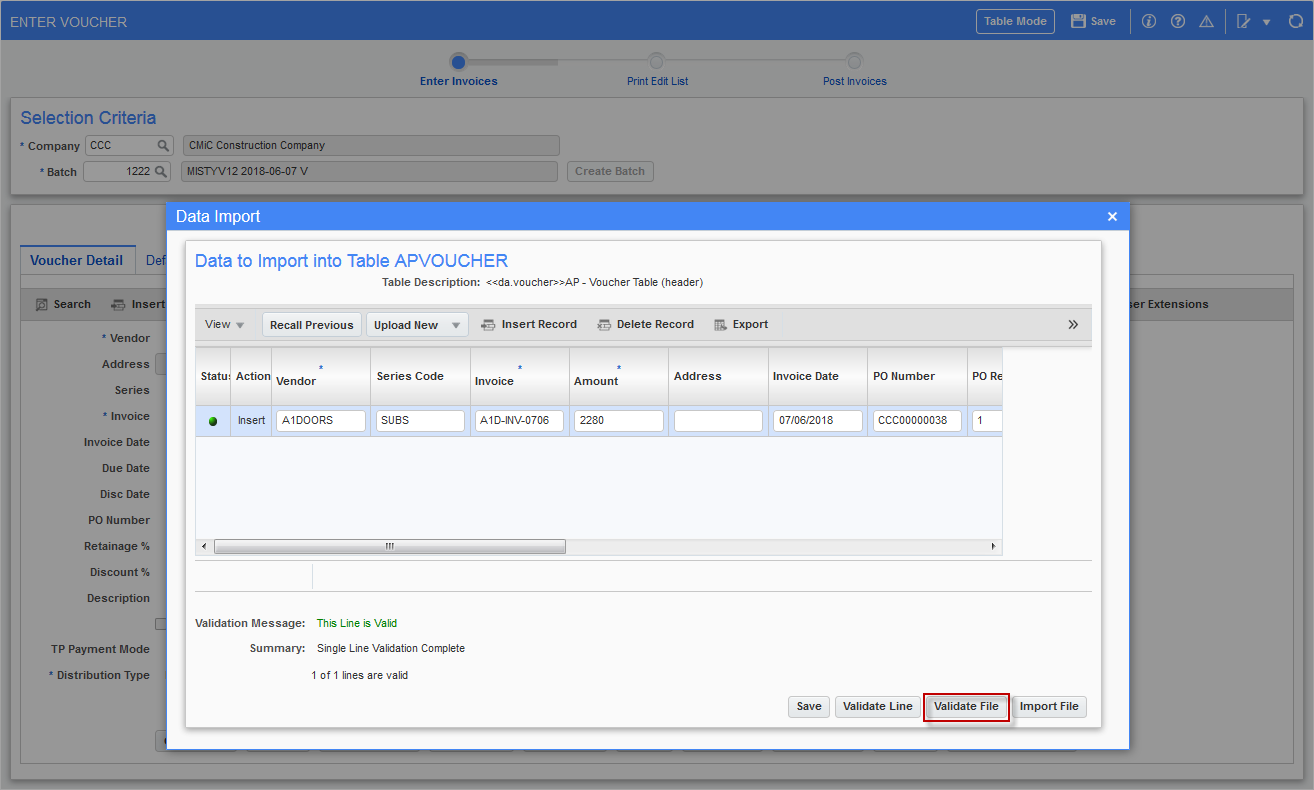
Data Import pop-up displaying validated Voucher Header record ready to be imported

Data Import pop-up displaying imported Voucher Header record
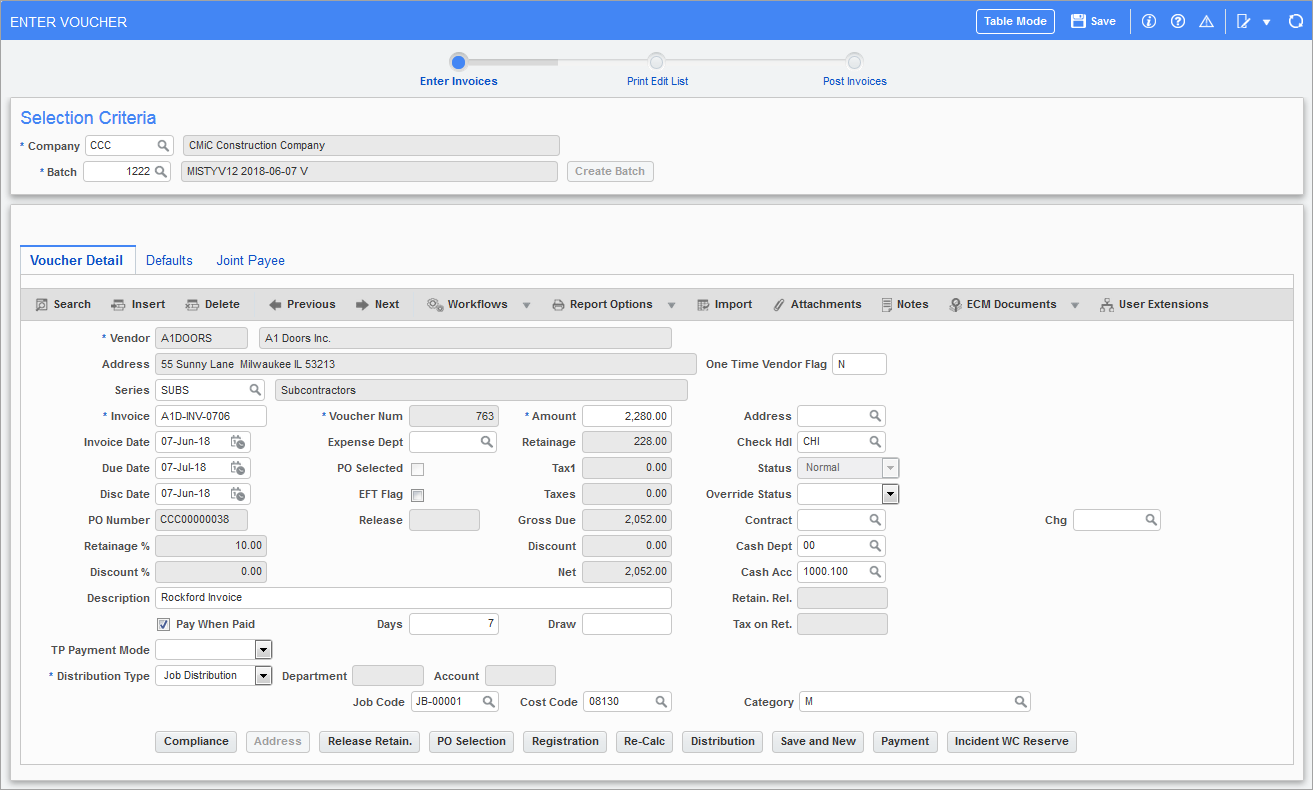
Voucher Header (created from imported data) displayed in the Enter Voucher screen
Voucher headers may be imported for POs, but from this point forward, users must use the [PO Selection] button on the Enter Voucher screen to populate the PO receipt Details and then manually enter the Invoice Amount for selected lines. This must be performed manually, and no import is possible.
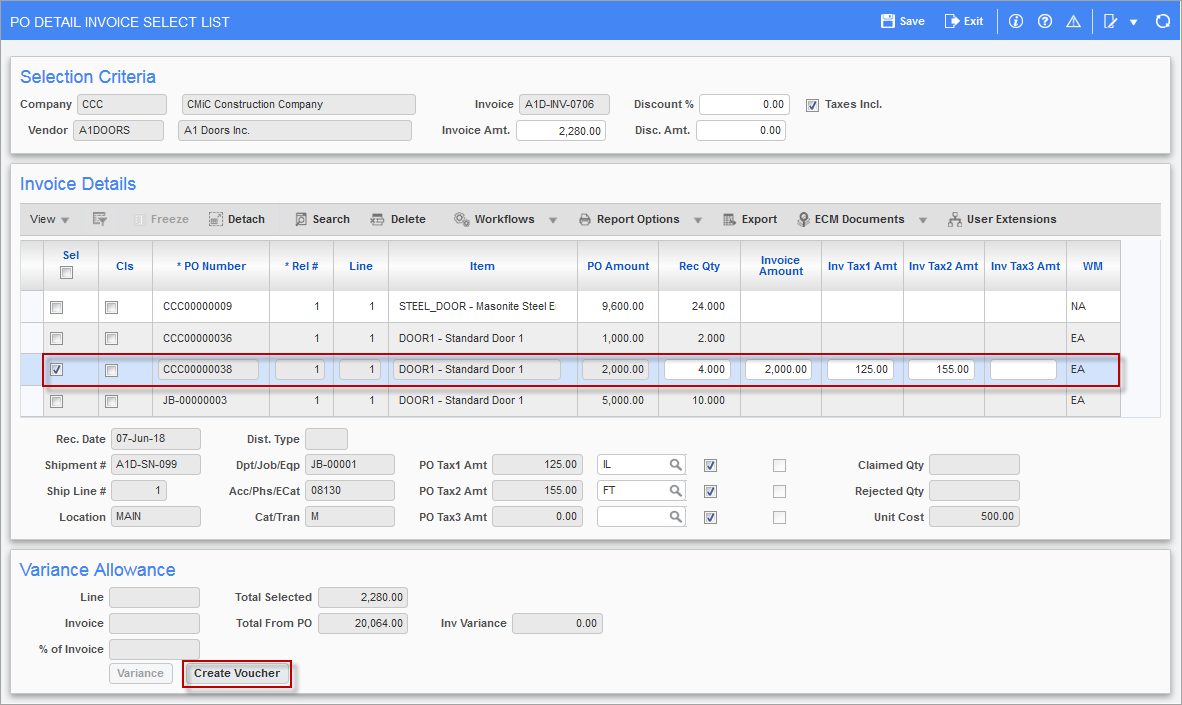
Pgm: APPOPICK – PO Detail Invoice Select List; standard Treeview path: Accounts Payable > Voucher > Enter Vouchers – [PO Selection] button pop-up
Once all the details have been entered in the PO Detail Invoice Select List screen, use the [Create Voucher] button to create the voucher distribution.
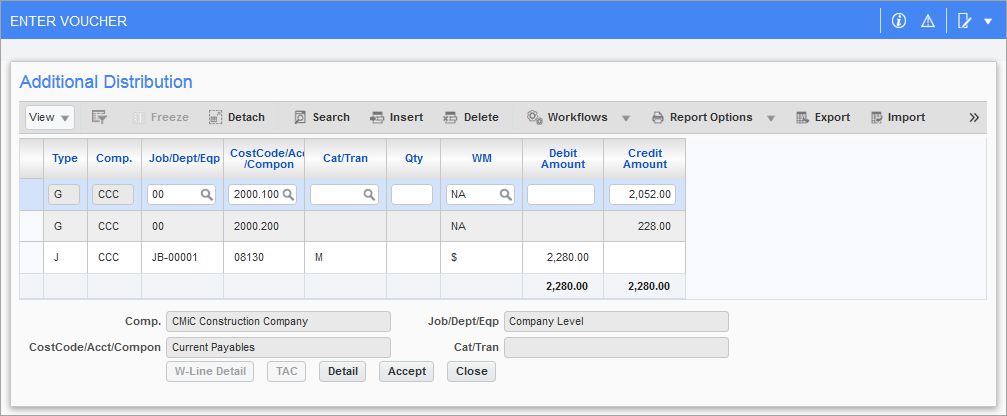
Sample Voucher Distribution from PO Selection screen