 Search Tips
Add Totals to Dynamic Columns
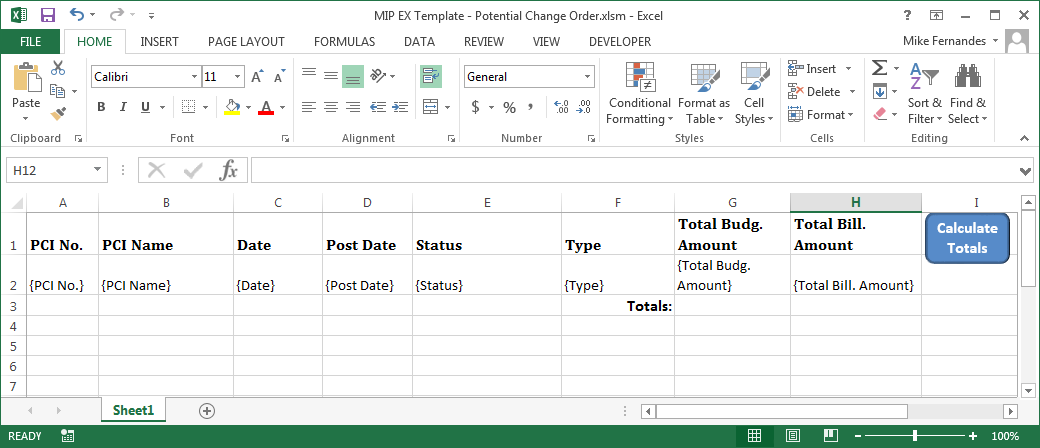
Sample of MIP Excel template, which generated the MIP Excel document shown in the next screenshot.
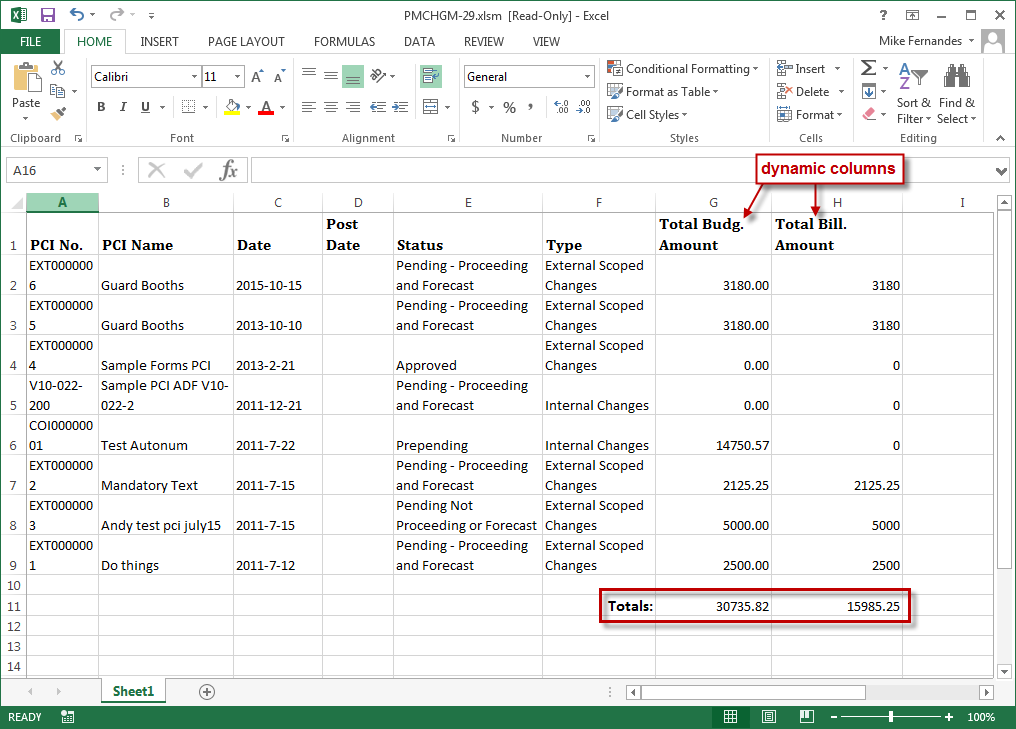
Sample of a generated MIP Excel document with totals at the end of the dynamic columns.
This FAQ shows how to set up a MIP Excel document template, using the simplest method possible, so that totals are added to the end of dynamic columns when the MIP Excel documents is generated (shown above). This is done by creating a macro via Microsoft Visual Basic for Applications (VBA).
It is necessary to create a macro to calculate and display the totals for dynamic columns because no formulas can be in these columns to calculate the totals dynamically. The dynamic columns must be clear of all entries in order to calculate the totals dynamically, so a macro is needed to put the totals into these columns.
Also, to avoid issues with event handling in VBA, a button is used to run the macro that calculates and displays the totals.
Step 1: Open MIP Excel Template & Launch VBA
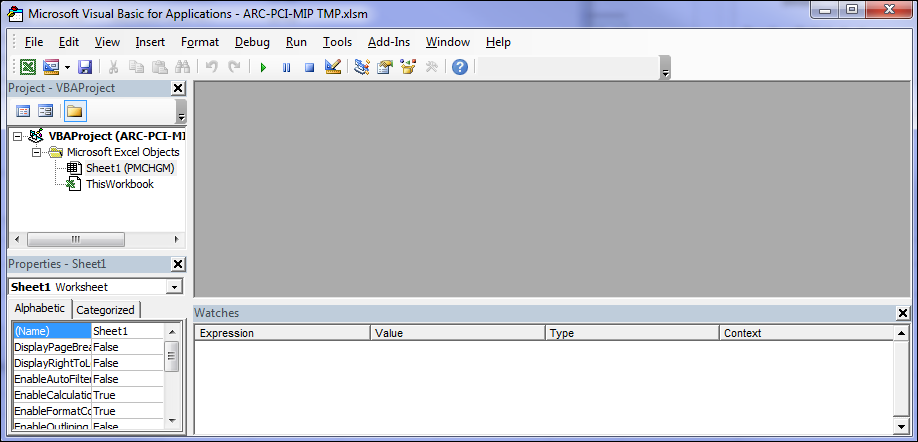
Sample of VBA application launched after pressing Ctrl+F11 keyboard keys from MIP Excel template.
The first step to add totals to the end of the dynamic columns is to launch VBA from the MIP Excel template by pressing the Ctrl and F11 keyboard keys together. VBA will display the project associated to the template.
NOTE: To add totals to the end of the dynamic columns requires the use of a macro, so the MIP Excel template must have been saved as an XLSM Excel file (supports macros).
Step 2: Add New Module to VBA Project
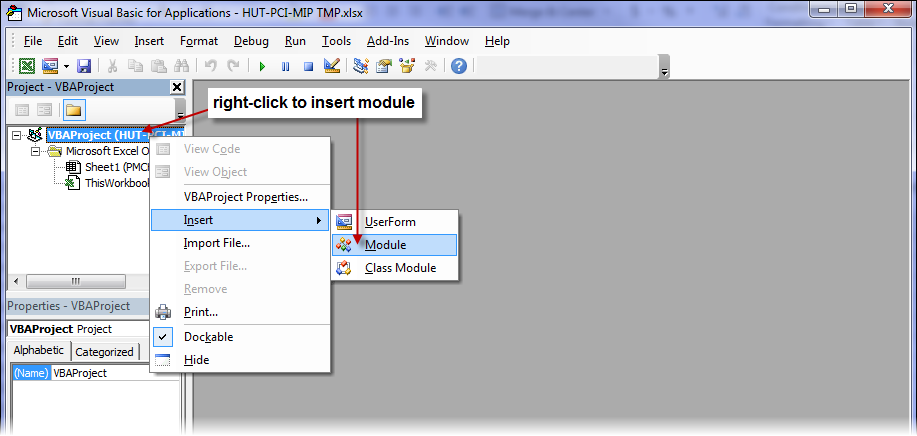
In this step, a module is added to the VBA project associated to the spreadsheet, so that a macro (also known as a sub-procedure) to calculate and display the totals can be added to it. As shown in the above screenshot, right-click the VBA project node, select “Insert”, then “Module”.
Step 3: Add Macro to New Module
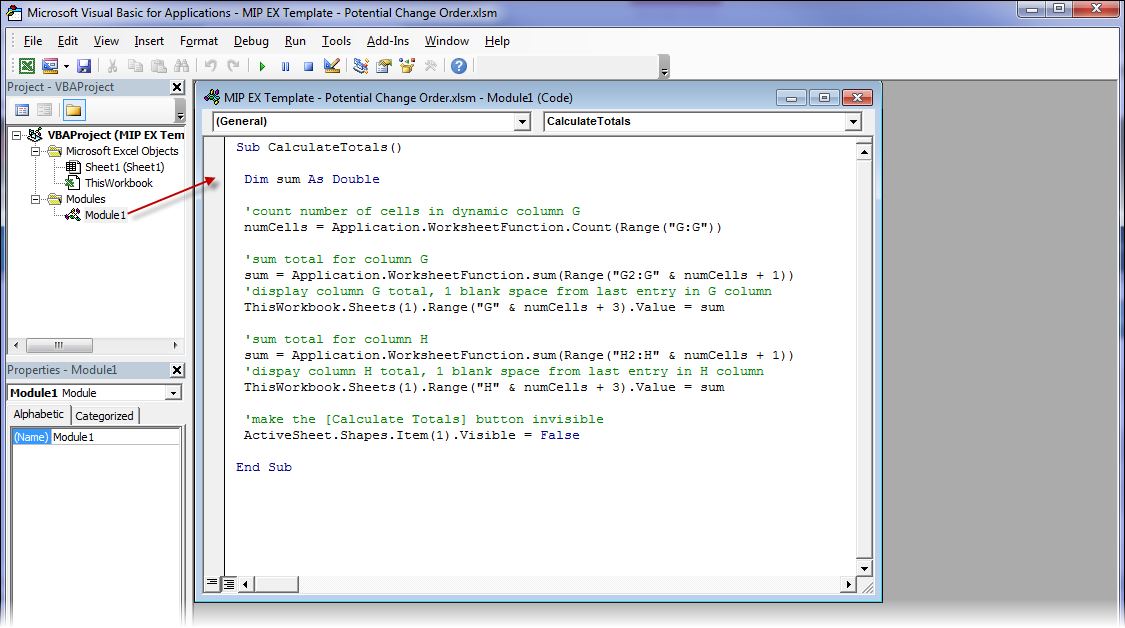
In this step, the macro (sub-procedure) is added to the new module. This is the last step involving VBA. The macro created in this step will be triggered by a button added to the template.
Below is the macro used to calculate and display the totals for the example provided in the previous screenshots.
Macro to Calculate & Display Totals – Sample
Sub CalculateTotals ()
Dim sum As Double  ' store calculated sum
 'count number of numeric cells in dynamic column G
 numCells = Application.WorksheetFunction.Count(Range("G:G"))
 'sum total for column G
 sum = Application.WorksheetFunction.sum(Range("G2:G" & numCells + 1))
 'display column G total, 1 blank space from last entry in G column
 ThisWorkbook.Sheets(1).Range("G" & numCells + 3).Value = sum
 'sum total for column H
 sum = Application.WorksheetFunction.sum(Range("H2:H" & numCells + 1))
 'dispay column H total, 1 blank space from last entry in H column
 ThisWorkbook.Sheets(1).Range("H" & numCells + 3).Value = sum
 'make the [Calculate Totals] button (Shape) invisible
 ActiveSheet.Shapes.Item(1).Visible = True
End Sub
Step 4: Add Button (Shape) to Run Macro to MIP Excel Template
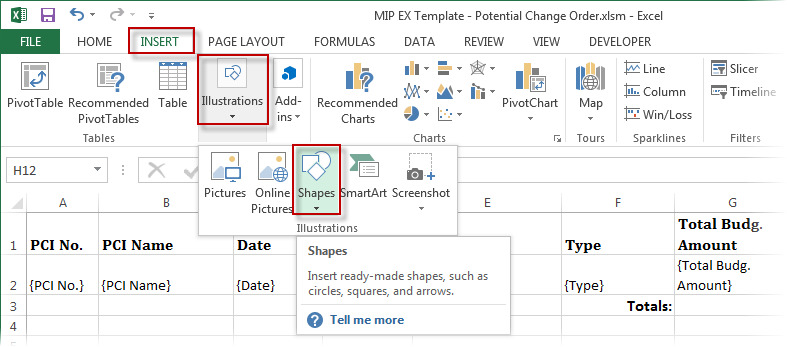
In this step, a shape is added to the template to function as a button.
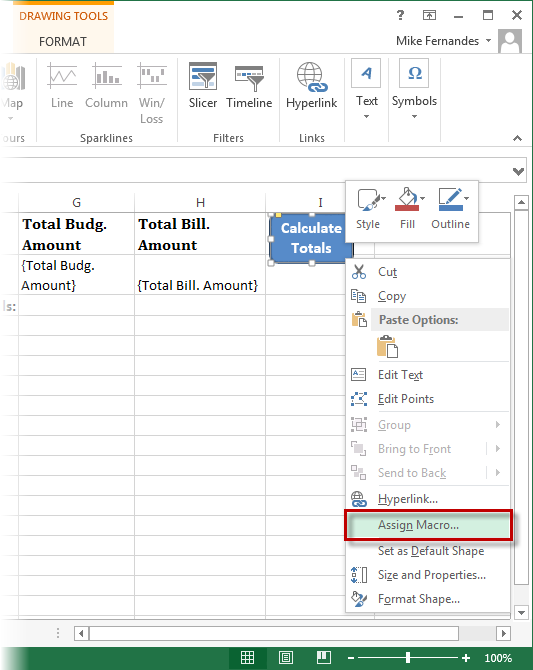
After the shape is set up as desired, right-click it to bring up the context menu. As shown in the below screenshot, select “Assign Macro”.
In the following pop-up window, shown below, select the macro created to calculate and display the totals.
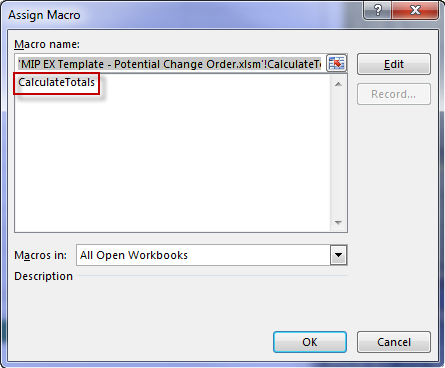
After saving, the process is completed. The template is now ready to be uploaded into CMiC Enterprise.