 Search Tips
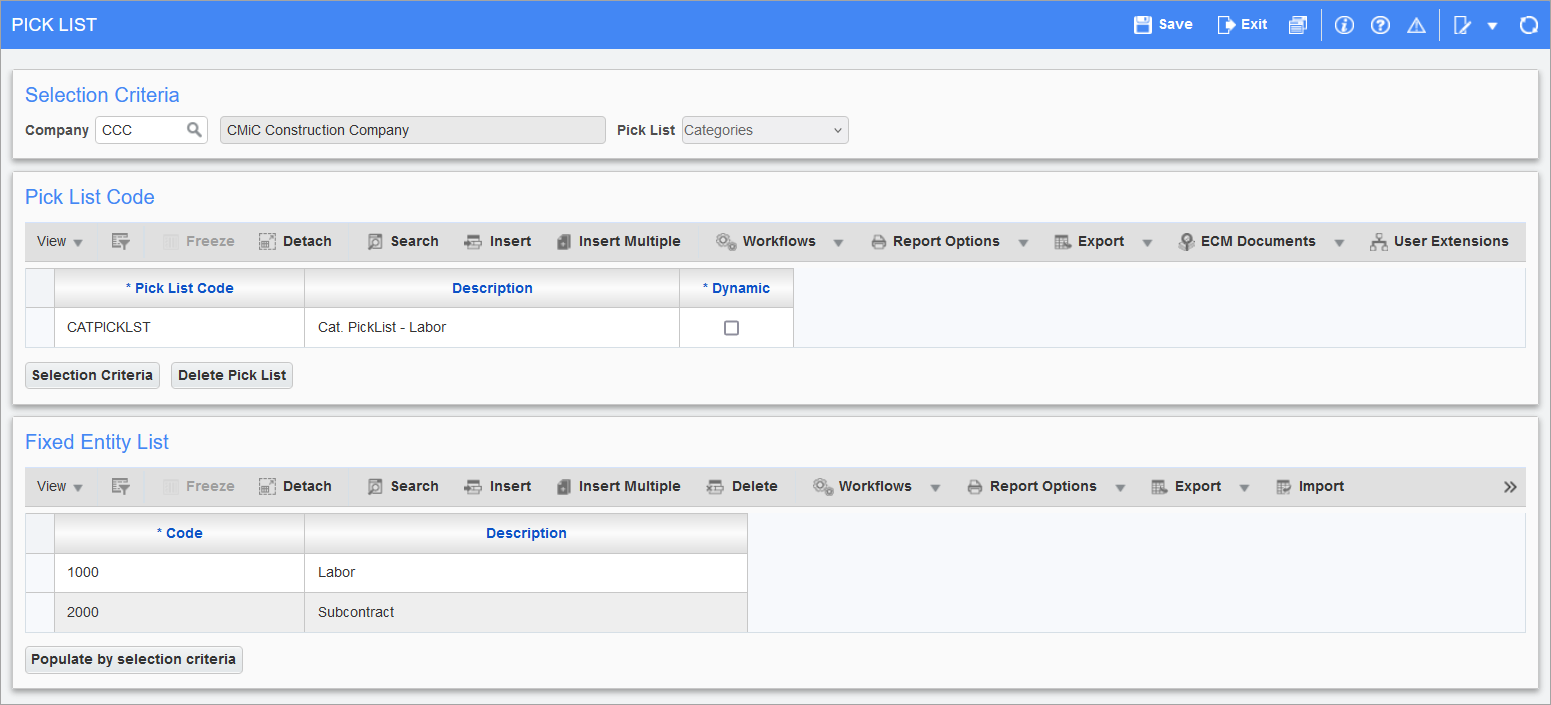
Pgm: SDPICK – Pick List; standard Treeview path: Job Costing > Setup > Local Tables > Setup Category Pick List
For reporting purposes, an alternative method to select categories for printing can be set up through this screen. Category pick lists can be used when a set of categories need to be printed where the category C=codes are not in sequence.
Selection Criteria
Company
The company for which a category pick list is to be defined. The Pick List field will show only the categories option when used here.
Pick List
This display only field displays the pick list’s type, which for this screen is categories (this screen is reused for other pick list types).
Pick List Code
Pick List Code, Description
Enter the pick list code and description for the pick list being defined.
Dynamic − Checkbox
Check this checkbox to have the system select the items for selection based on data in the system whenever the pick list is entered into the Enterprise system. If the list is small and not dynamic, move to the Fixed Entity List section and enter the appropriate selection values.
[Selection Criteria] − Button
This button’s pop-up window is used to create a selection criteria, which is used to search for category codes to add to the pick list.
Enter a selection criteria using table codes, e.g. CAT_CODE. The name will appear, as well as the LOV for selecting the parameters, e.g. ">= 5000" or use the third block to enter fixed values of category and name.
[Delete Pick List] − Button
Delete the selected pick list. A confirmation pop-up window appears to confirm the deletion, as the deletion will be permanent.
Fixed Entity List
This section lists the categories in the pick list selected via the upper table. Use this section’s block toolbar to insert or delete categories from the list.