 Search Tips
Example: [SELECTED] – Button
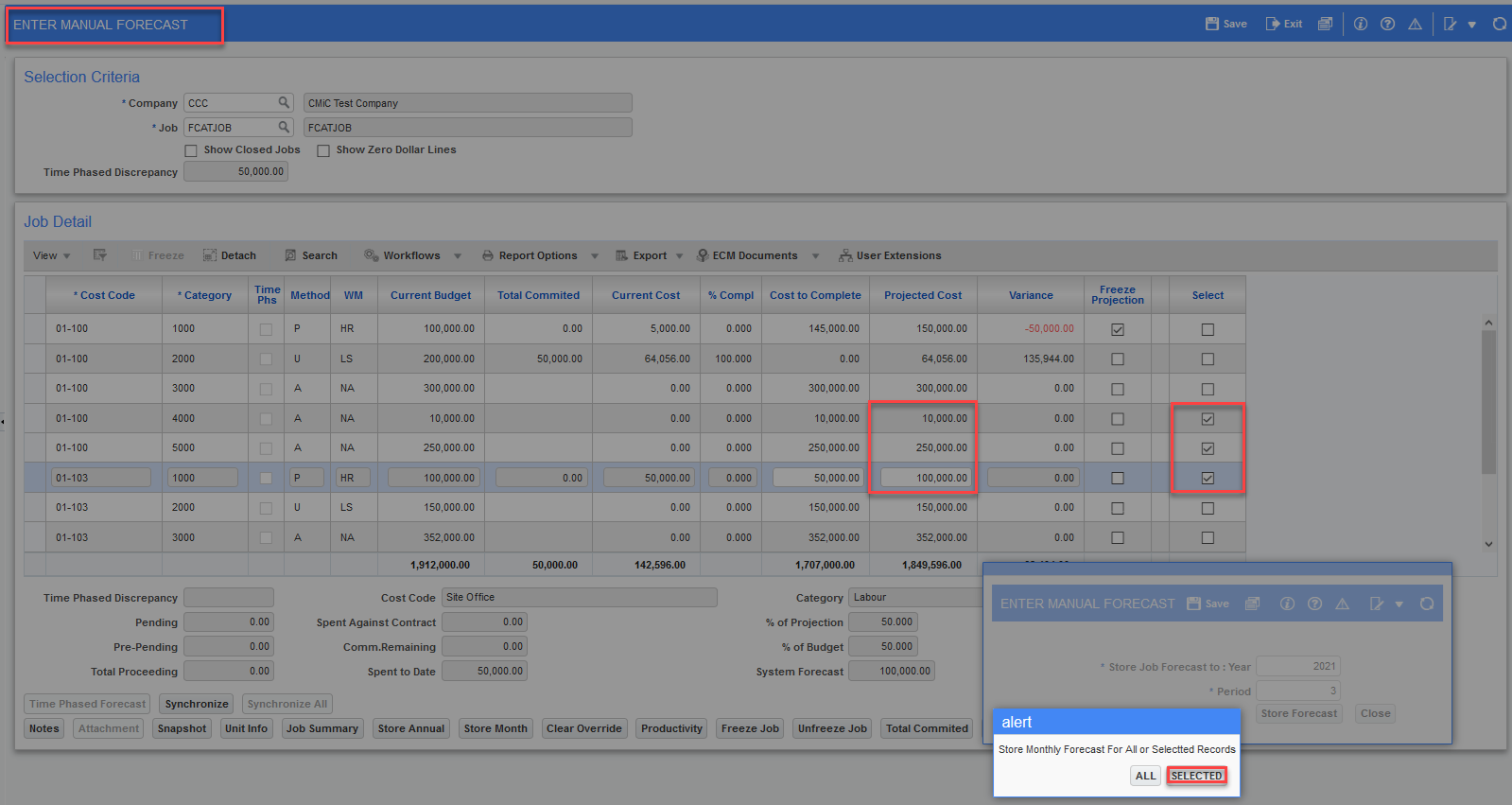
Pgm: JCREVCAF – Enter Cost Forecast (Enter Manual Forecast); standard Treeview path: Job Costing > Forecasting > Enter Cost Forecast
In the Enter Manual Forecast screen, select a few records, as shown above, and click on the [Store Month] button.
In the Alert pop-up window, click on the [SELECTED] button.
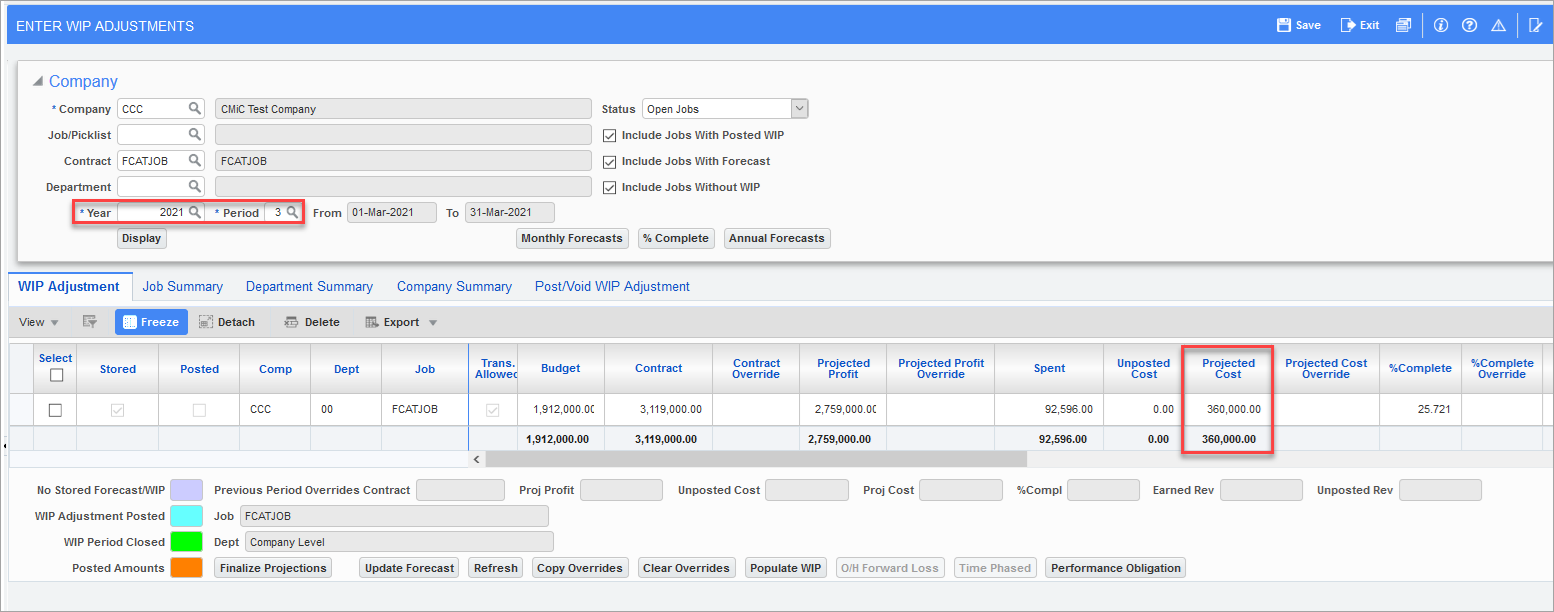
Pgm: JCWIP – Enter WIP Adjustments; standard Treeview path: Job Costing > Forecasting > Work-In-Process Adjustments > Enter and Post Adjustments
The forecast is stored for selected records only, as shown above in the Enter WIP Adjustments screen.
Example: [ALL] – Button
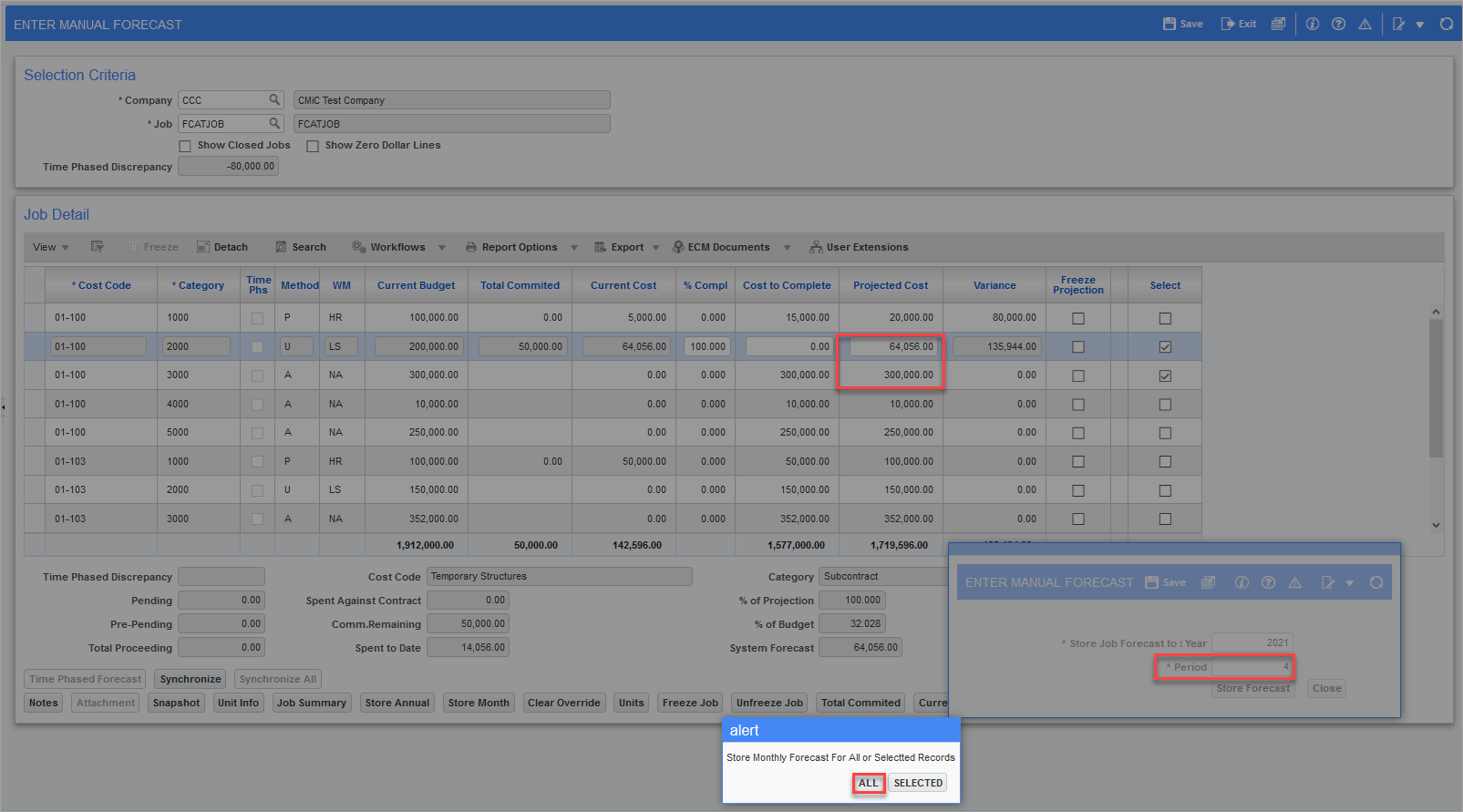
Pgm: JCREVCAF – Enter Cost Forecast (Enter Manual Forecast); standard Treeview path: Job Costing > Forecasting > Enter Cost Forecast
Select record as shown above and click on the [Store Month] button.
Click on the [ALL] button to store all the records in forecast for period 4.
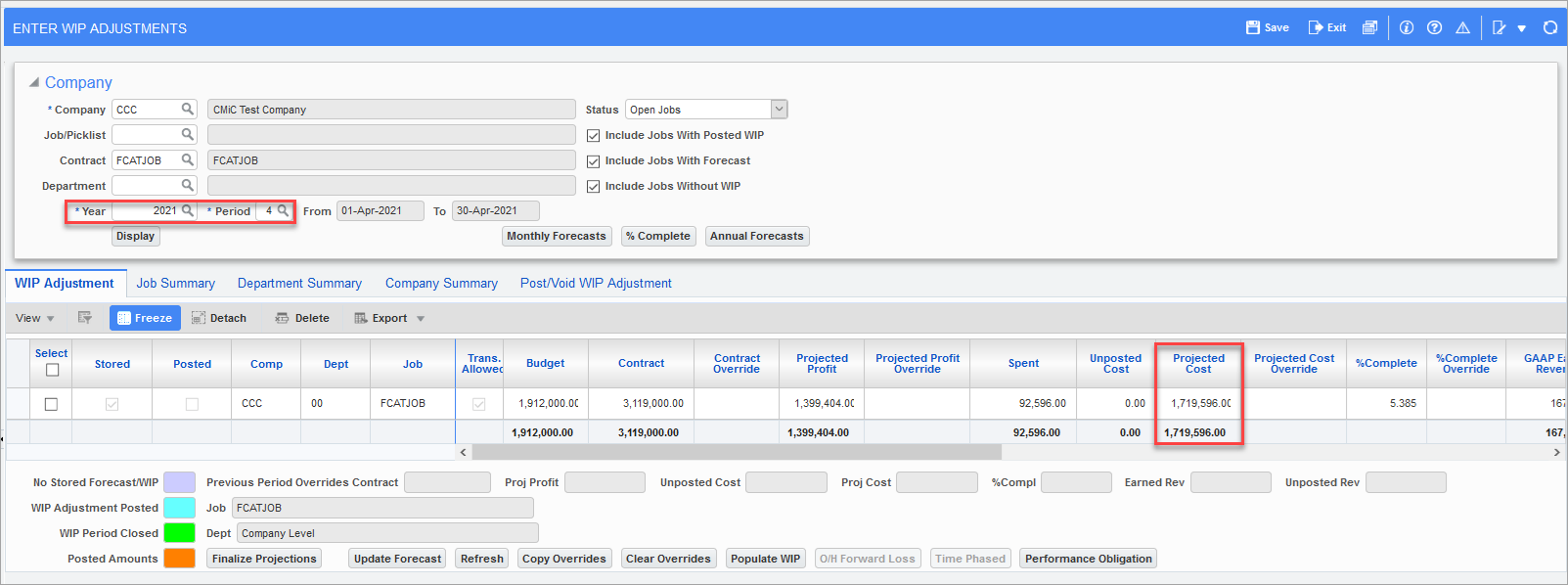
Pgm: JCWIP – Enter WIP Adjustments; standard Treeview path: Job Costing > Forecasting > Work-In-Process Adjustments > Enter and Post Adjustments
All records are stored in the forecast when the user clicks on the [ALL] button.
Example: No Records Selected
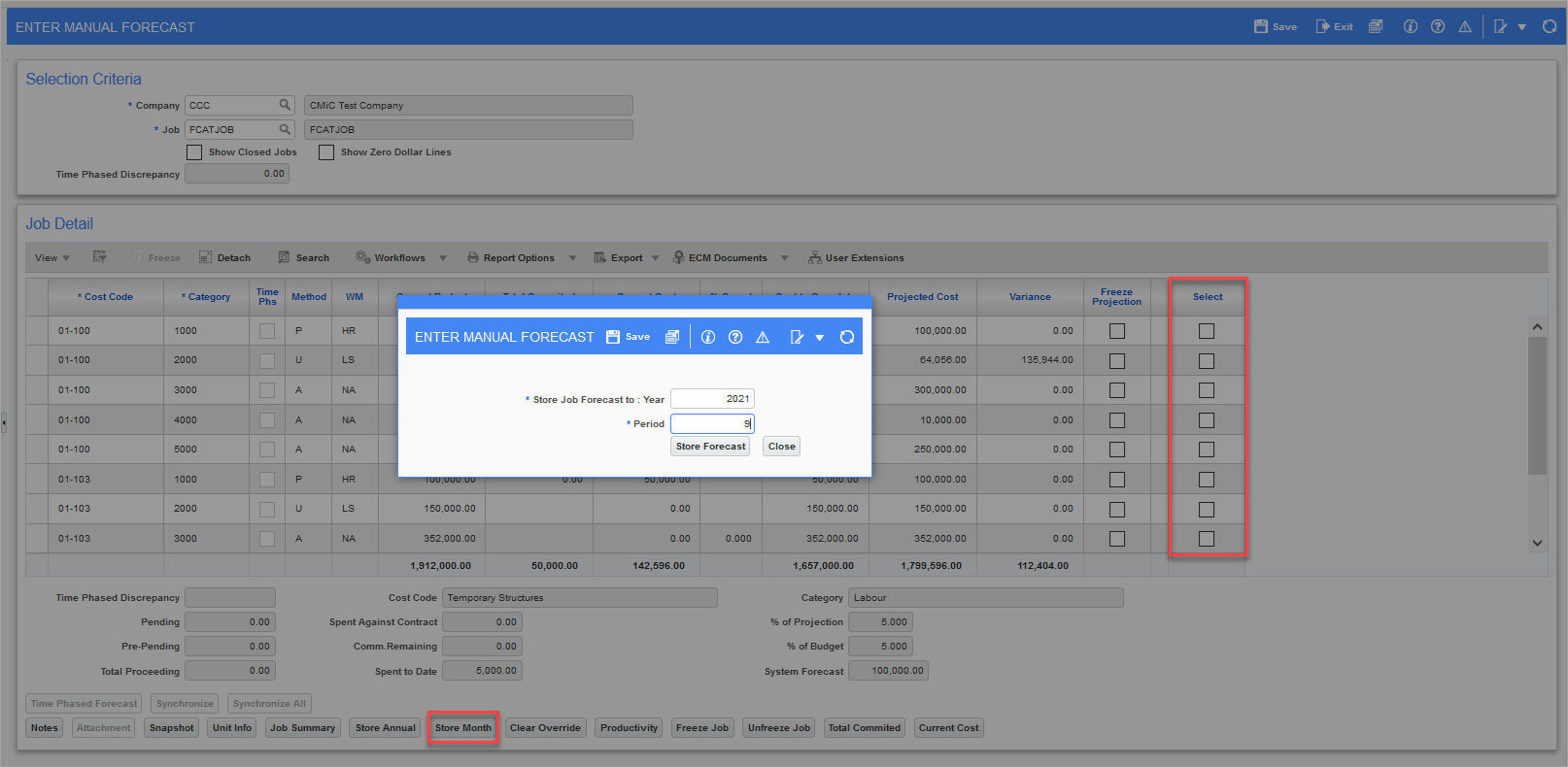
Pgm: JCREVCAF – Enter Cost Forecast (Enter Manual Forecast); standard Treeview path: Job Costing > Forecasting > Enter Cost Forecast – [Store Month] pop-up window
If no record is selected, then upon clicking the [Store Month] button, an Alert pop-up window is not displayed and the forecast is stored for all records.