 Search Tips
Pgm: JBBILL – JB Prepare Billing; standard Treeview path: Job Billing > Billing > Prepare Billing
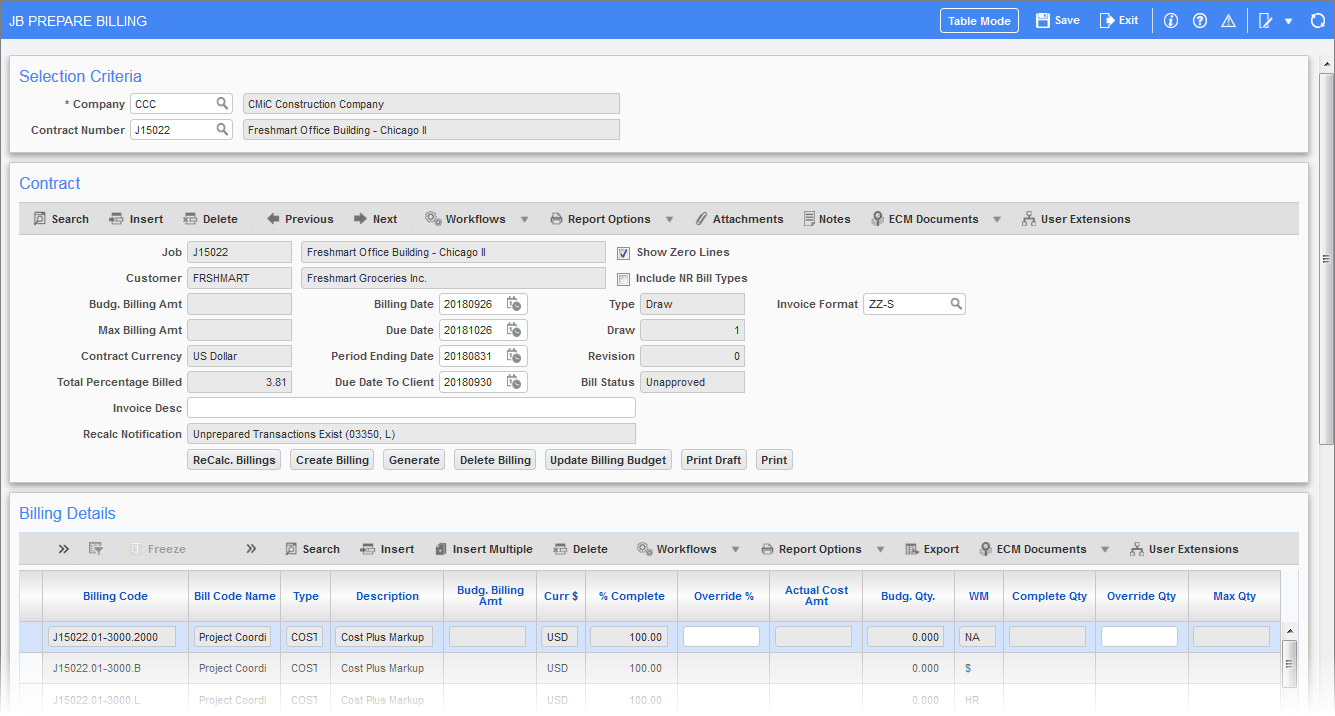
The Prepare Billing screen is used to create and enter billings and revisions for jobs created with the job billing type method. This screen can also be used to edit those billings created through the mass prepare function. All costs entered up to the last date of the previous month will be brought forward into the current billing.
NOTE: It is not recommended to switch between the JBBILL and JBBILL2 screens when preparing a billing for a contract. Please see Job Billing - JBBILL vs JBBILL2 for further details.
The Contract Billing Entry screen displays the current billing information as it is entered, as well as the billing history to date. The following are a list of the fields and amount columns provided in the Contract Billing Entry screen, as well as a brief description of each one.
Contract − Section
Show Zero Lines − Checkbox
Check this box to display zero lines in the billing details section.
Include NR Bill Types − Checkbox
If this box is checked, the contract details will include all non-recoverable (non-billable) codes. Non-recoverable costs are not included in the actual cost amount unless this field is checked.
Billing Date
Enter invoice date. This field will default to the system date but may be changed. This date will be the billing date used as reference on the free form invoice as well as CMiC standard JBPB invoice.
Due Date
Enter invoice due date. The date will be automatically calculated and populated as per term code setting at job and contract level but may be changed. This date will be the due date used as reference on AR invoice.
Period Ending Date
This date is used (as a default) to cut off transactions used for billing. This field will default to the last day of the previous month unless the system date is within five days of the month end, then it will default to the last day of the next month. This date refers to the billing period as referenced on the free form invoice.
Due Date To Client
Date on which the billing is due to the owner. The date will be automatically calculated and populated as per the term code set at the job and contract level but may be changed.
Invoice Format
Select the invoice format code for invoices. This is only applicable to AIA invoice formats.
Invoice Description
Enter the AR invoice description.
Budgeted Billing Amount
This field is the current contract amount entered against the billing code when the contract was originally set up in the Contract Entry screen plus any posted change orders applied since. Unless the billing type is a percent complete type this field is informational only.
If the 'Warn If Contract Amount Does Not Match Total Budget Amount' checkbox on the control is activated and the budgeted billing amount differs a message will appear in the status line and an [Update] button will appear. User may press the button and the budgeted billing amount will be updated. If the checkbox is unchecked, no message will appear and the user will not be able to see the [Update] button. The [Update] button will not appear on revisions greater than zero.
Billing Details − Section
% Complete
The percent complete is automatically calculated for each line as cost against budgeted billing amount. Unless you are using a percent complete billing type this is an information field only.
Override %
If using a percent complete billing type then this field is used to adjust the system calculated percent complete. Otherwise, this field should not be used.
Actual Cost Amount
This field is calculated by the system. It is the actual cost amount of all transactions related to the billing code.
Budgeted Quantity
This field is the current contract budgeted quantity against the billing code when the contract was originally set up in the Contract Entry screen plus any posted change orders applied. Unless the billing type is a percent complete type this field is informational only.
WM Code
This is information only and displays the WM of the budgeted quantity and it is also the WM any units will be reported in on invoices.
Complete Qty
This field is calculated by the system. It is the sum of the units on all cost transactions related to the billing code.
Override Qty
To adjust the complete quantity either up or down, enter the correct number of units in this field. This field is only applicable on unit billing code type.
Max Qty
This field will display the maximum quantity allowed to be billed for this line. This is for information only and cannot be updated.
Billed Quantity Override
This column is used as an indicator to show when a quantity override has been applied. It is highlighted in red and set as "O" when there is an override.
Billing Rate
This is the current billing rate for the units completed. This is for information only and cannot be updated.
Previously Billed
This column displays the total billing to date excluding the current draw.
Calc’d Billing Amount
This field displays what the system has calculated as the billing amount – including any changes made to the previous fields.
Override Billing Amount
If the billing amount calculated is not correct you may adjust the amount up or down by entering the required billing amount in this column.
Max Billing Amount
This is the maximum billing amount allowed for the line. This is for information only and cannot be updated.
Material Stored
This is a display-only field. It shows the amounts that are based on materials on hand. See the JB Control screen for how this field is actually billed.
Override Material Stored, MS Ovr
The Override Material Stored field overrides the amount in the Material Stored field. When the user overrides the material stored amount, followed by receiving a Recalc Notification message and ReCalc Billings, the Override Material Stored and MS Ovr columns turn red with the letter "O" entered in the MS Ovr column. This indicates that the Material Stored field has been overridden.
Completed and Stored
This field is the previously billed amount plus current billing plus stored materials.
Calculated Retained Amount
This amount is the previously billed retainage plus any retainage calculated for the current draw.
Override Retainage Amount
If the calculated retained amount is incorrect it can be adjusted up or down by entering the correct amount in this column.
Release Retainage
If there is retainage to be released on this draw, enter the amount in this field.
Total Other Amount
This field displays the total other amount and is used for the Advance Payment functionality. Standard rules for retainage and taxes will be applied to the other amount.
Previous Other Amount
This field displays the total of other amounts from all previous draws and is used for the Advance Payment functionality. Standard rules for retainage and taxes will be applied to the other amount.
Current Other Amount
The current other amount can be added using this field and is used for the Advance Payment functionality. Standard rules for retainage and taxes will be applied to the other amount.
Certified Amount
This field is automatically calculated as Material Stored + Other Amount + Calculated Billing Amount.
Taxes 1 Through 3
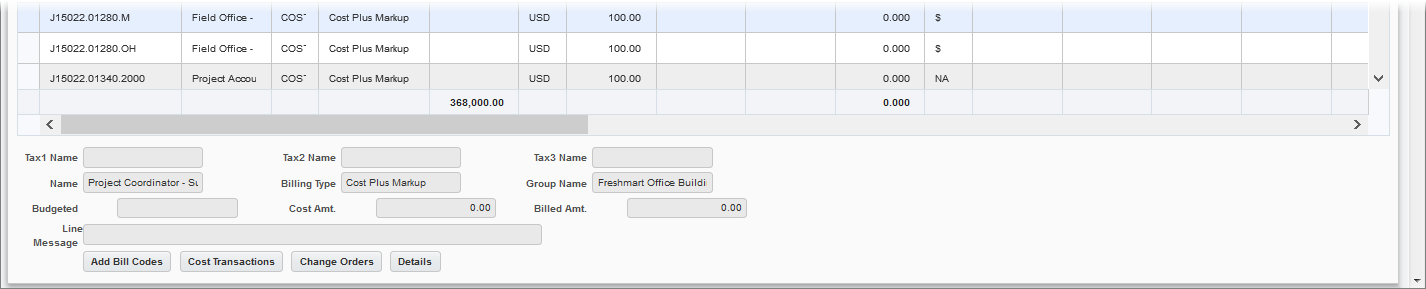
These are display-only fields. The Contract Entry screen is where a tax code must be changed.
Billing Reference
This display-only field shows the reference code for the separate billing information set up for the bill code in the Contract Entry screen, as shown in the following screenshot sample:
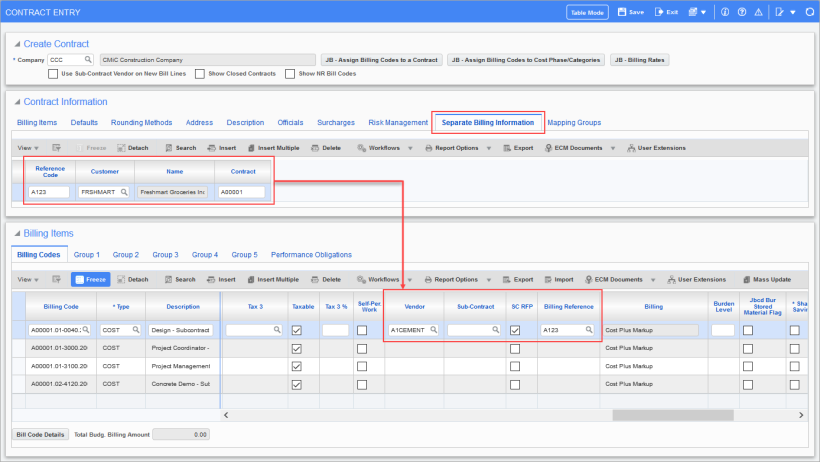
The Job Billing generation program will not allocate invoice numbers when there are no currently billed amounts against those bill codes associated with billing references. This assumes importance as, if a contract has too many references, the number of zero dollar invoices may also be too many which may unnecessarily use up the invoice numbers in sequence.
Restrictions on Revision Draws when using billing references:
For example, a contract has three billing references REF1, REF2, & REF3 assigned to some bill codes.
Draw 1 rev 0 is posted and there are two billing invoices, one for REF1 and another for main customer of the contract. No invoices generated for REF2 & REF3. When creating a revision to the draw, costs are found only against REF2 & REF3 as well as main customer. Since the main draw did not have any invoices posted against these references, system will exclude them from the current revision draw and a meaningful message is displayed. Also, there are restrictions to contract level/group level/bill code level overrides and users will not be able to override at contract/group levels for revision draws with reference codes.
If users would like to include all those costs, then the following two options may be considered:
-
Void the previously posted draw and then recreate the draw to include all the posted costs.
-
Create a new draw instead of a revision.
[Add Bill Codes] − Button

This button displays a pop-up window where the user can view all the bill codes that are not on the billing for the current draw and revision against the contract.
The user is able to choose selectively bill codes that need to be added to the current bill. The user also has the choice to select/deselect all bill codes at the press of a button. The selected bill codes can then be added to the billing by pressing the [Accept] button. If all contract bill codes have been added to the billing, this button is disabled.