 Search Tips
Job Setup
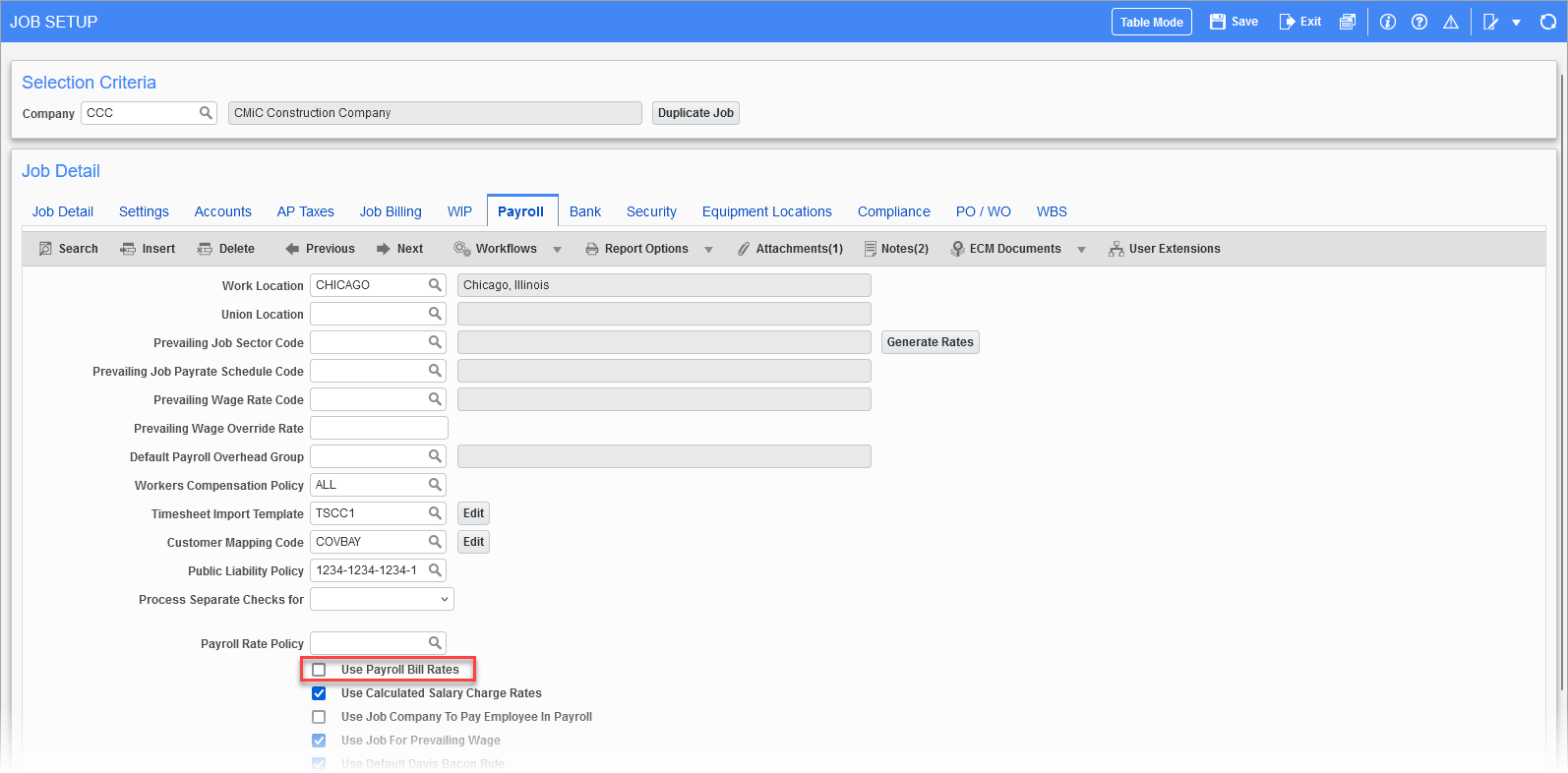
Pgm: JCJOBFM – Job Setup; standard Treeview path: Job Costing > Job > Enter Job
If the job needs to utilize the billing rates on the Billing Rates table available in the Job Billing module, then the 'Use Payroll Bill Rates' checkbox in the Payroll tab of the Job Setup screen needs to be unchecked. If this is checked, then the billing rates from the Payroll module will be used instead to calculate the unbilled revenue amount.
Payroll – Control File Setup
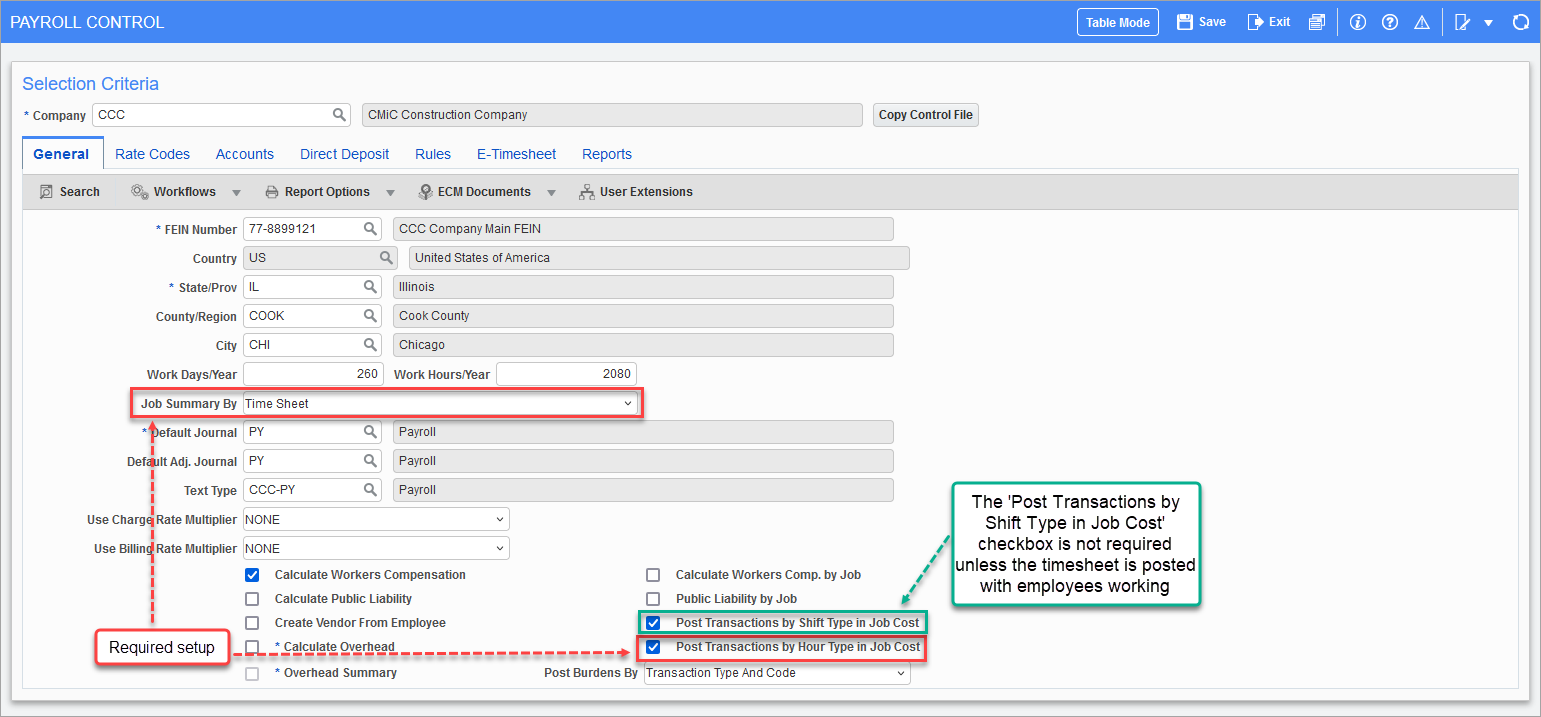
Pgm: PYCOMPRO – Payroll Control; standard Treeview path: US Payroll > Setup > Company > Control - General tab
To get the most out of overtime rules processing, the following Payroll settings are recommended as per requirement.
NOTE: This ensures that the overtime rules processing engine has the required level of detail to accurately calculate the quantity and unbilled revenue amount of the posted timesheet with proration as needed.
Recommended Setup
In the General tab on the Payroll Control screen, do the following as shown in the screenshot above:
-
Set the Job Summary By drop-down list to "Time Sheet".
-
Check the 'Post Transactions by Hour Type in Job Cost' box.
Optional Setup
In the General tab on the Payroll Control screen:
-
Check the 'Post Transactions by Shift Type in Job Cost' box.
NOTE: If this box is checked in addition to the 'Post Transactions by Hour Type in Job Cost' box, then the cost transactions posted to Job Costing are also split by the employee’s shift type (Day, Evening, Night, etc.) entered in the timesheet.
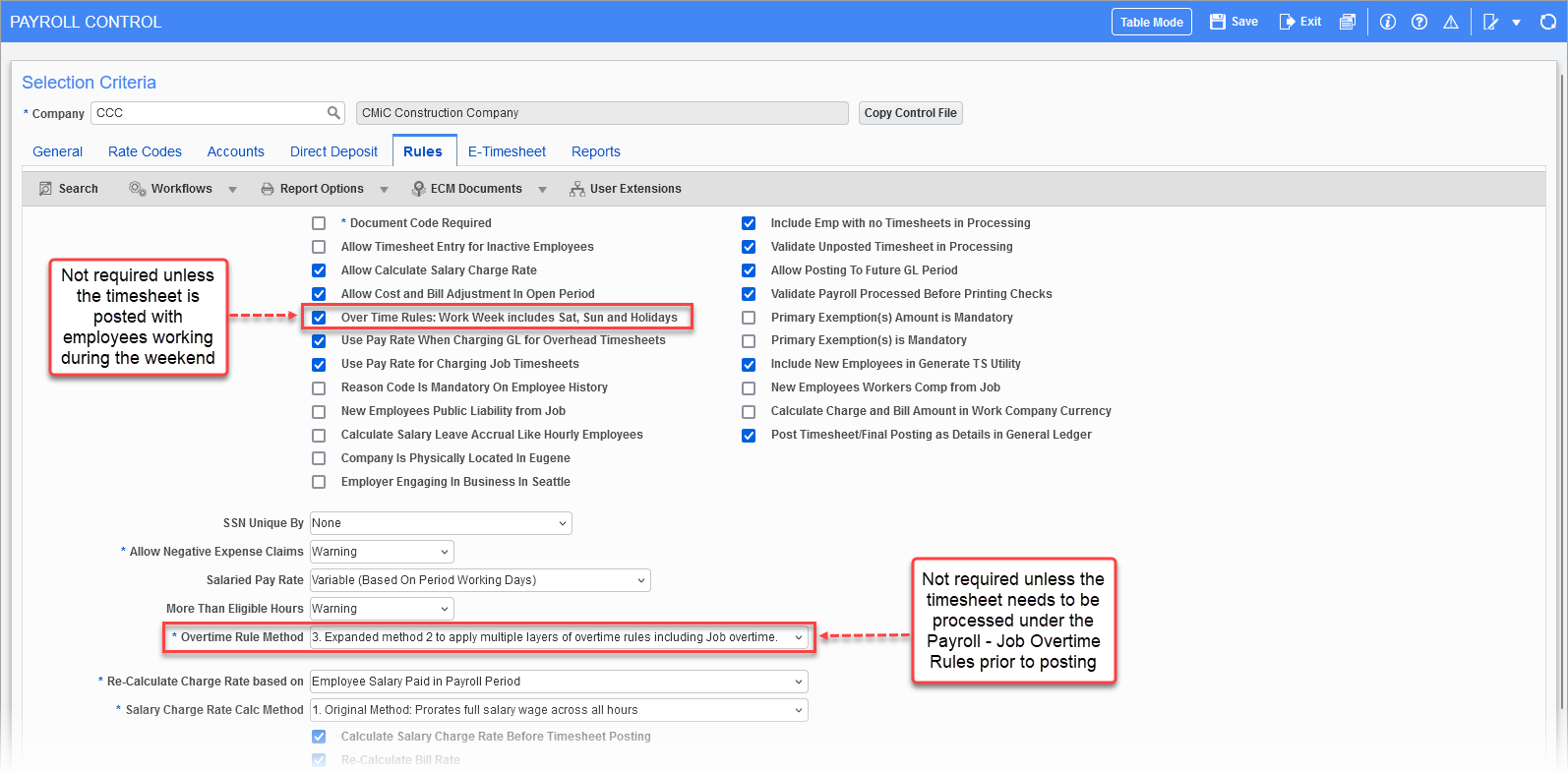
Pgm: PYCOMPRO – Payroll Control; standard Treeview path: US Payroll > Setup > Company > Control - Rules tab
In the Rules tab on the Payroll Control screen, do the following as per the screenshot above:
-
Check the 'Over Time Rules: Work Week includes Sat, Sun and Holidays' box.
NOTE: Check this box only if company's work week includes weekends or should consider holidays.
-
Set the Overtime Rule Method drop-down list to "3. Expanded method 2 to apply multiple layers of overtime rules including Job overtime".
NOTE: This is recommended only if the timesheet is to be processed under Payroll – Job Overtime rules prior to posting to Job Costing.
Payroll – Rate Code Setup
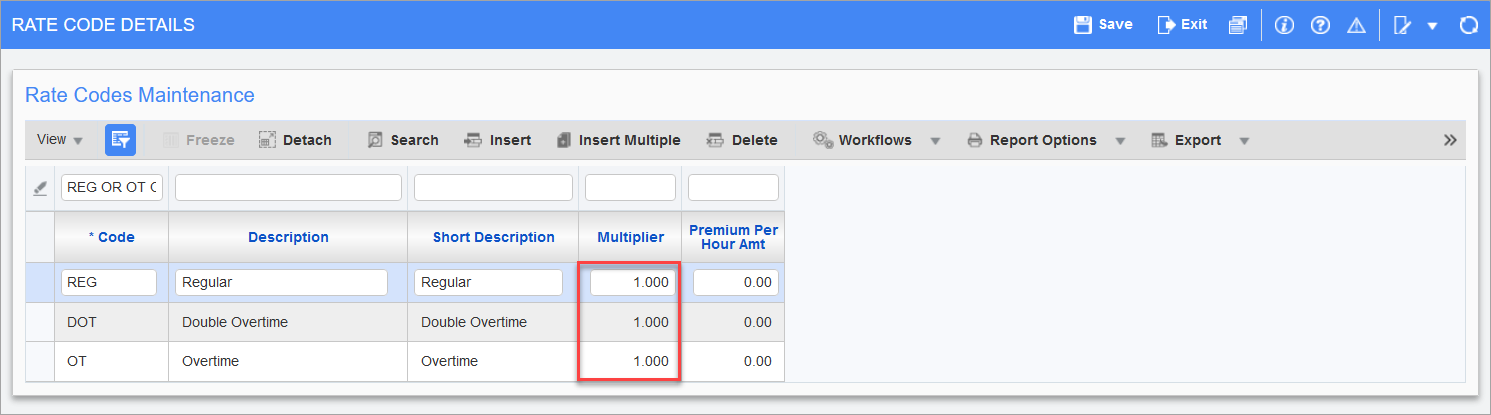
Pgm: PYRATCOD – Rate Code Details; standard Treeview path: US Payroll > Setup > Local Tables > Rate Codes
To ensure that only the Job Billing Rates are used to calculate the unbilled revenue amount, set the Multiplier column for all three hour types, Regular (REG), Overtime (OT), and Double Overtime (DOT), to "1".
Job Billing – Billing Rates Setup

Pgm: JBRATE – Billing Rates; standard Treeview path: Job Billing > Setup > Local Tables > Billing Rates
Enter the billing rates/multiplier for the employee and their desired job/cost code/category for all three BW types (REG, OT, and DOT).
NOTE: If billing rate is used, these are directly used to calculate the unbilled revenue amount in Job Costing/Job Billing. On the other hand, if a rate multiplier is used, then this factor is multiplied with corresponding employee’s charge rate from Payroll to derive the billing rate which in turn is used to calculate the unbilled revenue amount.
The Employee Charge Rate for the employee can be found in the Payroll setup.
NOTE: The charge rate can be set at different levels (e.g. Trade, Job, Union, etc.) depending on the requirement. For more information, please refer to US Payroll - Pay Rates.
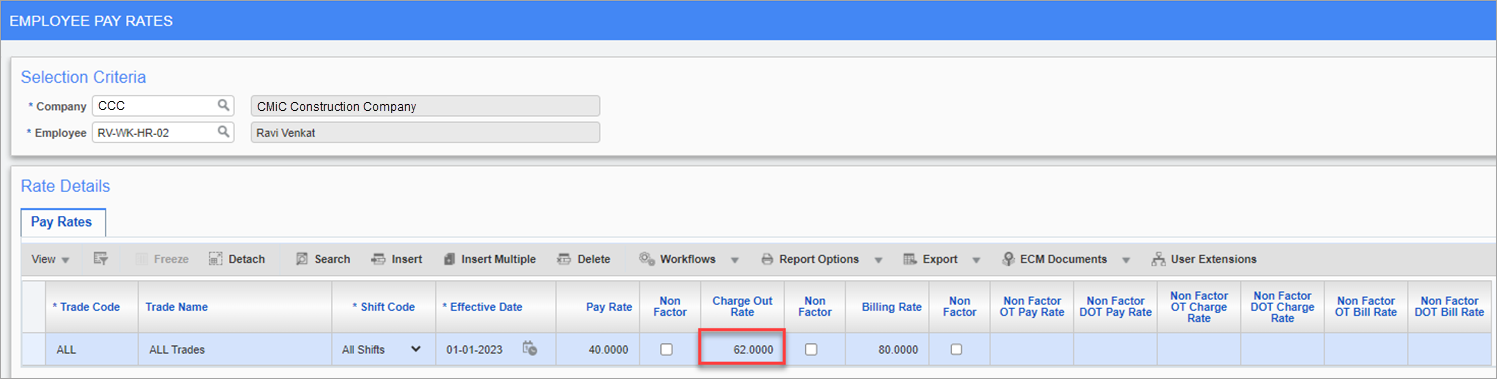
Pgm: PYEMPRAT – Employee Pay Rates; standard Treeview path: US Payroll > Setup > Pay Rates > Employee
Job Billing – Billing Overtime Rules Setup
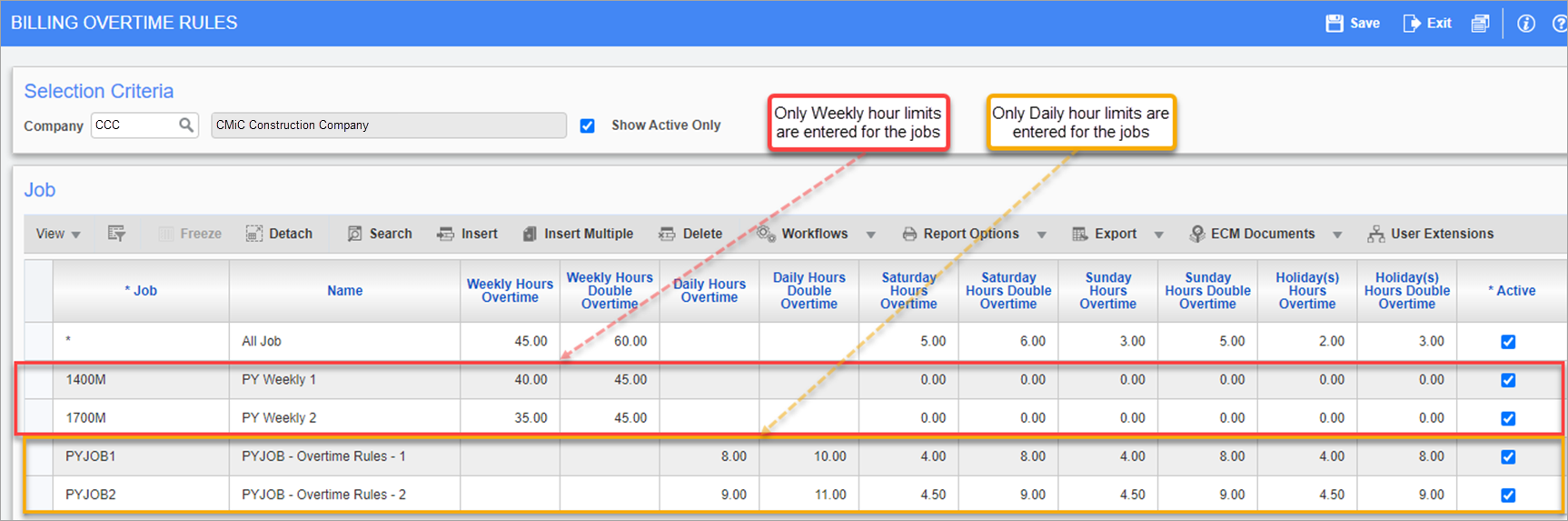
Pgm: JBOVTMRU – Billing Overtime Rules; standard Treeview path: Job Billing > Setup > Local Tables > Billing Overtime Rules
Overtime rules are used to define how overtime is applied to the billing rate of Payroll timesheets. These rules only apply to the billing amount. Cost and charge out rules are defined in the Payroll module. Please refer to US Payroll - R12 for more details.
This screen allows for the declaration of overtime rules for all jobs or for specific jobs as required.
Overtime Parameters
Overtime rules are entered by company and job. Each job may have a unique billing overtime rule. If your company has a generic rule which applied to most jobs enter an "*" in the Job field. This rule will then apply to all jobs where specific rules have not been declared.
Overtime Rules
Overtime rules can be set up by either daily or weekly, but not both. When setting rules, declare the number of hours against the hour code entered before overtime kicks in. If working on a daily basis unique level for weekday, Saturday, Sunday, and holidays may be declared. Weekly can only be specified for the complete week regardless of the types of days.
When entering weekly rules, there is a checkbox on the Rules tab of the Payroll Control screen that indicates if weekends and holidays are to be included.