Search Tips
This quick guide provides details about importing bill rates and subrates via the Maintain Bill Rate screen (program: JBRATE).
Import Process of Billing Rate Maintenance Screen
![Sample of the [Import] button on the Subrate Detail tab of the Maintain Bill Rates screen](../../../Resources/Images/JB_12c/Quick_Guides.png)
Pgm: JBRATE – Maintain Bill Rates; standard Treeview path: Job Billing > Contracts > Billing Rates
-
Create rate code.
-
Create sub rate code if required.
-
Click [Save].
-
Select the relevant rate code or sub rate code.
-
Navigate to the relevant tab, Rate Detail or Subrate Detail.
-
Click [Import] on tab’s Block Toolbar
![Sample of the [Import] button on the Subrate Detail tab of the Maintain Bill Rates screen](../../../Resources/Images/JB_12c/Quick_Guides_1.png)
-
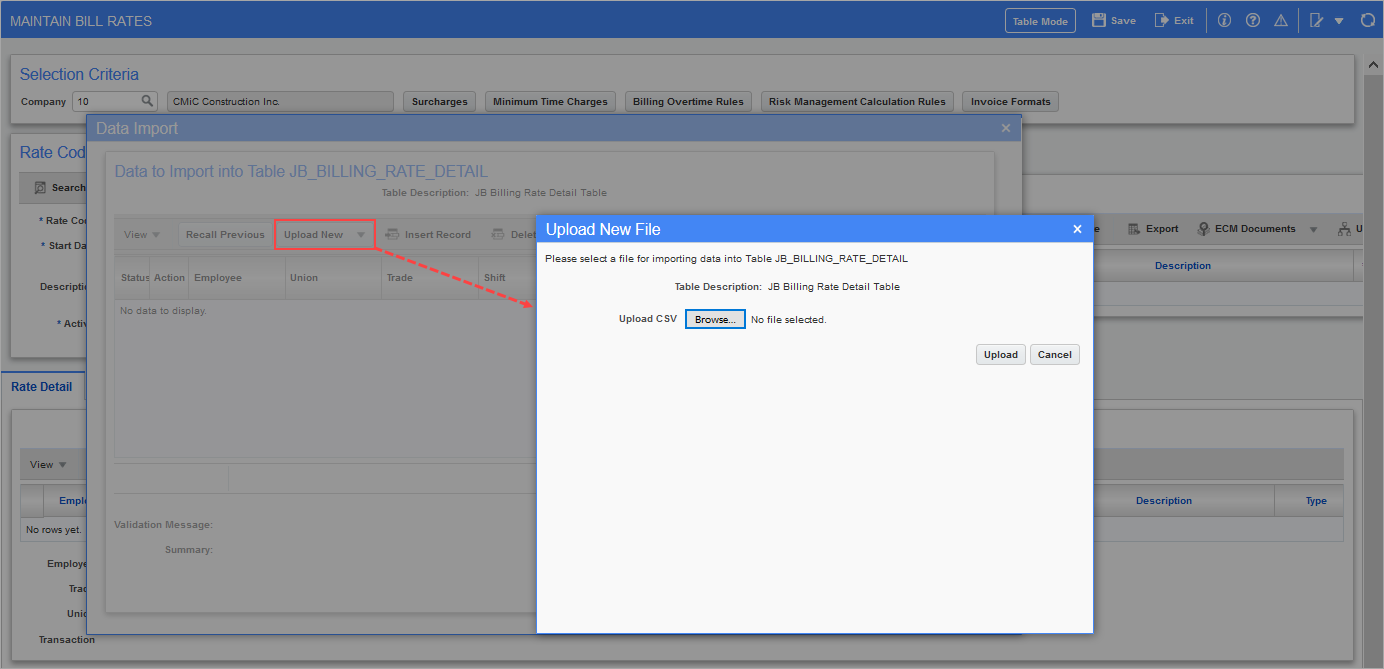
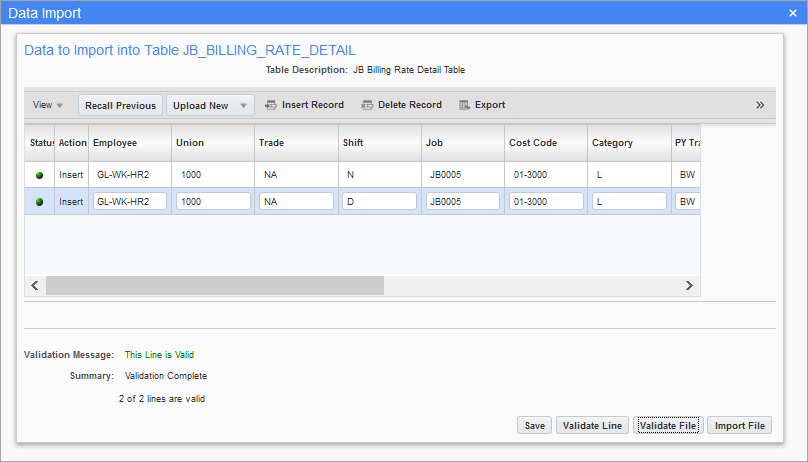
Upload CSV spreadsheet via the [Upload New] button in the pop-up window shown below.
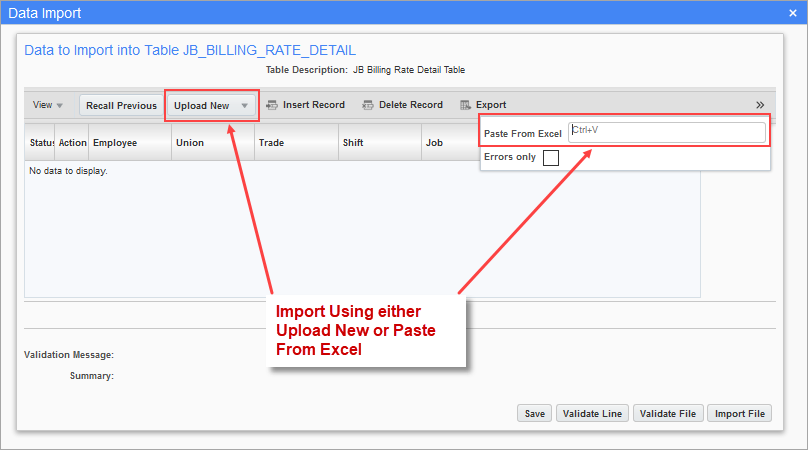
Or use the Paste From Excel field to perform the import instead by pasting in the rate details manually copied from the spreadsheet, without the header line.
-
Validate the imported data:
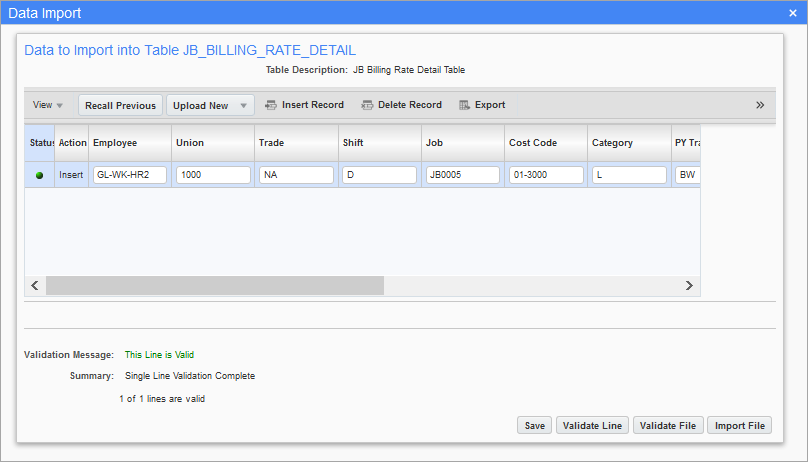
NOTE: The file must contain valid values in order to be successfully validated before import. If not, users have to manually adjust the values as per the validation message when the cursor focus is on the invalidated record.
Also note that the Payroll shift code may be null to represent all shifts or D, E, or N for day, evening, and night shifts respectively.
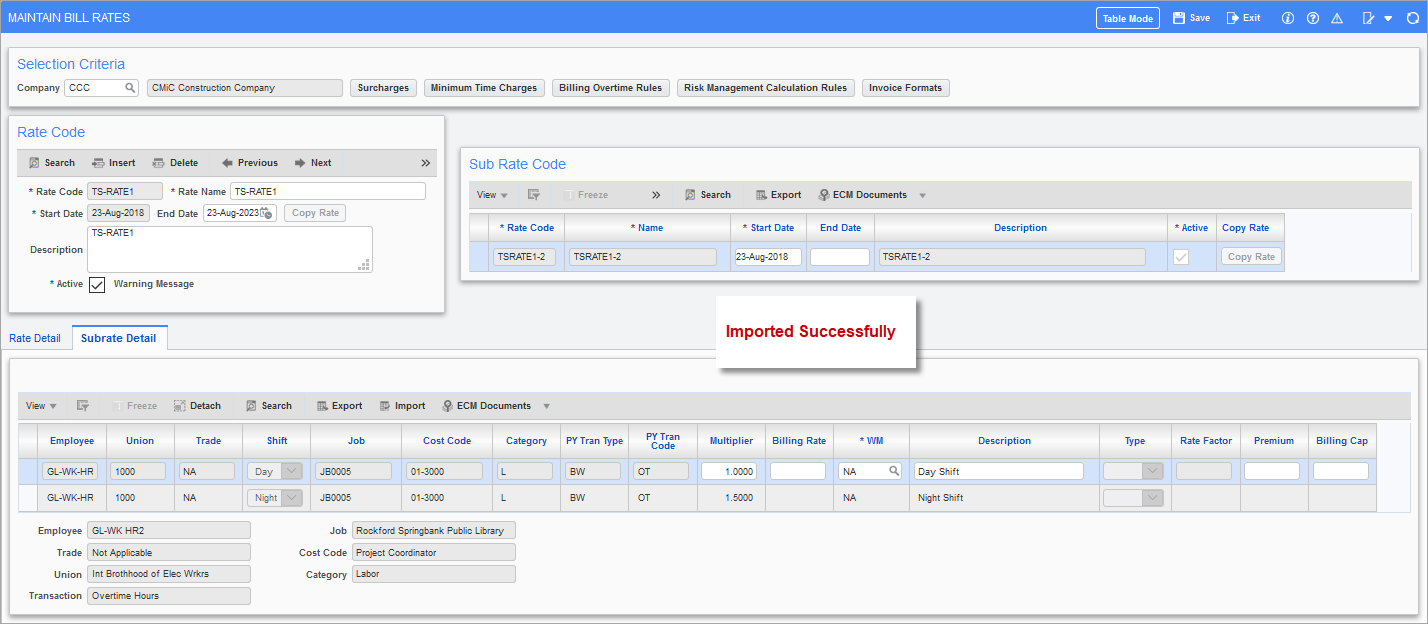
Below is a sample of successfully imported bill rates/subrates.
Import File Samples
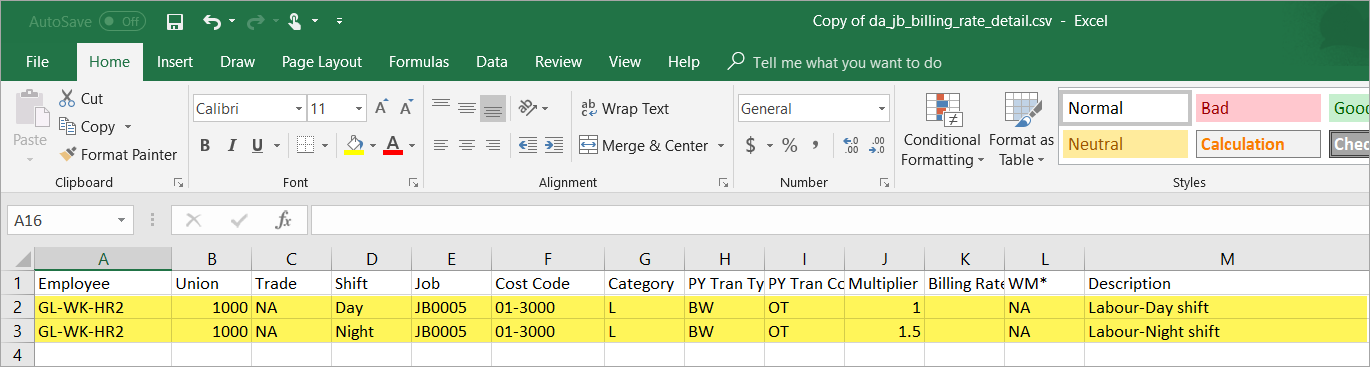
Sample of the template used to create import file for bill rate/subrate details.
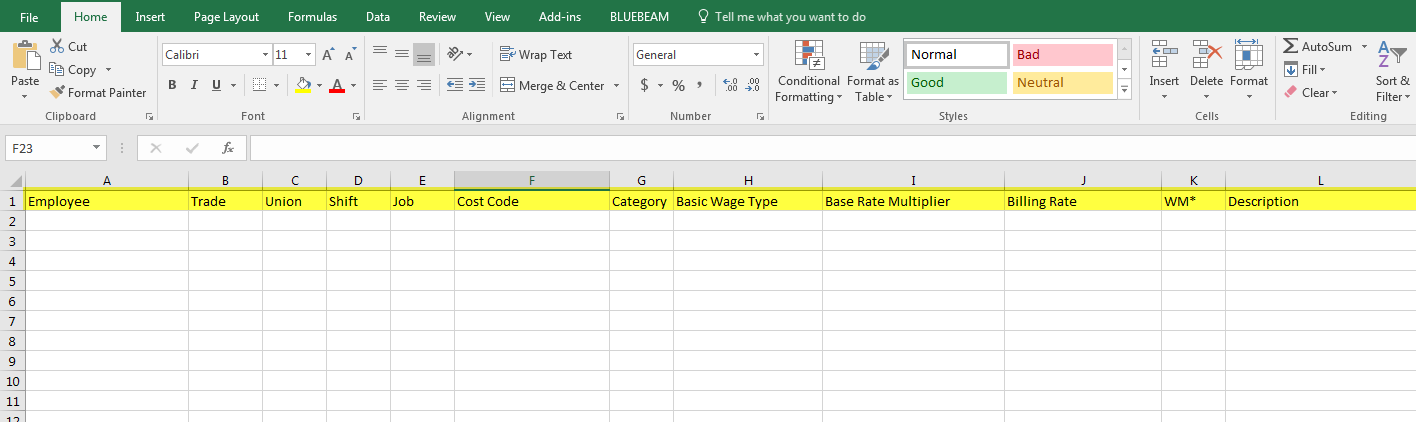
Sample of the import file of bill rate/subrate details.