 Search Tips
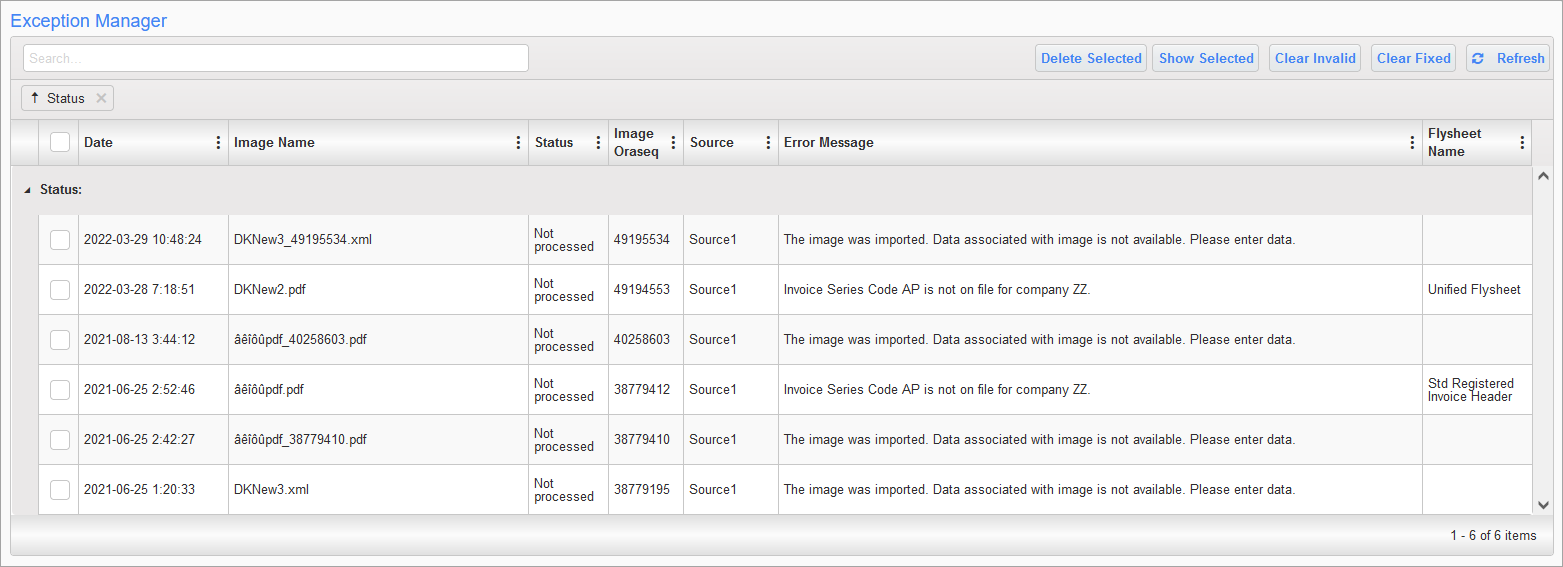
Exception Manager; standard Treeview path: Imaging > Exception Manager
This screen maintains errors thrown in the process of registering XML files and related images. Users can view the image that was uploaded and its associated error message. The Search bar can be used to search for specific keywords in the Image Name, Status, Image Oraseq, Source, Error Message, or Flysheet Name columns. Users can also check the box next to the images, or use the checkbox on the header row to select or deselect all images, then click the [Show Selected] button to view the image in Image Manager. The [Delete Selected] button deletes the selected image error from the Exception Manager screen.
[Clear Fixed] – Button
This button will remove records from the Img_reg table which are matched to images in the Img_documents table with a status of "Pending" or "Submitted".
[Clear Invalid] – Button
This button clears source invalid error messages when clicked. It will remove records which have IMGRI_IMGORASEQ = -1 or IMGRI_IMGORASEQ which does not have a record in the Img_documents table.
[Refresh] – Button
This button refreshes the Exception Manager screen.