 Search Tips
Requisitions
The Requisitions screen is used to log hiring requests as a way of beginning the hiring process. Positions being hired for can be set up in the Positions screen before being inherited here.
A requisition can also be copied to using the [Copy Requisition] button. This opens a duplicate requisition screen where the new requisition data can be edited.
General – Tab
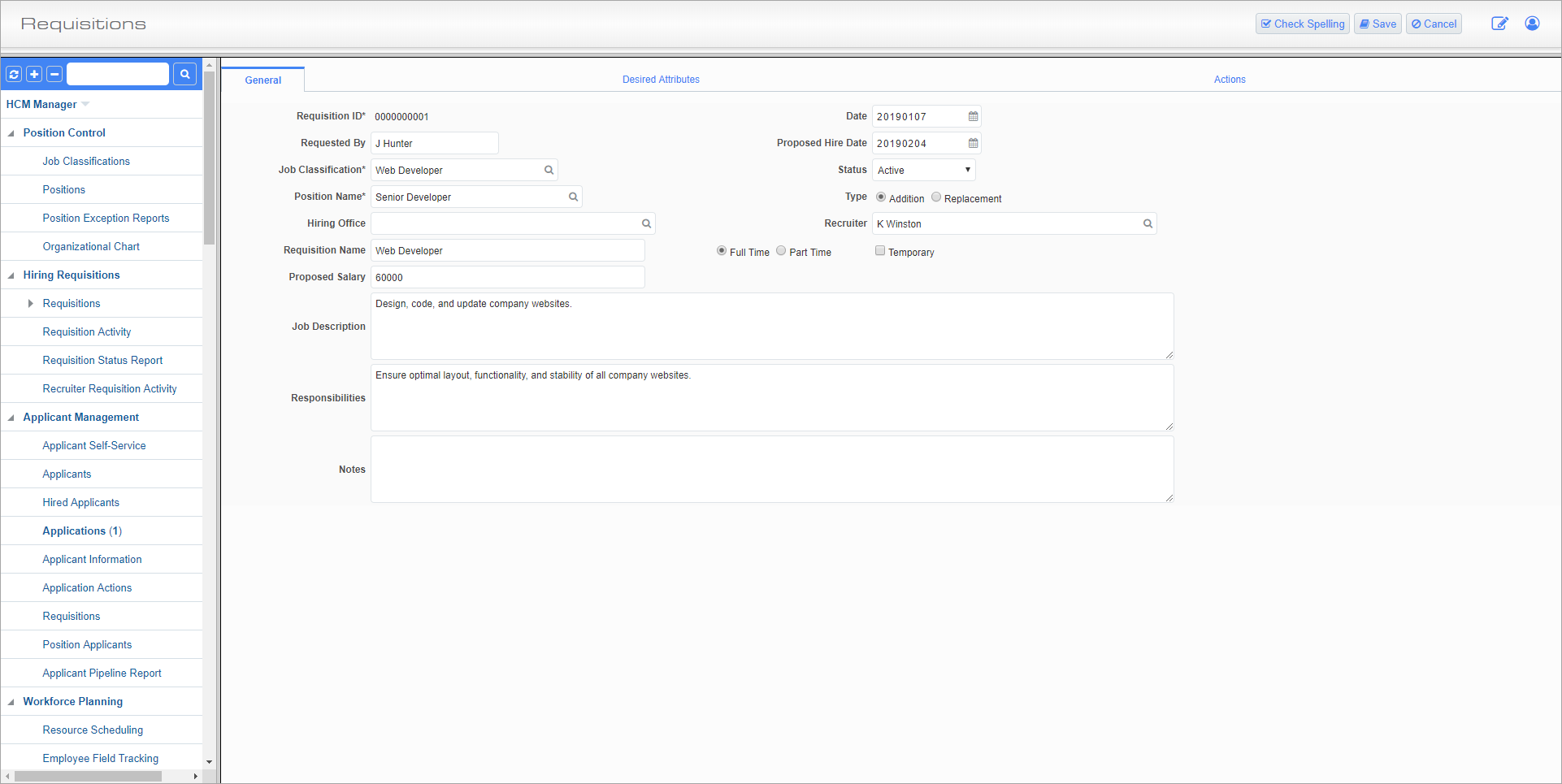
Requisitions; standard Treeview path: HCM > Hiring Requisitions > Requisitions – General tab
This screen allows the user to enter a requisition to the Human Resources department to begin the hiring process for a new or existing position.
Requisition ID
Enter the ID number for the requisition. It is possible to automatically generate Requisition IDs by checking the ‘JSP Requisition ID Auto Numbering’ box in System Options in Enterprise (standard Treeview path: System > Setup > System Options – Human Resource tab). Please note, that if this box is checked the generated ID number can’t be changed here.
Requested By
Enter the person or body responsible for the hire request being made for the position.
Job Classification
Enter/select the broader classification for the position. These codes can be set in the Job Classification screen.
Position Name
Enter/select the position for which the company is hiring. When a position is selected, there is the option to inherit that position’s values for the Requisition Name, Job Description, and Responsibilities fields.
Position codes can be set in the Positions screen.
Hiring Office
Enter/select the office making the hire.
Requisition Name, Job Description, Responsibilities
Enter the name of the requisition, along with the description of and responsibilities for the job. These values can be inherited when the Position Name field is filled.
Proposed Salary
Enter the proposed salary for the position in USD.
Date, Proposed Hire Date
Enter/select the date the requisition was made and the date on which the position is expected to be filled.
Status
Select the current status of the position from the drop-down list.
Type
Select whether the hire is an addition or a replacement for an existing position.
Recruiter
Enter/select the recruiter being used by the company to fill the position. Recruiter codes can be created in the HR Recruiters screen (standard Treeview path: File Maintenance > HR Recruiters).
Full Time/Part Time
Select whether the position is full or part time by clicking the relevant radio button.
Temporary – Checkbox
If the position being hired for is temporary, then check this box.
Notes
Enter any further notes about the requisition here.
Desired Attributes – Tab
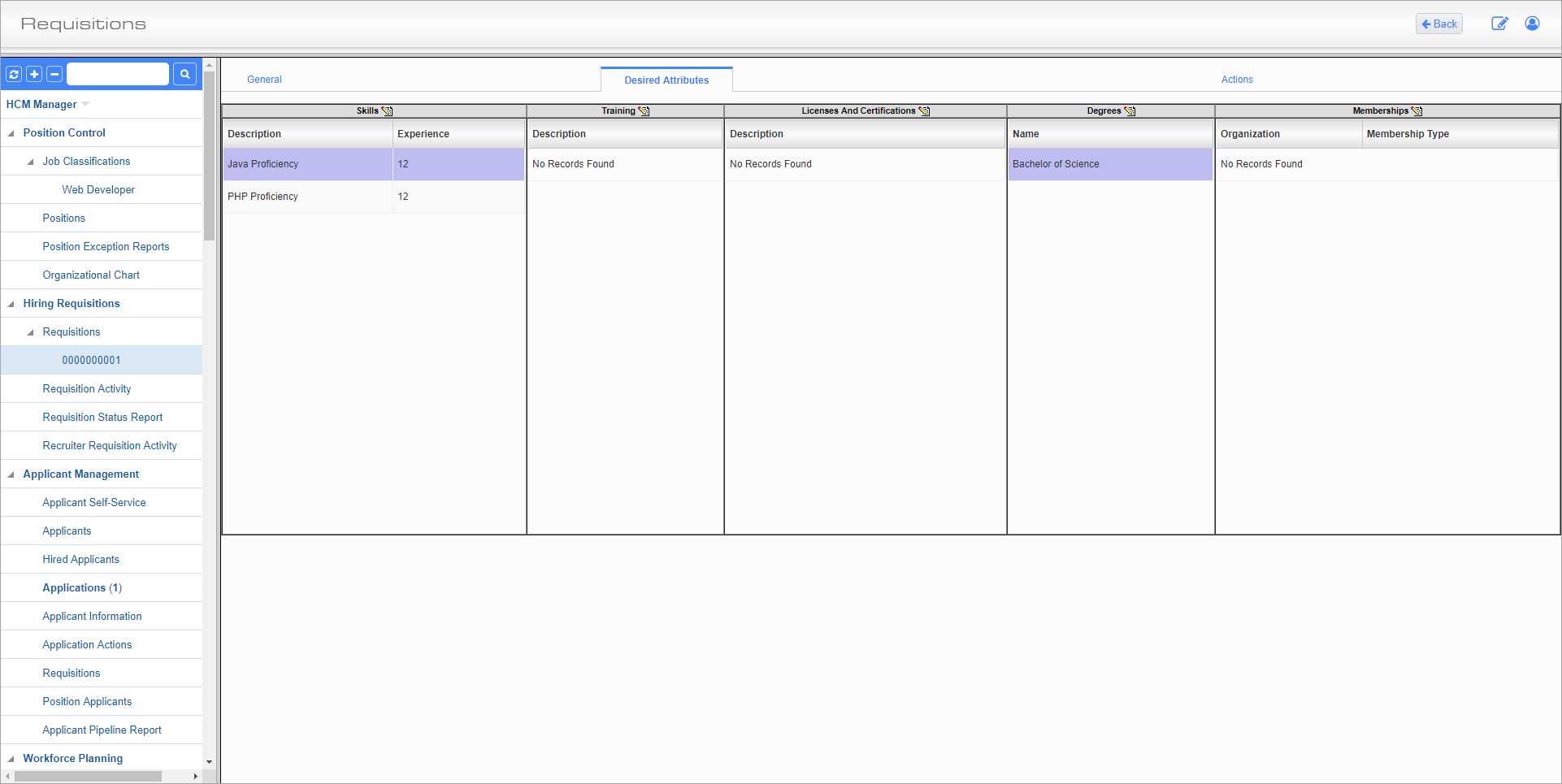
Requisitions; standard Treeview path: HCM > Hiring Requisitions > Requisitions – Desired Attributes tab
The values in this tab are inherited from the Desired Attributes tab on the Job Classification screen. Column values can be changed on this screen as desired.
Actions – Tab

Requisitions; standard Treeview path: HCM > Hiring Requisitions > Requisitions – Actions tab
The Actions tab displays a list of all changes made to the requisition and when they were made. New actions can be added to an item’s history by pressing the [Add] button.