 Search Tips
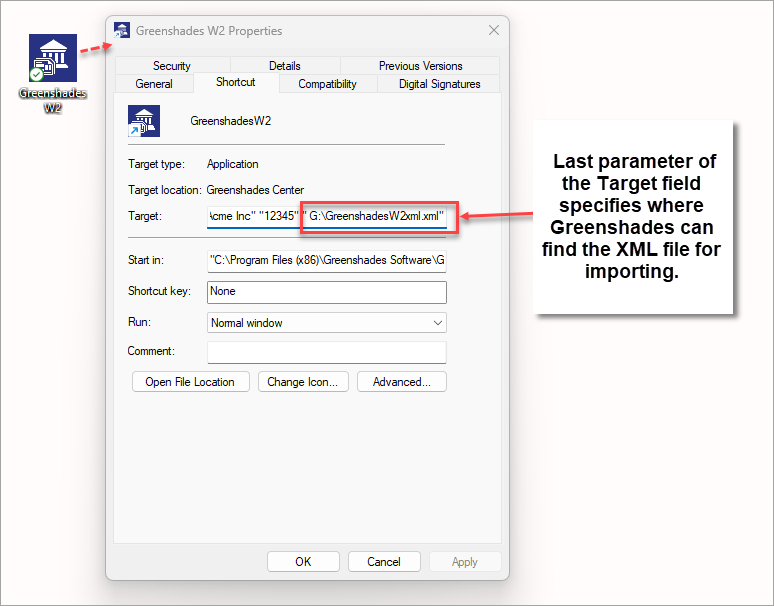
Properties of shortcut to launch Greenshades
In this step, a desktop shortcut is created and configured to launch Greenshades for a particular type of government report. For each data type being uploaded to Greenshades, a separate desktop icon should be created to specify where Greenshades can find the XML file exported by the CMiC Payroll system. For example, if Greenshades is being used for W-2, 1099, and SUTA tax data, then three different icons should be created for launching Greenshades, one for each data type.
To create and configure a new desktop icon to launch Greenshades, complete the following steps:
-
Right-click the Windows desktop area, select New, and then select Shortcut from the resultant sub-menu. If a Create Shortcut window pops up, click Browse and select the executable file GreenshadesCenter.exe from the following installation location:
C:\Program Files(x86)\Greenshades Software\Greenshades Center\GreenshadesCenter.exe -
Configure the newly created icon by right-clicking it and selecting the Properties option from the menu. In the icon’s Properties window, select the Shortcut tab, and for the Target field of that tab (shown in the screenshot above), enter the following information, including the quotation marks around each of the seven parameters (which are explained below):
Copy“C:\Program Files(x86)\Greenshades Software\Greenshades Center\GreenshadesCenter.exe” “cmic” “false” “<company name>” “<company name as registered with Greenshades>” “<company zip code>” “<path to export file from CMiC for uploading to Greenshades>”where
<path to export file from CMiC for uploading to Greenshades>: the XML file path exported by CMiC, for uploading to Greenshades for processing.
The path and file name must match what was entered in the previous step.
Example:
If running Greenshades to process W-2 tax data, with a company name of Acme, a registered name of Acme, Inc., a Zip Code of 12345, and an XML file path of G:\Greenshades\W2xml.xml, then the Target property of the desktop icon should be:
“C:\Program Files(x86)\Greenshades Software\Greenshades Center\GreenshadesCenter.exe” “cmic” “false” “Acme” “Acme, Inc.” “12345” “G:\Greenshades\W2xml.xml”The name of the Greenshades icon for the uploading of W-2 data should be named something like “Greenshades W2”, as shown in the screenshot above.
If the following step, Step 5, has already been completed, click the icon to launch Greenshades for a specific type of filing, and continue to Greenshades - Reporting via Greenshades.
NOTE: When launching Greenshades, users may receive an error message that they have insufficient permissions to run the application. To resolve this error, right click on the icon and select "Run as administrator". For more information, please visit Greenshades - Problem: Insufficient Permissions when launching the Tax Filing Center.