 Search Tips
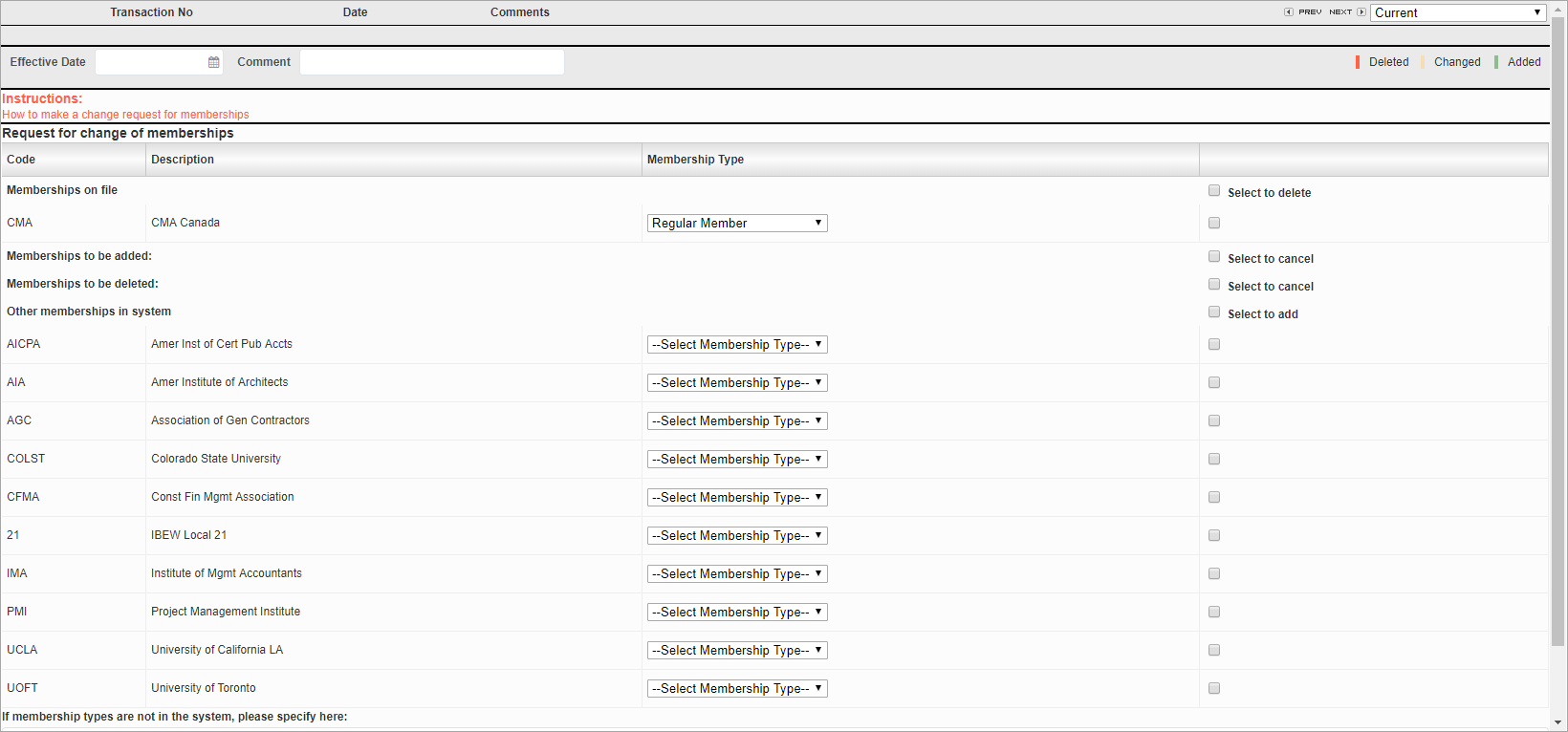
Memberships; standard Treeview path: Employee Self Service > Personal Information > Memberships
This screen is used to view and update the memberships held by employees. In each of the four sections documented below, the Membership Type field can be edited.
The memberships can also be updated in the Memberships screen (standard Treeview path: Human Resources > Personnel > Memberships).
Memberships On File – Section
This section displays the memberships that have already been added to the Employee Profile. Check the ‘Select to delete’ box to delete the membership when the [Submit] button is pressed.
Memberships To Be Added – Section
This section displays memberships to be added to the Employee Profile when the [Submit] button is pressed. These memberships then appear in the Educational Information On File section. Check the ‘Select to cancel’ box to cancel this action.
Memberships To Be Deleted – Section
This section displays the memberships to be deleted when the [Submit] button is pressed. Check the ‘Select to cancel’ box to cancel this action.
Other Memberships In System – Section
This section displays any other memberships which have been defined which do not appear into the first three sections. These can be added to the Employee Profile by checking the ‘Select to add’ box.
To create a request, enter the effective date and an optional comment. To add a membership, find it, select its membership type, and check its corresponding ‘Select’ checkbox.
To delete a saved request, press the [Delete] button. To submit the request, press the [Submit] button.
If the ‘Membership Auto Approve’ box is checked in the Self Service Control Setup screen, the membership request is approved automatically and appears in the Auto Approved Request List screen with a submit status of “A”. If the box is not checked, the memberships request is not automatically approved and appears in the Personal Information Change Request Approval screen to be approved. It appears in the Auto Approved Request List screen with a submit status of “S”.
If the change request was rejected, the record with the same transaction number can be edited again.