 Search Tips
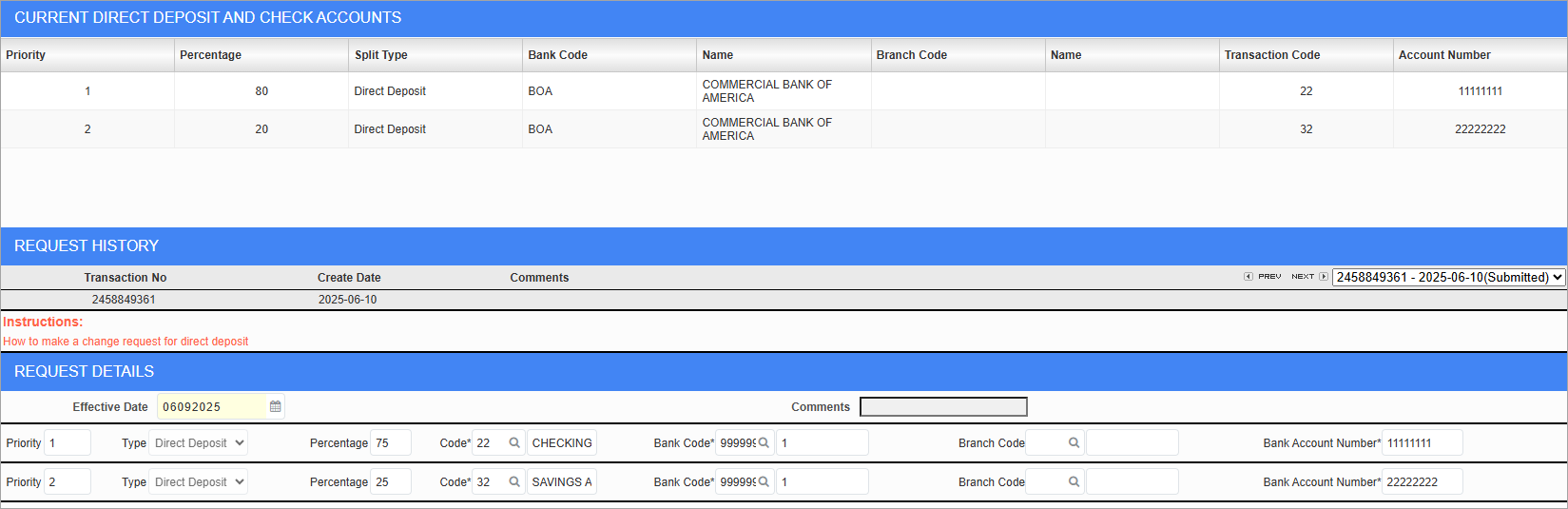
Direct Deposit Accounts; standard Treeview path: Employee Self-Service > Payment Administration > Direct Deposit Accounts
This screen can be used to enter and update employee direct deposit account details. To make a change request, enter the effective date, then click the blue Add icon ( ) to add a new detail line.
Type
Select whether the account is a direct deposit or a checking account.
Percentage
Enter the percentage of the total direct deposit to be sent to the requested account. The sum of all the Percentage fields for any one request must equal 100.
Bank Code, Branch Code, Bank Account Number
Enter/select the banking information for the requested account. Bank and branch codes can be set in the Banking sub-menu (standard Treeview path: System > Global Tables > Banking).
Once finished, click [Submit] to submit the requested changes for approval.
By clicking the Add icon (), the user can enter more direct deposit accounts.
NOTE: If one or more direct deposit accounts are on file with their Percentage fields equaling 100, adding an account will overwrite the old account details with the new account details.