 Search Tips
-
Create an Expense Entry
-
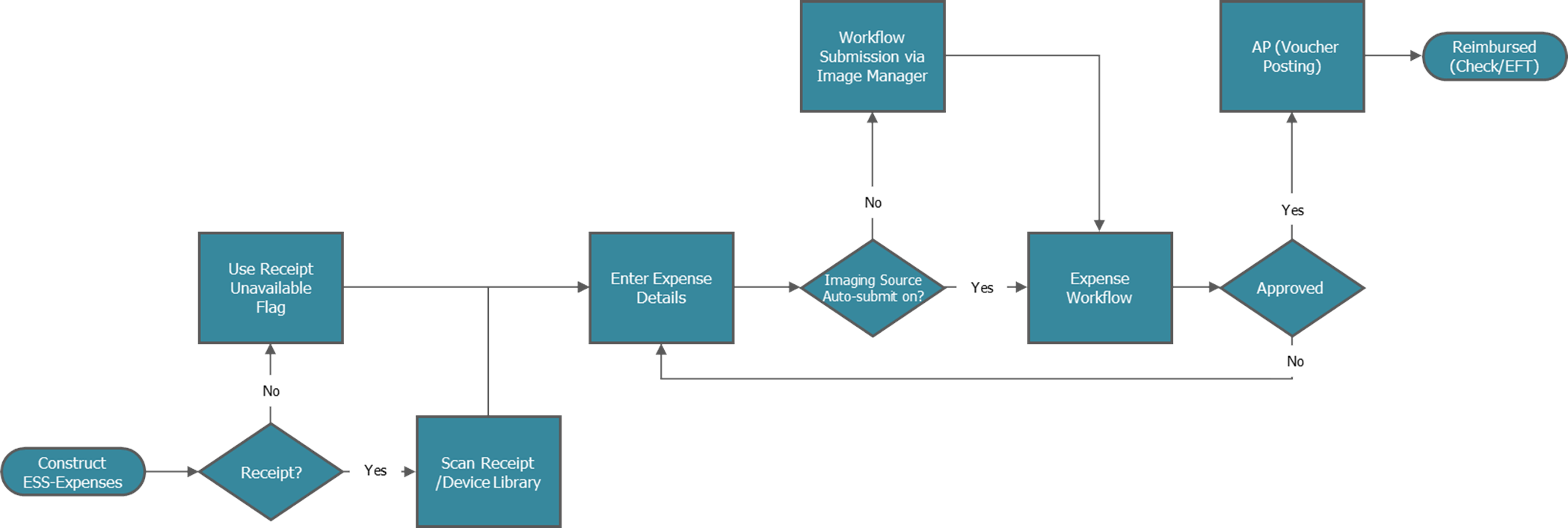
Navigate to the Expenses screen in the Construct ESS app.
-
Click Manual Expense to enter details.
-
-
Determine Receipt Availability
-
If the receipt is available, upload the receipt from the device.
-
If the receipt is missing, check the 'Receipt Unavailable' box.
-
-
Enter Expense Details
-
Fill in the required fields.
-
Attach a scanned receipt (if available).
-
-
Submit
-
If submitted, the expense moves directly to the Expense Workflow.
-
Otherwise, the expense remains as a draft within Construct ESS.
-
-
Approval Workflow
-
Once submitted, the expense enters the approval workflow:
-
If approved, it moves to AP Voucher Posting.
-
If rejected, it requires revision and resubmission.
-
-
AP Processing & Reimbursement
-
Approved expenses are processed in AP Voucher Posting.
-
Reimbursements are issued via Check or EFT (Electronic Funds Transfer).
-