 Search Tips
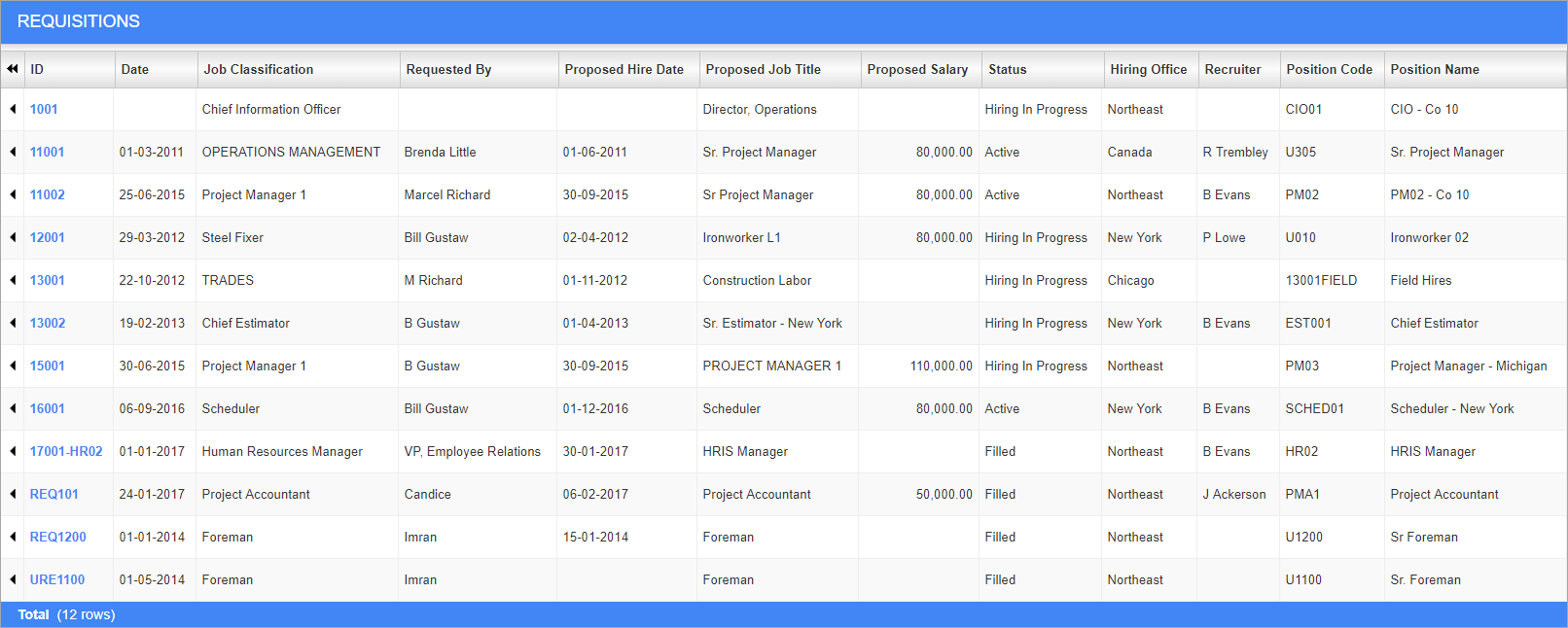
Enter Requisition; standard Treeview path: Employee Self Service > Recruiting > Enter Requisition
This screen can be used to enter and edit requisitions for new and existing positions previously set in the Human Capital Management module (standard Treeview path: Human Capital Management > Hiring Requisitions > Requisitions).
This screen opens in table mode, displaying all previously entered requisitions. To edit an existing requisition, click the corresponding blue link in the ID column. To add a new requisition, press the [Create Requisition] button.
[Create Requisition] – Button
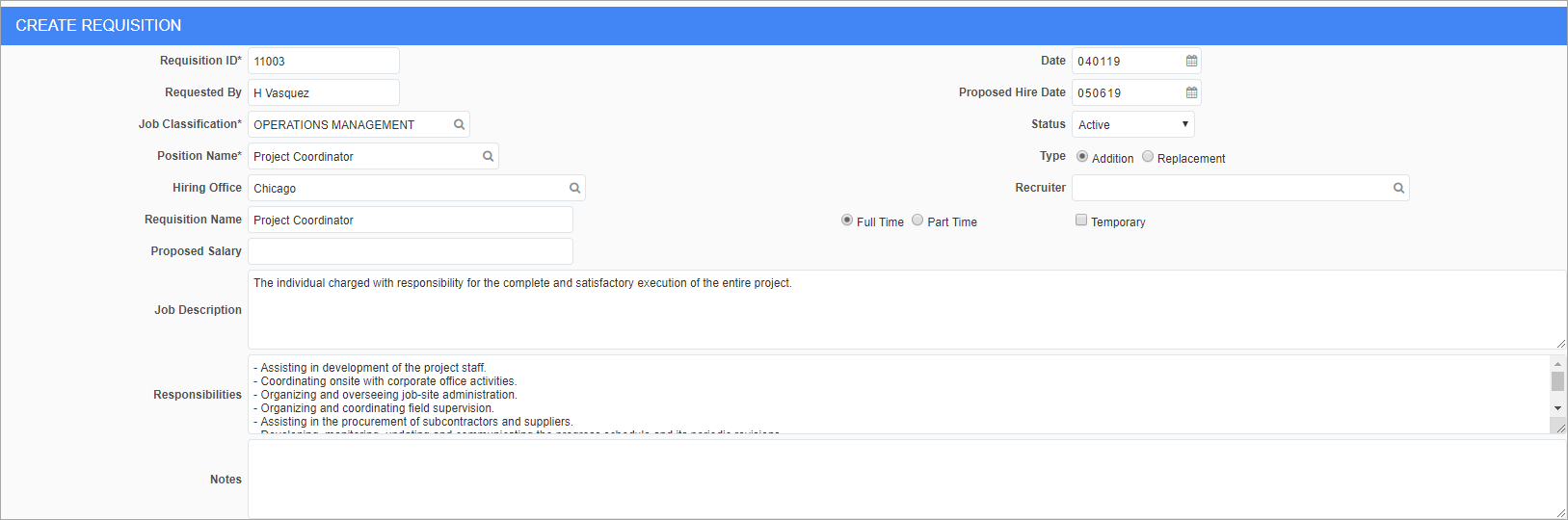
Create Requisition; standard Treeview path: Employee Self Service > Recruiting > Enter Requisition – [Create Requisition] button
Requisition ID
Enter the unique ID number for the requisition.
Requested By
Enter the name of the individual requesting the hire.
Job Classification
Enter/select the job classification under which the requested hire falls. These codes can be set in the Job Classifications screen (standard Treeview path: Human Capital Management > Position Control > Job Classifications).
Position Name
Enter/select the position being requested. When a code is selected in this field, a prompt will appear asking whether to default the values to the Requisition Name, Job Description, and Responsibilities fields defined in the Human Capital Management module.
Position codes can be set in the Positions screen (standard Treeview path: Human Capital Management > Position Control > Positions).
Hiring Office
Enter/select the location of the office making the hire. These codes can be set in the Geographical Area screen (standard Treeview path: Human Capital Management > File Maintenance > Geographical Area).
Requisition Name
Enter the name of the requisition. This can be defaulted from the value entered in the Position Name field.
Proposed Salary
Enter the proposed salary for the requested hire.
Job Description, Responsibilities
Enter the description and list of responsibilities for the job. These fields can be defaulted from the value entered in the Position Name field.
Date, Proposed Hire Date
Enter/select the date the request was made and the date the hire is expected to be made.
Status
Select whether the requisition is closed, active, pending, filled, or if the hire is in progress.
Type
Select whether the hire is a new addition, or a replacement hire for an existing position.
Recruiter
Enter/select the recruiter making the hire. These codes can be set in the HR Recruiters screen (standard Treeview path: Human Capital Management > File Maintenance > HR Recruiters).
Temporary – Checkbox
Check this box if the hire is for a temporary position.